

Modern eCommerce is all about interaction and personalization.
Static pages are outdated, widgets are in. They add functionality, enhance design, and make shopping seamless.
In this article, we’ll walk you through how to add widgets to Shopify like a pro.
What are Shopify Widgets for Websites?
Shopify widgets are essentially plug-and-play features for your online store.
They are customized code snippets that add new functionalities, like a countdown timer for a sale or a customer review carousel, without writing any code.
You’ll get a bunch of benefits from using them in your store.
- Make customers’ shopping experience more convenient without editing your store theme
- They are easy to set up and customize, hence reducing the dependency on any developer
- Widgets are not limited; there are plenty of Shopify widgets available in the market for you to explore and add to your store
Most Used Widgets in a Shopify Store (With Examples)
Explore some of the most commonly used widgets in Shopify stores, along with real examples, so you can understand how they work and why they matter.
WhatsApp Chat Widget
Main purpose: Adds chat functionality to your store
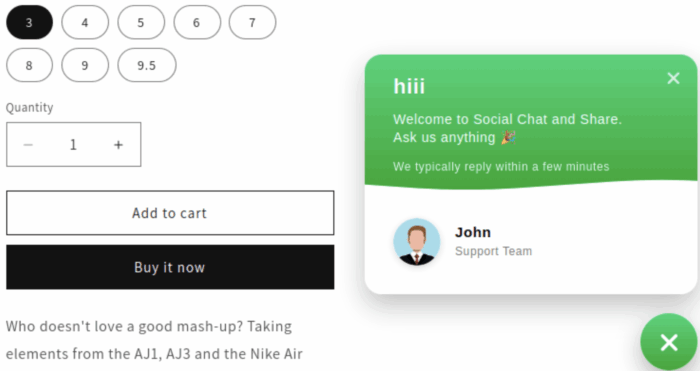
This widget provides a direct line of communication between you and your customers via WhatsApp. It appears as a floating, clickable icon on your store pages, one of the easiest ways to provide instant customer support and close sales faster.
Product Share Widget
Main purpose: Allows you to share product pages with your loved ones
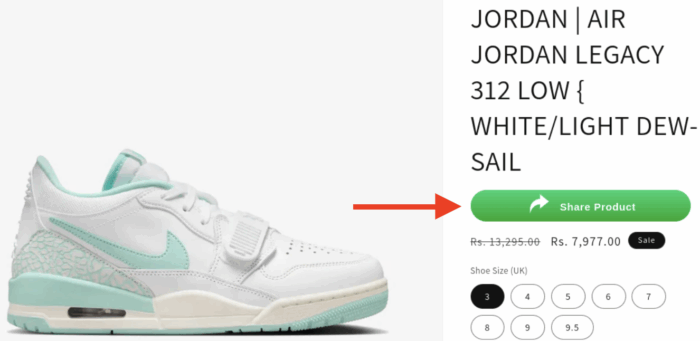
This widget allows customers to easily share a product page with their friends and family on social media or messaging platforms. It’s a simple method that leverages your customers to generate free traffic and word-of-mouth marketing.
Customer Review Widget
Main purpose: Showcase customer reviews for social proof
A customer review widget is essential for building trust and social proof. It collects, manages, and displays customer reviews and ratings directly on your product pages and homepage.

Direct Order Widget
This widget streamlines the ordering process by allowing customers to place an order or inquire about a product directly through a messaging app. This can be especially useful for custom orders or for brands that rely on personalized service.

Social Media Widget
Main purpose: Integrate social media into your store pages
This widget pulls content directly from your social media accounts and embeds it into your Shopify store. This keeps your site fresh and engaging while also cross-promoting your social channels and showcasing user-generated content.

How to Add Different Widgets in Shopify?
Adding widgets to a Shopify store is easy using a Shopify app. While it might concern you with the number of different apps you will have to use to add different widgets to your store.
But we have a solution.
The MIT WhatsApp Widgets: 4 in 1 Shopify app is an all-in-one solution for integrating WhatsApp on your Shopify store. It is designed with prioritizing ease-of-use, simplifying communication, and providing better customer support by offering four robust widgets:
- WhatsApp chat widget
- Link share widget
- Product share widget
- Order on the WhatsApp widget
Each widget is fully customizable, responsive across different devices, allowing you to change the widget’s color, text, font style, and position.
Using the app to add a widget to your Shopify store is a simple process. Here, we will see the steps to add a WhatsApp share product widget.
Step 1: Install and Activate the App
On the app dashboard, click Share Product on WhatsApp.
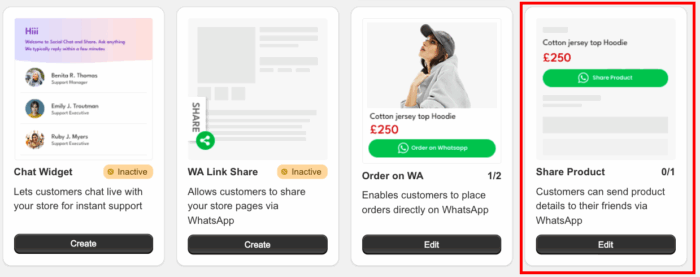
Set the status to Active.

Step 2: Customize the Widget’s Color and Icon
Choose a color for the widget title and background color. A live preview will show you the changes as you make them.
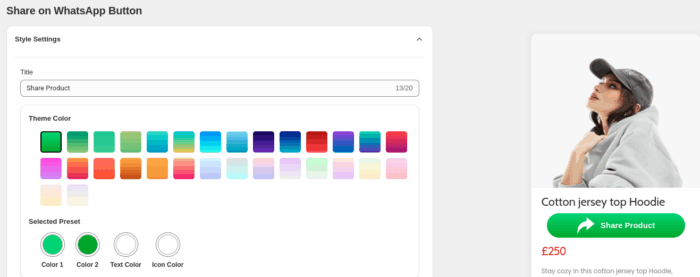
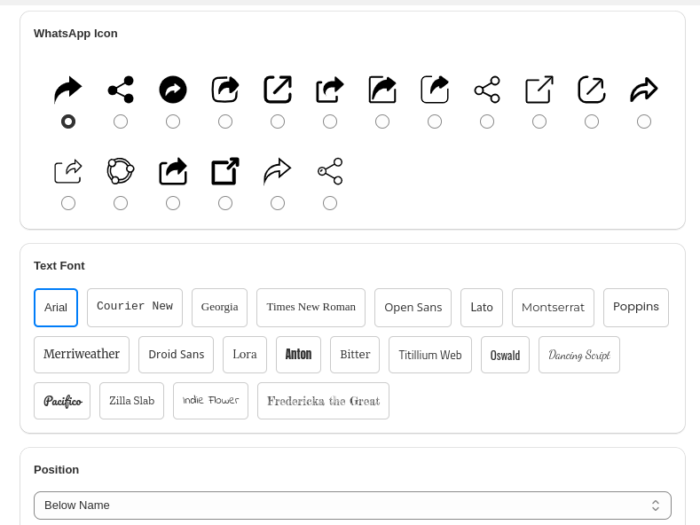
Customize the WhatsApp share product widget by selecting an icon, adjusting the text font style, and setting its position to either below price/name, or a custom location.
Step 3: Set Default Message & Display Condition
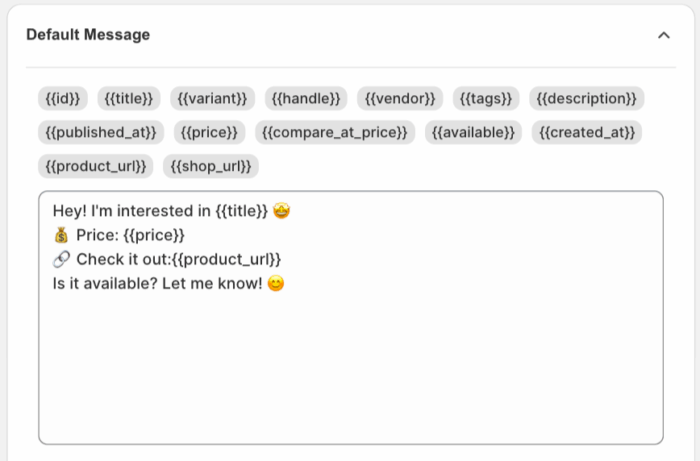
Write the message that will be automatically sent when a customer shares a product via WhatsApp.
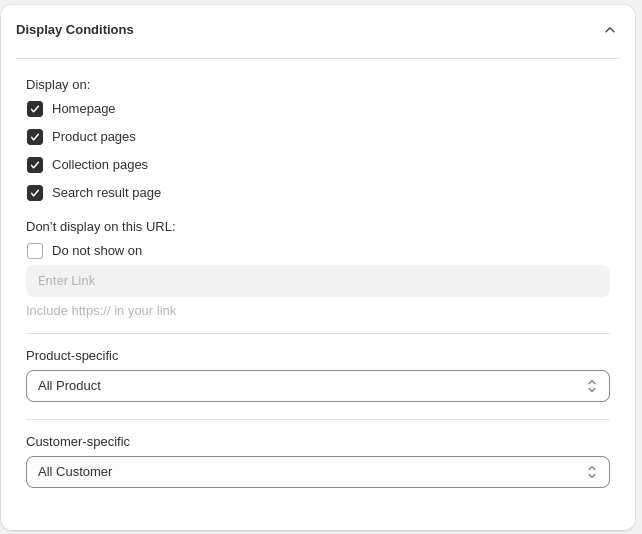
After setting the display conditions, select the specific pages where the widget should appear.
You can specify product-specific or customer-specific conditions for displaying the widget, or enter a URL to hide it on a particular page.
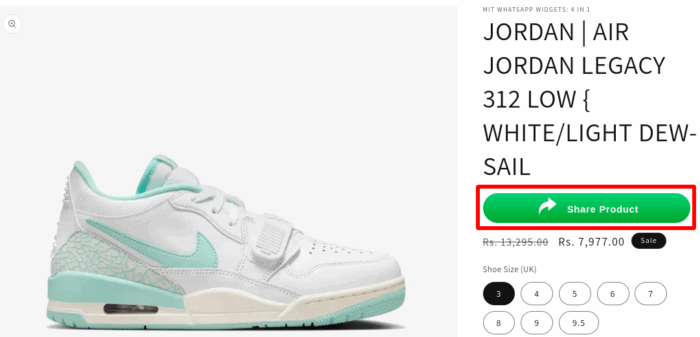
The widget is now created and will appear on your store. You can create multiple share buttons if needed.
And this is how it looks.
You can follow the above similar process to create other widgets.

Start Creating Customizable Shopify Widgets Today!
Adding Shopify widgets is the fastest way to boost its features and improve the customer experience. Instead of complex coding, simply use a dedicated app to add powerful tools instantly.
Don’t wait to transform your store’s customer engagement. Start creating widgets to unlock a new level of communication and sales efficiency.
