

It is always a good idea to streamline your branding all over your store. Be on your website or the emails you send your customers.
The default email templates in Magento are unexciting. But you can fix this by customizing them!
Learn here to customize email templates in Magento 2 and get actionable expert tips to enhance your brand consistency.
What are Email Templates?
Email templates are pre-designed and customizable layouts that you can edit and modify as you like.
Magento 2 offers many default email templates for email notifications, like:
- Change Email and Password
- Forgot Password
- New Invoice & order
- New shipment for guests
However, all these templates have the same structure, and you can make them engaging by modifying and personalizing them.
How to Customize Email Templates in Magento 2 Store?
You can change email templates in Magento 2 from your admin panel in two steps:
Step 1: Create a New Template
Follow these steps to create a custom email template in Magento 2:
Log in to your Magento 2 admin panel and navigate to Marketing > Communications > Email Templates.
Then click on the Add New Template button.
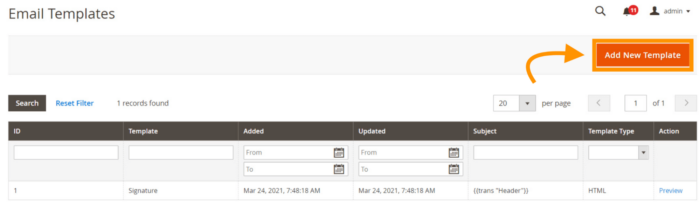
Then, select an email template and click on the Load Template button. Now, you will have to start filling in the Template information:
- Template Name: Give your new template a name.
- Template Subject: Add a subject line based on the template you are creating.
- Template Content: Customize the HTML content as you like here.
- Template Styles: Add the template style here, but this is an optional step.
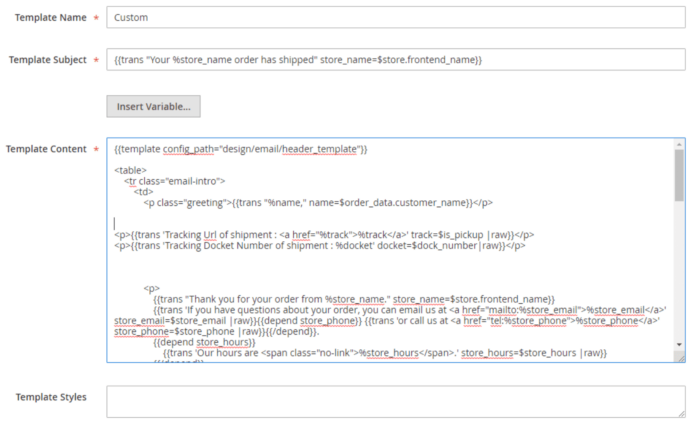
When you have finished filling in all the information, click on Save.
Step 2: Assign Email Template
After creating a new template, you must assign it to the store configurations.
To do this, navigate to Stores > Settings > Configuration and head to Sales Emails under the Sales tab.
Now select the template you have created from the dropdown and save the configuration.
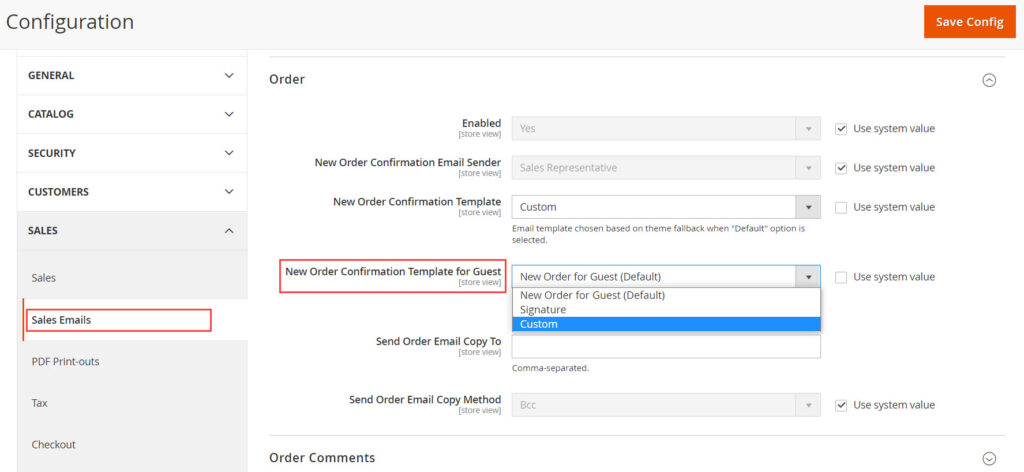
When you complete the above two steps, your email will be sent in the new email format you have set.
After these steps, one essential element to look for is the logo. If you plan to add a logo to your email or change your Magento 2 email logo, here are the steps to do so:
Head to Content > Design > Configuration and select the configuration scope. Then click on the Transactional Emails section and fill out the following details.
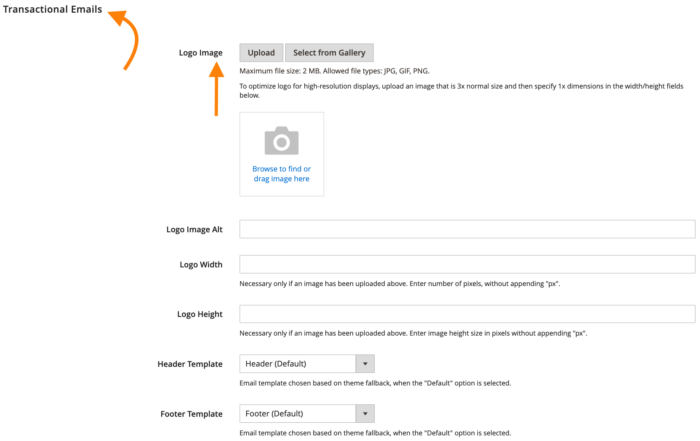
Lastly, end the process by clicking on Save Configuration.
How to Dynamically Add Variables to Email Templates in Magento 2?
In Magento 2 email templates, you can use variables to dynamically load information. They help create personalized emails.
You can add dynamic variables in the Template Content section using Syntax. Here are the common variables along with their syntax in Magento 2:
| Variable Name | Syntax |
|---|---|
| Customer Name | {{var customer.name}} |
| Customer Email | {{var customer.email}} |
| Your Store Name | {{var store.frontend_name}} |
| Your Store Phone Number | {{config path=”general/store_information/phone”}} |
| Base URL | {{config path=”web/unsecure/base_url”}} |
Expert Tips on Customizing Magento 2 Email Templates
Magento 2 email customization helps you improve communication with customers and reinforce branding. Here are some additional tips to follow:
- Include variables to in email templates for personalization
- Improve Conversion by adding order number to subject in order email
- Avoid using external CSS files to ensure a clean structure and better compatibility
- Check your email responsiveness on all devices
- Avoid using spammy words in your email, as it might hurt your delivery
Customizing email templates in Magento 2 is a good way to keep engaging with your customers, but you don’t want to limit the connection only to emails.
You can also leverage SMS notifications and even WhatsApp notifications, as these platforms are now users’ favorites for staying updated. Make the most of these channels and see your store engaged boost to the next level!
