

Apple Pay speeds up checkout, but in some cases, it clashes with regional payment strategies.
Learn here how to customize or hide the Apple Pay button in Shopify with built-in options for basic control, then cover a more flexible method.
Hide Apple Pay Button in Shopify Using an App
Use the MIT Payment Hider app to add logic and advanced payment conditions.
If you want to hide Apple Pay by country, product type, or order condition, this method works best for you. With this Shopify app to hide payments, you can hide Apple Pay when:
- A specific country or Shopify Market is active
- Certain products or collections are in the cart
- The order total meets a condition
- The store follows manual or COD-first workflows
This ensures Apple Pay appears only when it makes sense. Follow these 3 simple steps to hide or edit the payment option.
Step 1: Create a Simple Customization
Install the MIT Payment Hider Shopify app and enable it from your app list.
Then, navigate to the app dashboard and select Create Customization >Simple Customization.
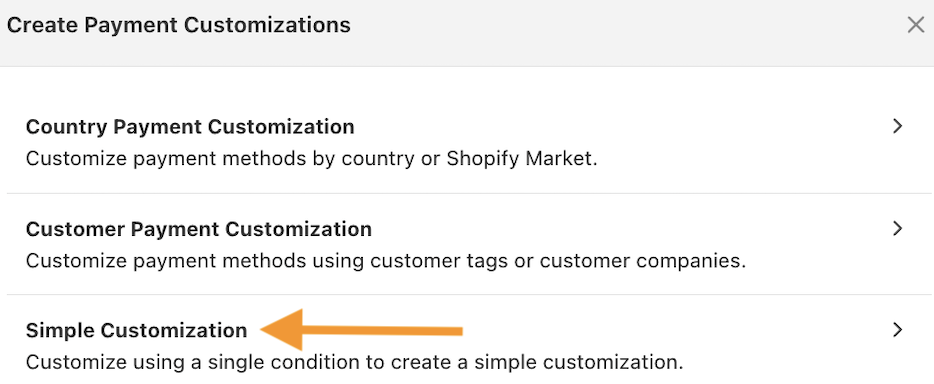
Step 2: Create a New Hide Rule
Set the customization logic to hide the Apple Pay payment option based on country, cart, customer, product, and more.
Then, scroll down to the payment list and look for Apple Pay. Click the X icon to remove the payment option or toggle the hide switch next to Apple Pay.
Additionally, you can use the pen icon to edit its name.
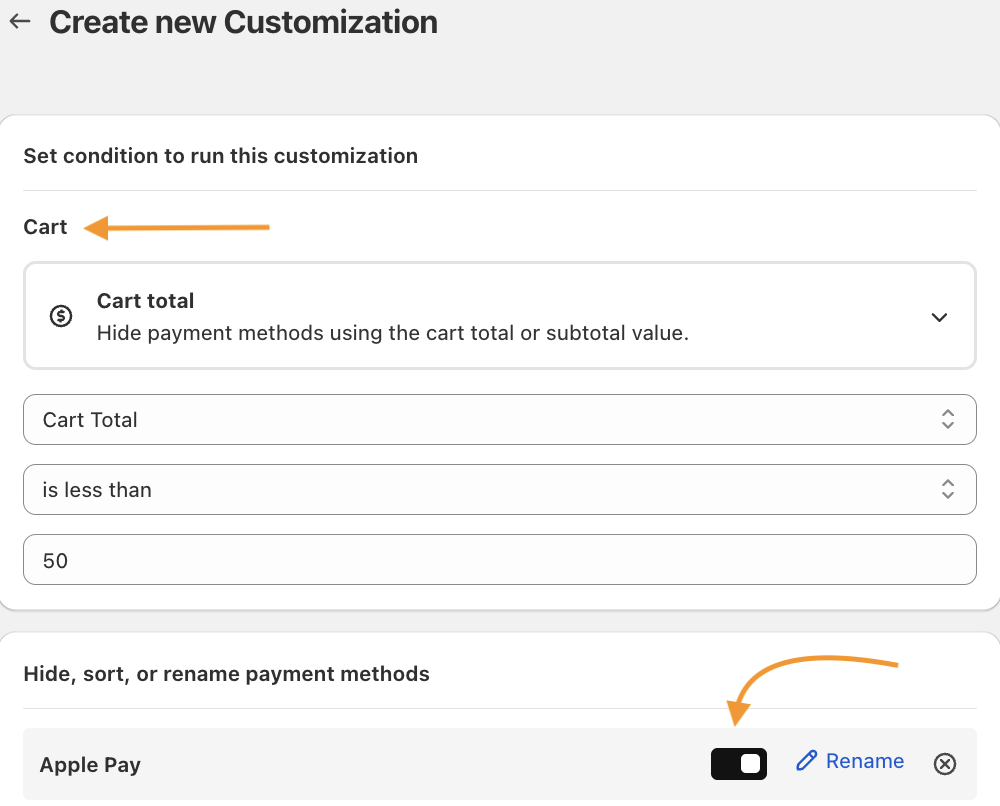
Step 3: Save and Test the Payment Option
Now, save the changes and check the payment option visibility at the checkouts.
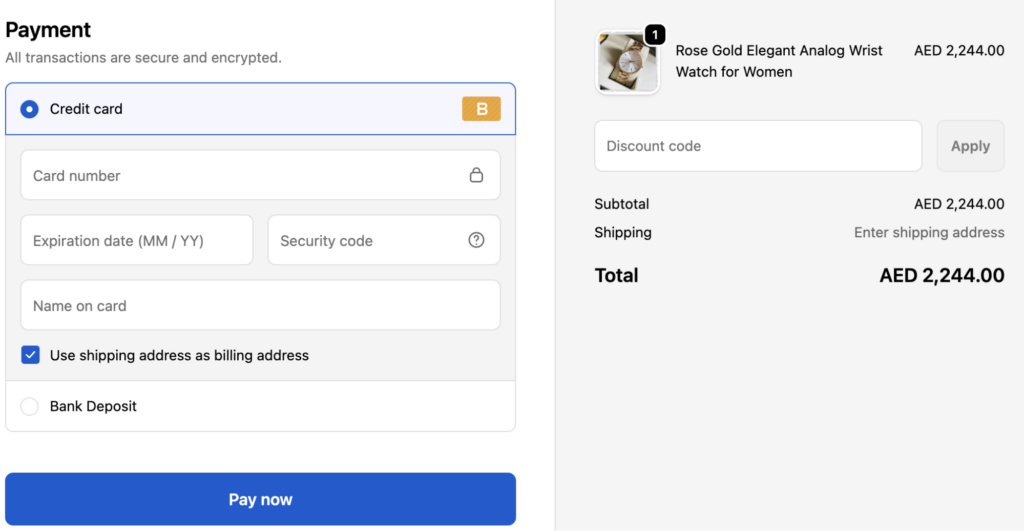
Without any checkout edits or maintenance overhead cost, hide Apple Pay in your Shopify store using the MIT Payment Hider app.
Hide, sort, and rename payment options in your Shopify store without editing the theme file.
Edit Now
Native Ways to Hide the Apple Pay Button in Shopify
Shopify offers surface-level control, not conditional logic, to disable Apple Pay from the Shopify admin. This is the most direct approach.
- Go to Settings > Payments
- Manage Shopify Payments
- Turn off Apple Pay
This disables Apple Pay from your entire store, leaving no room to customize it for specific products, markets, or customers.
Shopify-native methods work for basic visibility control, but they don’t allow conditional rules.
Summary
Apple Pay is a powerful checkout accelerator, but only when aligned with your store’s strategy.
Shopify allows basic Apple Pay visibility control, and advanced customization requires conditional logic.
Using the Shopify Payment Hider app lets you hide or manage Apple Pay intelligently without breaking checkout.
More ways to hide payment methods:
Hide, sort, and rename payment options in your Shopify store without editing the theme file.
Edit Now
