

Microsoft Power BI is one of the robust business intelligence and data analytics platforms. You can connect your online store to Power BI and build reports to get real-time insights about orders, top selling products, customer base, and more.
You can generate reports for your Magento 2 store like this:
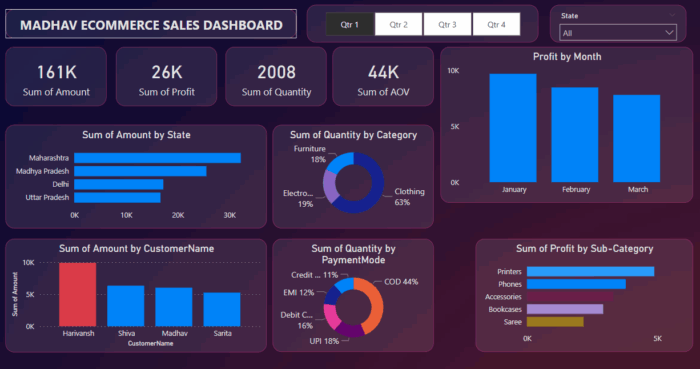
[Image credits: Pratyush nishchal on Kaggle]
It can also combine other data sources like Google Analytics 4 and Google Ads to build a single report to measure your business performance. In this guide, we explore different ways to connect Magento 2 to Power BI and explain an alternative method to ETL platforms.
Different Methods for Integration
In Power BI, there is no default connector for Magento 2 or Adobe Commerce platform. Therefore, you need to rely on third-party solutions or custom integrations, like:
- Connector Extension – You can use Meetanshi SQL Report Builder extension for Magento 2, which helps you easily connect store data with Power BI and other sources. The extension generates CSV/JSON datafeed URLs based on SQL queries, which you can use with Power BI as a data source. It also supports scheduled refreshes to keep the data in Power BI up to date without any manual steps.
- ETL Platforms – There are various online platforms that offer connectors for Magento 2 to Power BI. But, most of these require complex set up steps and are often charged on a monthly basis. Therefore, this option can turn out to be a costly one for businesses looking to automate their monthly reports.
- Custom Solution – If you’re a coder, you can build a custom data pipeline from your Magento 2 API to Power BI for integration. This requires really good knowledge of APIs and data handling with tools like Python. Also, there is an additional cost of hosting a server for the custom program.
In my opinion, the most feasible option to get your data from Magento 2 to Power BI is to use a native extension like Magento 2 SQL Report Builder.
Why Use Our SQL Report Builder for Integration?
The SQL Report Builder extension for Magento 2 offers everything you need to integrate Power BI to your Magento 2 store. In the extension, you can run and save SQL queries to build reports. The data of these reports can be accessed via a secret public URL in CSV / JSON format, which you can use to integrate with Power BI. Further, the extension also offers an option to auto-update data in these integration URLs to keep your reports up to date.
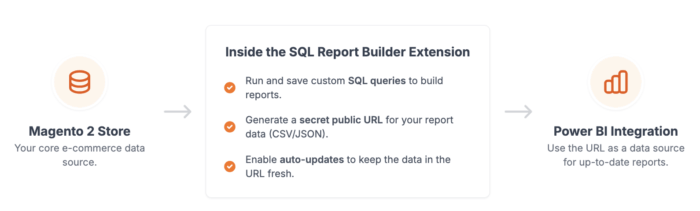
Therefore, the extension offers a bridge between your Magento 2 store and Power BI for integration. In addition to Power BI, you can use the extension to connect Magento 2 to Google Sheets and other destinations.
Magento 2 Power BI Integration Tutorial Using SQL Report Builder
Install the Meetanshi SQL Report Builder extension (free demo available!) in your store. Once the extension is installed, you can use it to connect with Power BI in a few easy steps:
Step 1: Create a Report
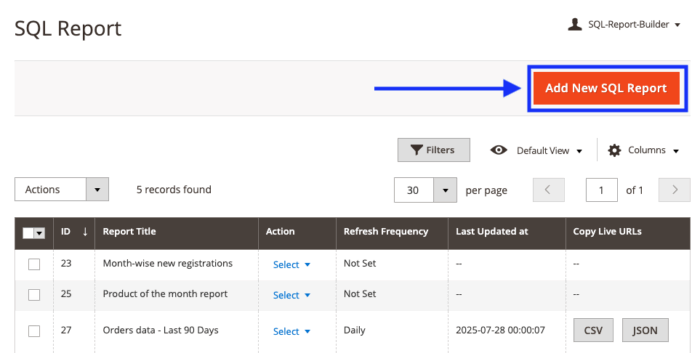
Go to SQL Report Builder > Manage SQL Reports, where you’ll get a list of pre-generated reports for your store. Click Add New SQL Report on the top right to create a new one.
Now, enter a title for the report (for e.g. Recent 30 Days Orders). Enable the report scheduling option to auto-update the data and choose the refresh frequency.
In the SQL Query field, enter a query to get the required data in Power BI. (If you’re not a technical person, you can take help from AI tools to generate this query.)
Then click the Execute SQL Query button.
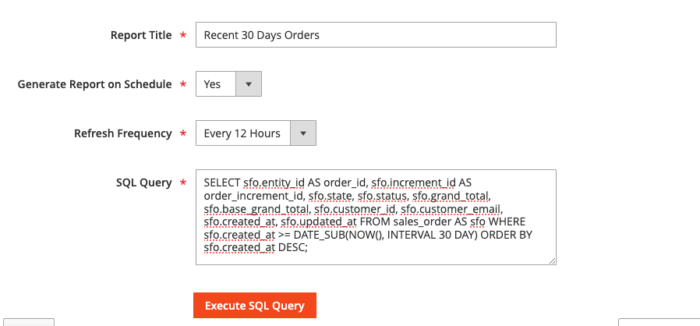
On a successful execution, you’ll get query results. Like the following:
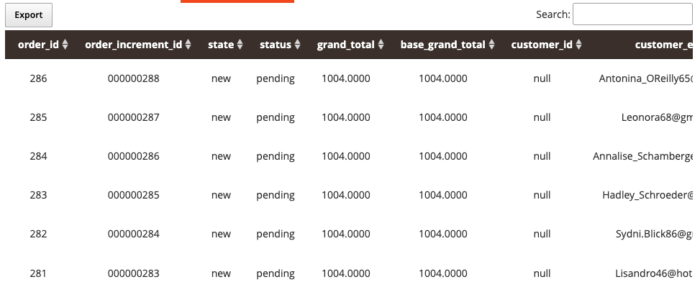
If everything looks good, save the report.
Step 2: Copy the CSV URL
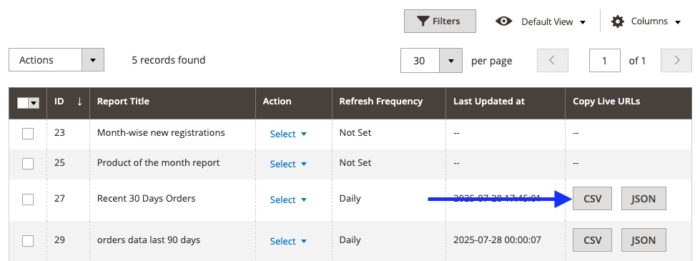
In the extension reports page, click the CSV button against the report name to copy its CSV URL.
Step 3: Load Data into Power BI
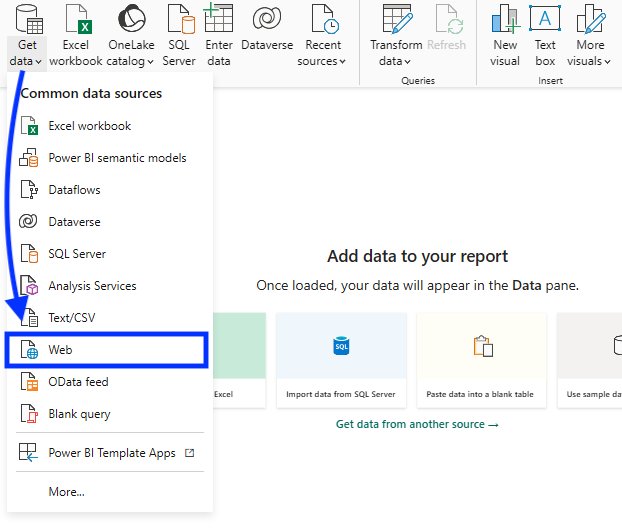
In Power BI Desktop, open the report and click Get data > Web.
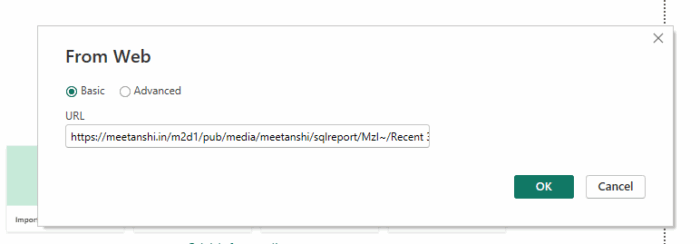
Now, paste the URL that you copied from the SQL Report Builder and click OK.
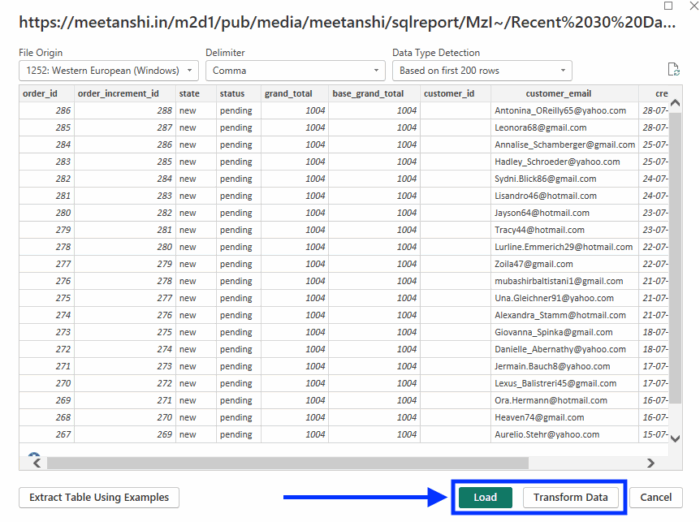
Once loaded, Power BI will display the report data in Power Query Editor.
Click Load to get the data in your Power BI report.
That’s it. You’ve successfully added Magento 2 data to Power BI, which you can use to build reports and visualize data.
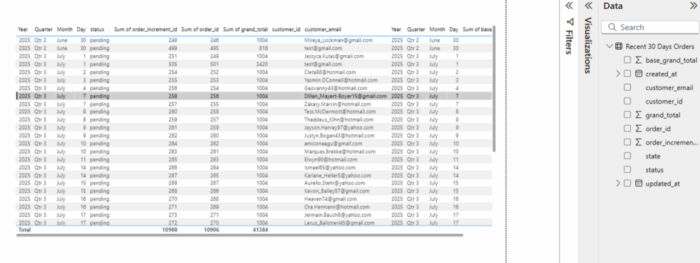
The best part of this Magento Power BI integration method is that you don’t require any coding experience. Also, there is no third-party platform involved — therefore no monthly recurring fees or charges. You can export almost any data you need using SQL queries from Magento 2 into Power BI.
Goodbye manual reporting forever; get our no-code solution to auto-update your data.
Get Now
Our Extension vs. Other Magento Power BI Connectors
There are many good-looking options available to connect Magento to Power BI for reporting. But remember: integration is a long-term job; not a one-time process. Therefore, it’s important to pick an option that is budget-friendly, flexible, and secure in the long term.
Here’s a simple comparison table to help you choose the right option for you:
| Aspect | Meetanshi SQL Report Builder | ETL Platforms | Custom Solution |
| Cost Model | One-Time Fee | Recurring Subscription | High Dev Cost + Hosting |
| Recurring Fees | No | Yes | Yes (Hosting/Maint.) |
| Effort & Skill | Low (No coding) | Medium (Platform setup) | Very High (Requires developers) |
| Setup Speed | Fast (Install & Go) | Moderate | Slow (Full dev cycle) |
| Data Control | High (Full SQL access) | Medium (Connector limits) | Total (Requires coding) |
| Data Privacy | Direct & Secure (No 3rd party) | Processed by 3rd Party | Self-Managed |
The Bottom Line: Our extension is the simplest, most cost-effective way to get full control over your Magento data in Power BI, without recurring fees or technical headaches.
Our expert service can also help you prepare live dashboards and reports in Power BI to analyze your e-commerce data.
Goodbye manual reporting forever; get our no-code solution to auto-update your data.
Get Now
