

Showing sold-out products can create a poor shopping experience if not managed properly. In this blog post, learn how to hide sold-out products in Shopify to avoid sold-out mishaps.
Steps to Hide Sold-out Products on Shopify – Easy Way
The easiest way to hide sold-out products on Shopify is using the Smart Collection condition. Shopify will automatically track your inventory and not show your product in any collection pages.
Here are the steps to set the condition.
Step 1: Check Track Quantity for Product
Go to Products and select a product from the list. Then, scroll down to the Inventory section and check the Track quantity.
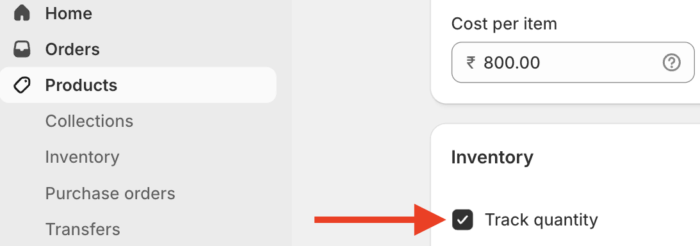
This allows Shopify to track the product inventory.
Step 2: Set Collection Conditions
Now, go to Collections > Click on the Collection.
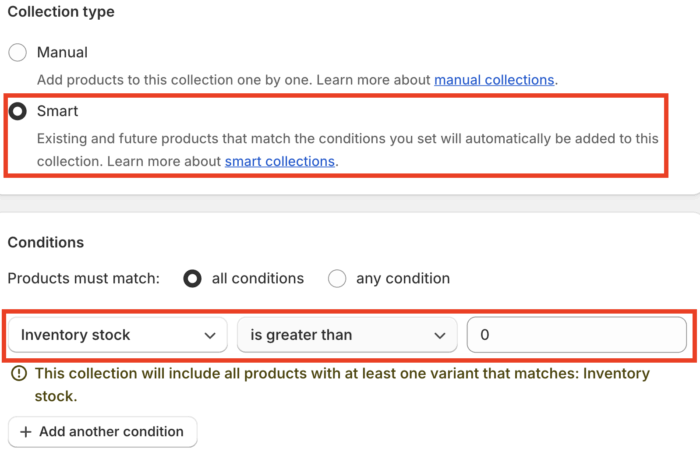
Navigate to Collection type. Choose Smart (Automated) and set the following condition.
- Select Products must match: all conditions
- Add a condition: Inventory stock is greater than 0
Step 3: Save the Changes and View Them
Go ahead and save the collection. This set conditions will ensure only products with available inventory (stock > 0) are included in the collection.
While this method hides the products from the collection, they will still be accessible on product pages. There is an option to remove the sold-out products from the sales channel, but it is not recommended to do so from an SEO point of view.
How to Hide Sold Out Items on Shopify: Other Options
Another way to hide out-of-stock products on Shopify is using the free Shopify Flow app or a paid third-party app from the Shopify App Store, which comes with automation and many advanced features.
Shopify Flow App
Using the free Shopify app, you will need to set a condition flow to hide products from a specific collection.
The purpose is the same as the steps we discovered above, but the method is different.
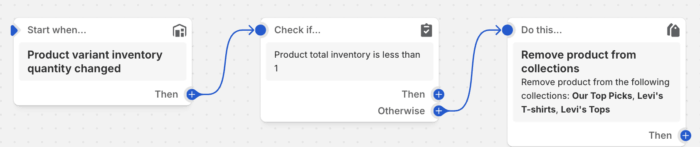
- Go to Apps > Shopify Flow >Create workflow.
- Select a trigger > Search and select Product variant inventory quantity changed.
- Click the + button > Select Condition > Click Add criteria.
- Select Product total inventory from the search bar and set condition is less than and enter the value 1.
- Then, under the IF block > + button > add an action.
- Search for and select Hide product from a collection (select your collections)
This should be your flow at the end of the process; when everything looks okay, click on “Turn on workflow.”
Paid Third-party Apps
Here are some best picks to help you out with stock hiding.
1. Wipeout Hide out of stock
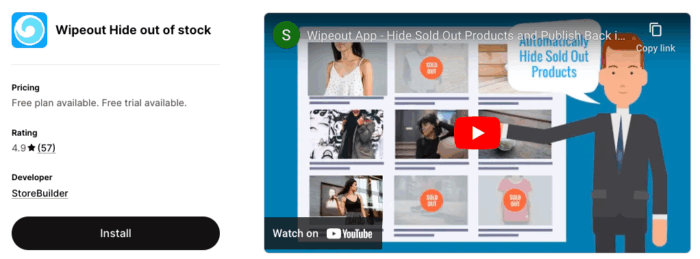
This Shopify app automatically hides sold-out products by scanning your store regularly and manages the store inventory without you having to worry about anything.
It publishes restock items and excludes products in bulk to save you time and increase conversion.
2. Hide Sold Out by Stock‑y‑phi
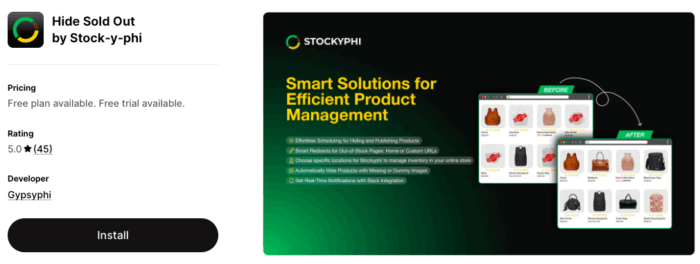
This app streamlines inventory in real-time with multiple location support, easily hides out-of-stock products along with missing or demo images, and publishes them back when available.
Sends real-time integration through email and Slack integration, it requires no technical knowledge, and smartly redirects out-of-stock pages to the home page
Importance of Hiding Sold Products
Hiding sold-out products can significantly improve customer experience and boost conversion rates. Here’s why you should hide sold out products in Shopify:
- Shoppers don’t waste time browsing unavailable items, hence improving the user experience
- Keeps your storefront tidy and organized, ultimately maintaining a clean catalog
- Prevents negative experiences due to unavailable products to reduce customer frustration
Hiding sold-out products in Shopify is an effective way to reduce customer frustration and keep your store looking neat and clean.
Whether you do it via a manual method or using a Shopify app, making sure unavailable products don’t clutter can boost sales, conversion, and strengthen your brand’s personality.
More resources:
