

Need to change a customer’s order after they’ve already placed it? Then, Shopify’s edit feature comes to your rescue.
It lets you modify an unfulfilled order directly from your admin panel.
This blog will cover how to edit orders in Shopify, helping you make the needed adjustments for an error-free experience.
List of Adjustments For Shopify Orders
You can make the following changes while editing your order from the Shopify admin:
- Add products or custom items to an order
- Adjust item quantities (increase or decrease)
- Add, adjust, or remove manual discounts on items
- Add a custom shipping fee to an order
- Remove a shipping fee from an order
- Update customer information and order notes
- Add order notes for internal use
- Adjust payment terms
How to Edit Orders via Shopify Admin?
Making changes to a customer’s order is a common task for any Shopify merchant.
This allows you to modify items, quantities, shipping details, and discounts directly, ensuring the order is accurate before fulfillment without the need for cancellation.
You will be using the Shopify Order Edit feature to make the needed changes in your order; here is the navigation for it.
Shopify Admin > Orders. Then, click the order that you want to make changes and click Edit.

Now, from here you can:
- Add or remove Items from a particular order
- Adjust the order shipping fees
- Include specific discounts on the order
Let’s see the steps how.
Edit/Remove Items from an Order
After clicking on edit. Firstly, you can remove products or add products as per your requirement.
- Click on × to remove the product
- Use the + Add product to include a product from a list
- Use + Add custom item manually
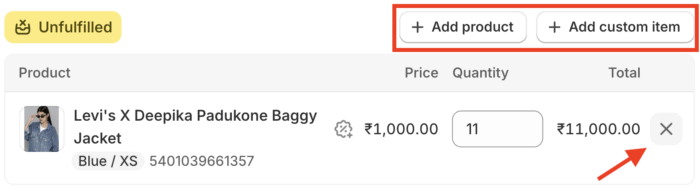
Let’s add a product here for example purposes.
- Click on + Add product
- Select the product from the list
- Click Done
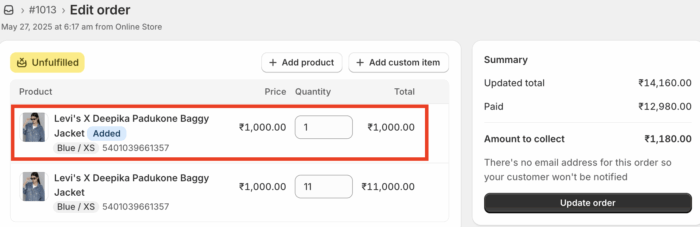
The added product will reflect above the previous order with a tag (added), and the total of the order will be updated in the Summary.
Edit Order Shipping Fees
Now, to add/edit/delete shipping fees to an item in an order, follow these steps.
From the same Edit dashboard in Order, scroll to the Payment section and click Edit shipping fees
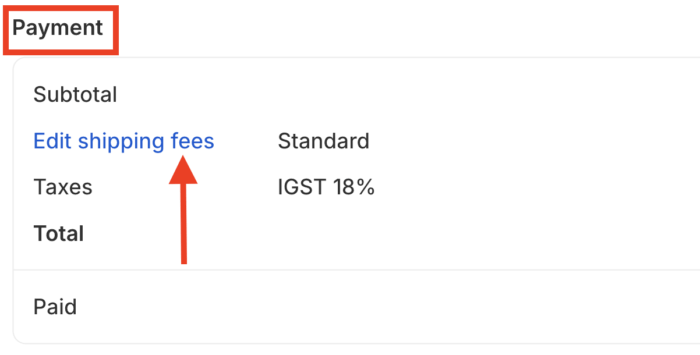
If your order doesn’t have a shipping fee, then click Add shipping fee
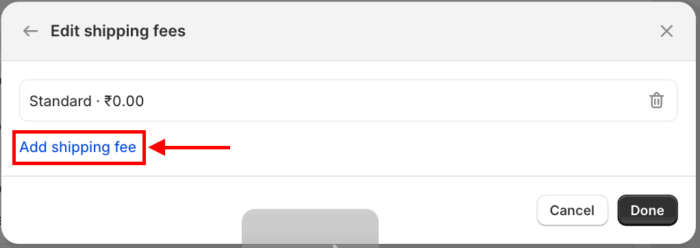
Enter a Title and a Cost for the shipping fee, and then click Done
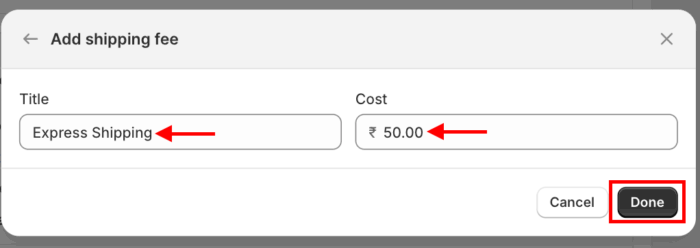
If your order already has a shipping fee, then you can make edits (use pen icon) or delete it (use trash icon).

Whatever shipping changes you make will reflect in the payment section breakdown.
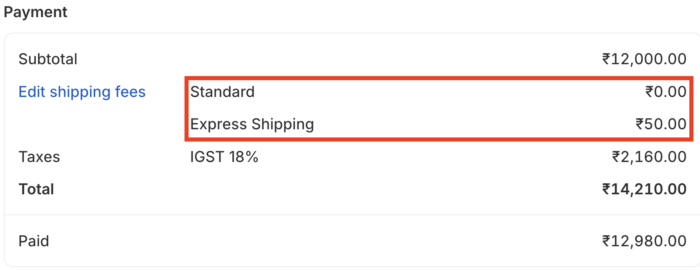
Edit Discounts on Order
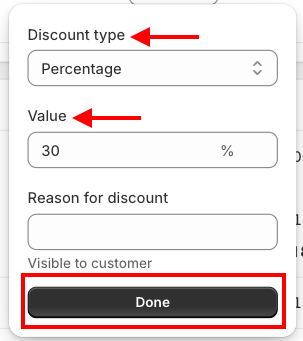
Here are the steps to add a discount to individual items in an order. On the Edit dashboard, click the discount icon.
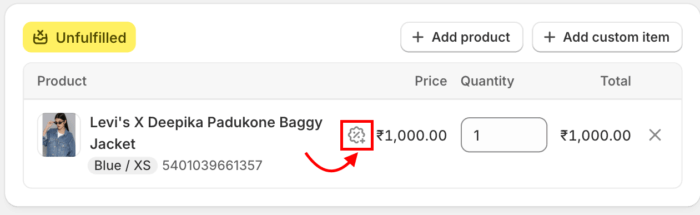
Then select a Discount type, set Value according to the selected discount type, and click Done
The discount will get reflected, and if you want to remove the discount, simply click on the × icon.
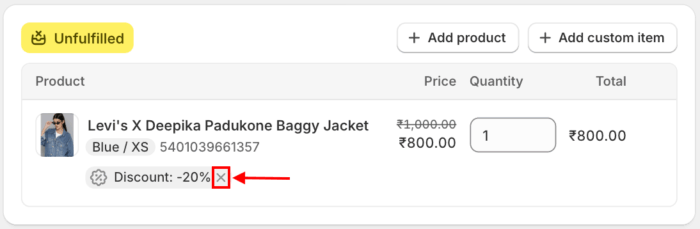
After you finish any type of order editing in your Shopify store, remember to review and update it to verify that it’s accurate.
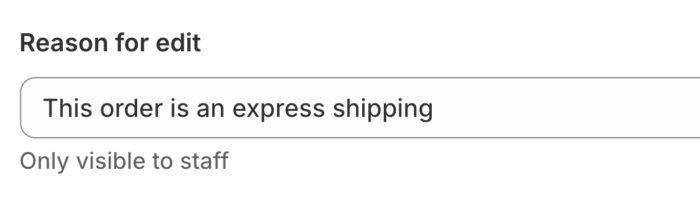
You can also include your reason for making this edit to help your team understand the changes. This reason will only be visible to your team.
Key Considerations Before Editing Orders
Before you edit a customer’s order, keep these important points in mind to ensure a smooth process.
| Pointers | Considerations |
| Fulfilled Orders | Fulfilled items cannot be removed or adjusted |
| Payments | Adjust payments to issue a refund or collect payment as per the update |
| Order reporting | Edited orders appear in different reporting |
| International currency | Edits are limited to some stores and can affect the used exchange rates |
| In-store pick orders | Can be edited before or after preparation, but only in the Shopify admin or app, not POS |
| Recalculate taxes and shipping fees | After editing, you must review and update the order total |
Your Orders Organized in Shopify
Being able to edit orders in Shopify is a vital skill for your store. By using Shopify’s built-in editing features, you can handle customer requests and correct mistakes.
Mastering this process is the way to keep your orders organized and your business running hassle-free.
