

Getting customers to add just one more item to their cart can feel like a constant battle. But if you could sell two, three, or even four items at once, almost easily? That is what a product bundle does.
By assembling complementary products and selling them as a single package, you make the shopping experience flawless and fun for your customer, while increasing revenue.
Here, I will teach you to create bundle products in Shopify, explore different types, and alternative options.
Let’s get started.
Eligibility Requirements to Use Product Bundles
In Shopify, to create a product bundle, you must match a few requirements:
- Must be currently using Online store sales channels or a custom storefront
- A dedicated bundles app is installed on your Shopify store
- An upgraded checkout experience, customization made using checkout.liquid is incompatible with product bundles
Different Bundle Types in Shopify
There are mainly three types of bundles available in Shopify for you:
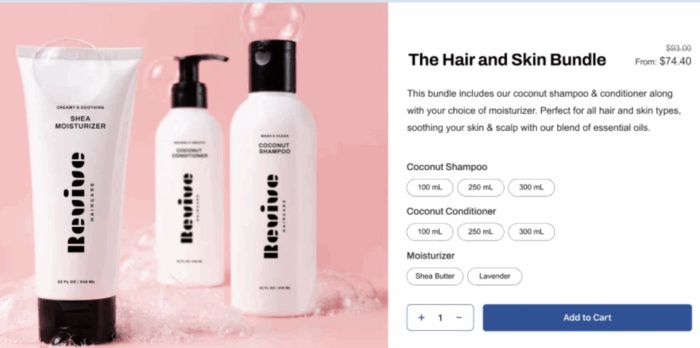
1. Fixed Bundle
A bundle crafted from a pre-selected set of products and related variants by merchants. This can only be purchased in a package, not individually, to get an offer, and cannot be customized by customers.
For example, a facial kit with 3 creams.
2. Multipack Bundle
Several identical items are packed and sold together as a single item. It is one of the most common and straightforward for bundling, often seen in retail and everyday goods.
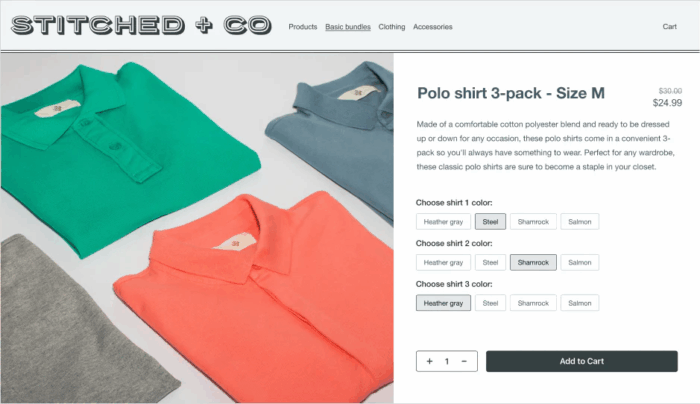
For example, a pack of 3 t-shirts in different colors.
3. Mix-and-match Bundle
In the mix-and-match type, customers have higher control over selecting a certain number of products from a pre-defined group to create their own custom bundle, often for a fixed price or a percentage discount.
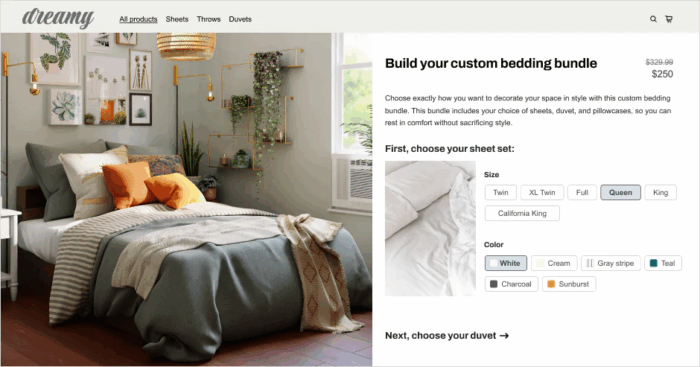
For example, these brands let you choose the bed sheet, duvet, and pillow covers.
Ways to Create Bundles in Shopify
There are two methods to do this, each with different plan requirements and complexity.
1. Using the Shopify App
This method is recommended and accessible for the vast majority of Shopify merchants. Shopify offers a free and code-free app — Shopify Bundles. You can install it from the Shopify store and manage it directly in your Shopify admin panel.
It is important to note that this app is ideal for creating fixed and multipack bundles. Additionally, you must be using the Online store as your primary sales channel and have an upgraded checkout enabled.
New and established stores alike that want a simple, easy-to-use, reliable, and cost-effective way to offer product bundles.
2. Shopify Scripts
This solution is for merchants with very specific and complex needs. Shopify scripts are only available for merchants with a Shopify Plus plan and are not recommended nor suitable for non-technical users.
Scripts are used to build dynamic logic that cannot be created using a Shopify app, such as a BOGO offer or a tiered discount based on customer tags.
Though Shopify scripts are being phased out in 2026 permanently, Merchants on Shopify Plus are being advised to migrate their custom logic to Shopify Functions, which is the platform’s modern and future-proof alternative.
How to Build Your Own Shopify Bundle? Easy Steps
This is the simple 4-step process to create a Shopify product bundle using an app.
- Step 1: Create Your First Bundle
- Step 2: Add the Bundle Settings
- Step 3: Edit the Shopify Product Page
- Step 4: Show the Shopify Bundle in the Frontend
Step 1: Create Your First Bundle
In order to create the bundle, you first need to install (free) the Shopify Bundles app from the Shopify Apps Store.

Then, navigate to Bundles and click “Create Bundle” to start.
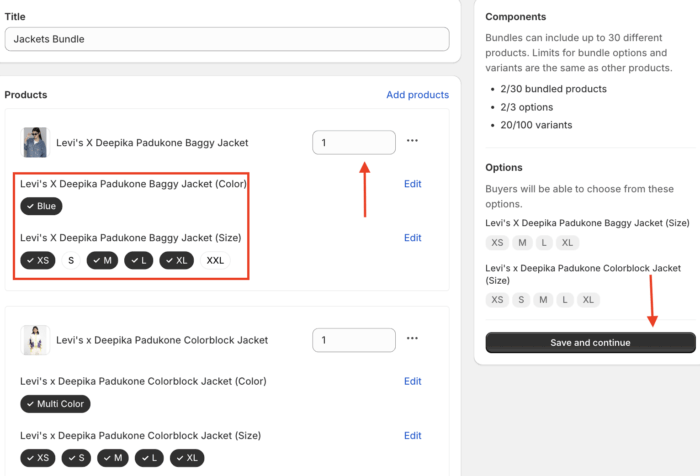
Add the title for your bundle. Then click Select products to select the products you want to include in your bundle (you can add up to 30 products).
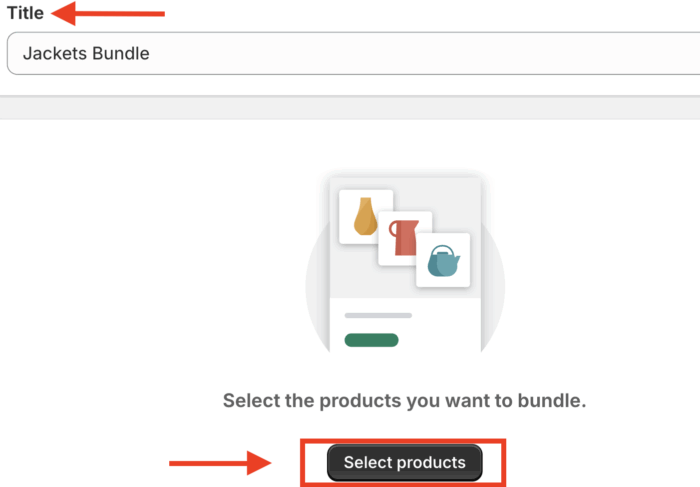
Here, we are creating a fixed bundle, so we will need to:
- set the product size
- set product color (if available)
- quantity for each product
Add in the details, and click Save and continue.
Step 2: Edit the Bundle Shopify Product Page
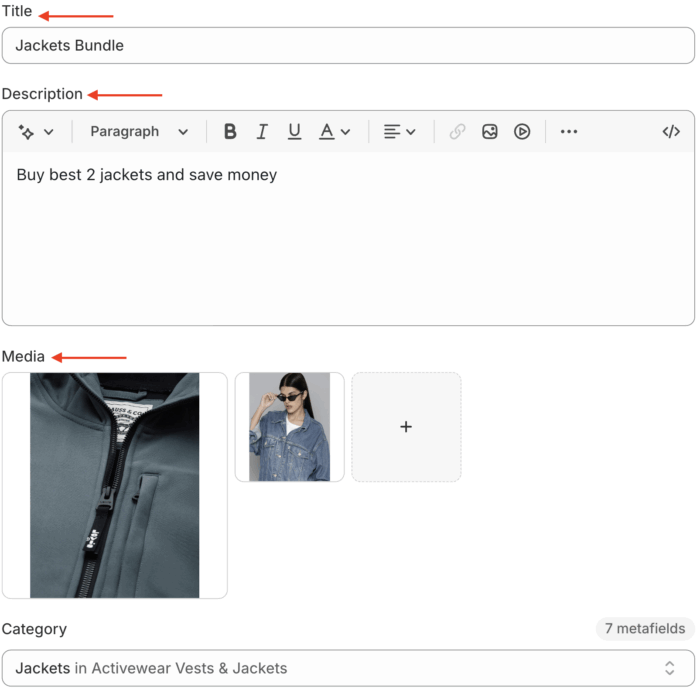
After clicking on Save and continue, you will land on the product page for that specific bundle. From here, you can set the parameters to display what you want to your customer.
- Description – Describe your products in detail to inform and market to your potential customers
- Media – Provide a visual demonstration of your product
- Category – It is a label that describes the group or class that a product belongs to
Scroll down to see your bundle listing. You can select to add variations and other settings, like:
- Category metafields
- Product metafields
- Search engine listing
From here, you can select the variants that you want to include in the bundle.
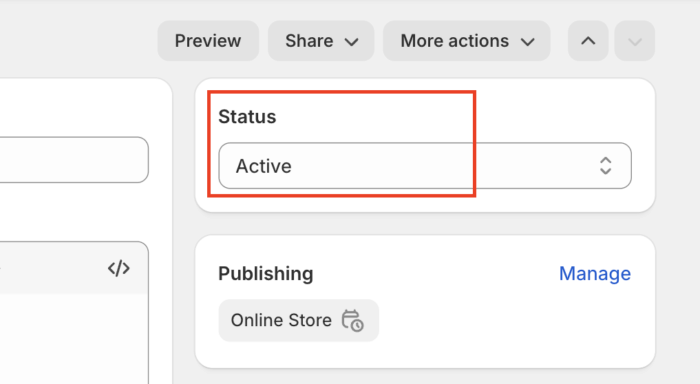
By default, the Publishing channel will be an Online Store. Keep it as it is. Set the status to Active and Save.
Step 3: Show the Shopify Bundle in the Frontend
Now, your product bundle will appear on the product page as configured.
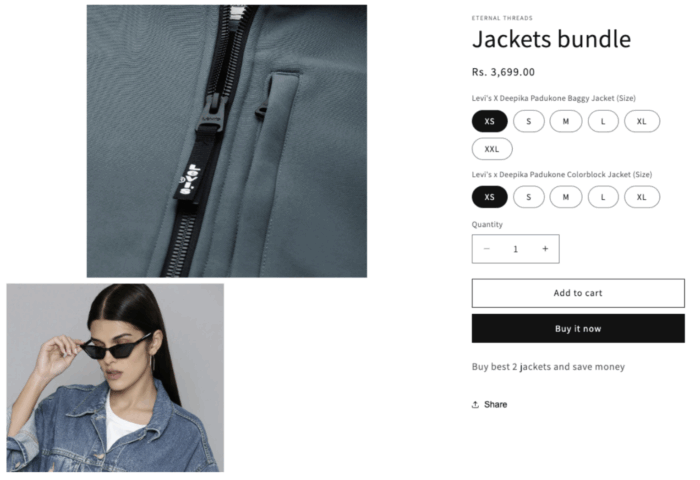
Shopify Product Page
If you want to include the same bundle in your collections as well. Then, follow this simple process.
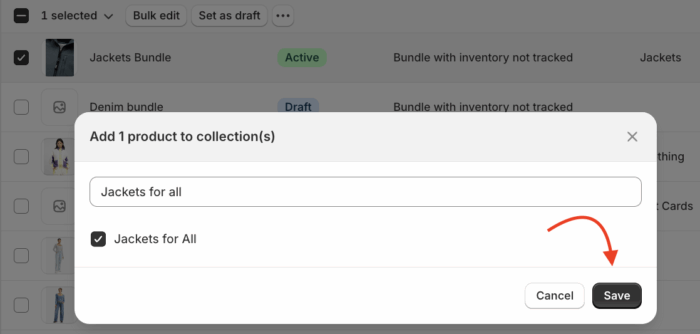
Head to Products> Select the Bundle> Click three dots (…) > Add to Collections. Click Save and finish the process.
This is how your product bundle will look on your collection page.
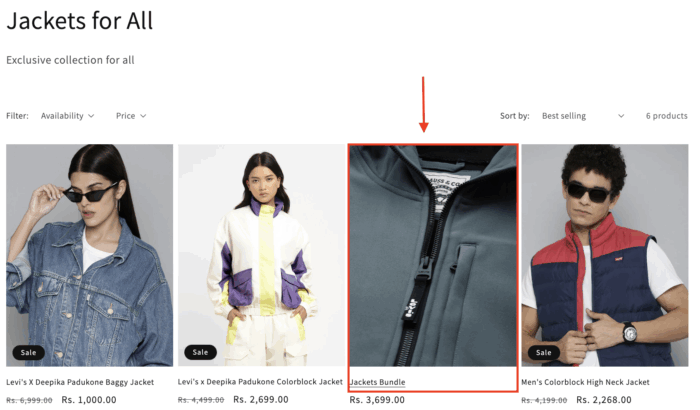
Shopify Collection Page
Alternate Options to Create Bundles in Shopify (Facebook & Other Marketplaces)
The free Shopify app is an excellent option if you want to create a fixed or multipack bundle.
One of the key drawbacks of his method is that bundles created with the app are often not fully compatible with other sales channels, such as social media marketplaces or third-party platforms.
This means that if you want to sell your bundles directly on social media channels like Facebook, Instagram, Google Shopping, or other marketplaces, the Shopify Bundles app may not be the correct option.
For merchants who rely on these marketplaces for sales, opting for a more advanced third-party app is necessary. These are designed to be compatible with a large number of sales channels.
Here are a few popular third-party apps that provide more advanced bundling features and broader marketplace compatibility:
- BOLD Bundles ‑ Product Bundles
- Amplify | Bundles & Upsell
- SB | Simple Bundles & Kit
- Bundler ‑ Product Bundles
Expert Tips to Manage Shopify Bundles
- Keep testing different types of bundles, don’t limit your store to basics, to check which one goes well with your customer and drives more sales
- Always clearly display the bundle price along with the individual items’ price to show exactly how much they are actually saving
- Smartly place slow-moving or overstocked products with the best sellers. This is an effective way to clear out old inventory
- Design bundles around specific holidays or themes, such as “New Year Cookie Package” or “Winter Skincare Kit”; these limited-time offers will create urgency and quickly boost sales
- As bundles are sold as a single product, it is important to have a clear, high-quality image that shows all the products included in the package
- Use the Shopify analytics to track the performance of your bundles. Monitor which bundles are selling best, which ones have the highest profit margins, and how they impact your AOV
The above-mentioned tips will definitely help you handle Shopify bundles and plan a strategy to make data-driven decisions
Start Selling More Now
So there you have it, a complete guide on how to create bundle products in Shopify.
Product bundling is a strategic win-win. Using these bundles, you can add a shop-the-look on Shopify offering high-value packages, you make the purchasing decision easier for customers, which in turn boosts your store’s average order value and revenue.
Happy bundling!
