PayPal Multi Currency for Magento - User Guide
Extension Installation
- Upload or copy all folders in the zip package to your Magento root folder. It doesn't overwrite any existing files but just adds new files to the folder structure.
- Once done, log in your Magento admin panel, go to System > Cache Management , select all caches and refresh.
- Navigate to System > Configuration , if you can see the extension tab, it is installed properly.
- If you get Access denied error, you need to log out admin panel and log in again.
Configuration
To configure the extension, log in to Magento backend, move to System > Configuration > PayPal Multi Currency where you can find various settings to configure the extension.
- PayPal Multi Currency: Enable the PayPal Multi Currency extension.

Base Currency Setup
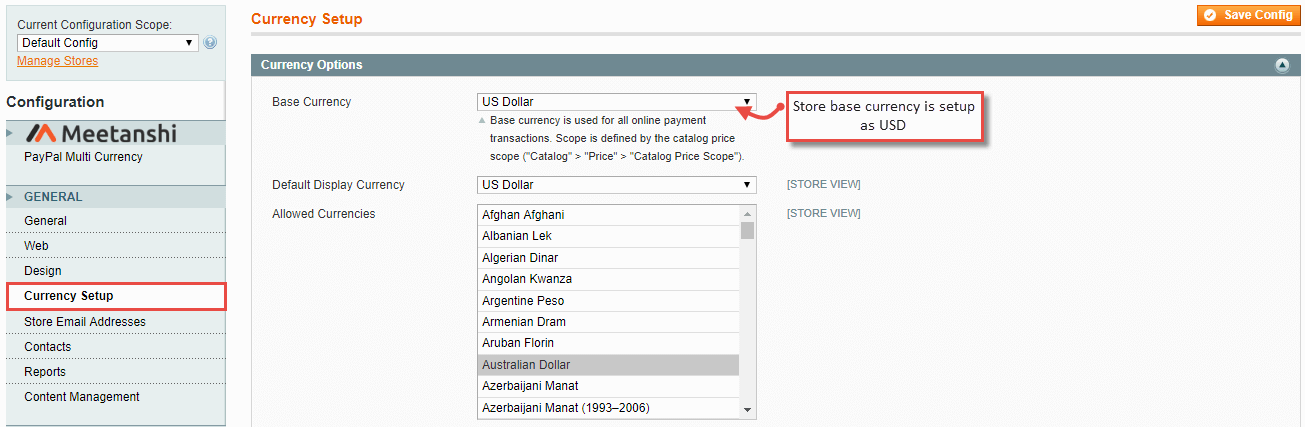
Default Magento requires to set up base currency to show products and services in the frontend. The figure shows the set Magento store base currency for example.
- Base Currency: Setup store base currency, here it is set up as USD.
PayPal Multi Currency in frontend
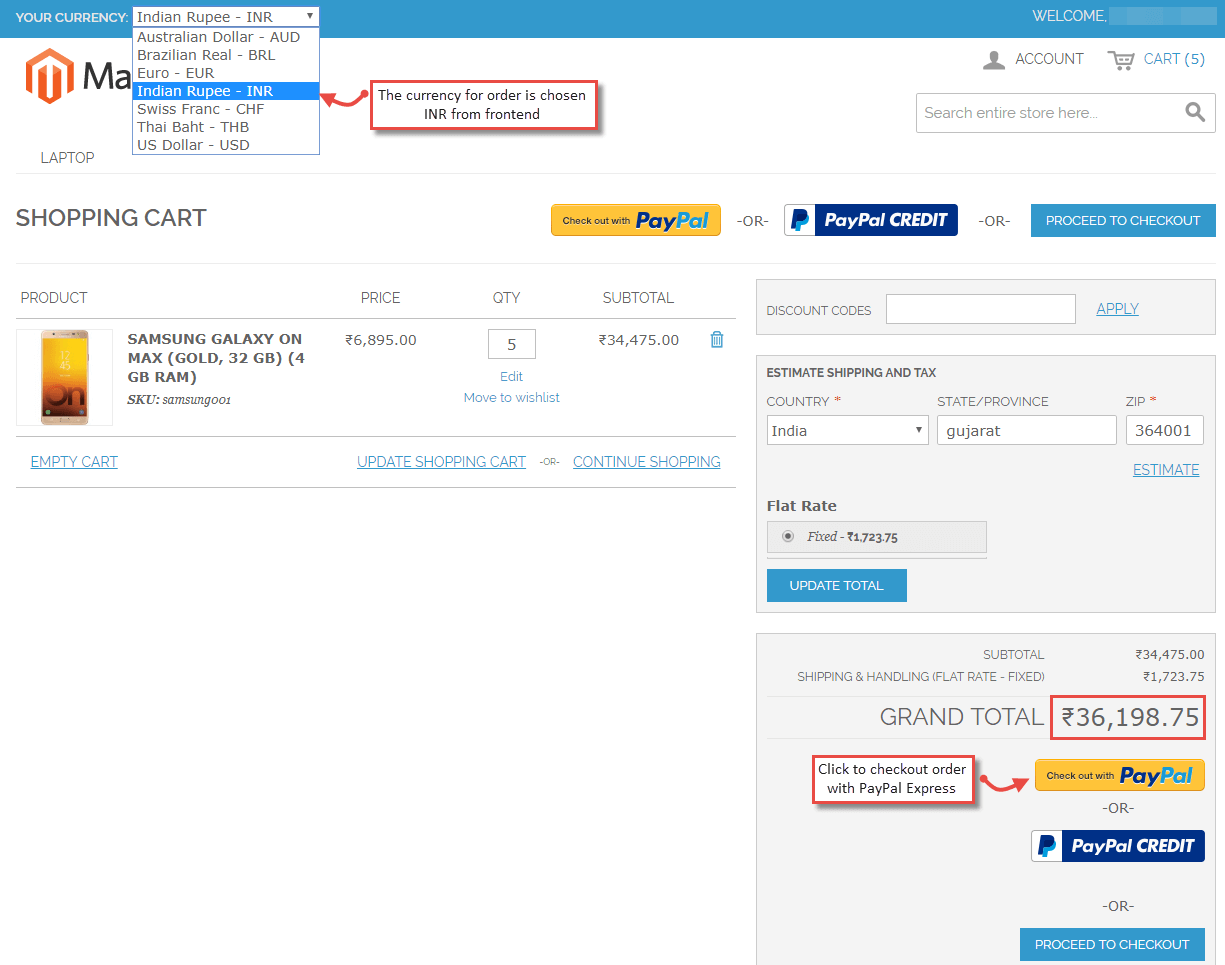
- Currency Chosen in Shopping Cart in Frontend
From frontend, customers choose their preferred currency to add products to cart and checkout. Here, for example, the customer has selected INR as the order currency.
- PayPal Redirection:
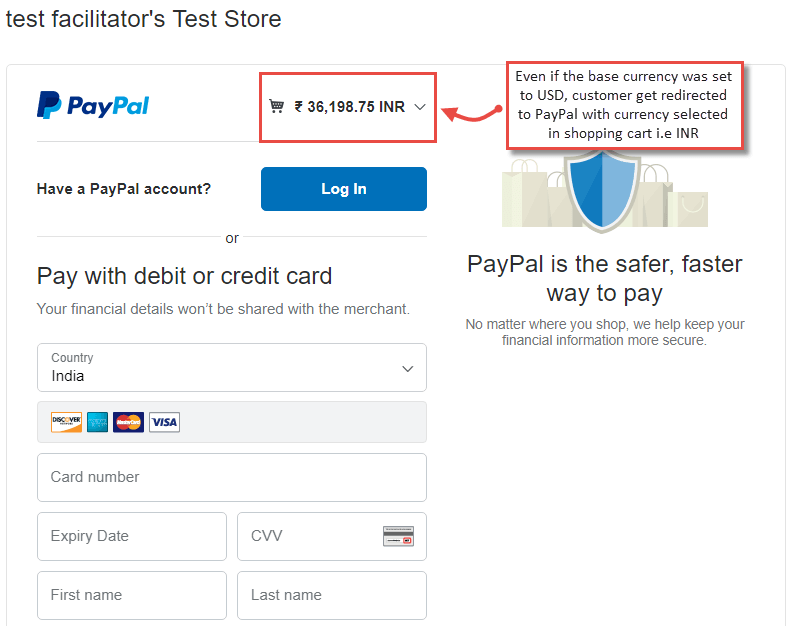
The default behavior of Magento is to redirect to PayPal by replacing the selected currency (INR) to the base currency (USD). But with the extension, it redirects and allows to pay with the preferred currency on the PayPal. One such example is shown here: