Delete Account for Magento - User Guide
Extension Installation
- Upload or copy all folders in the zip package to your Magento root folder. It doesn't overwrite any existing files but just adds new files to the folder structure.
- Once done, log in your Magento admin panel, go to System > Cache Management , select all caches and refresh.
- Navigate to System > Configuration , if you can see the extension tab, it is installed properly.
- If you get Access denied error, you need to log out admin panel and log in again.
Configuration
To configure the extension, log in to Magento backend, move to System > Configuration > Delete Account where you can find various settings to configure the extension.
- Delete Account: Enable or disable the Delete Account extension from here.
- Email Sender: Select the Email sender from the drop-down list.
- Email Template: Select template for delete account confirmation Email sent to customers.

Delete Account in Frontend
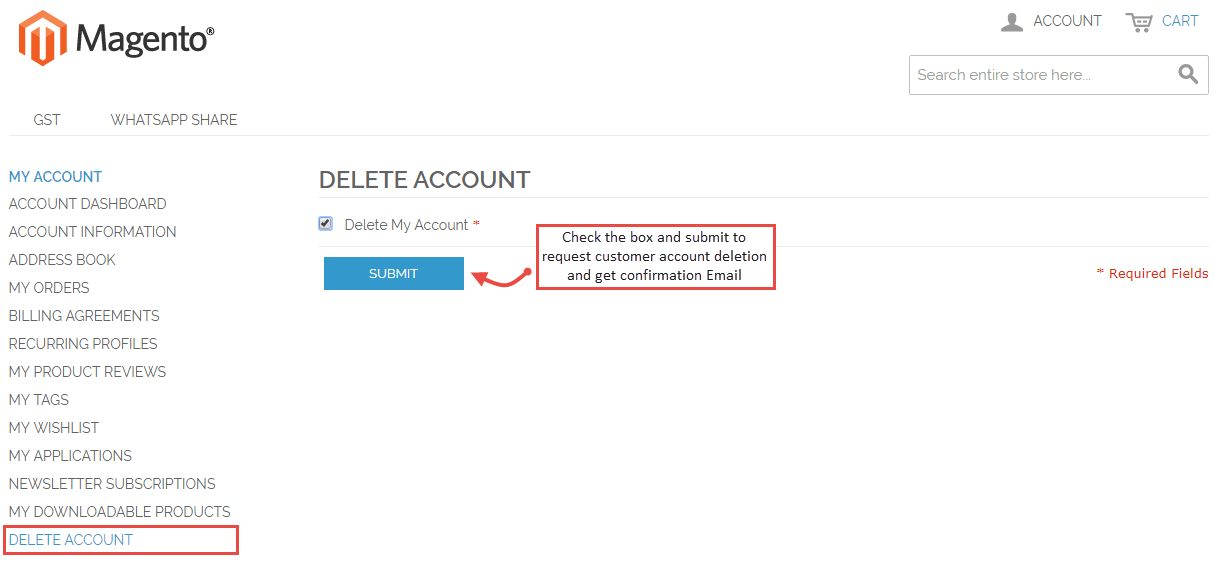
Once you have configured the extension successfully, customers will be able to delete their account from " My Account " section as shown below. Check the "Delete My Account" checkbox and submit the account deletion request.
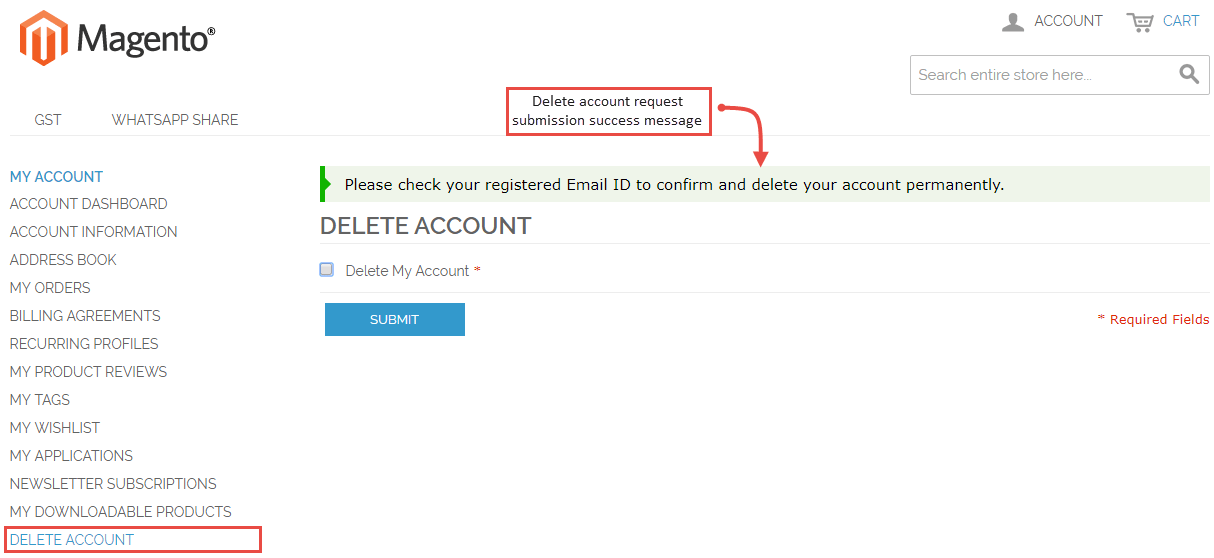
- The following submission success message will be displayed.
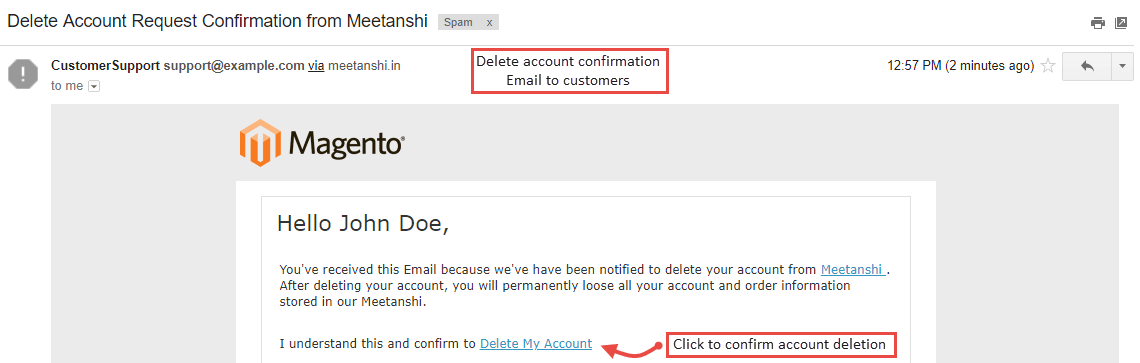
- Delete Account Confirmation Email
Once the customers submit the delete account request, delete account confirmation Email will be sent with a confirmation link. On clicking this link, the account will be deleted permanently.