

Shopify lets you add and manage all your important files, like images, videos, and documents, directly from the admin. This makes it simple to organize your content and use it throughout your store to improve the shopping experience.
In this blog post, we will provide complete information about how to upload files to Shopify with its specifications.
Shopify File Upload: Specifications
Here is the list of all the considerations for the Shopify file upload. Keep these things in mind while uploading images, videos, or any other type of files.
Image Files:
- Maximum size – 20 MB
- Maximum resolution – 20 megapixels (up to 5000 x 5000 pixels)
- Aspect ratio – Between 100:1 and 1:100
- Supported formats – JPEG, PNG, WEBP, HEIC, GIF
- File name – Include letters, numbers, spaces, and symbols, but must not start with a period (.)
- Avoid file names ending with pico, icon, thumb, testing, small, compact, medium, large, or grande to prevent CDN resizing conflicts
Video Files:
- Maximum size – 1 GB
- Maximum resolution – UHD (up to 4096 x 2160 px, 4K)
- Maximum length – 10 minutes
- Supported formats – MOV, MP4, WEBM
- Frame rate – Up to 120 fps
- Minimum dimensions – 100 x 100 px
Generic Files (Non-HTML):
- Maximum size – 20 MB
- Supported formats – Any except HTML
Additional Specifications:
- Images and videos are auto-optimized for browser compatibility and performance
- Videos larger than 1 GB or longer than 10 minutes should be externally hosted (YouTube, Vimeo) and embedded
The Shopify trial plan allows uploads of limited file formats. This ensures optimal media performance and storage management according to its best practices
The file storage limits for uploaded files in Shopify vary by your subscription plan as follows:
Here’s the information in a clear table format:
| Shopify Plan Type | Storage Limit |
| Starter, Retail, Basic, and Shopify Partner development stores | 100 GB per store |
| Grow plan | 300 GB per store |
| Advanced plan | 500 GB per store |
| Plus and Shopify Partner Plus sandbox stores | 1 TB per store |
| Enterprise plan | 10 TB per store |
How to Upload Files to Shopify?
Uploading files to Shopify lets you enhance your online store with images, videos, and other media. Here’s how to do it for common file types:
Image & Video File
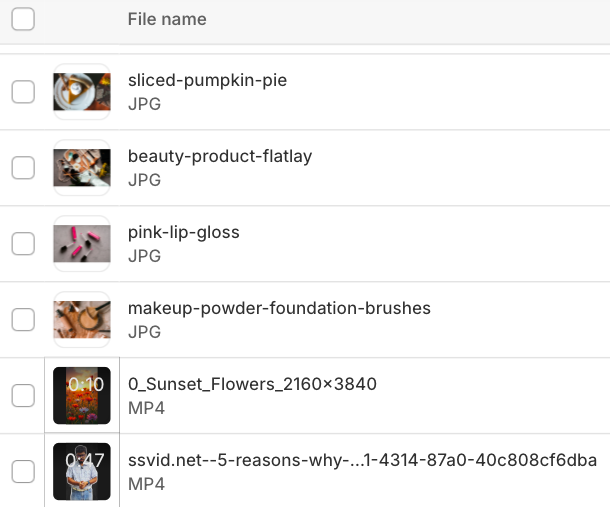
Log in to your Shopify Admin Dashboard, navigate to Content > Files.

From the top right corner, click Upload files to select the images/videos, and then click Open to upload them.
Make sure to select videos in MOV, MP4, or WEBM formats and images in PNG, JPEG, or CSV format.
Once uploaded, your images and videos appear in the files list, ready to be added anywhere in your store, such as in products, pages, or blog posts, to make your content more engaging and dynamic.
For an extra boost, you can add hotspots to your images in Shopify to create interactive shopping experiences.
How can Customers Upload Files in Shopify?
There’s no default way for customers to do this in Shopify, so using a third-party app is recommended. Below are some useful apps that allow users to upload files easily, access multiple platforms, edit files, and more, all within the app.
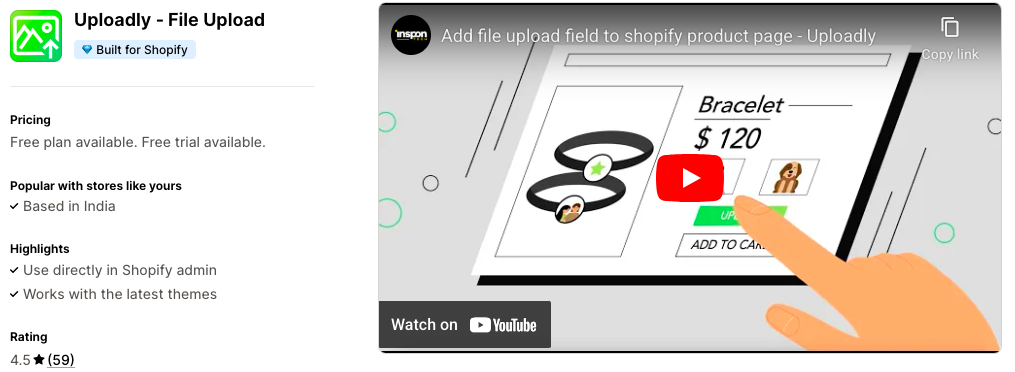
1. Uploadly ‑ File Upload
Key features:
- Add customizable file upload fields to product pages with ease
- Allow customers to upload files from their computer, mobile, or platforms like Instagram, Dropbox, and Google Drive
- Enable file editing and cropping before submission for better customization
- Multi-language support for a seamless global shopping experience
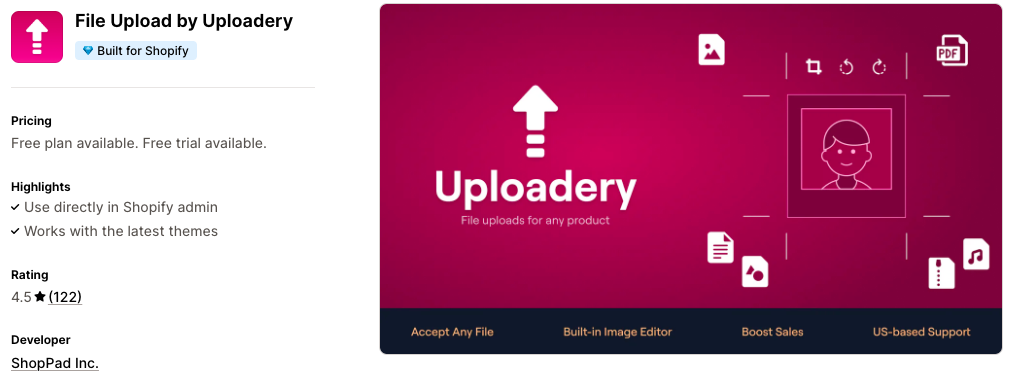
2. File Upload by Uploadery
Key features:
- Allow customers to upload files (up to 2GB each) directly when ordering products
- Accept all file types or limit uploads to specific formats like .jpg, .svg, .pdf, or .png
- Set minimum and maximum dimensions or aspect ratios for uploaded images
- Get assistance anytime with friendly live chat and email support from the USA-based team
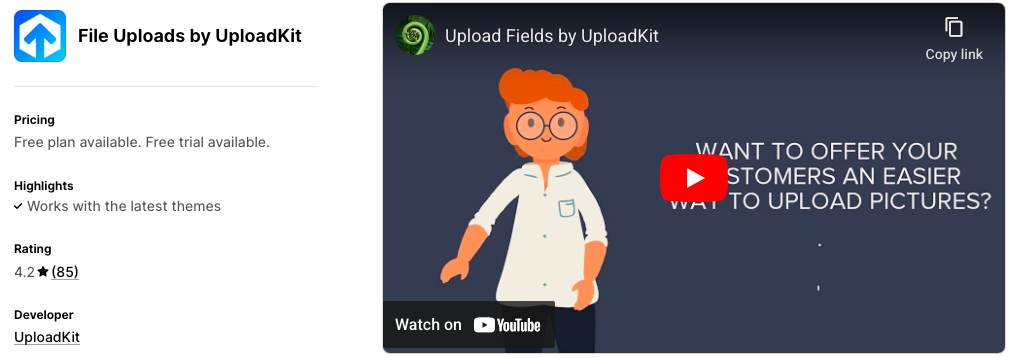
3. File Uploads by UploadKit
Key features:
- Accept file uploads from phones, computers, Facebook, Instagram, Dropbox, and more
- Allow customers to preview, auto-enhance, rotate, sharpen, and crop their images
- Automatically sync uploaded files to Google Drive for faster order management
- Enable uploads both before and after checkout for added flexibility
Start Uploading File to Shopify Now
So it is the wrap-up for the blog upload files to Shopify. This is a small thing, but having complete information about it is necessary to complete your task without any hurdles. This will enhance your store’s visual appeal and provide rich content for your customers.
