Want more control over how you charge for shipping? With Shopify, you don’t have to stick to default options; you can set your own rules.
Unexpected shipping prices often cause cart abandonment, Shopify custom shipping rate ensures pricing is transparent and consistent, reducing surprise fees.
Whether you offer free shipping, flat fees, or charge based on weight and location. In this guide, learn how to set up custom shipping rates in a Shopify store.
Why Custom Shipping Rates Matter in Shopify?
Customizing Shopify shipping rates help to maintain profitability.
Instead of relying on flat rates that could result in overcharging or undercharging, customizing your shipping costs allows you to set a fair rate based on various factors. This helps manage your profit margins and provides better control over your shipping strategy.
Other than this, here’s why customization matters:
- Different products have different shipping requirements, such as lightweight, bulky, fragile, country, etc. You can set rates that reflect the actual costs
- Clear and fair shipping policies enhance the customer experience and show that your store is reliable and thoughtful, giving you competitive advantages
- Become the first choice for your shoppers since you offer pricing transparency
Is there a Default Way to Set Custom Shipping Rates in Shopify?
Yes, Shopify does allow you to set custom shipping rates by default, but there are some limitations, depending on your Shopify plan.
The default Shopify setting does not allow you to set a price per item or per order directly.
You need to set a per-item shipping rate using third-party shipping apps that offer this functionality.
Additionally, there is no real-time carrier that calculates rates on a basic/lower plan; you have to manually calculate and input flat rates, which may not always showcase actual shipping rates.
Shopify’s default shipping rates work well for simple stores and straightforward shipping needs. But for expanding stores or advanced logistics, it can be restrictive without third-party apps or a high-tier plan.
Opting for a third-party app is way more cost-effective.
A third-party app can cost you around $5 to $6, which is way better than spending on upgrading to a Shopify plan just for advanced functionalities.
How to Set Shopify Custom Shipping Rate? (Easy Way)
If you want more flexibility, use the ShipFlow: Shipping Rules Shopify app.
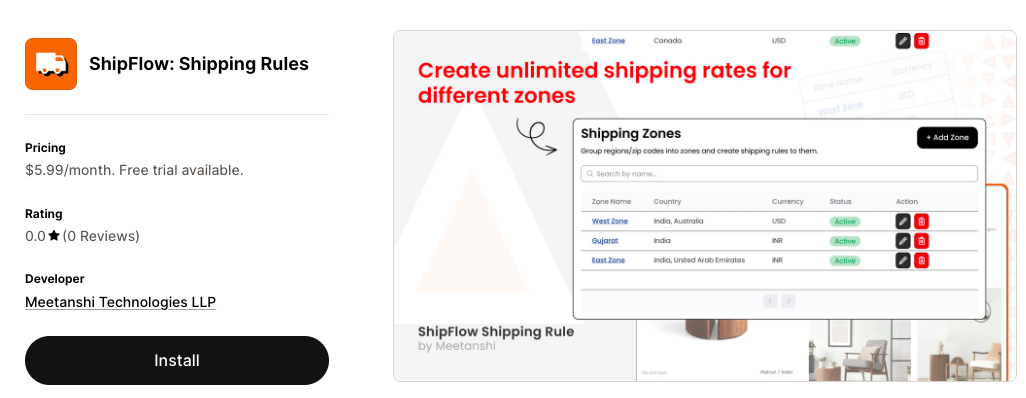
It helps you set advanced Shopify shipping rates without needing to upgrade your Shopify plan. It offers options for shipping rate customization for Shopify, such as zone-wise and zip code-wise customization.
For example, let’s say you can charge €10 flat rate for Europe, and offer free shipping over €100, and additionally apply separate rules for Asia and North America, all from a single dashboard.
Here is a simple 3-step process to set Shopify custom shipping rates using the Shopify app:
- Step 1: Install and Activate the App
- Step 2: Add Specific Shipping Rules for Each Zone
- Step 3: Add Shipping Rules Based on States/Zip Codes
- Step 4: Customize Shipping Rate At Checkout
Step 1: Install and Activate the App
Install the ShipFlow: Shipping Rules from the Shopify App Store and open the app from the Shopify dashboard.
After installation, you will land on the Shipflow dashboard from where you can begin setting up your rules. First, enable the App status from Inactive to Active mode.

Then configure the following settings:
- Display preferences: Choose the rate you want to showcase from options like all rates, highest rates, and lowest rates
- Google Maps Integration: Enter the Google Maps API key for distance-based shipping calculation
- Merge Rates: You can mix multiple rates by tags, clarifying the shipping setup, and manage them easily
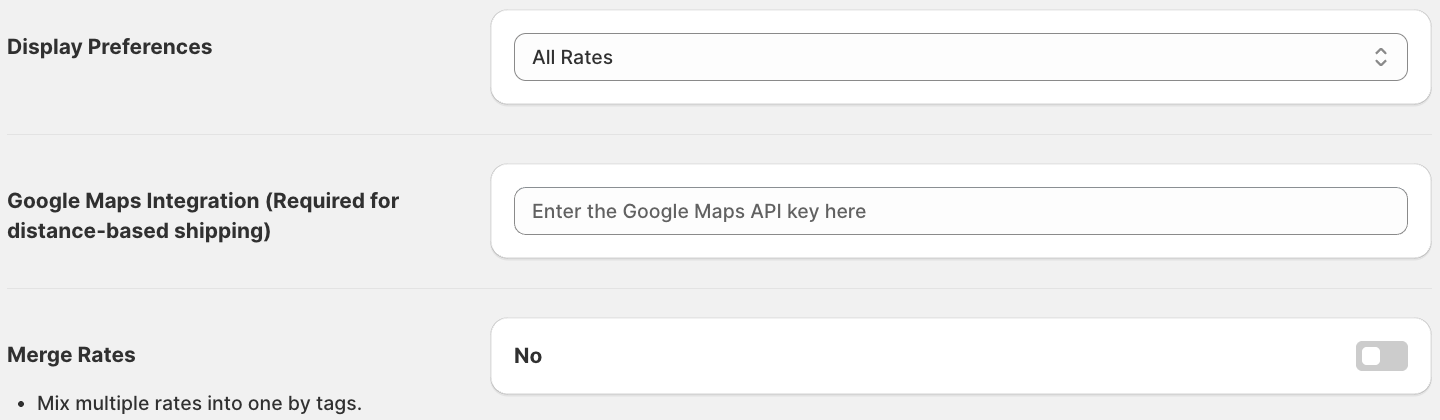
And Save the configuration.
Step 2: Add Specific Shipping Rules for Each Zone
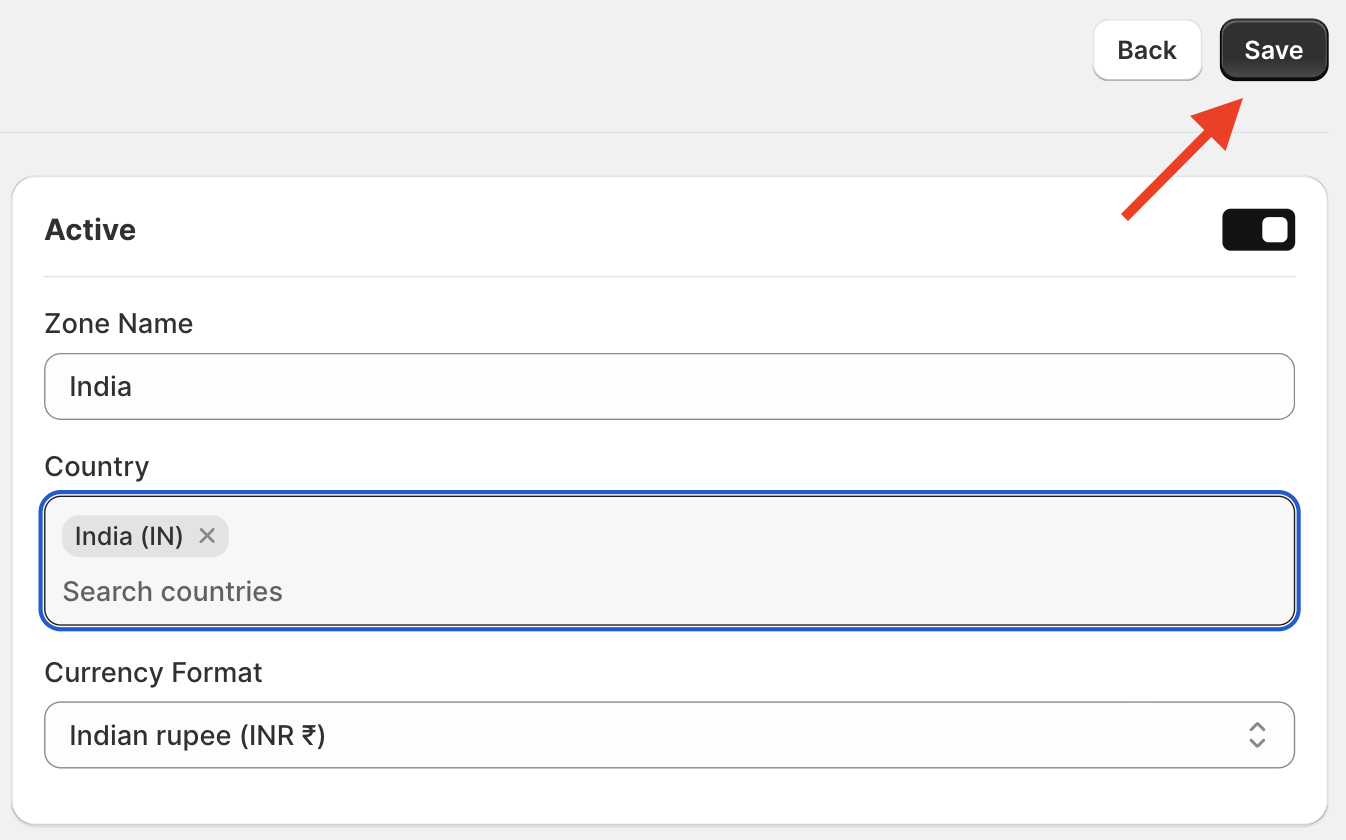
First, go to Shipping Zone & Rates and click + Add Zone
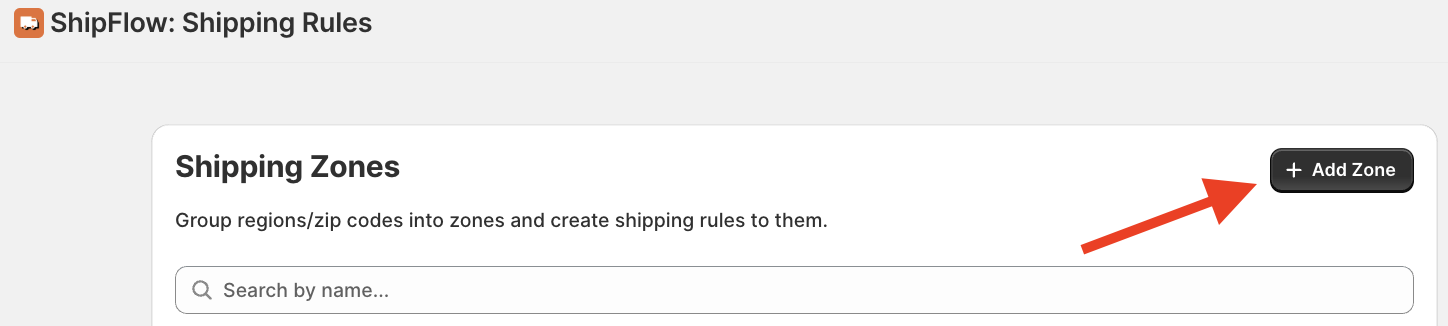
Now start adding details for your shipping customization. Add the following shipping details for each zone:
- Set the zone status to Active
- Zone Name: Write a descriptive zone name
- Country: Add the list of countries to be included in the zone
- Currency Format: Set the currency format for the specific zone
And at last, Save the changes.
Step 3: Add Shipping Rules Based on States/Zip Codes
After creating a new zone, you can add shipping rates specific to that zone.
Here are the steps to do so:
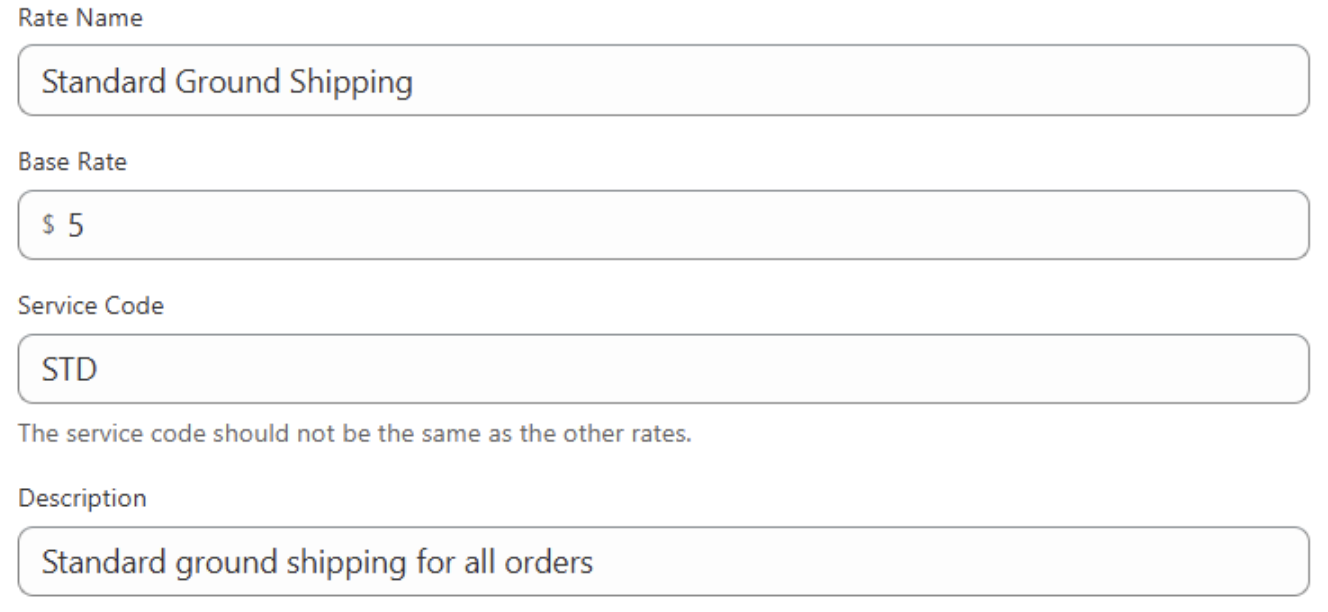
Click on Add Rate and set the status from Inactive to Active. Then add the following Rate details that will apply to this particular shipping zone.
- Rate Name: Enter a name for the rate
- Base Rate: Add the base price for the rate
- Service Code: Add the accurate service code
- Description: Enter a short description related to this rate
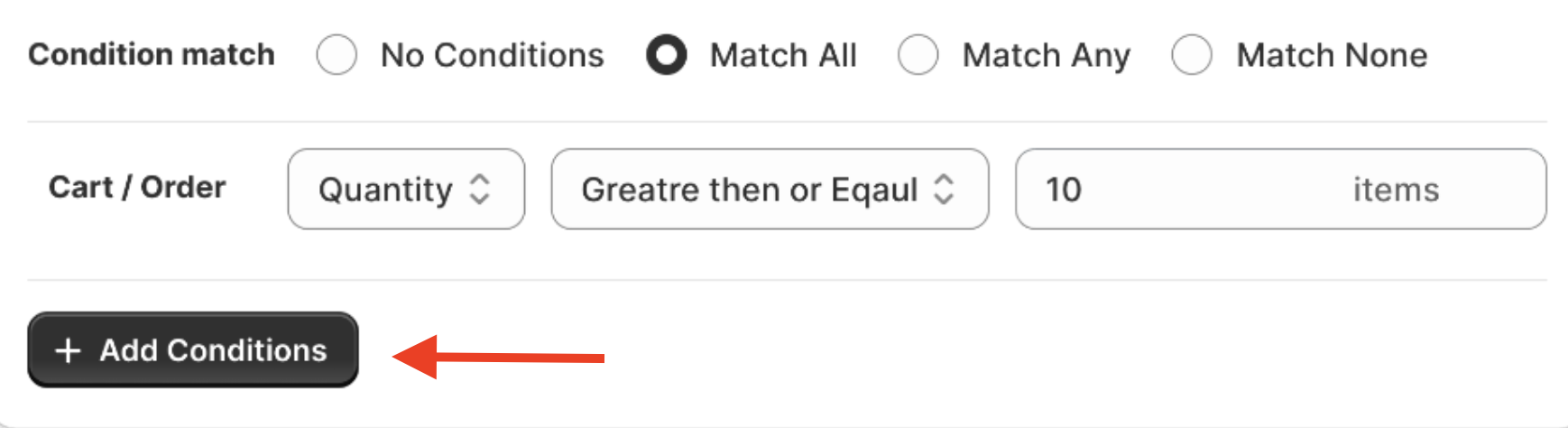
Now, you can set different conditions for the shipping rate to appear accordingly at the checkout page.
- Set a condition match from the available four options
- Add condition based on Cart/Order
You can click on + Add Conditions to include more conditions based on your needs.
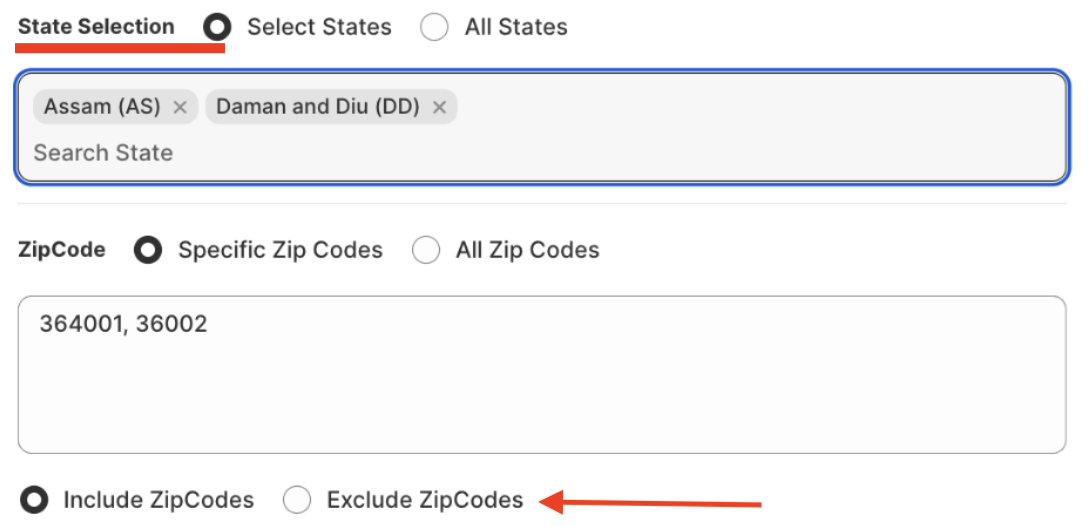
Then select the state and zip codes. You can also select all states and choose to include/exclude zip codes
You can make the shipping rate applicable to specific states; you can include your list here. Then, add a list of Zipcodes to include or exclude from the zone.
Step 4: Customize Shipping Rate At Checkout
Now, Save these configurations. Based on what we have configured and the conditions we have set, this is how the shipping rate will be viewed at the checkout page.
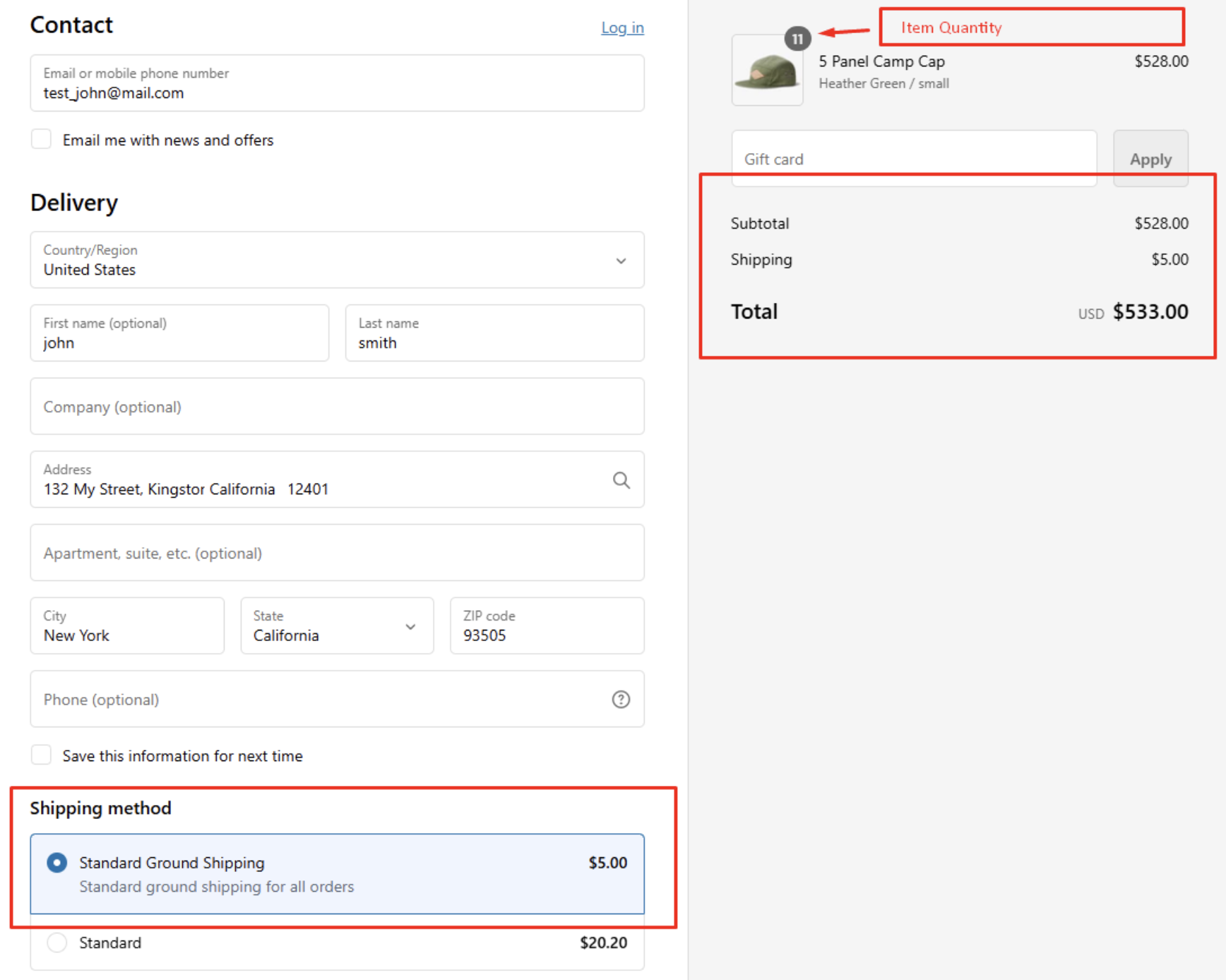
✅The order quantity is greater than 10
✅Standard shipping rate of $5 is applied
This is just a few customizations we have set here. You get multiple customization options using the Meetanshi ShipFlow app, like:
- Cart/Product-Based Rate/Surcharge rates
- Exclude products from a specific shipping zone
- Set a different base rate based on order weight, total, or quantity
- Apply the rate on specific time and date
You can view all the shipping rates you create in the Shipping Zones dashboard. Whenever you like, you can view the status of the shipping zone and edit/delete it as per your liking.
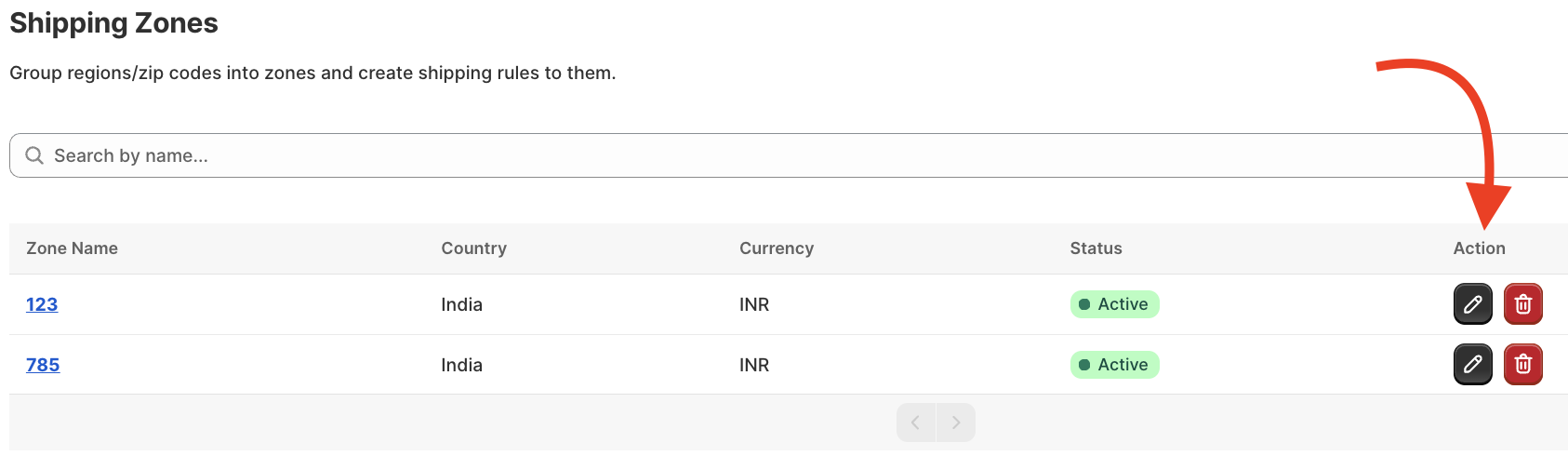
And that’s it, you’ve successfully set up the Shopify shipping rates without any complicated steps. This simple process will make shipping management much easier.
Manage & Control Your Shipping Rate Today
Shopify custom shipping doesn’t have to be complicated, and if you are running a business, you should know how to set up custom shipping rates in a Shopify store, as it is important to offer transparent, fair prices to the customers.
With the Meetanshi ShipFlow: Shipping Rules app, you get full control over how, when, and where the shipping rates apply without any backend hassle.
- No more overcharging or undercharging customers
- Set rates based on states, zones, rates, etc.
- Improve customer relations with accurate and transparent shipping fees