Setting weight limits helps keep your Shopify orders manageable for shipping and cost control.
You can easily set product weight cart rules in Shopify and define a minimum or maximum cart weight before customers proceed to checkout. Learn in this blog how to do it without much effort.
How to Set Product Weight Cart Rule in Shopify?
Shopify does not provide built-in weight restrictions for carts.
While you can set Add-to-cart limits for quantities, there is no native setting to restrict a checkout based on the total weight of the products.
To enforce these limits, use the third-party Shopify app MIT Cart & Order Limits. It allows you to create specific weight constraints that must be met before a customer can proceed to payment.
With this app, you can create rules based on different conditions, like:
With this app, you can create rules based on different conditions, like:
- Set a Minimum Weight (e.g., at least 5kg to qualify for bulk shipping) or a Maximum Weight (e.g., no more than 20kg to avoid freight charges)
- The total weight is a multiple of a specific number, which is useful for shipping in fixed-size crates
- Show custom warning messages directly in the cart when these weight limits are not met.
Now, let’s understand the process for setting up weight limits in Shopify using this app.
Steps to Set Product Weight Cart Rule in Shopify (Using App)
Start by installing the MIT Cart & Order Limits Shopify app from the Shopify App Store. Then, follow the steps below to configure a product weight rule in your store.
Step 1: Create a New Weight Rule
From the app dashboard, navigate to the Weight Rules and click View rules.
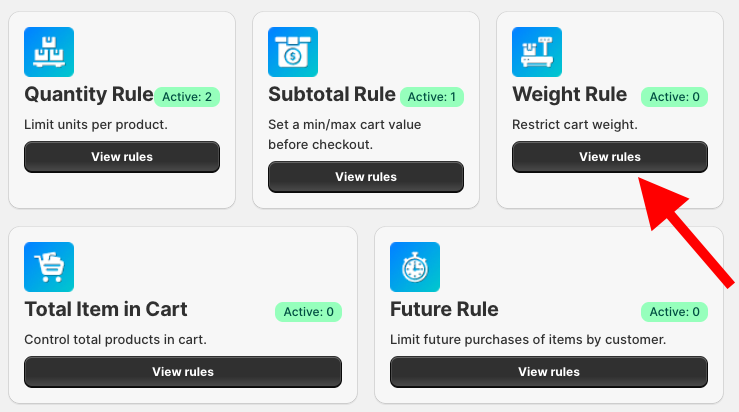
Then, click on Create a New Rule, and you will see an interface where you have to configure the cart weight limits and define when the rule should apply.
Step 2: Define Weight Limits
Assign a title to your rule for internal tracking and configure the specific weight boundaries for the cart.
You can set the following limits:
- Minimum Weight for Cart – The minimum total cart weight required to allow checkout
- Maximum Weight for Cart – The maximum total cart weight permitted in the cart
- Multiple Weight for Cart – Restricts checkout unless the total cart weight is in multiples of a specified value
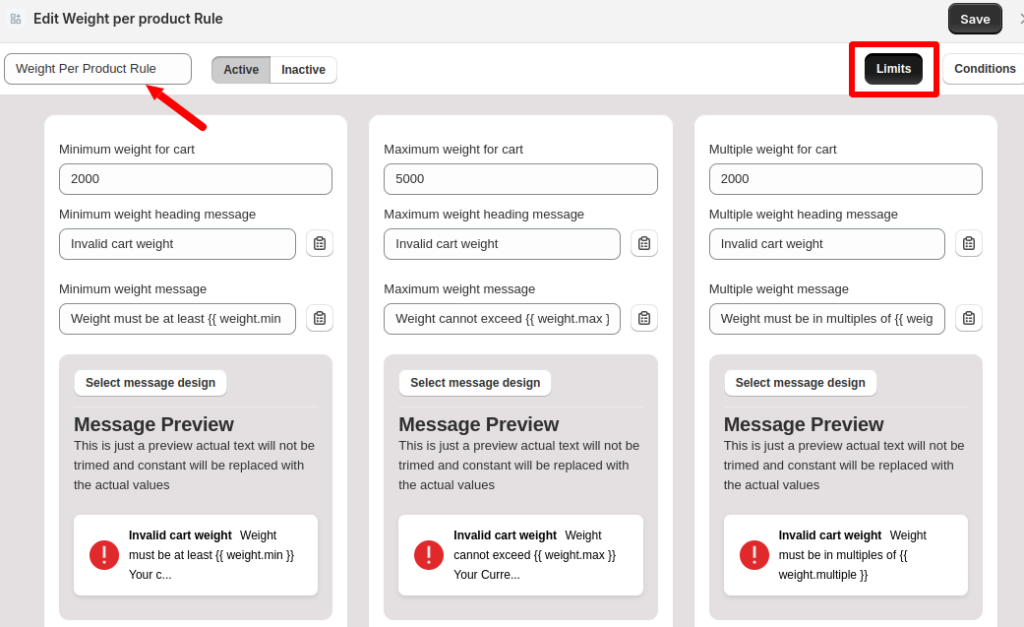
For each limit, you can write a custom warning header and message. Use dynamic variables like {minimum_weight} or {current_cart_weight} to show customers exactly what they need to change to proceed.
This helps you display clear messages to customers.
Step 3: Set Rule Conditions
Next, decide when the weight rule should apply by adding conditions. The app allows flexible rule creation using AND / OR logic.
Click on Conditions next to Limits in the dashboard and select your conditions.
- Choose the attribute (such as product, collection, customer tag, etc.)
- Select the logical operator and value
- Add multiple conditions if needed
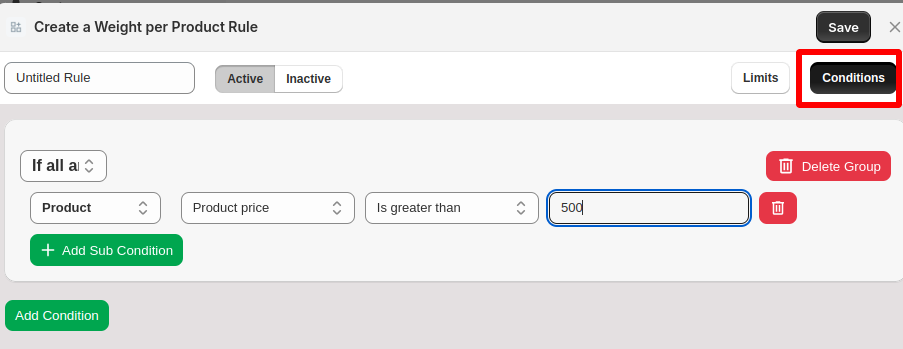
You can combine conditions using AND / OR logic to precisely control how the rule works.
Once the conditions are configured, click Save in the top-right corner.
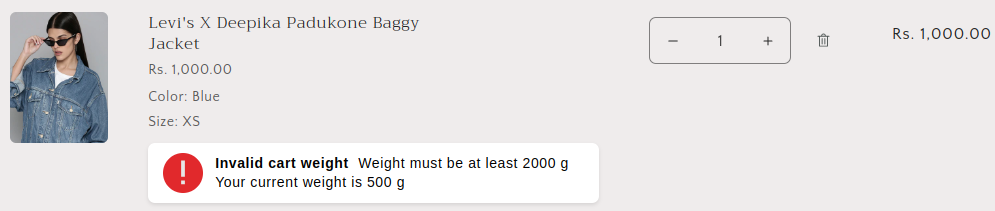
The rule will now be active on your cart page, preventing customers from proceeding to checkout unless the total weight satisfies your requirements.
This is how it will look:
Best Practices to Apply Shopify Cart Weight Rules
Using weight-based cart rules helps manage shipping and keep order handling efficient. To use these rules effectively, follow these best practices:
- Ensure your minimum and maximum weight rules match the restrictions set by your shipping partners. This prevents checkout for orders that carriers may refuse or charge extra for
- Use dynamic variables in your warning messages so customers know exactly how much more (or less) weight they need to add to proceed
- Apply different weight rules for wholesale and retail customers. For example, you might require a higher minimum weight for B2B orders to ensure bulk shipping efficiency
- Make sure your product weights are correctly updated in Shopify. Once the weights are accurate, you can easily set shipping rates per item so your shipping charges match the cart contents
- Verify the cart warning pop-ups or banners are mobile-responsive and do not block the Checkout button, as this can frustrate users
- If a customer exceeds a weight limit, consider adding a link in the warning message to your Shipping Policy or a contact form for custom freight quotes
Conclusion
Setting weight limits can help you control shipping costs and manage fulfillment more efficiently.
If you want an easy way to set product weight cart rules in Shopify, the MIT Cart & Order Limits app provides flexible rules and clear cart warnings without any coding headache or complex setup to ensure customers follow the defined weight limits.
Custom limits for every cart. Configure your rules in seconds to protect your margin.
Configure Now