If your Shopify store sells eBooks, courses, software licenses, music files, or any other downloadable product, offering Cash on Delivery at checkout is not necessary.
There’s no physical handoff, no delivery agent, and nothing to collect cash against. Leaving COD visible for digital products creates confusion, increases failed transactions, and undermines the instant-delivery experience your customers expect.
This guide explains how to remove COD for digital products in Shopify and how it is managed natively.
Can Native Shopify Handle This?
Yes, but only if you want to disable COD for your entire store.
Shopify allows you to manage payment methods in your admin settings, but it lacks conditional logic. It cannot look at what is in the cart and decide whether to show COD or not.
Your options with Native Shopify are:
The Global Disable
If your store only sells digital downloads, the native solution is perfect.
You can simply deactivate Cash on Delivery in Settings > Payments. This removes the option for every product, ensuring no customer ever sees it.
The All-or-Nothing Problem
If you sell a mix of physical and digital products, the native setting removes COD from your physical goods too, potentially costing you sales from customers who prefer to pay on delivery for their parcels.
None of these give you automatic, product-aware payment filtering. For a broader look at the limitations of native Shopify payment controls, see our guide on how to hide specific payment methods in Shopify.
How to Remove COD for Digital Products Using the Payment Hider App
The MIT Payment Hider app is the cleanest solution for stores that sell both physical and digital products and need COD visibility to reflect that distinction automatically.
Step-by-Step: Remove COD for Digital Products
Before creating the rule, make sure all your digital products in Shopify are consistently tagged.
A tag like digital, digital-product, or downloadable works well.
This is the condition the app will look for at checkout. If you already use a consistent product type for your digital items in Shopify admin, you can use that instead of a tag.
Then, install and enable the MIT Payment Hider app and open the app dashboard.
Step 1 – Set Your Advance Customization
Click Create Customization > Select Advanced Customization.
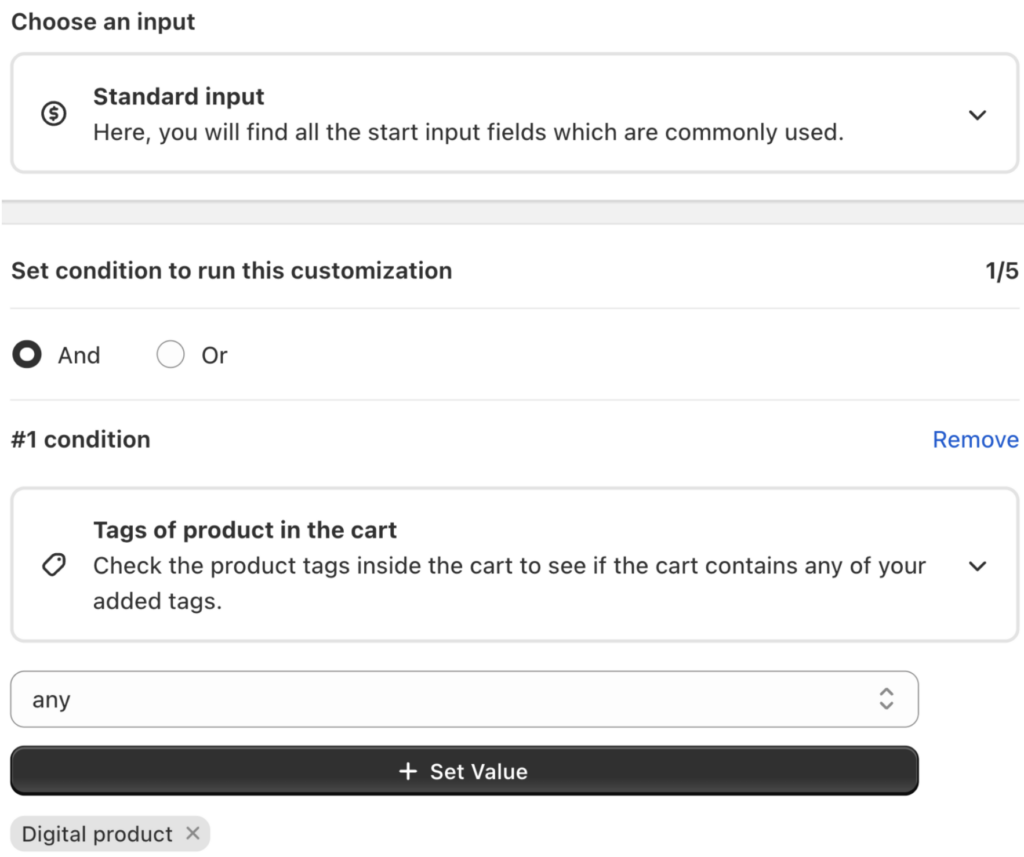
Then, add a title and select the standard input for this setting.
Now, set your parameter to Product Tag and the value to the tag you applied to your digital products . This tells the app to watch for that tag in the cart at checkout.
Step 2 – Select the Payment Method to Hide
Scroll to the Available Payment Methods section. Find Cash on Delivery and enable the toggle to hide it.

If COD doesn’t appear in the list automatically, use the Add Missing Method option and enter it by name exactly as it appears in your Shopify admin.
Step 3 – Save and Test
Click Save to activate the rule. Add a tagged digital product to your cart and proceed to checkout the Cash on Delivery should no longer appear.
Then test with a physical product to confirm COD remains visible where it should.
Once your rule is active, the logic runs automatically at the checkout level:
- Customer adds a digital product (tagged) → COD is hidden → only prepaid payment methods are shown
- Customer adds a physical product → COD remains visible as normal
- Customer has a mixed cart (digital + physical) → COD is hidden because the digital tag is detected
This conditional behavior is the key advantage over a store-wide COD disable. Your physical product customers see no disruption, while digital buyers are guided to payment methods that actually work for instant delivery.
The same tag-based logic applies when you want to disable COD for pre-order products in Shopify — the condition structure is identical, only the tag value changes.
Frequently Asked Questions
Can I remove COD for digital products only, without disabling it for physical products? Not with native Shopify settings. Use the MIT Payment Hider Shopify app that creates product-tag-based condition to hides COD only for digital product.
What if my store sells both physical and digital products in the same cart?
COD will be hidden for the entire cart as soon as a tagged digital product is detected. This is the correct behavior: a mixed cart that includes a digital product still cannot support COD fulfillment.
Do I need to tag every digital product manually?
Yes, but this is a one-time setup. Once you’ve applied the tag to your existing digital products, any new digital products you add just need the same tag applied and they’ll automatically fall under the rule.
Summary
Shopify does not natively connect product type or product tags to payment method visibility at checkout.
The MIT Payment Hider app gives you the precision to handle this correctly. Tag your digital products, create a condition rule, and COD disappears from checkout automatically whenever those products are in the cart without affecting the experience for any other buyer.
Hide, sort, and rename payment options in your Shopify store without editing the theme file.
Edit Now