

Is your Magento store failing the core web vitals assessment test? Read this complete article to find out the reasons why and how to fix it.
Let’s start with the basics first.
What is Google Core Web Vitals?
Core Web Vitals (CWVs) by Google is a set of metrics that measure the page loading speed, its interactivity, and visual stability. These metrics grade the user experience of the page (e.g., poor and good).
Here are the three metrics of Google CWV:
- Largest Contentful Paint (LCP) – Measure how long it takes for the largest element on the first fold to load
- Interaction to Next Paint (INP) – Measures the time it takes for the web elements to respond to user interactions. The longest time of all interactions is taken into consideration.
- Cumulative Layout Shift (CLS) – Measures the unexpected shift of layouts during the entire lifecycle of the page
Pages having better scores in the core web vitals are considered Good by Google. They’re also considered as one of the key features of high-quality pages, which affects SEO rankings.
There is no clear line between Good and Poor scores for these metrics. Therefore, Google classifies the core web vital scores into three categories:
| Good | Needs Improvement | Poor | |
| LCP | <=2.5s | <=4s | >4s |
| INP | <=200ms | <=500ms | >500ms |
| CLS | <=0.1 | <=0.25 | >0.25 |
Tools to Measure Core Web Vitals for Magento 2
You can check the status of your store’s core web vitals score from the Google Search Console. Log into your website’s search console property and on the left side menu, click on Core Web Vitals under Experience.
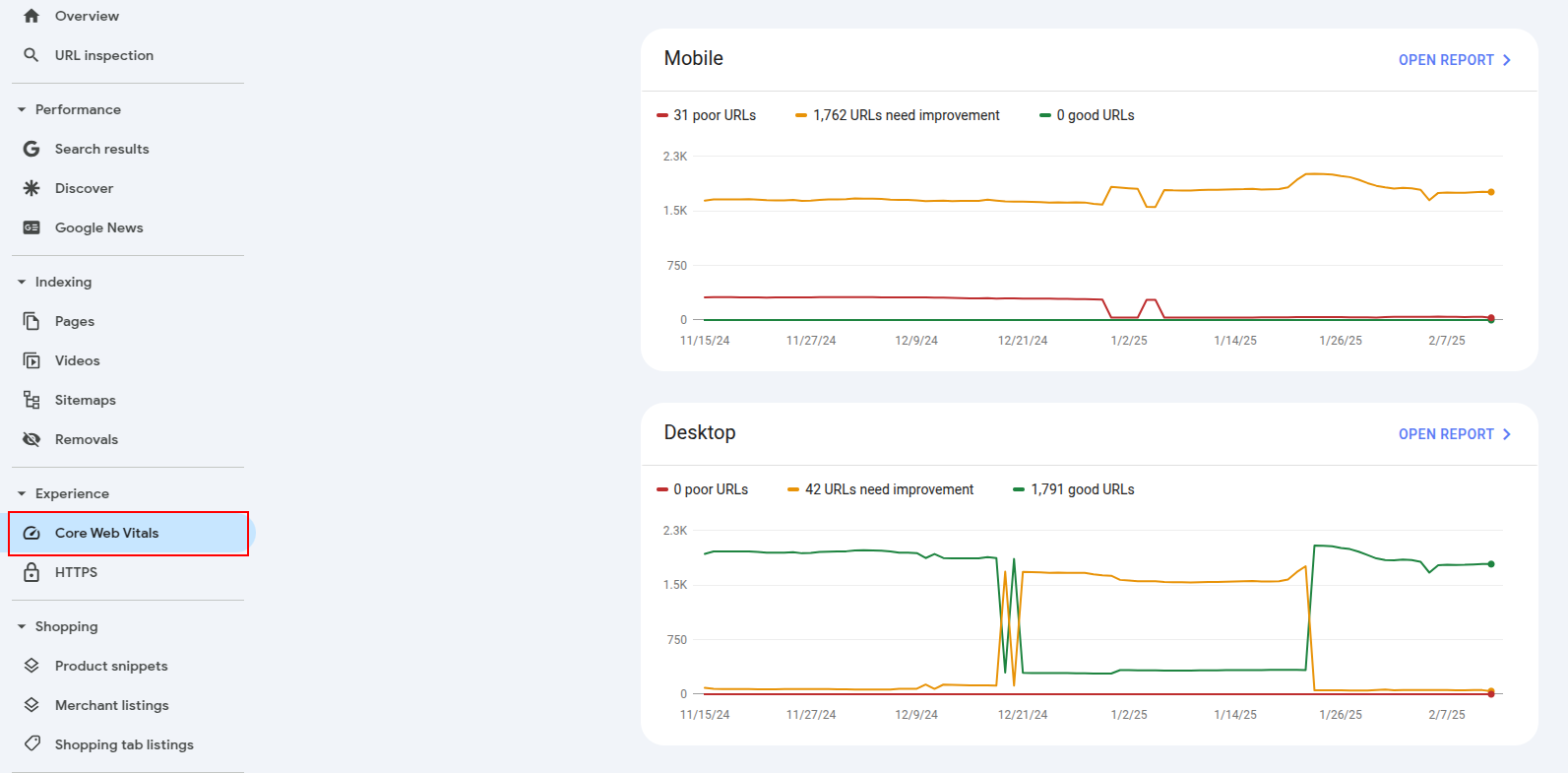
The graph will display the number of good, poor, and need-improvement URLs for both mobile and desktop devices. It helps you discover the real performance your users are experiencing in the store.
You can also get the list of URLs with poor or need improvement scores below the graph and find reasons for each failed URL. You can also get these details for any page through the official PageSpeed Insights tool by Google.
The core web vitals score in Google Search Console and PageSpeed Insights tool are not real-time and are calculated from what users have experienced in the last 28 days.
To test any page’s core web vitals in real time, you can use the Lighthouse tool in Google Chrome or GTmetrix.
Reasons Magento 2 Fails Core Web Vitals
There could be several reasons why your store fails the core web vitals score – it could be an issue with the server, your Magento configuration, or CDN. Here are some:
- Poor response time from the hosting server
- The page size is too high
- The HTML DOM structure is very complex
- Loading JS / CSS resources from third-party slow servers
- Executing the less important resources first
- Not serving the cached version of the site
- Your CDN Is very slow to respond
You may need an expert to find the core reason why your Magento store fails the core web vitals test. Finding the reason is the first step towards improving the store.
6 Ways to Improve Magento Core Web Vitals Score
The methods to improve core web vitals scores vary case-by-case. You first need to identify the reasons and then take appropriate actions to fix them.
However, here are some general steps that you can follow to improve your Magento site’s core web vitals score:
1. Use Varnish Cache
In Magento 2, you can enable server-side caching to reduce the processing time and speed up the website. This is helpful if you’re experiencing delays from the server side for requests.
Steps to enable varnish cache in Magento 2:
- Go to Stores > Configuration
- Expand the Advanced options and select System
- In the Caching Application and select Varnish Cache from the dropdown (you may need to uncheck the Use System value)
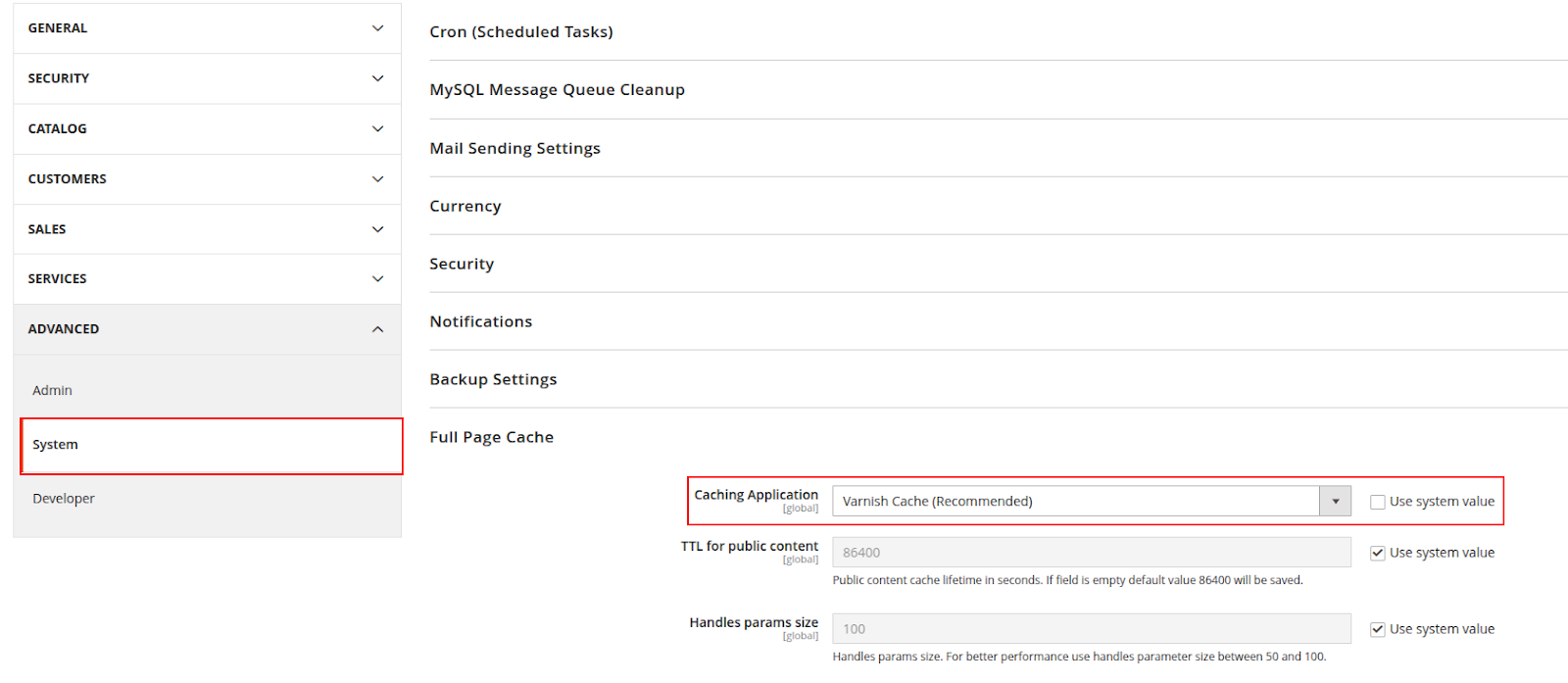
Once done, Save the configuration.
Enabling the varnish cache from Magento 2 admin can help you speed up the process from the Magento side and can help improve the LCP scores.
2. Reduce JS & CSS
Your Magento site may experience poor core web vitals scores if you’re loading too many bulky resources like JS and CSS. This could be because of resources that are not required at the time of page load.
Here’s what you can do:
- Identify and remove the JS and CSS that are not used
- Enable the Minify & Merge options for the JS and CSS in the admin
- Defer parsing of JS that is not required during the page load
How to Minify & Merge Resources in Magento 2?
Perform the following steps:
- Go to Stores > Configuration
- Expand the Advanced options and select Developer
In the Developer settings, you’ll find sections for JavaScript Settings and CSS Settings. Enable the merging and minification settings for these resources as shown below:
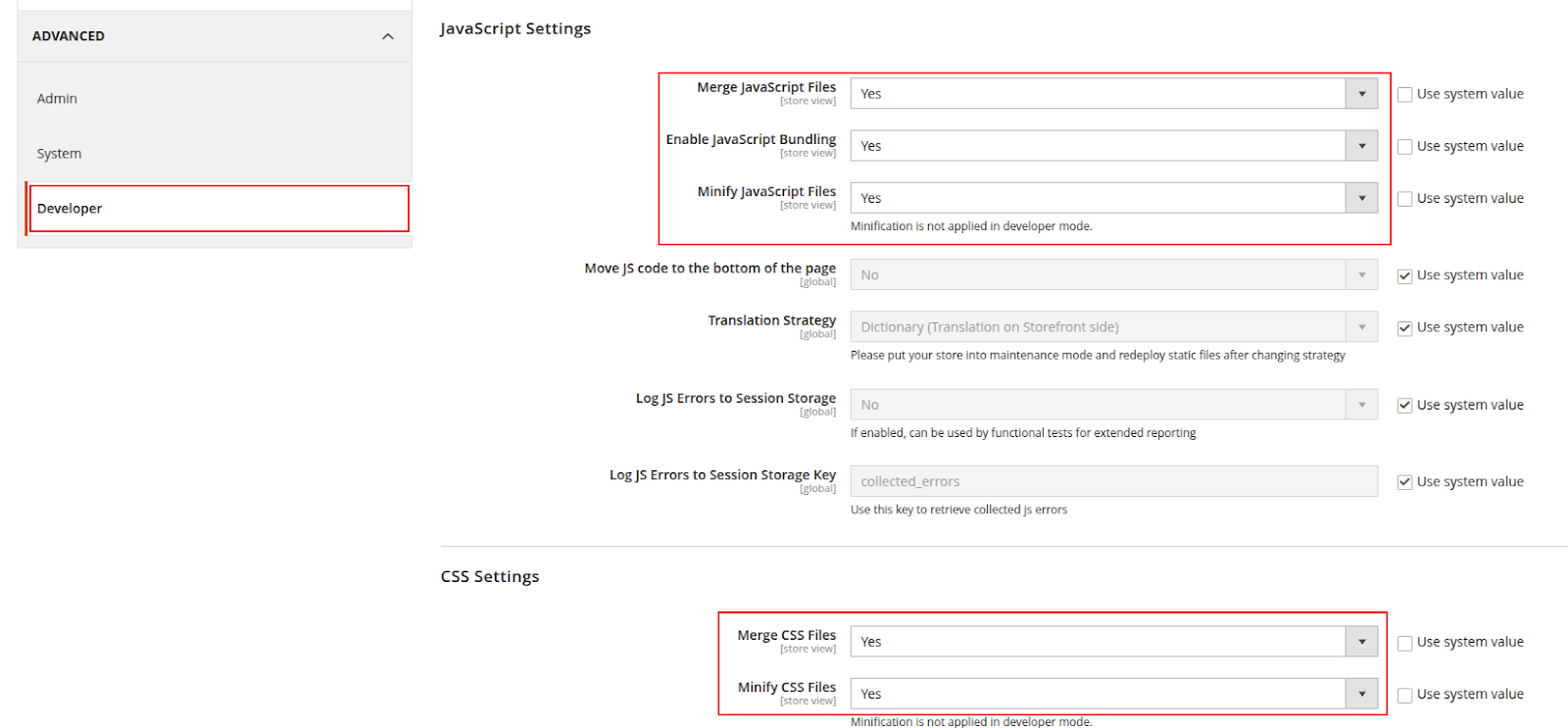
Finally, Save the settings.
You can also check out this guide to defer the parsing of JS and eliminate the render-blocking resources in Magento 2.
3. Switch to a Dedicated Hosting
Failed core web vitals in Magento 2 could be because of a poor server response time. The server may not be able to respond swiftly because of overloaded storage or poor configuration.
It’s a common reason for sites that are using shared hosting.
One good way to see if your server is not responding fast is to check the crawl statistics in your search console.
To do this:
- Open the search console property of your website and go to Settings
- Click Open Report against the Crawl stats field
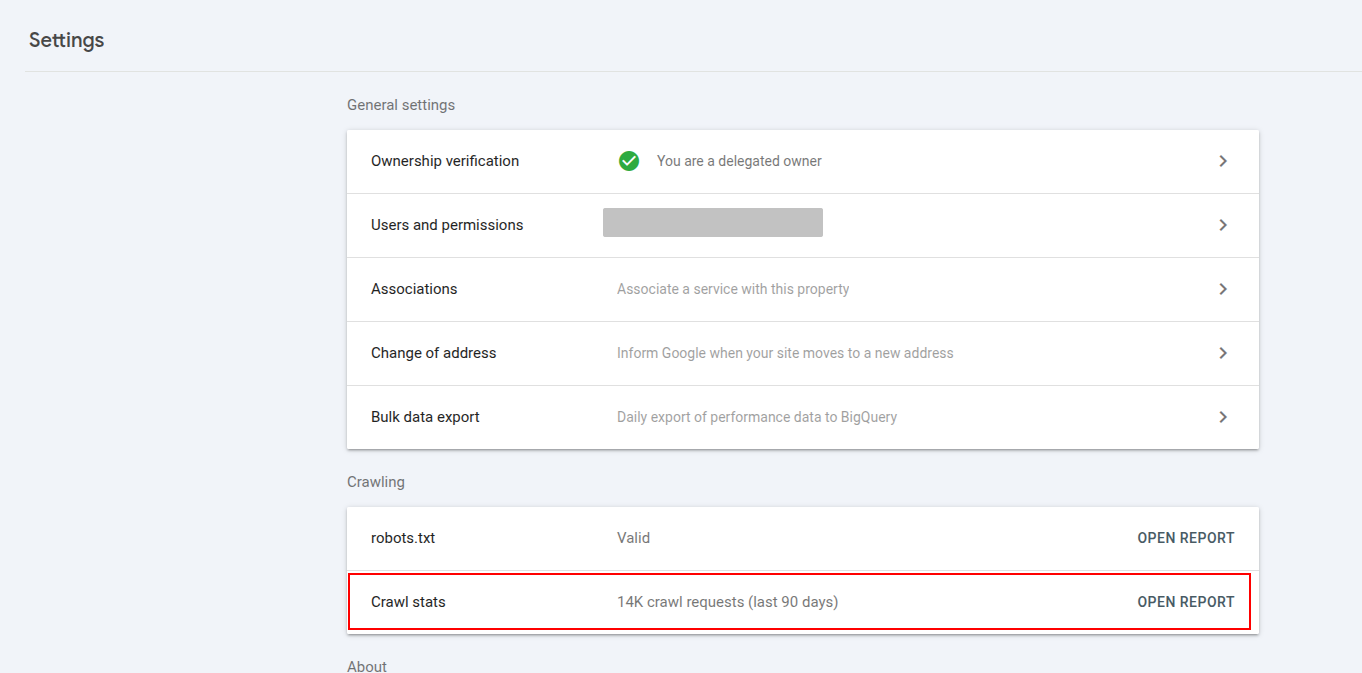
Here, you can check the average response time of requests on your server. If it’s too high, you should consider moving your website to another server.
Here are the benchmarks:
- Good – Less than 200ms
- Acceptable – 200ms to 1000ms
- Poor – More than 1000ms
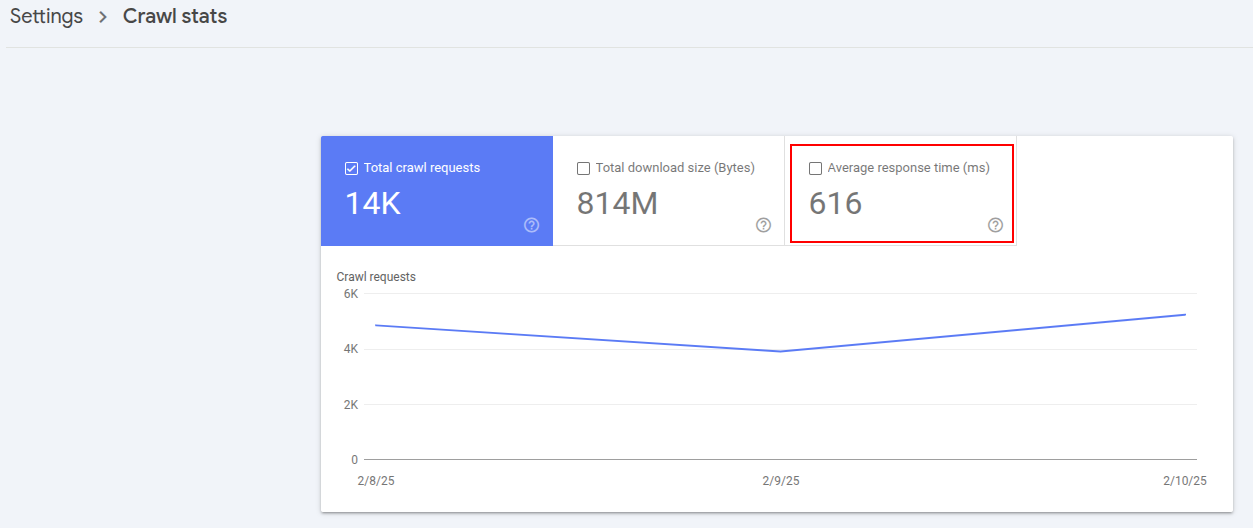
If your score is above 200ms, we suggest upgrading your server plan or moving to a faster Magento hosting provider.
4. Use CDN to Deliver Content
If you’re not using a content delivery network (CDN), you should. A CDN is a group of servers across the globe that delivers content from the nearest location to the users.
Using a CDN can help you speed up the response time and also help with issues like LCP.
Some of the good CDNs to use for Magento 2 stores are Cloudflare, Fastly, and Amazon CloudFront.
5. Audit Third-party Modules
The third-party extensions you’re using might be affecting the core web vitals score.
Even if they don’t have any frontend functionalities, the extensions may slow down the backend processes and affect the overall core web vitals score.
Perform these steps for each extension one by one:
- Test the lighthouse score of any page
- Disable the extension in the store
- Flush Magento 2 cache from the backend
- Re-test the same page’s lighthouse
If you see any major improvements in the page speed score after disabling the extension, it might be the real culprit. This could be because many of the third-party extensions available may contain poor-quality codes and are not optimized for page speed. That’s why it’s a good decision to consider Magento 2 extensions from a reputed vendor like Meetanshi.
6. Avoid Excessive DOM Size
The Magento core web vitals may fail because of excessively large HTML pages with DOM sizes. You can analyze the file size of HTML pages through tools like GTmetrix or directly check them through the Chrome Network tab.
If you believe your pages are excessively large or complex, you may consider moving your theme to modern frontends like Hyvä. It reduces the traditional dependencies in the Luma front end and replaces it with a cleaner, faster structure.
Best Option to Fix Magento Core Web Vitals Score: Hyvä Theme 🚀
Hyvä is a modern, lightweight frontend theme for Magento 2. It automatically fixes most of the issues listed above out-of-the-box with its clean and well-structured code.
Your site can achieve a GOOD (90+) score in the Google core web vitals test with a brand new look in Hyvä theme. Further, the front end is optimized to speed up development and customization. It’s the best option in the market to consider if you want to improve the Magento core web vitals score.

FAQs
How to Fix LCP Issues in Magento 2?
You can fix LCP issues in Magento 2 by optimizing the size and delivery of the resources. If the LCP issue is caused by a media file, you should try reducing its size. You can also defer parsing of other less important resources to improve the LCP score.
How to Eliminate Render-blocking Resources in Magento 2?
You can use Meetanshi’s free defer parsing of JS extension for Magento 2. It helps you defer the less important scripts that are not required during the page load.
What is a Good Core Web Vitals Score for Magento 2?
Here are the good core web vitals score metrics for Magento 2:
- LCP: <=2.5s
- INP: <=200ms
- CLS: <=0.1
Luma Theme has Large CLS Issue – How to Fix?
The CLS issues in the Luma Magento 2 theme may be mainly because of sizes not assigned explicitly to the rendered HTML elements. E.g., an image tag without any height or width will lead to CLS when the image loads.
