

New visitors to your store won’t buy right away. They need to know they can trust you. One way to earn their trust is to show social proof.
But how?
For Shopify stores, you can show social proof by displaying your recent sales as notifications on your website. This shows viewers on your site that you are a legitimate store from which people purchase.
This article provides a detailed step-by-step guide on how to add recent sales notifications in Shopify to get more conversions.
What is the Recent Sales Notification Popup?
A recent sales notification pop-up is a real-time alert of what other people have bought from your store. It acts as a powerful social proof that makes your store feel reliable, just like seeing people buying items in a physical shop.
This is how it can look:
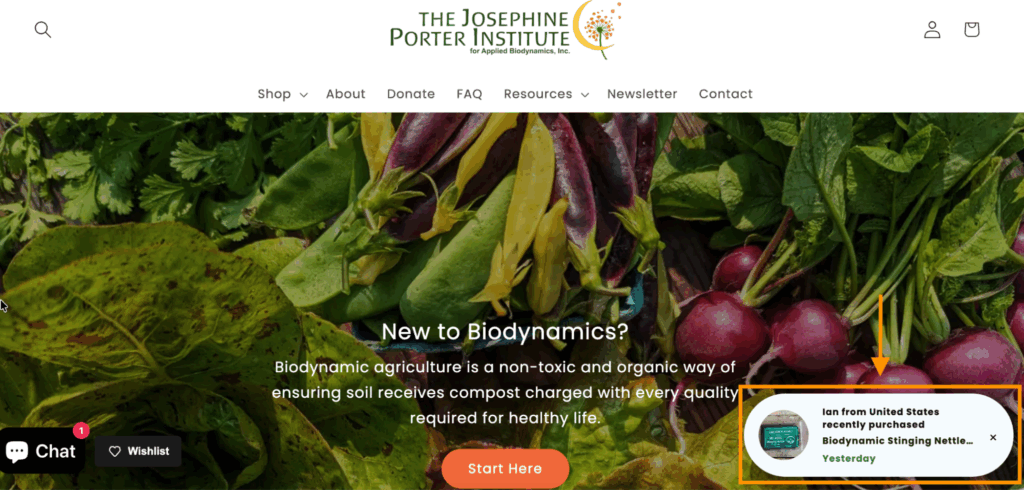
This transparent display of customer activity effectively triggers the Fear of Missing Out (FOMO), creating urgency that motivates shoppers to complete their purchase, which leads to increased conversion rates just like an announcement bar in Shopify.
How to Add Recent Sales Notifications in Shopify? (Via App)
There’s no built-in way in Shopify to add recent sales notifications, so you will need to use a dedicated Shopify app for it.
The Meetanshi Recent Sales Popup app makes this easy to create and show a sales popup notification with powerful customization options, performance tracking tools, and a user-friendly setup, all designed to boost conversions.
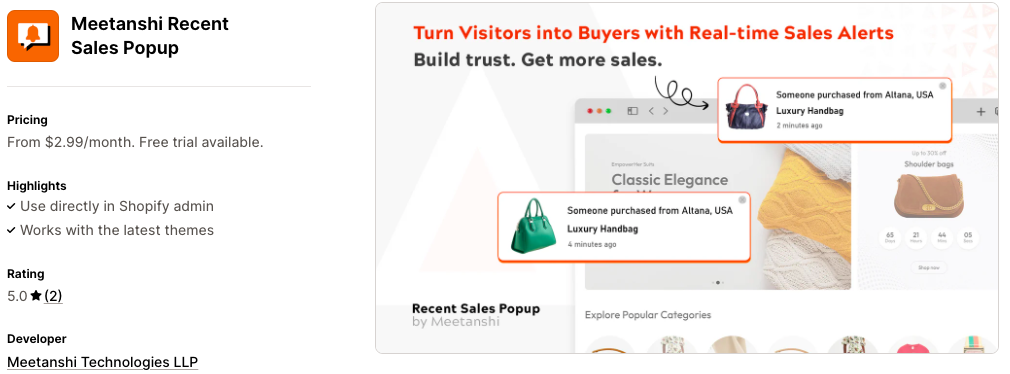
Here’s the simple 3-step process to use the app.
Step 1: Add the Order Display Settings
Install the Meetanshi Recent Sales Popup app from the Shopify App Store and then enable the app.
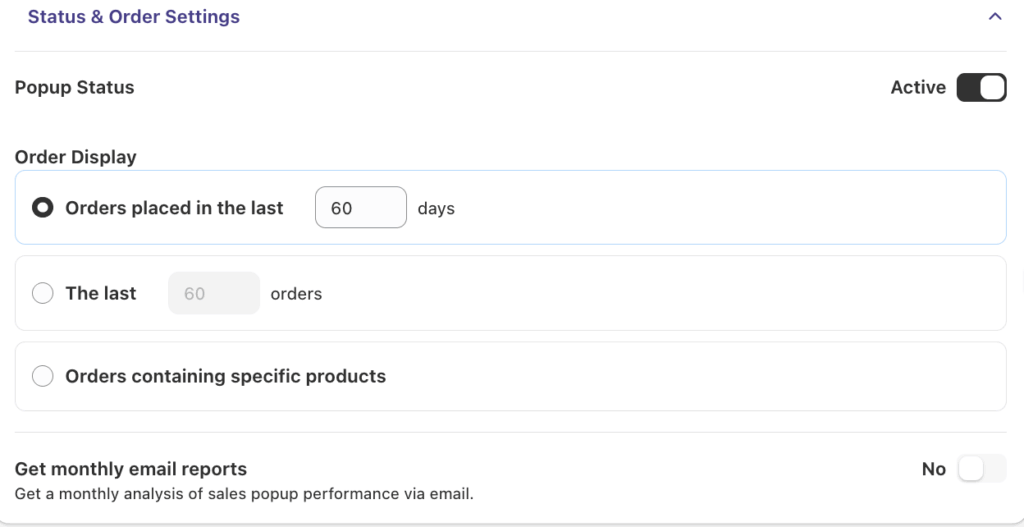
Then, from the left sidebar of the app dashboard. Click Configuration > Status & Order Settings and add the following details:
Order Display
- Set the pop-up status to Active
- Orders placed in the last X days: Enter how many days of orders you want the pop-up to display
- The last X orders: Enter the exact number of recent purchases to display
- Orders containing specific products: Select the products from the list you want to display
- Get Monthly Email Reports: Enable to receive a monthly summary in your inbox
Timing and Display
Configure how the notification will appear in your store.
- Show first notification after: Enter the number of seconds it should take to appear after a visitor arrives on the page
- Notification duration: Add how long each pop-up should stay visible before disappearing
- Delay between notifications: Enter how many seconds of gap to show the next pop-up
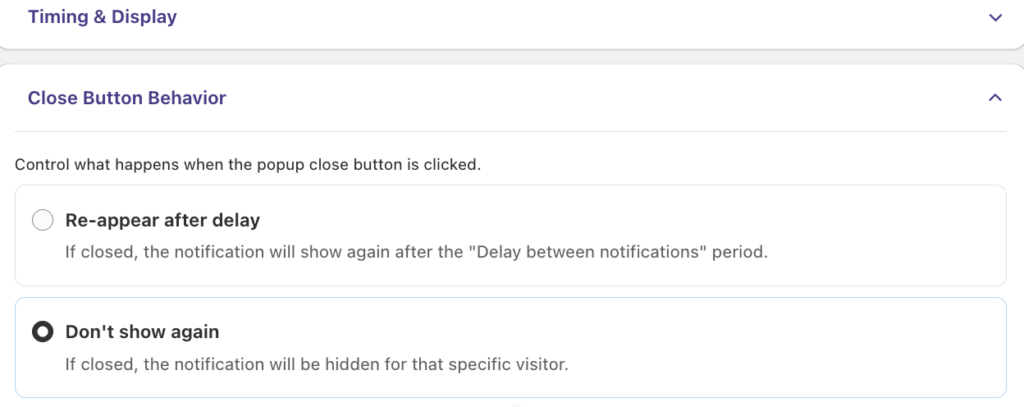
Closer Button behavior
This lets you determine the action that occurs after a user clicks the pop-up close button.
- Re-appear after delay: Show the notification again after the set delay if the visitor closes it
- Don’t show again: Hide the notification for that visitor for the rest of their browsing session
Page Visibility
Here, you need to specify where the pop-up notification should be displayed.
- Display on: Choose where popups should appear by checking the boxes for Homepage, Product pages, Collection pages, Cart page, Search Result Page, or Other Pages.
- Hide on specific page(s): Use Hide on specific pages to exclude certain URLs from showing notifications, even if they’re generally enabled.
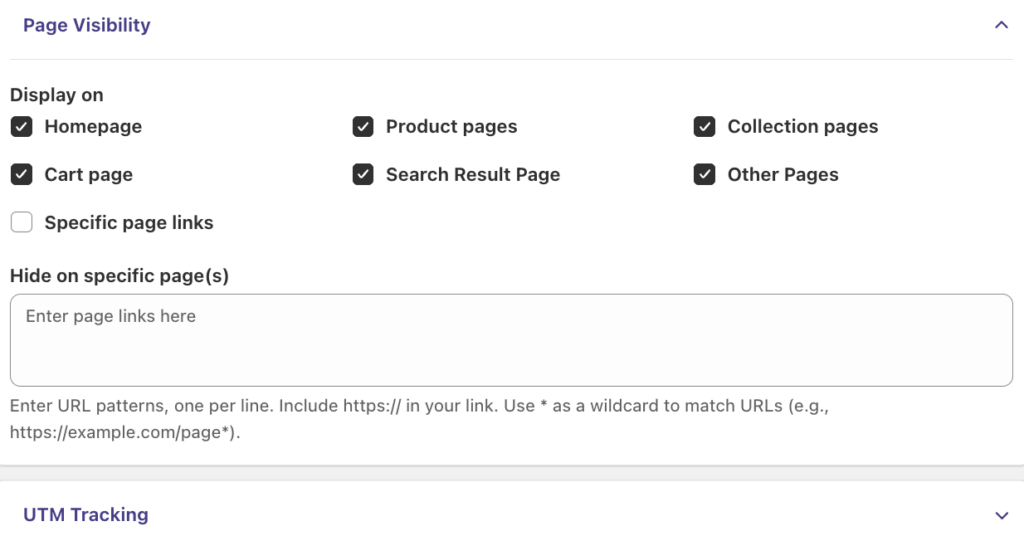
For advanced analytics, you can add the UTM tracking parameter. Once you have set all the display settings, Save the changes.
Step 2: Customize Shopify Sale Notification
Still in the configuration, click Design to edit the pop-up colors and layout as per your Shopify store.
- Popup position: Set desktop position, desktop animation, margin alignment(top/bottom & left/right), z-index, and visibility on mobile
- Popup style: Customize the style of the Shopify sales notification from design to predefined shapes and background color.
- Message setting: Use this option to add your message template, select font size/family, style, and more.
For each setting option, you will see a live preview on the right-hand side of the dashboard.
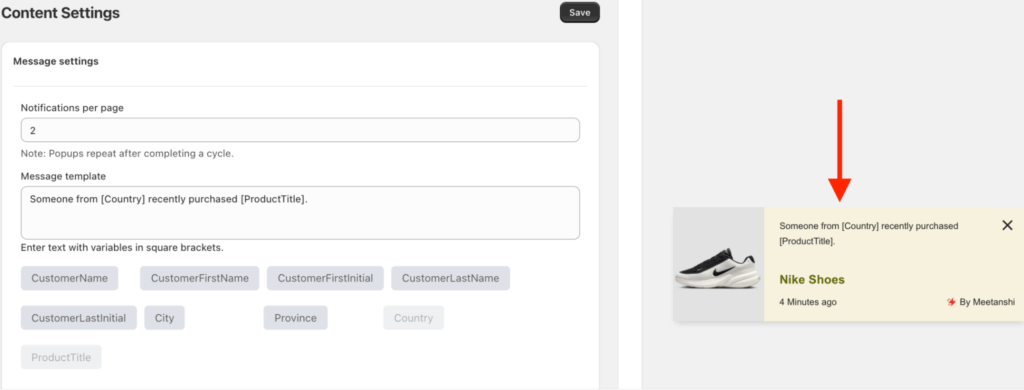
You can also add filters to apply execution rules. From the Exclude item tab on the left, you can choose to:
- Products that should not trigger sales notifications.
- Enter product tags to automatically exclude entire groups of items.
- Choose the countries where to hide sales popups.
- Select orders you don’t want to display.
And at last Save the setting.
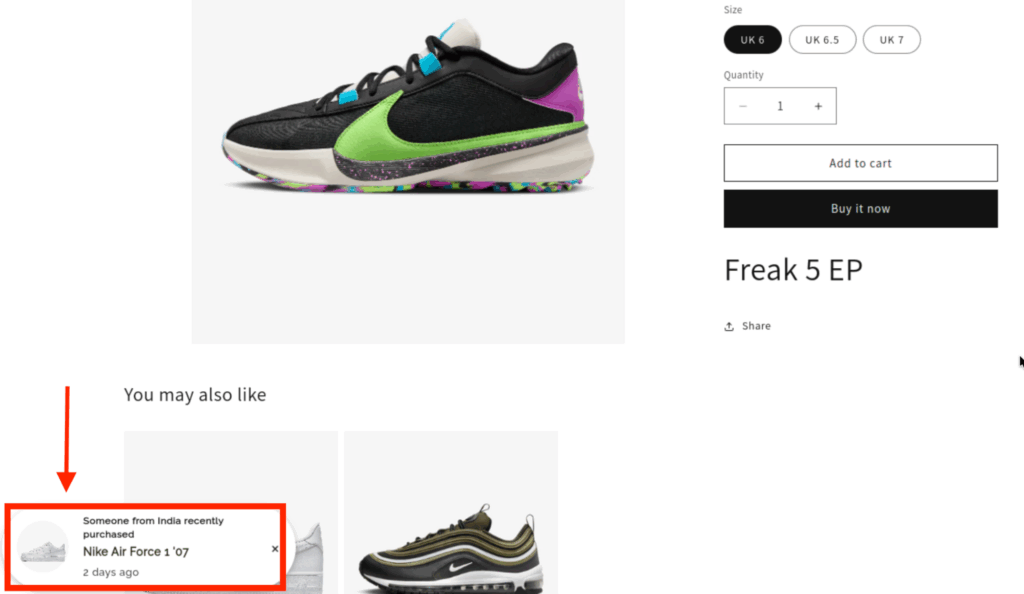
Step 3: Review Popup in the Frontend
Head to the Online store > Themes > …(three dots) > Preview, and this is how it appears in the frontend of your store.
Step 4: Analyze the Popup Performance
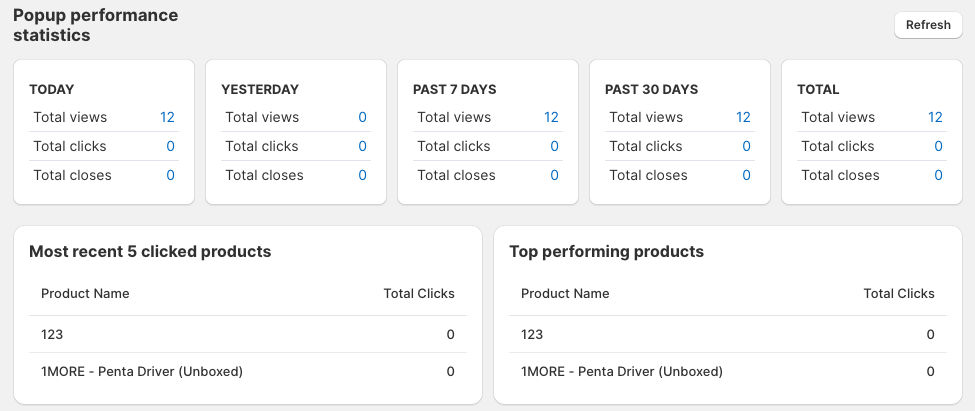
From the app dashboard, head to Popup behavior to track its performance.
Here you’ll get the report of the total number of views, clicks, and closes as per different time spans. Along with that, you can also view recently clicked products and top-performing products.
By following these steps, you can easily set up and customize recent sales notifications in your Shopify store to increase conversion.
Display real time purchase notifications of recent purchases & improve visitors trust.
Shopify Recent Sales Pop up
Benefits of Live Sales Notifications in Shopify
Integrating a recent sales notification pop-up in Shopify comes with a bunch of advantages for your Shopify store.
- Showcases that other people are actively buying, making your store feel popular and trustworthy to new visitors.
- Reduces buyer anxiety and risk by validating that the products are real and the buying process is reliable.
- By combining trust and urgency, these notifications can lead directly to a higher percentage of visitors completing a purchase
- Draws attention to bestsellers and trending items that visitors might otherwise overlook, guiding them toward high-converting products.
- Adds a dynamic, real-time feel to the store, keeping shoppers interested and browsing for a longer duration.
Elevate Conversions With This Sale Technique
Adding recent sales notifications in Shopify is a powerful way to boost your store’s conversions and drive more revenue.
By displaying these techniques, you build trust with potential customers, making them more likely to buy from you. As mentioned earlier, you will need a Shopify app to add sales notifications to your store.
The Meetanshi Recent Sales Popup app allows you to:
- Easily set up fully responsive and customizable sales pop-ups that blend in with your store’s theme.
- Choose from different pre-built templates and adjust the elements to match your brand.
- Analyze your pop-ups’ performances so you can see exactly how they are impacting sales.
Start applying this power-packed pop-up today to enhance your store’s credibility, drive more sales, and maximize revenue.
