

Hiding the product price and adding a request quote button is a good strategy for interacting with interested shoppers to offer custom pricing benefits.
Here, I will show you the easiest method on how to add a request a quote button in Shopify.
Ways to Show Shopify Quote Request Option
There is no default feature in Shopify to display the request quote button. Here, are the two alternate options you have here:
- Edit the liquid theme of your Shopify store. You have to code the solution to add a button and create a form to receive the quote request from your shoppers.
- Use the request for quote Shopify app. The app offers a no-code solution to display the button with a built-in form with just a few configurations.
I will break down both methods so you can pick the one that works for you.
How to Add a Request a Quote Button in Shopify? (Using Shopify App)
Use the Meetanshi Request Quote & Hide Price app, which comes with a free 7-day trial and makes it super easy to hide pricing and show a button at the front end.
Using the app, you can:
- Hide pricing for specific products, collections, or complete store
- Use the built-in simple form to collect pricing inquiries
- Add phone number, email, WhatsApp link, and more instead of the default message “Request Pricing”
- Keep yourself and your customer alerted about the pricing inquiry
Let us see the steps to request quotes and hide pricing in Shopify.
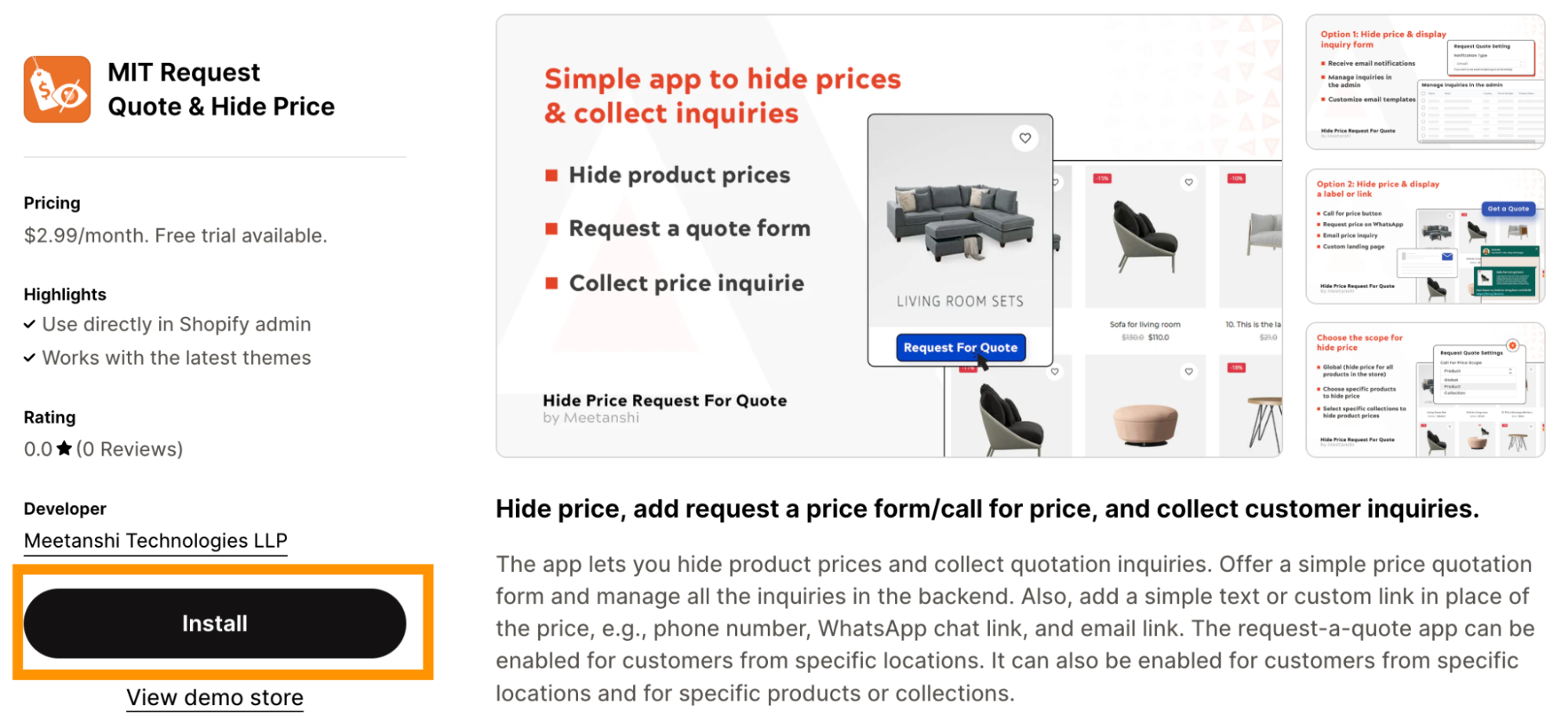
Step 1: Install the MIT Request Quote & Hide Price App
Install the Meetanshi Request Quote & Hide Price from the App Store and enable it from the in the app embeds list in the theme editor.
Step 2: Set the Call for Price Scope
Then, head to the MIT Request Quote & Hide Price dashboard and start configuring the following settings.
- Call For Price: Enable the app from here
- Do You Want to Hide Price?: Select Yes to hide the price
- Call For Price Scope: Choice if you want to apply the functionality for your entire Shopify store(Global), specific product, or specific collection.
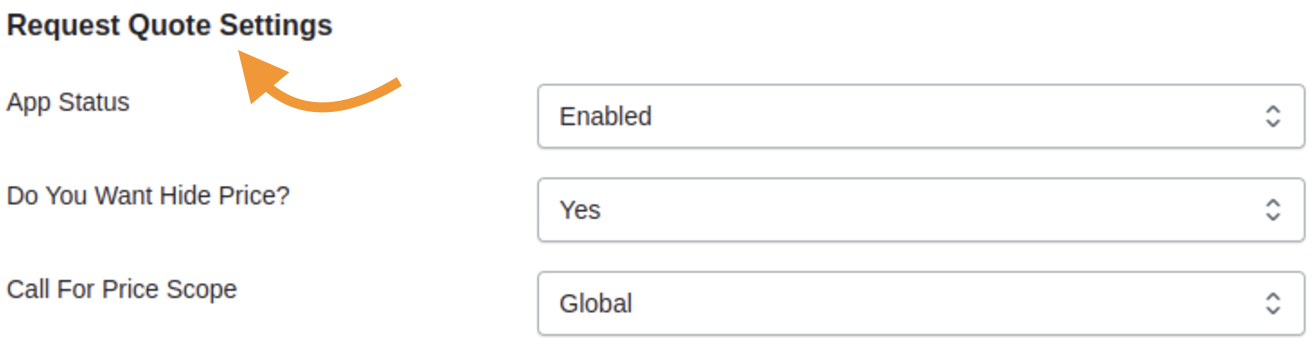
In case, you set the scope to Products/collection and select all the products/collections for which you want to show the button instead of price.
Additionally, you can set customization for country-specific countries.
Step 3: Customize the Display Label & Button
Next, you have to set the style of the label and button. You can add a simple label or opt for the classic “Request a quote” button.
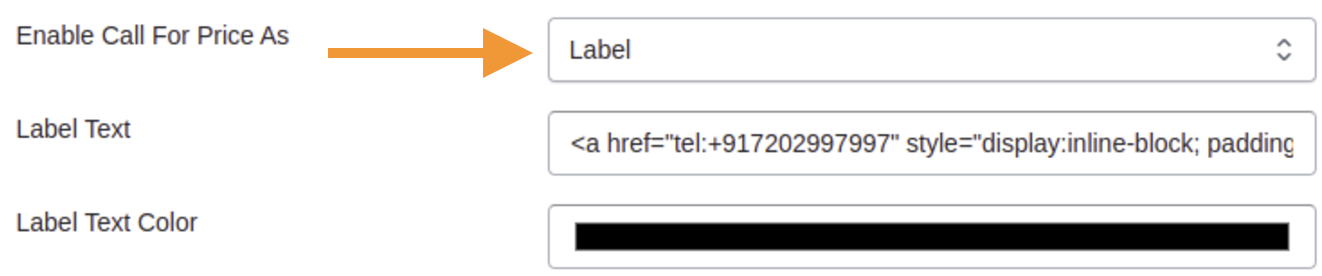
If you wish to opt for a label, do the following:
- Enable Call For Price As: Select Label from the dropdown
- Label Text: Enter a custom text or custom link here using an HTML code
- Label Text Color: Opt for the text color as per your liking
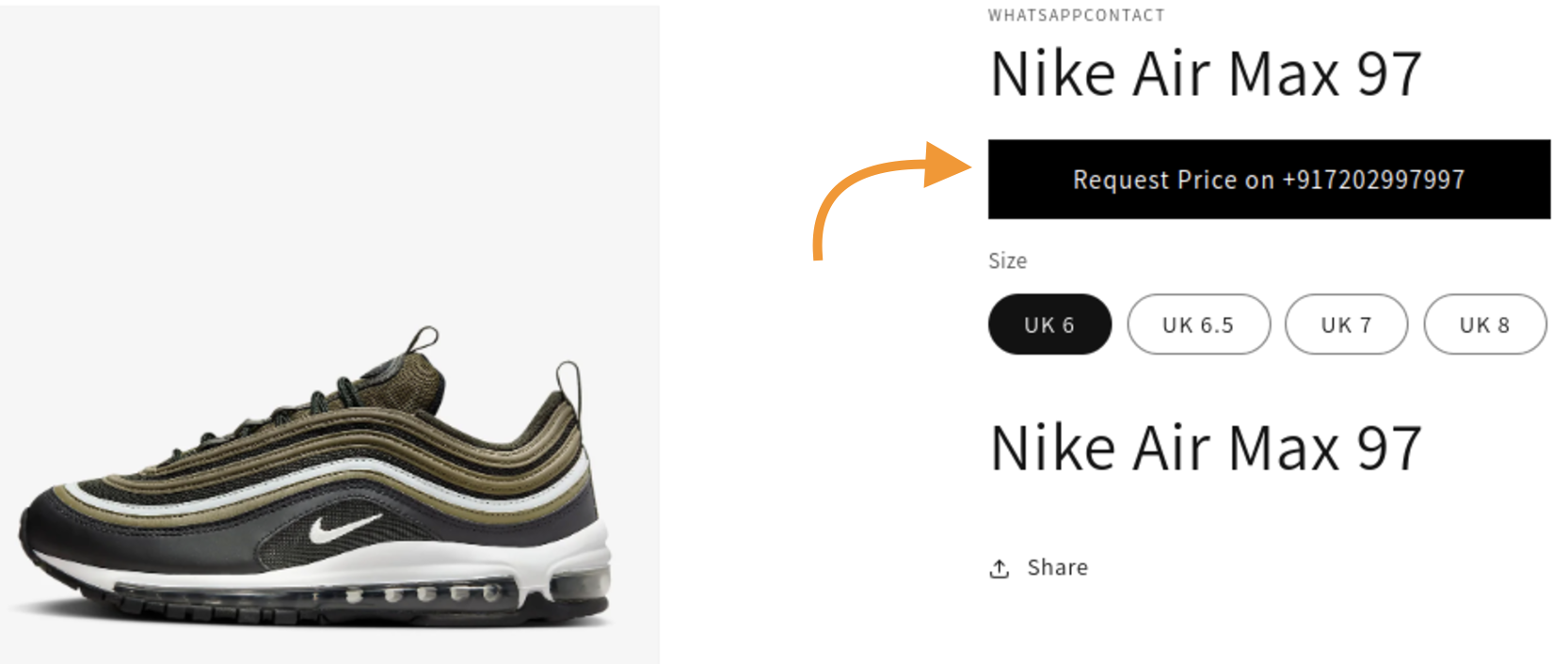
Click Save and here is how a label will look in the frontend.
If you wish to opt for a button, do the following:
- Enable Call For Price As button option here
- Add the customizations mentioned in the step 1.
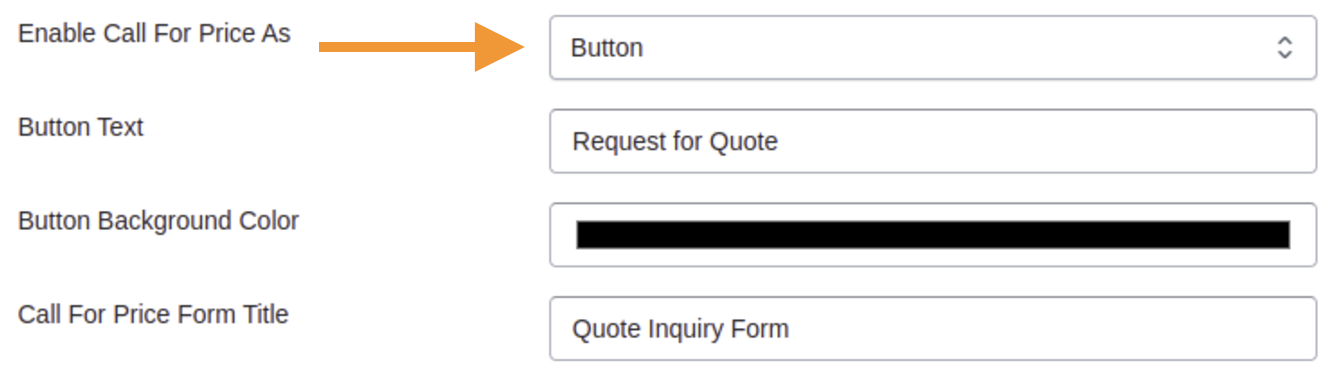
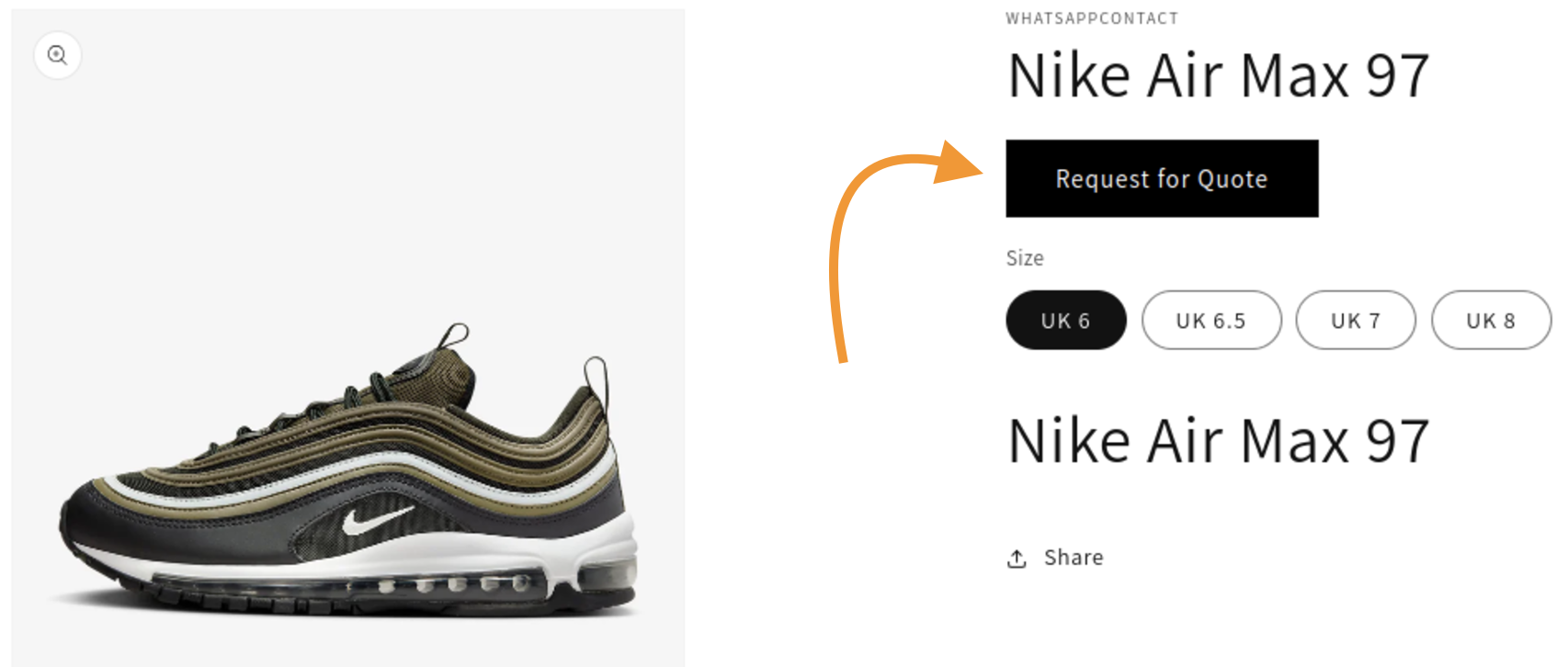
Click Save and here is how a button will appear to your shopper.
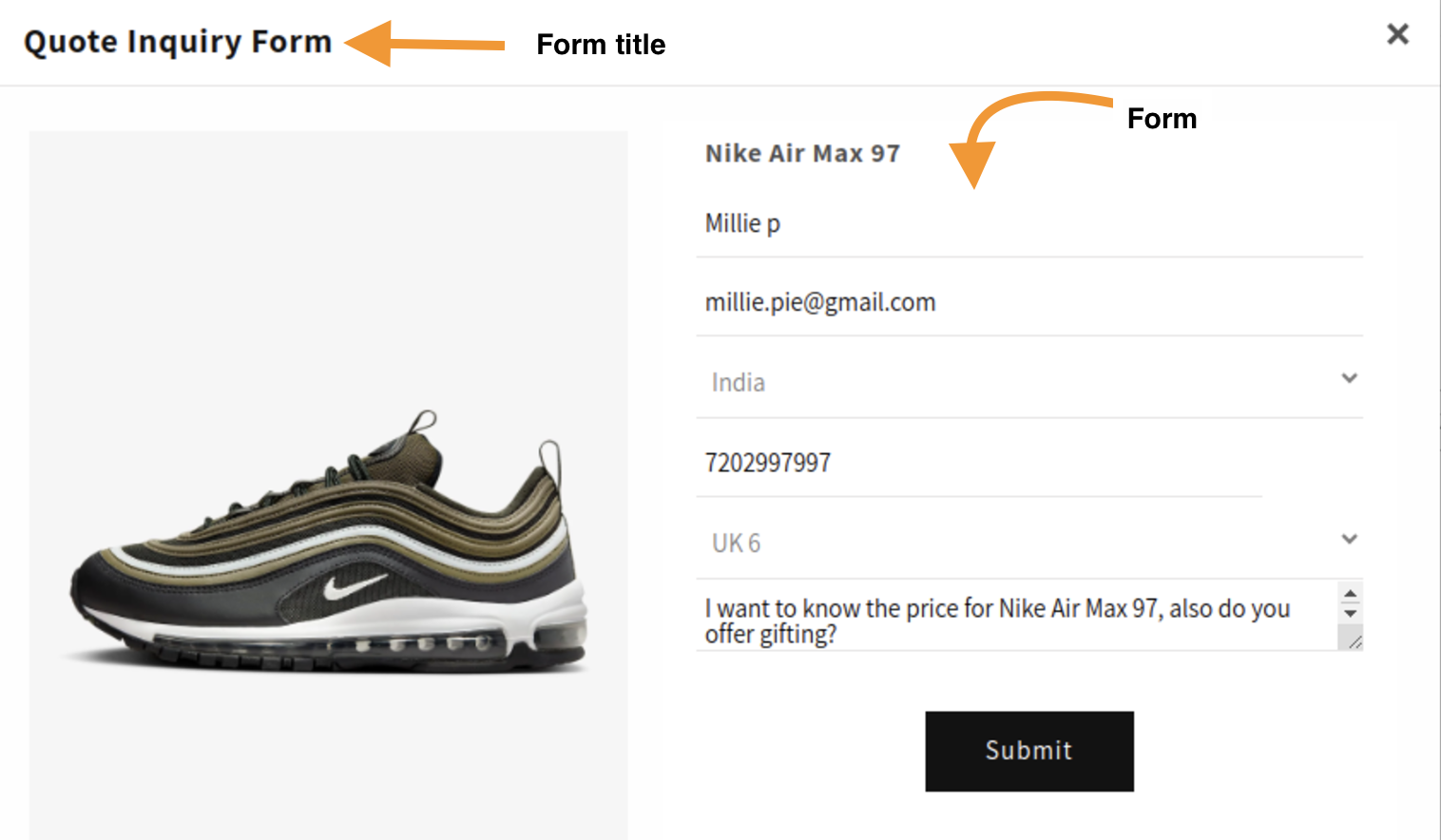
When the shopper clicks the button, a simple form will appear, which they must fill out the following fields to get the product’s pricing.
- Name
- Country
- Mobile number
- Select product variant
- Custom message
And that’s how you hide the price for a product in Shopify. 🎉
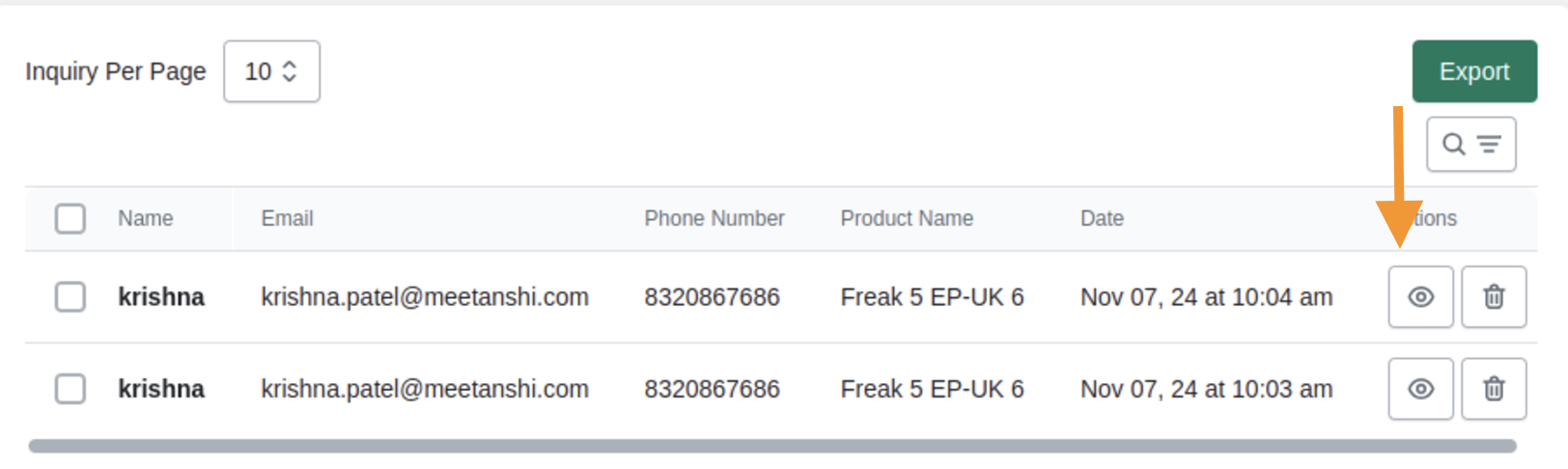
After your shopper has submitted an inquiry, you can view it under the “Inquiries” tab in the app dashboard.
Additionally, if you wish to see specific customer inquiries, just click the eye icon. You will get complete individual inquiry details.
When a shopper inquires about any specific product in your store, you can notify them via email about their action.
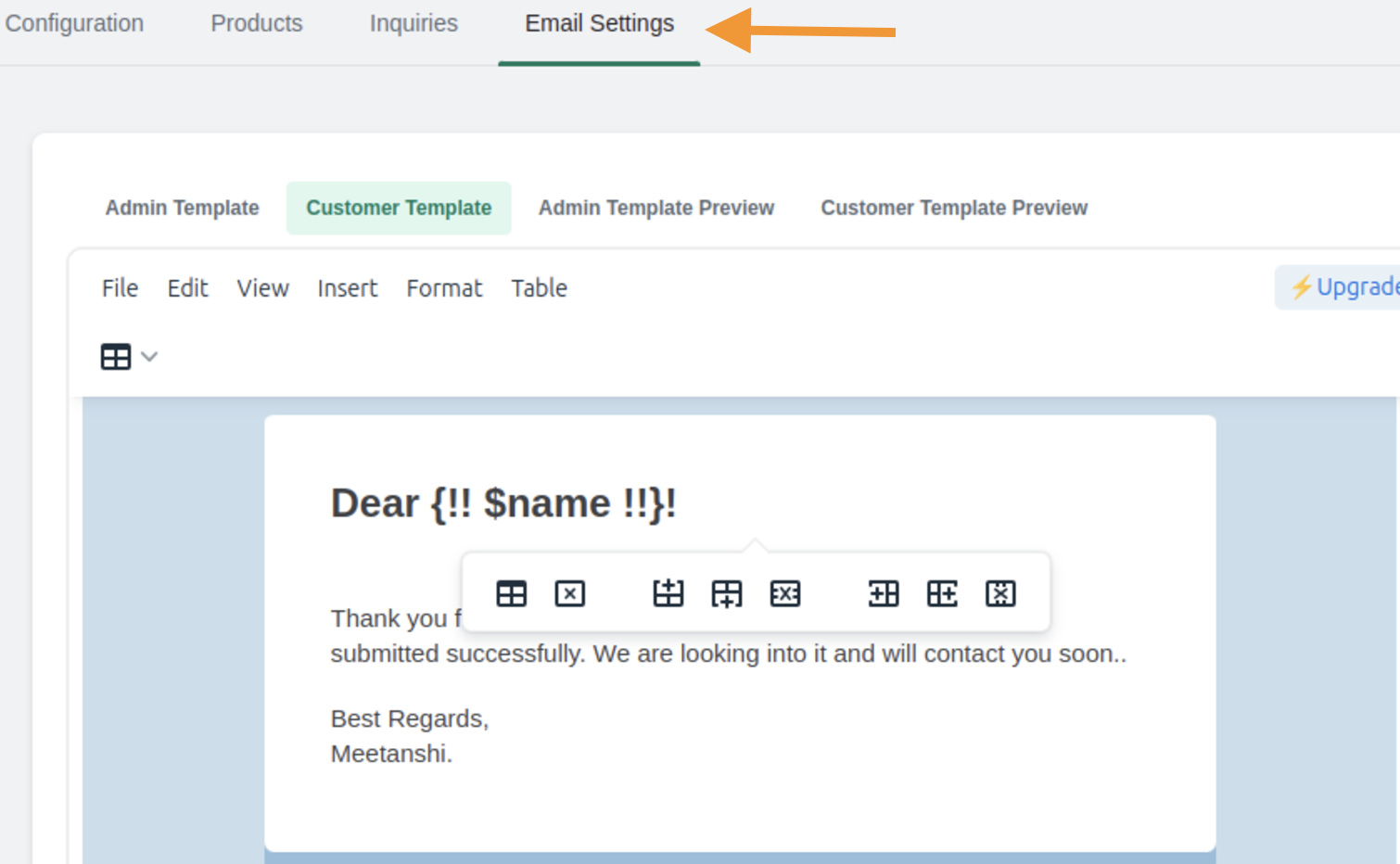
Within the app dashboard, you can customize the email templates using the Email settings section.
Hide the price within a few configurations—zero coding Shopify app.
Install Now
How to Set The Shopify Request Quote Button? (Manually)
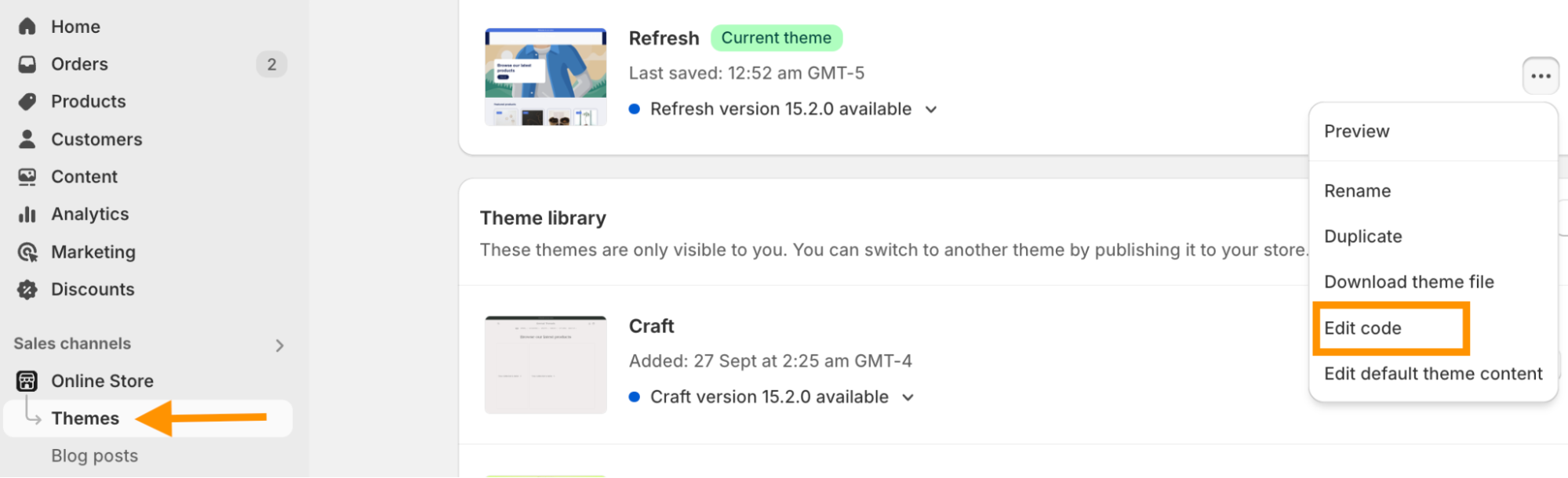
In your Shopify admin panel, go to Online Store > Themes > Actions and select Edit code.
In the theme editor, open the main-product.liquid file under “Sections”.
Find the section responsible for the product price and remove it or comment it out using {% comment %} and {% endcomment %}. Now, add the following code:
<div class="request-quote-container">

    <a href="/pages/request-quote" class="btn request-quote-button">Request a Quote</a>

</div>
In the above code, replace the target page link as per your requirements and click Save.
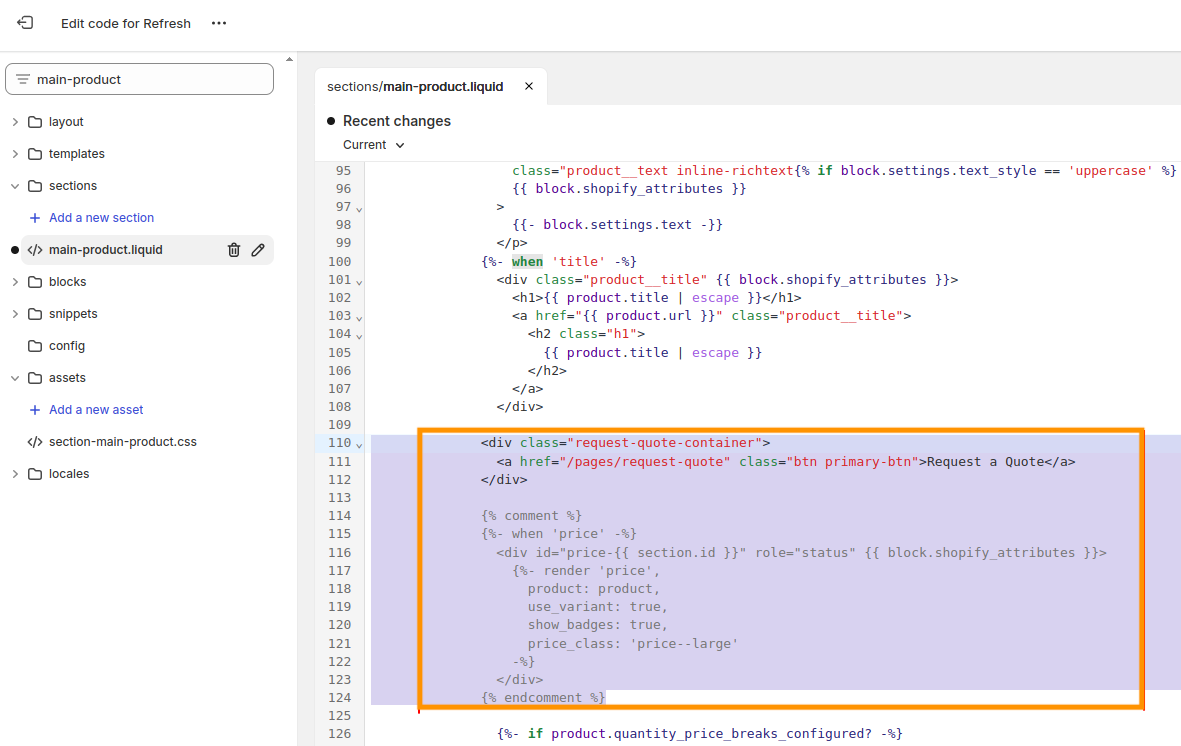
This will remove the price section from the product page and add a request for a quote page link. You may also need to set up the form on the target page where the users can submit their quote requests.
For example, here’s how the product page with the request a quote button looks like:
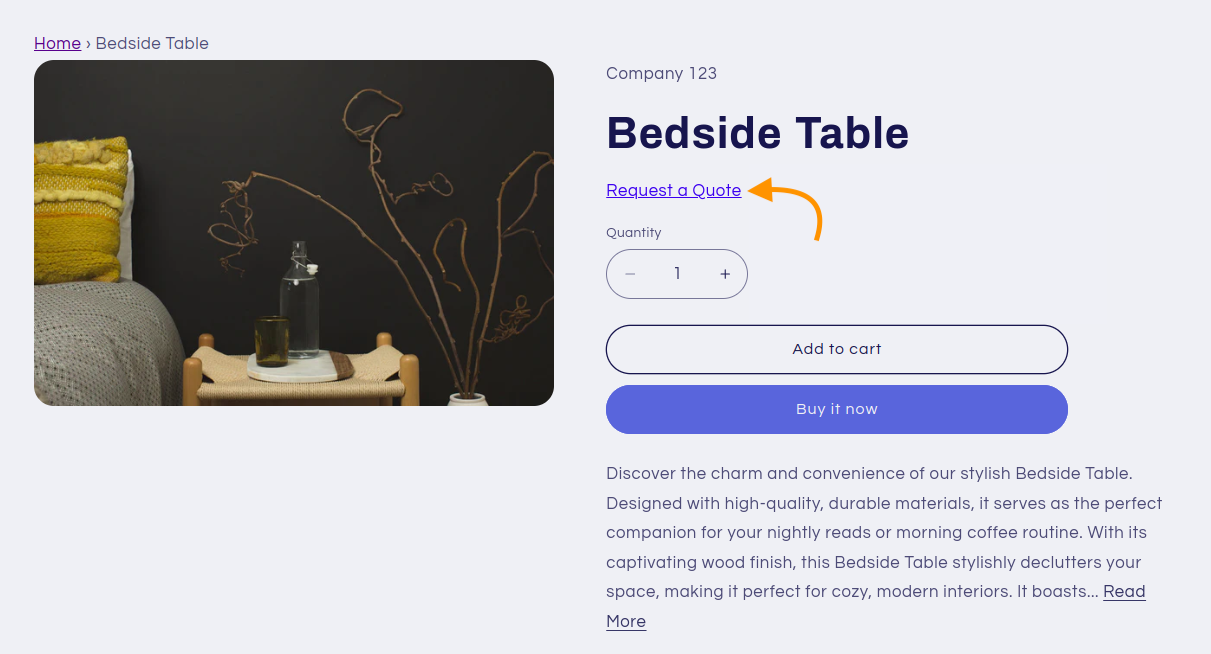
This method requires you to create a separate page for accepting quote requests. Further, you’ll need to customize your theme to remove the add to cart button and hide prices from other locations.
Simplest Way to Add Request Quote Feature in Shopify
Replacing the pricing with a request quote button is pretty simple using the Meetanshi Request Quote & Hide Price app.
As it auto removes the pricing, add to cart, and buy now buttons, unlike the manual method where you need to edit these options from your backend.
With a few simple configurations and zero coding, your store is ready to collect inquiries.
Hide the price within a few configurations—zero coding Shopify app.
Install Now
