

Adding sales notification pop-ups does win more customers, but are fake sales notifications the best approach here?
While they are a popular shortcut, they still put your brand reputation at risk.
In this guide, we’ll explain how to set up fake sales notifications along with real notification alerts to stay authentic to your shoppers.
The Psychology Behind Sales Notifications
Shoppers are more likely to buy when they see evidence of others purchasing from your store. Here is the psychological explanation of why they work.
Social proof and real-time notifications act as a digital busy shop, building immediate trust by showing that your brand is active and trusted by others. Seeing a recent purchase reassures hesitant visitors, transforming a quiet, potentially risky storefront into a credible marketplace where others are buying with confidence.
These alerts also trigger powerful emotional responses like FOMO and a sense of scarcity.
When shoppers see popular items selling quickly or Low Stock tags, they feel a natural urge to act fast rather than take their time. By highlighting this activity, you push visitors from casual browsing to active shopping, making your products feel more valuable and sought-after.
Why You Should Not Use Fake Sales Notifications?
While fake sales notifications might boost conversions quickly, they are very risky. Today’s smart shoppers easily detect fraud. Losing trust not only costs a single sale but also leads to bad reviews and a damaged reputation of your whole business, which is hard to fix.
Instead, you should rely on displaying genuine sales pop-ups. They pull real order data, including actual customer details, to provide accurate and transparent updates. This enhances social proof and builds trust in your business.
How to Show Real Sales Notifications in Shopify?
Here, you can use the Meetanshi Recent Sales Notifications Shopify app.
Since Shopify doesn’t offer a built-in way to display real-time sales pop-ups, using an app is necessary. Unlike fake alerts, this app shows live notifications based on actual order data from your store, helping build trust with genuine social proof without any manual inputs from your end.
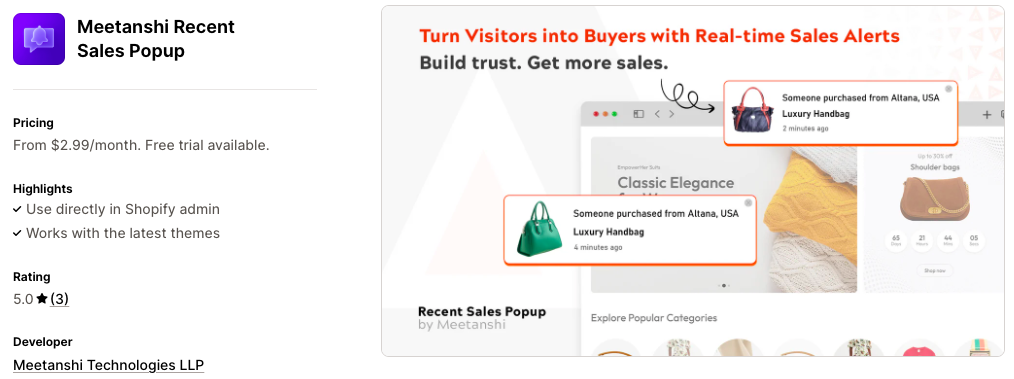
Using this app is super easy. With a few simple steps, you can activate the fully customizable sales notification in your Shopify store, which looks like this:
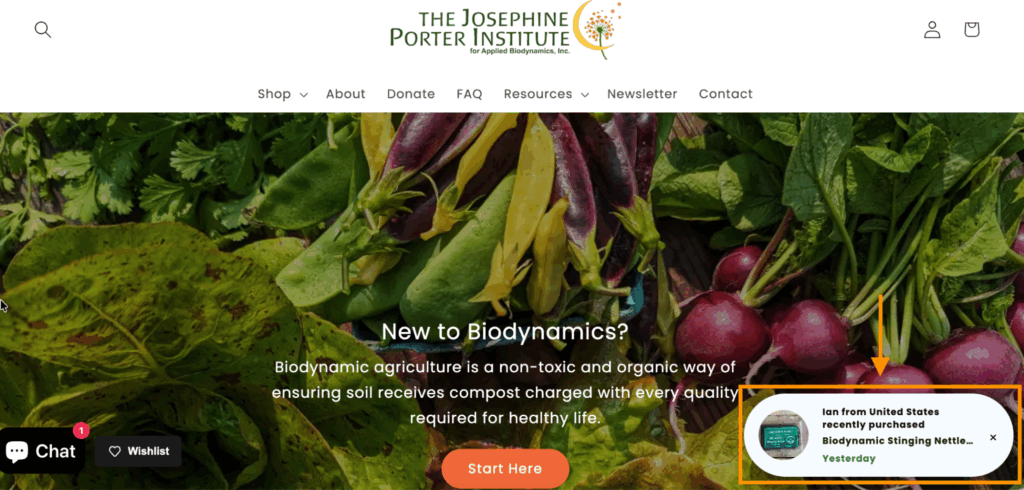
Here is an overview of the steps:
Step 1: Install and enable the sales pop-up and configure the pop-up settings
Step 2: Select which orders to display (recent orders, last X days, or specific products) and set timing controls like display duration, gap between notifications, and more.
Step 3: Tweak pop-up design, select layout, text, set display rules, and other adjustments to match your store theme.
In the frontend, you’ll get clean pop-ups that display real-time purchase activity to your visitors, helping shoppers see that your store is active and trusted. These notifications appear without disrupting the shopping experience.
Display real time purchase notifications of recent purchases & improve visitors trust.
Shopify Recent Sales Pop up
Liquid Code for Fake Sales Notification Popups in Shopify
Here’s the complete process to add a fake sales notification in Shopify using custom code.
Step 1: Paste the Section Code
Navigate to Online stores > Themes …(three dots) > Edit Code.
Then, from the left sidebar of the code editor, create a new section and save it as fake-sales-notifications.liquid. Paste the following code in the newly created section and save it.
{% schema %}
{
"name": "Sales Pop V2.1 (Inline)",
"settings": [
{
"type": "header",
"content": "⚡ Data Source"
},
{
"type": "select",
"id": "source_type",
"label": "Product Source",
"options": [
{ "value": "collection", "label": "From a Collection" },
{ "value": "manual", "label": "Select Specific Products" }
],
"default": "manual"
},
{
"type": "collection",
"id": "collection_source",
"label": "Choose Collection",
"info": "Will pick random products from this collection (Max 50 loaded)."
},
{
"type": "product_list",
"id": "manual_products",
"label": "Manual Product List",
"limit": 20
},
{
"type": "header",
"content": "🎨 Visual Style & Layout"
},
{
"type": "select",
"id": "layout_style",
"label": "Popup Layout",
"options": [
{ "value": "standard", "label": "Standard (Image Left)" },
{ "value": "card", "label": "Card (Image Top)" },
{ "value": "pill", "label": "Pill (Compact)" }
],
"default": "standard"
},
{
"type": "select",
"id": "position",
"label": "Screen Position",
"options": [
{ "value": "bottom-left", "label": "Bottom Left" },
{ "value": "bottom-right", "label": "Bottom Right" },
{ "value": "top-left", "label": "Top Left" },
{ "value": "top-right", "label": "Top Right" }
],
"default": "bottom-left"
},
{
"type": "range",
"id": "truncate_limit",
"min": 10,
"max": 100,
"step": 5,
"label": "Truncate Product Name at",
"default": 25,
"info": "Characters"
},
{
"type": "checkbox",
"id": "hide_mobile",
"label": "Hide on Mobile",
"default": false
},
{
"type": "header",
"content": "📝 Content Config"
},
{
"type": "textarea",
"id": "customer_names",
"label": "Names (Comma Separated)",
"default": "John, Sarah, Mike, Emily, David, Jessica, Chris, Anna"
},
{
"type": "textarea",
"id": "customer_locations",
"label": "Locations (Comma Separated)",
"default": "New York, London, Tokyo, Paris, Texas, Florida, California"
},
{
"type": "text",
"id": "message_text",
"label": "Action Text",
"default": "purchased a"
},
{
"type": "header",
"content": "⏱️ Timing & Behavior"
},
{
"type": "range",
"id": "max_popups",
"min": 0,
"max": 20,
"step": 1,
"label": "Max Popups per Session",
"default": 5,
"info": "Set to 0 for infinite."
},
{
"type": "range",
"id": "initial_delay",
"min": 0,
"max": 30,
"step": 1,
"unit": "sec",
"label": "Start Delay",
"default": 5
},
{
"type": "range",
"id": "display_duration",
"min": 3,
"max": 15,
"step": 1,
"unit": "sec",
"label": "Stay Visible For",
"default": 6
},
{
"type": "range",
"id": "interval_time",
"min": 5,
"max": 60,
"step": 5,
"unit": "sec",
"label": "Gap Between Popups",
"default": 10
},
{
"type": "header",
"content": "🎨 Colors"
},
{
"type": "color",
"id": "bg_color",
"label": "Background",
"default": "#ffffff"
},
{
"type": "color",
"id": "text_color",
"label": "Text",
"default": "#333333"
},
{
"type": "color",
"id": "highlight_color",
"label": "Product Name Color",
"default": "#2b2b2b"
}
],
"presets": [
{
"name": "Sales Pop V2.1 (Inline)"
}
]
}
{% endschema %}
{% comment %} LOGIC TO FETCH DATA {% endcomment %}
{% assign product_data = "" %}
{% if section.settings.source_type == 'collection' and section.settings.collection_source != blank %}
{% assign source_list = collections[section.settings.collection_source].products %}
{% else %}
{% assign source_list = section.settings.manual_products %}
{% endif %}
<div id="sp-wrapper"
class="sp-hide sp-{{ section.settings.position }} sp-layout-{{ section.settings.layout_style }} {% if section.settings.hide_mobile %}sp-desktop-only{% endif %}"
style="
--sp-bg: {{ section.settings.bg_color }};
--sp-text: {{ section.settings.text_color }};
--sp-highlight: {{ section.settings.highlight_color }};
">
<div class="sp-container">
<button class="sp-close" aria-label="Close notification">×</button>
<div class="sp-image-col">
<img id="sp-img" src="" alt="Product" loading="lazy">
</div>
<div class="sp-content-col">
<div class="sp-meta">
<span id="sp-name" class="sp-name"></span> from <span id="sp-location"></span>
</div>
<div class="sp-message-line">
{{ section.settings.message_text }}
<a href="#" id="sp-link">
<span id="sp-product-title"></span>
</a>
</div>
<div class="sp-time">
<span id="sp-time-val"></span> minutes ago
</div>
</div>
</div>
</div>
<script>
(function() {
// 1. DATA PREP
const rawProducts = [
{% if source_list != blank %}
{% for product in source_list limit: 50 %}
{
title: {{ product.title | json }},
url: "{{ product.url }}",
image: "{{ product.featured_image | image_url: width: 300 }}"
}{% unless forloop.last %},{% endunless %}
{% endfor %}
{% endif %}
];
if (rawProducts.length === 0) return;
// Settings
const names = "{{ section.settings.customer_names }}".split(',').map(s => s.trim());
const locations = "{{ section.settings.customer_locations }}".split(',').map(s => s.trim());
const truncateLen = {{ section.settings.truncate_limit }};
const maxPopups = {{ section.settings.max_popups }};
const initialDelay = {{ section.settings.initial_delay }} * 1000;
const showTime = {{ section.settings.display_duration }} * 1000;
const gapTime = {{ section.settings.interval_time }} * 1000;
// DOM Elements
const wrapper = document.getElementById('sp-wrapper');
const closeBtn = wrapper.querySelector('.sp-close');
// Session Logic
let sessionCount = parseInt(sessionStorage.getItem('sp_popup_count')) || 0;
let isClosed = false;
// Helper: Truncate String
function truncate(str, n) {
return (str.length > n) ? str.slice(0, n-1) + '...' : str;
}
// Helper: Randoms
const rand = (arr) => arr[Math.floor(Math.random() * arr.length)];
const randInt = (min, max) => Math.floor(Math.random() * (max - min + 1)) + min;
// CORE FUNCTION
function triggerPopup() {
if (isClosed) return;
if (maxPopups > 0 && sessionCount >= maxPopups) return;
if (rawProducts.length === 0) return;
// Select Data
const p = rand(rawProducts);
const n = rand(names);
const l = rand(locations);
const t = randInt(2, 59);
// Populate DOM
document.getElementById('sp-img').src = p.image;
document.getElementById('sp-name').innerText = n;
document.getElementById('sp-location').innerText = l;
document.getElementById('sp-product-title').innerText = truncate(p.title, truncateLen);
document.getElementById('sp-link').href = p.url;
document.getElementById('sp-time-val').innerText = t;
// Show
wrapper.classList.remove('sp-hide');
wrapper.classList.add('sp-show');
// Update Session Limit
sessionCount++;
sessionStorage.setItem('sp_popup_count', sessionCount);
// Hide Timer
setTimeout(() => {
wrapper.classList.remove('sp-show');
wrapper.classList.add('sp-hide');
// Next Popup Timer
if (!isClosed) setTimeout(triggerPopup, gapTime);
}, showTime);
}
// INIT
setTimeout(triggerPopup, initialDelay);
// Event Listeners
closeBtn.addEventListener('click', function(e) {
e.stopPropagation();
wrapper.classList.remove('sp-show');
wrapper.classList.add('sp-hide');
isClosed = true;
});
})();
</script>
<style>
/* --- BASE STYLES --- */
#sp-wrapper {
position: fixed;
z-index: 2147483647;
font-family: inherit;
font-size: 14px;
line-height: 1.3;
transition: all 0.4s cubic-bezier(0.25, 0.8, 0.25, 1);
box-shadow: 0 10px 25px rgba(0,0,0,0.1);
background: var(--sp-bg);
color: var(--sp-text);
width: auto;
max-width: 360px;
min-width: 280px;
}
.sp-container {
position: relative;
display: flex;
overflow: hidden;
}
.sp-hide { opacity: 0; visibility: hidden; transform: translateY(20px); }
.sp-show { opacity: 1; visibility: visible; transform: translateY(0); }
.sp-bottom-left { bottom: 20px; left: 20px; }
.sp-bottom-right { bottom: 20px; right: 20px; }
.sp-top-left { top: 20px; left: 20px; }
.sp-top-right { top: 20px; right: 20px; }
@media (max-width: 768px) {
.sp-desktop-only { display: none !important; }
#sp-wrapper { max-width: calc(100% - 40px); left: 20px; right: 20px; bottom: 20px; }
}
/* Typography & Elements */
.sp-close {
position: absolute;
top: 5px;
right: 8px;
background: transparent;
border: none;
font-size: 18px;
line-height: 1;
cursor: pointer;
color: var(--sp-text);
opacity: 0.4;
z-index: 2;
padding: 0;
}
.sp-close:hover { opacity: 1; }
.sp-meta { font-size: 0.8em; opacity: 0.7; margin-bottom: 2px; }
.sp-name { font-weight: 600; }
.sp-message-line {
font-size: 0.95em;
margin: 2px 0;
line-height: 1.3;
}
.sp-message-line a {
display: inline; /* Forces inline flow */
text-decoration: none;
color: var(--sp-highlight);
font-weight: 700;
}
.sp-message-line a:hover { text-decoration: underline; }
.sp-time { font-size: 0.75em; opacity: 0.5; margin-top: 4px; }
.sp-image-col img {
display: block;
object-fit: cover;
}
.sp-layout-standard { border-radius: 8px; }
.sp-layout-standard .sp-container { padding: 12px; align-items: center; }
.sp-layout-standard .sp-image-col { margin-right: 15px; flex-shrink: 0; }
.sp-layout-standard img { width: 60px; height: 60px; border-radius: 4px; }
.sp-layout-card { border-radius: 12px; max-width: 260px; }
.sp-layout-card .sp-container { flex-direction: column; }
.sp-layout-card .sp-image-col { width: 100%; height: 140px; }
.sp-layout-card img { width: 100%; height: 100%; border-radius: 0; }
.sp-layout-card .sp-content-col { padding: 15px; text-align: center; }
.sp-layout-card .sp-meta { font-size: 0.9em; }
.sp-layout-pill { border-radius: 50px; padding-right: 25px; }
.sp-layout-pill .sp-container { padding: 6px; align-items: center; }
.sp-layout-pill .sp-image-col { margin-right: 12px; }
.sp-layout-pill img { width: 45px; height: 45px; border-radius: 50%; }
.sp-layout-pill .sp-close { right: 10px; top: 50%; transform: translateY(-50%); font-size: 14px; }
.sp-layout-pill .sp-content-col { display: flex; flex-direction: column; justify-content: center; }
.sp-layout-pill .sp-meta, .sp-layout-pill .sp-time { font-size: 0.7em; }
.sp-layout-pill .sp-message-line { font-size: 0.85em; }
</style>
Step 2: Add Section to Theme
Still in the code editor, from the left sidebar, click the Shopify icon > Customize theme. This will redirect you to the theme editor. Then, from the left sidebar of the theme editor, click Add section > Sales Pop V2.1 (Inline).
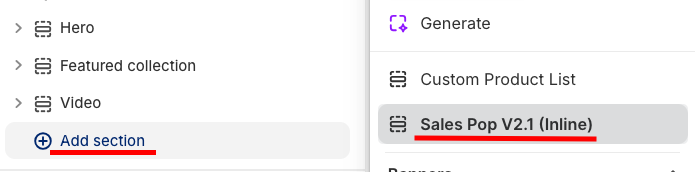
Step 3: Configure Sales Notification
Click Sales Pop V2.1 (Inline) to expand the customization options.
You can choose products or collections to display, set the pop-up design and look, write the names/locations, and configure the timings for the pop-up’s appearance.
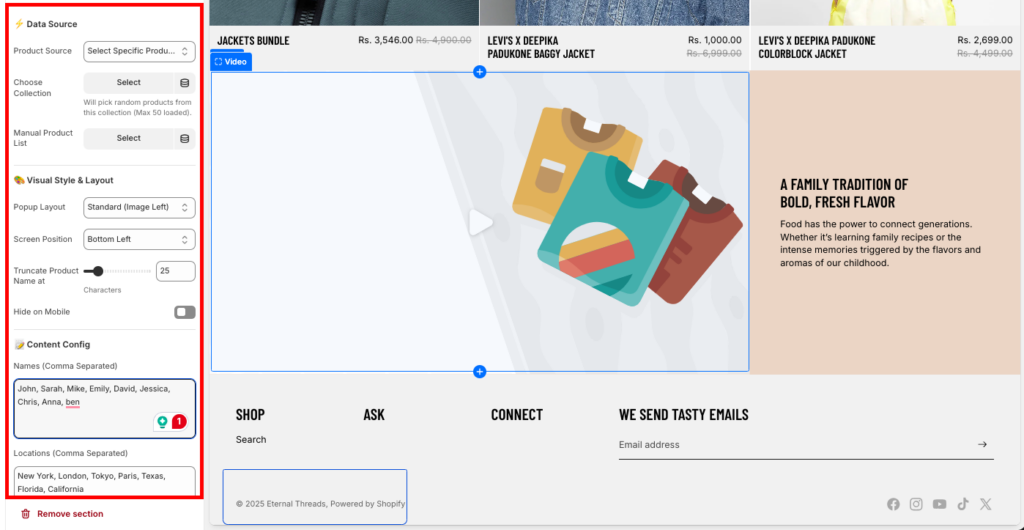
Save the changes after you complete editing the pop-up, and this is how the fake sales pop-up will look.
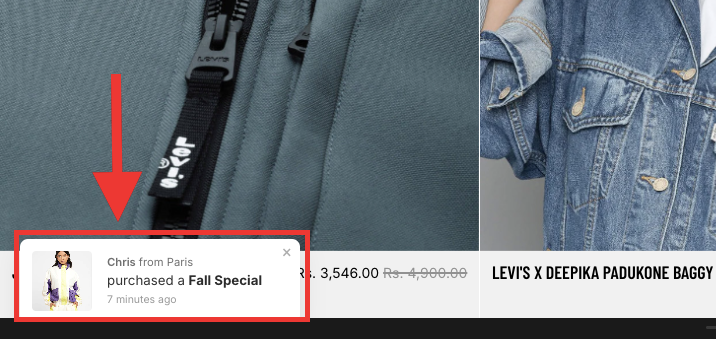
The code creates a small pop-up every 5 to 8 seconds showing a random product as recently sold. This fake notification helps new brands look busy and boosts sales, but use it carefully. If customers discover the sales aren’t real, it can harm your business’s reputation and trust.
Alternately to avoid fake notifications, you can add scrolling logos to Shopify to build brand trust.
Tips to Make the Recent Sales Notifications Work
Here are some practical tips to make the sales notification work to the fullest:
- Wait 5–10 seconds after a visitor lands on your site before showing a notification
- Set the delay between notifications to 20–30 seconds otherwise it might annoy the customers
- Keep the pop-up visible for about 5–7 seconds, long enough to be read
- Ensure the pop-up is compatible with mobile
- Disable notifications on the Cart and Checkout pages. You don’t want to distract a customer who is already in the final stages of paying
FAQs
I am Getting Traffic, But No Sales. Why?
High traffic but no sales usually means shoppers aren’t finding value. Visitors may hesitate due to weak social proof, unclear value, or lack of confidence; sales notifications can help create trust and prompt action.
Is it Ethical to Use Fake Sales Notifications in Shopify?
Fake sales notifications can be unethical if they mislead customers. It’s best to use real or clearly simulated data and focus on building trust, not deception.
How to Show Someone Brought Notifications?
You can show “Someone bought notifications” using the Meetanshi Recent Sales Popup Shopify app.
Display real time purchase notifications of recent purchases & improve visitors trust.
Shopify Recent Sales Pop up
