

The default Shopify allows you to accept Cash on Delivery (COD) as a manual payment method, an essential option preferred by many shoppers.
While the default Cash on Delivery method is functional yet tedious, store owners are now adapting to a Quick COD Order Form, a single-page pop-up that collects only essential delivery details.
In this article, learn how to enable cash on delivery in a Shopify store using two options, including the quick COD order form method.
How to Enable Cash on Delivery in Shopify (Default Method)
Here are the steps to activate Cash on Delivery using Shopify’s default method.
Navigate to your Shopify Admin and click on Settings > Payments.
Then, scroll down to the Manual payment methods and select Cash on Delivery (COD) from the drop-down.
Add any specific instructions for your customers (optional) and click Activate Cash on Delivery (COD).
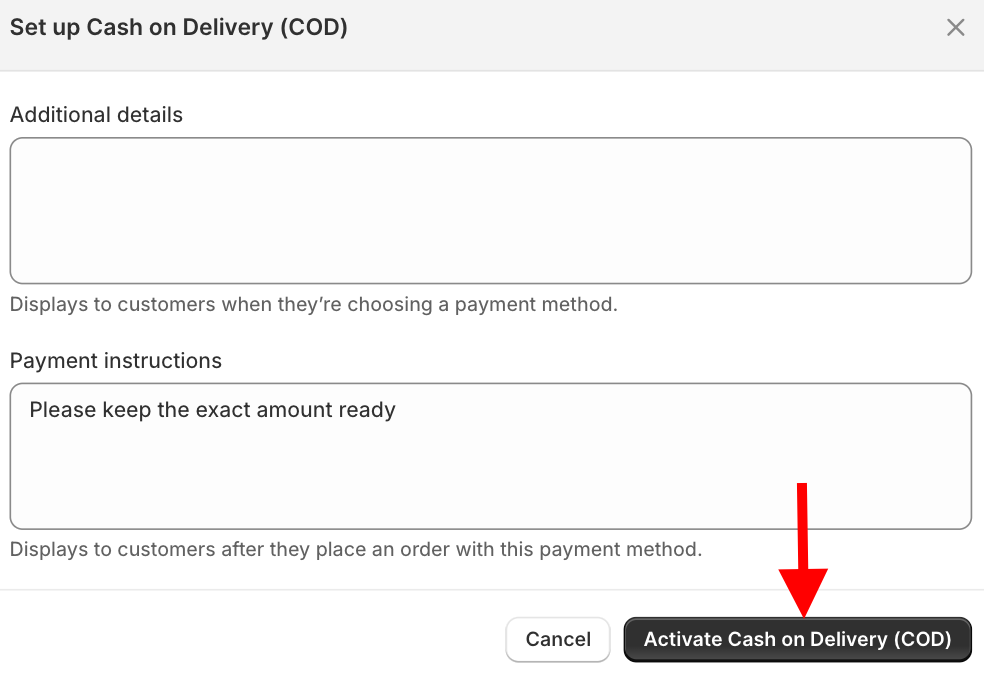
This simple navigation activates Cash on Delivery as a payment option.
However, the default checkout takes around 15 minutes to fill out the COD form with 10–15 fields, causing your shoppers to lose interest. For a shopper who simply wants to pay at their doorstep, this feels like a barrier.
This is where a quick COD order form makes a real difference.
It bypasses the traditional checkout and lets customers order directly from the product page.
Add Cash on Delivery in Shopify Using a Quick Order Form
The standard checkout asks for email addresses, account creation, and multiple clicks. When you replace the multi-step checkout with a Quick COD Order Form, you condense the entire buying journey into a single, high-converting step directly on your product page.
There is no default method to activate the quick order form; simply follow these steps of a Shopify app.
Step 1: Install and Enable the App
Install the MIT Quick Order Form COD app in your Shopify store, then select COD Form from the left sidebar and toggle the quick order form to Enable within the app dashboard.
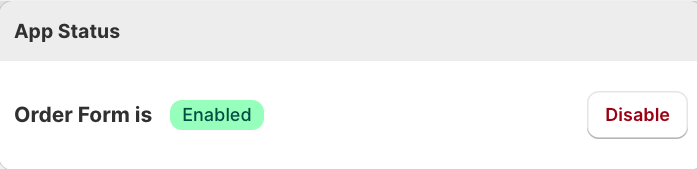
Step 2: Choose Form Style & Customize Form Field
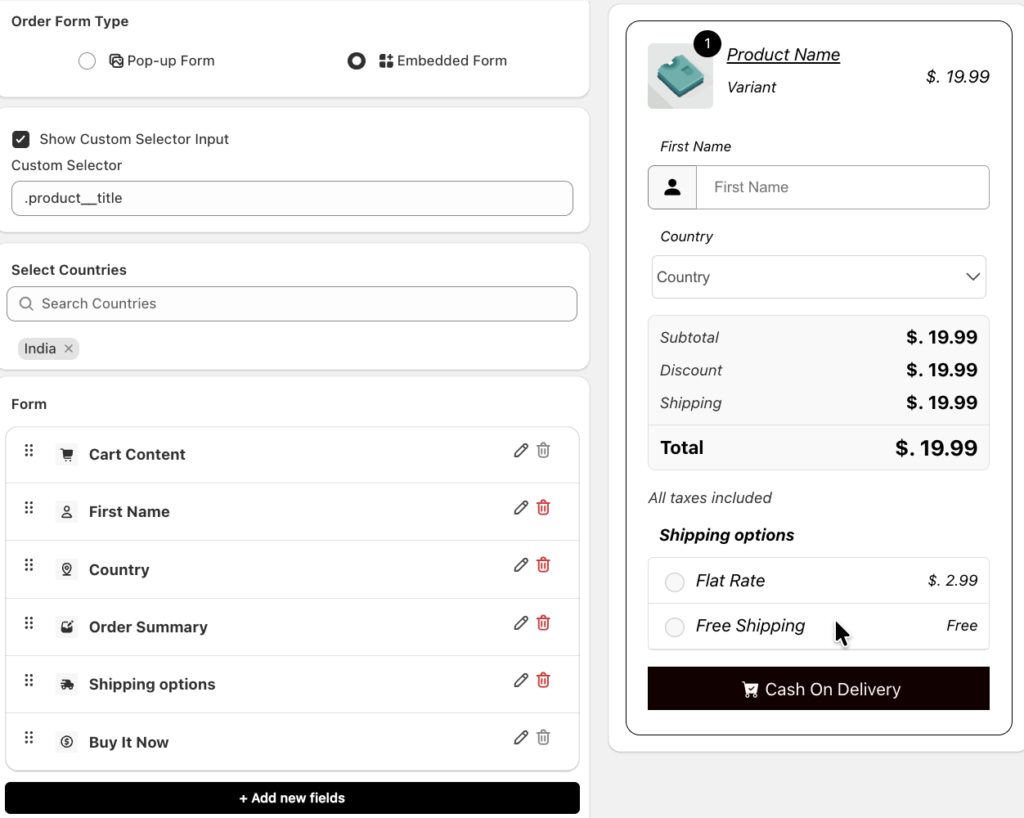
Start by selecting whether you want the order form to appear as a pop-up or an embedded form directly on product pages. A preview of both options is available on the right-hand side.
Then,
- Select the show custom selector input
- Select the countries where you want to show the form
- Add/edit the fields from the form section (you can also add custom fields)
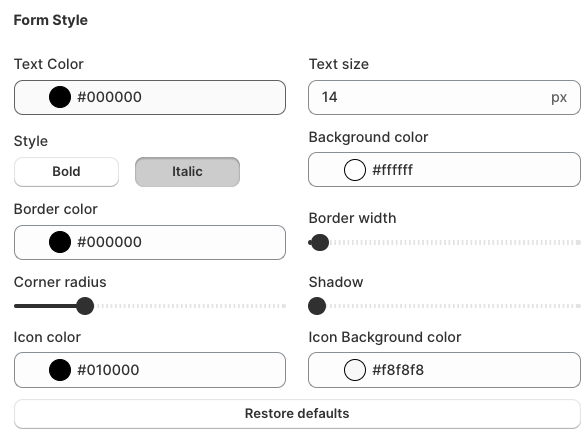
Now, scroll down to Form style and customize each element of the form that matches your Shopify store.
After completing the configuration, click Save.
Step 3: Configure Shipping Rates
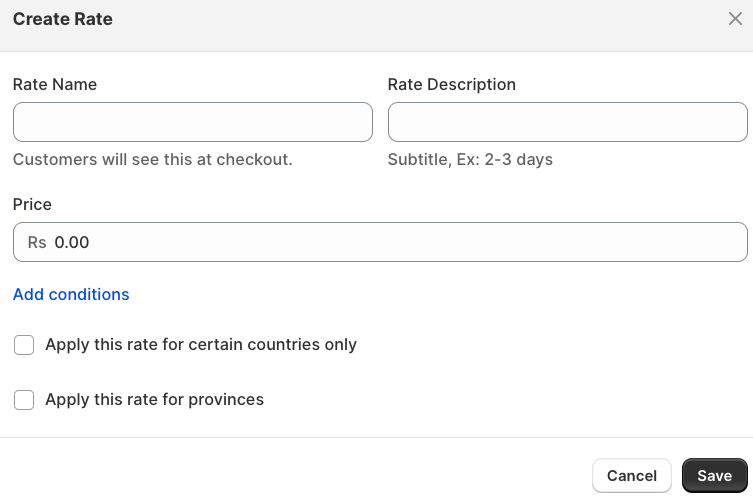
Head to the Shipping Method to add a custom shipping rate or use the default Shopify rates. Click on “add rates” for a customized one.
Define rate names, descriptions, prices, and conditions (e.g., order price ranges or weight).
Step 4: Set Order Behavior & Other Settings
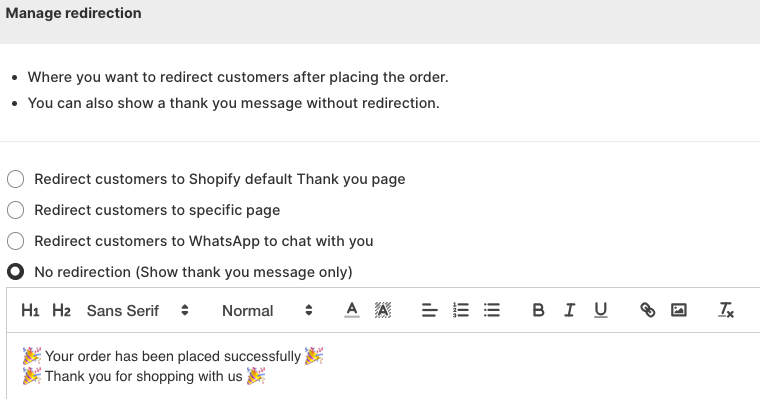
Access the Settings and Advanced Settings tab to choose what happens after the form is submitted (thank-you page, custom URL, WhatsApp, etc.).
Advanced settings include:
- Add extra fee to COD orders
- Orders Blocker by IP Address, Phone or Email
- Product page settings (hide add to cart or buy now button)
- Restrict Countries & orders eligibility
- Limit form by products or collections
- Form options (e.g., Disable form for out of stock products)
Once these steps are complete, your Shopify store will be able to enable cash on delivery in Shopify with a streamlined order experience that replaces the default checkout for COD shoppers.

Benefits of Using MIT Quick Order Form COD App
The MIT Quick Order Form COD Shopify app works like a fast lane, making it extremely useful to order without following a prolonged checkout.
Here is how the app makes a difference:
- Customers submit COD orders in seconds without going through the full checkout
- Shorter forms mean fewer drop-offs and more completed purchases
- The form is optimized for small screens, where most COD shoppers browse
- No multi-page checkout, password prompts, or unnecessary fields
This is a perfect option where cash payments dominate and speed matters most. Payment customizations like hiding payment by location or offering a built-in COD form makes a difference in the buyer journey.
Why Enable COD in Shopify?
Cash on Delivery (COD) remains the primary driver for online purchases in many high-growth markets. With this payment option, you remove the biggest barrier to entry: the fear of paying upfront for a product that might not meet expectations.
This method builds instant credibility and is particularly effective to test products in markets like India and the Middle East. And stand out from larger competitors by offering a risk-free, trustworthy shopping experience.
Frequently Asked Questions
Can I enable COD in Shopify without an app?
Yes, Shopify lets you enable COD using its built-in manual payment method.
Is Cash on Delivery available in all countries?
No, COD availability depends on your store’s region and shipping providers.
Can I disable COD for specific products in Shopify?
Not natively, but apps let you restrict COD for selected products or collections.
Is a Quick Order Form better than Shopify checkout for COD?
Yes, it’s faster and converts COD customers better than the default multi-step checkout.
Summary
Cash on Delivery is crucial for many Shopify stores, but the default multi-step checkout slows customers down.
It removes the extra steps and lets shoppers place orders in seconds. When you enable Cash on Delivery in Shopify with a fast, single-page form, you give mobile shoppers the quick, easy experience they want.
Try the MIT Quick Order Form COD to streamline your COD sales and improve conversions, without complicating your checkout.
