

The Contact Us page gives your customers a direct way to reach you, ask questions, or get support, helping you build trust and improve customer experience.
This blog is a complete step-by-step guide to create a contact us page in Shopify.
Steps to Create & Add a Contact Us Page in Shopify
Shopify’s contact us page is very simple and straightforward to build.
Here are the steps to do so.
Step 1: Head to Shopify Pages
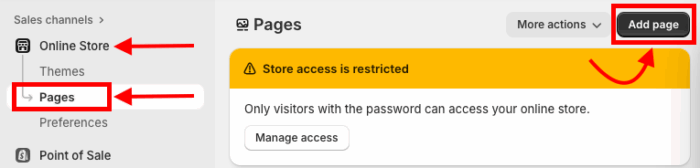
Head to the Shopify admin > Online store > Pages.
Then click on the Add page to create your Shopify contact us page for free.
Step 2: Create a New Contact Us Page
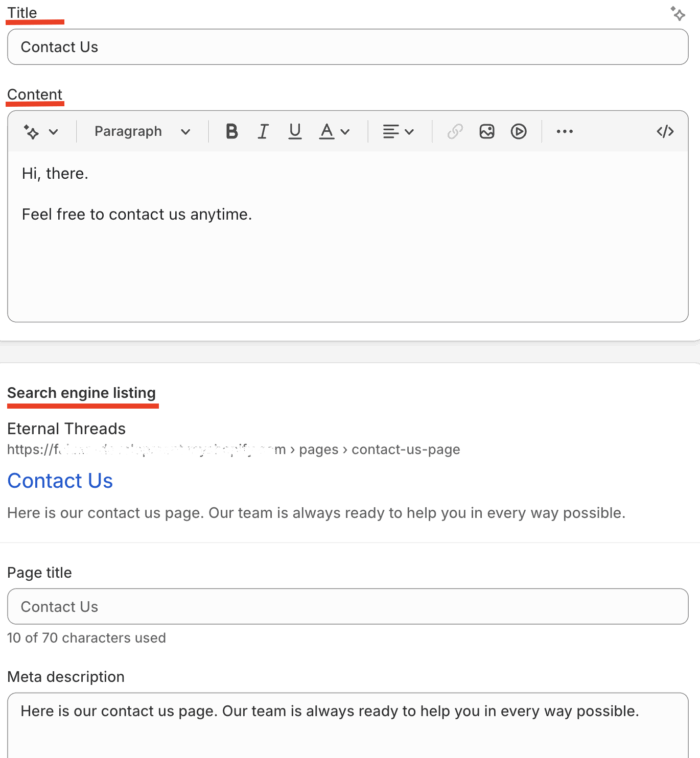
Now, you will need to add details. Start by entering a title for your Shopify contact us page. In the content section, write introductory details of your business that you want to provide to your customers.
Then, enter all the search engine listings details.
Then, from the right-hand side, add a template (if you have any, or go with the default option) and set the page visibility to Visible. Lastly, Save the page.
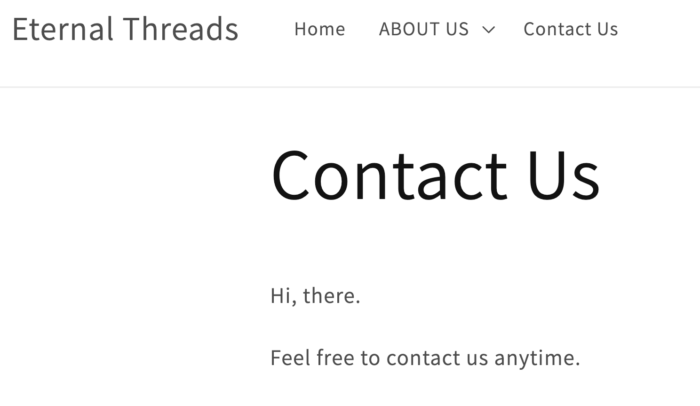
This is how your default contact page will look with the added content elements.
Step 3: Create A Contact Us Template
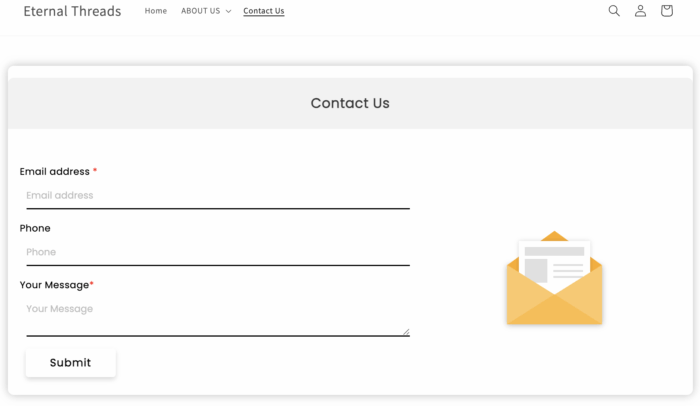
A contact us page needs certain elements like forms, a submit button, and additional information about your store—along with an attractive design, which is always a bonus.
Here is an example of a good contact us page.
While creating a new template and then adding prolongs the process, the simple way is to use the MIT Sections Pro app to directly add the section (for free).
Install the app and navigate to the Browse Sections. Search for the contact us section, choose the one you like.
Here, we will move forward with the free section (Contact us 2). Click on the section and select Get for Free.
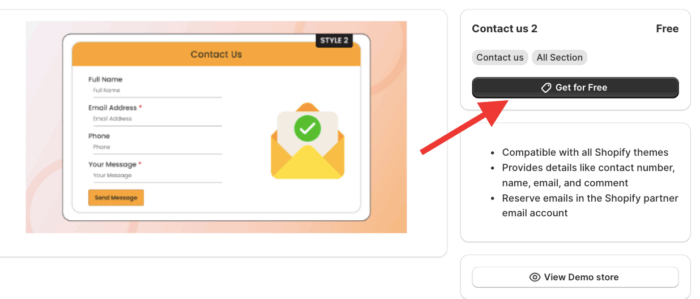
Now, go to My Sections with the app dashboard and click on the Apply to Theme button on the Contact Us section. Select the theme from the dropdown where you’d like the section added.
Step 4: Customize Your Theme Editor
Now, from the top dropdown, click Pages and find the created contact page.
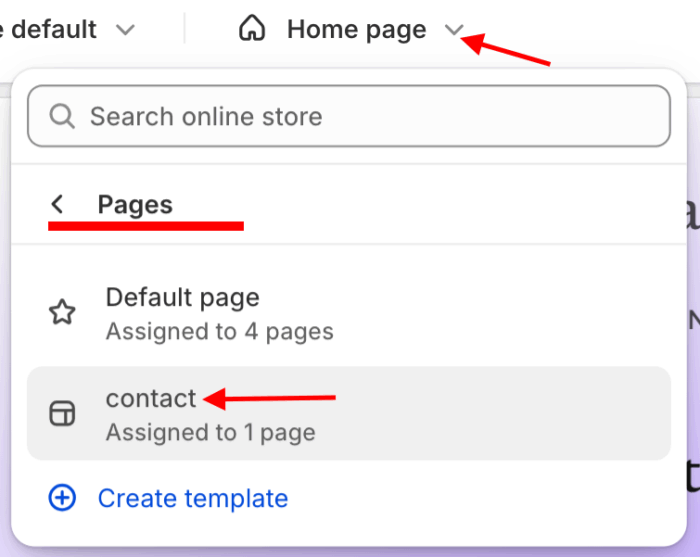
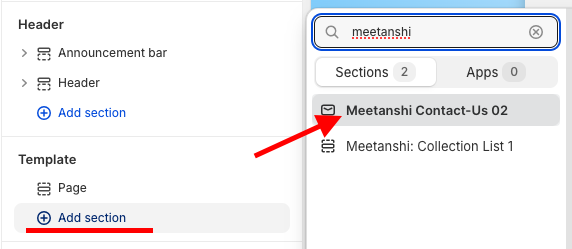
It will load your Contact Us page. Now, click the Add section from the left sidebar in Templates, scroll down, and find Contact-Us 02.
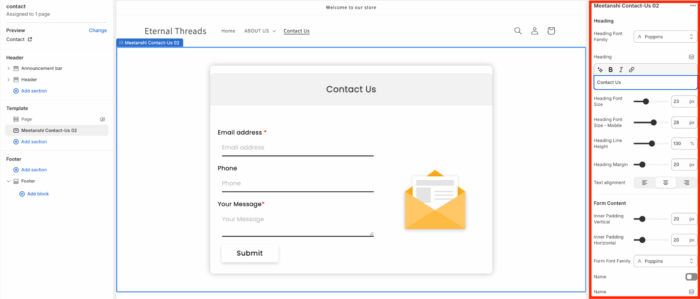
From here, you can customize each element in the section as you wish and style it with your own style. Save the changes.
P.S.: For better and quicker customer reachout, you can also add an announcement bar to your store.
Step 5: Link the Shopify Page in Your Header or Footer
After your Contact Us page is ready, you need to link it to your header or footer, wherever you want to display it.
Head to Content > Menus and click on the Main menu and Add menu item to link the page.
Then, in the Name field, enter the name you want to appear in your store. Click in the Link field, then select Pages from the dropdown menu and select the Contact page we created.
Click Save.
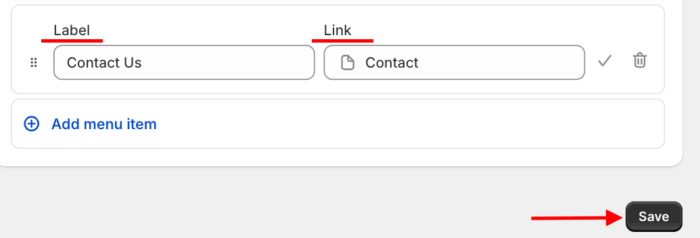
This is how you can create and add a contact us page in your Shopify store.
Pro tip: While creating your contact page, it is important to use Shopify AI Chatbots to give 24/7 support in your store even when you are offline. A chatbot acts as your customer support executive while you are offline.
Why Choose the MIT Sections Pro App?
You don’t need to stick to the basic format while creating your contact us page. You can install and use the app for free.
MIT Sections Pro offers a free, customizable Contact Us section. You’re in charge of its design and can adjust templates to match your brand perfectly. Even with the free template, you get full control over editing the section to make it your own.
Beyond contact sections, the app provides over 130 free and paid sections, including banners, testimonials, and FAQs. Letting you build a professional Shopify store without coding.
Using the app, enjoy:
- 130+ free and paid, pre-designed, beautiful sections, and is easily accessible for all users
- No cost for installation, completely free, making it easy for you to tap into advanced customization
- Compile these sections anytime, anywhere, with zero coding and easy-to-configure functionalities
- Works with all Shopify themes and is crafted to optimize a high page speed for a seamless experience
- No need to be stuck with the same section, easy to add/replace section with your expanding store
Your all-in-one solution to create a professional Shopify store
Install App Now
