A mega menu simplifies navigation for your shoppers, making it easy to navigate to their preferred page from the header.
Adding a mega menu in Shopify is easy.
In this blog, I will show you how to add a mega menu to Shopify using a simple code. You don’t need advanced technical skills for this; just follow the steps below.
Steps to Add a Mega Menu to Shopify via Code
Step 1: Head to the Header Section
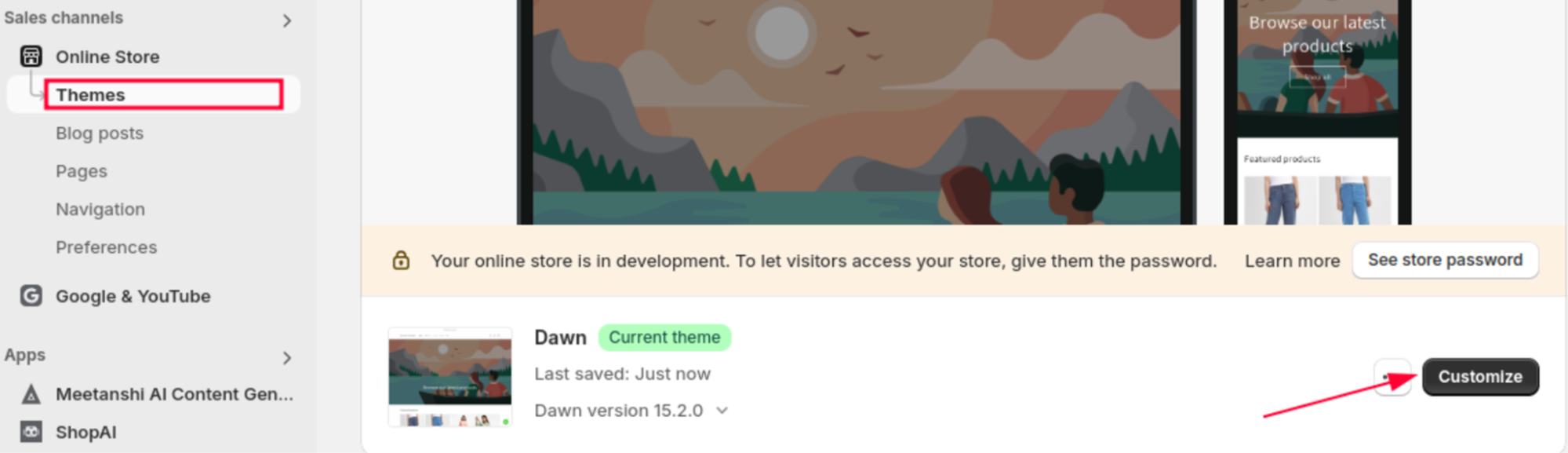
Login to your Shopify dashboard and navigate to Online Store > Themes > Customize.
Step 2: Add Shopify Mega Menu Code
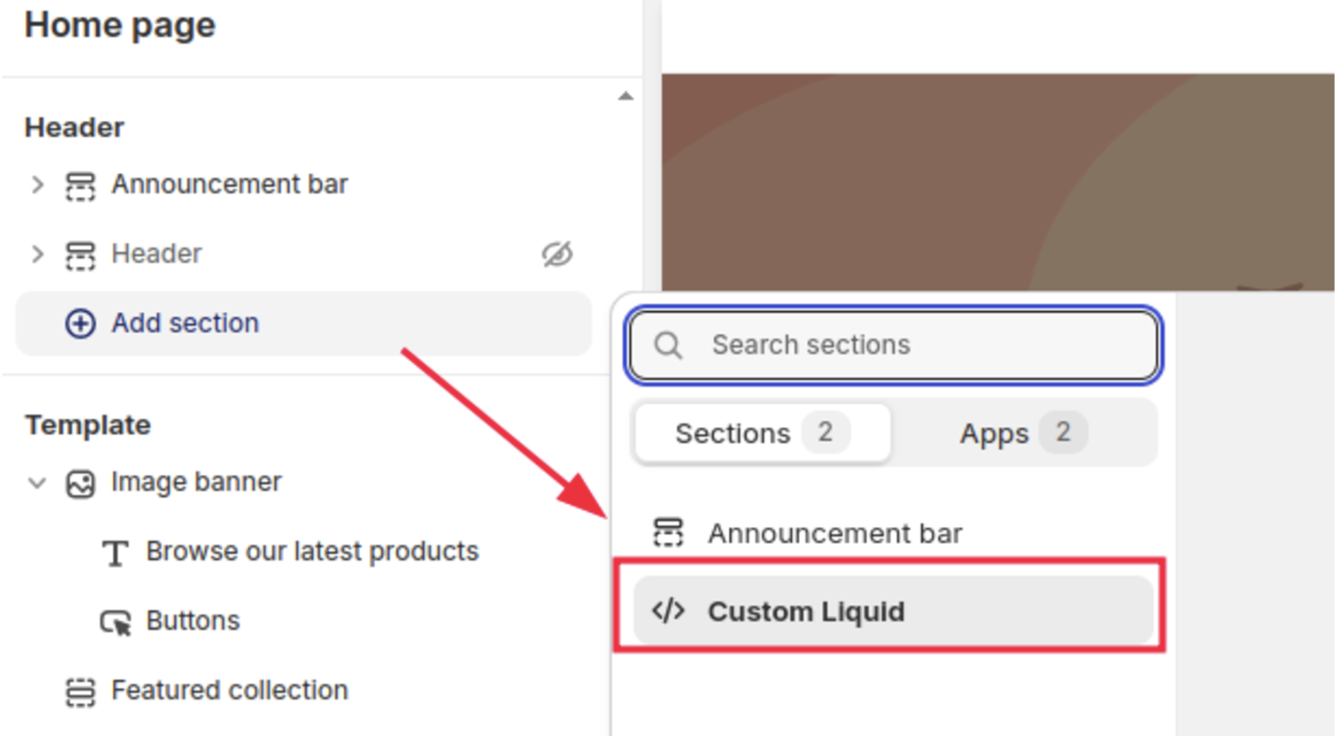
Then, from the header, hide the existing header section (to remove the navigation bar).
And click Add section > Custom Liquid.
Then, add this Shopify mega menu liquid code to create your mega menu.
<!-- Mega Menu -->
<style>
  /* Mega Menu Styles */
  .mega-menu {
    display: flex;
    background: #fff;
    padding: 10px 20px;
    border-bottom: 1px solid #ddd;
  }

  .menu {
    list-style: none;
    display: flex;
    margin: 0;
    padding: 0;
  }

  .menu-item {
    position: relative;
    margin: 0 15px;
  }

  .menu-item > a {
    text-decoration: none;
    font-weight: bold;
    color: #333;
    padding: 10px 15px;
    display: inline-block;
  }

  .menu-item:hover > a {
    color: #007bff;
  }

  .dropdown {
    display: none;
    position: absolute;
    top: 100%;
    left: 0;
    background: #fff;
    box-shadow: 0 2px 5px rgba(0, 0, 0, 0.1);
    padding: 20px;
    z-index: 1000;
    width: 200px;
  }

  .menu-item:hover .dropdown {
    display: block;
  }

  .dropdown-menu {
    list-style: none;
    padding: 0;
    margin: 0;
  }

  .dropdown-item {
    margin-bottom: 10px;
  }

  .dropdown-item > a {
    text-decoration: none;
    color: #333;
    font-weight: normal;
  }

  .dropdown-item > a:hover {
    color: #007bff;
  }

  .sub-dropdown-menu {
    list-style: none;
    padding: 10px;
    margin-top: 10px;
    background: #f9f9f9;
  }

  .sub-dropdown-menu li {
    margin-bottom: 5px;
  }

  .sub-dropdown-menu a {
    text-decoration: none;
    color: #555;
  }

  .sub-dropdown-menu a:hover {
    color: #007bff;
  }

  @media (max-width: 768px) {
    .mega-menu {
      flex-direction: column;
    }

    .menu {
      flex-direction: column;
    }

    .dropdown {
      position: static;
      display: none;
    }

    .menu-item:hover .dropdown {
      display: block;
    }
  }
</style>

<nav class="mega-menu">
  <ul class="menu">
    {% for link in linklists.main-menu.links %}
      <li class="menu-item">
        <a href="{{ link.url }}">{{ link.title }}</a>
        {% if link.links.size > 0 %}
          <div class="dropdown">
            <ul class="dropdown-menu">
              {% for sublink in link.links %}
                <li class="dropdown-item">
                  <a href="{{ sublink.url }}">{{ sublink.title }}</a>
                  {% if sublink.links.size > 0 %}
                    <ul class="sub-dropdown-menu">
                      {% for sub_sublink in sublink.links %}
                        <li><a href="{{ sub_sublink.url }}">{{ sub_sublink.title }}</a></li>
                      {% endfor %}
                    </ul>
                  {% endif %}
                </li>
              {% endfor %}
            </ul>
          </div>
        {% endif %}
      </li>
    {% endfor %}
  </ul>
</nav>

<script>
  // JavaScript for hover functionality (optional for enhanced behavior)
  document.querySelectorAll('.menu-item').forEach(item => {
    item.addEventListener('mouseover', () => {
      const dropdown = item.querySelector('.dropdown');
      if (dropdown) dropdown.style.display = 'block';
    });

    item.addEventListener('mouseout', () => {
      const dropdown = item.querySelector('.dropdown');
      if (dropdown) dropdown.style.display = 'none';
    });
  });
</script>
You can modify the style and mega menu elements as per your requirements.
Step 3: Save & Preview the Changes
Click Save and finish this process.
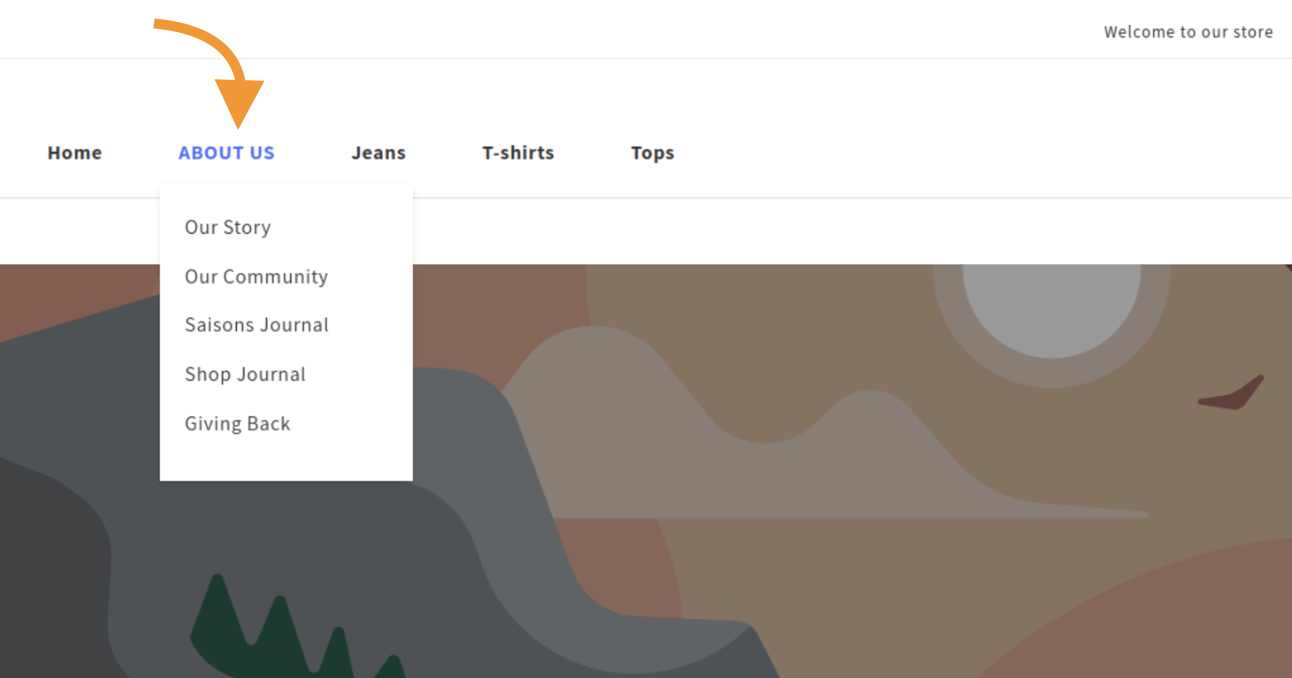
Preview the store to see if the mega menu looks as expected. Your mega menu should look like this.
And it’s done. 🎉
With these 3 simple steps, you have added a mega menu to Shopify. Try it yourself, and eliminate deep scrolling for your shoppers.
If the mega menu is not showing as expected:
- Double-check the code (if you have not missed any part)
- Check if it is pasted in the correct place
Need Shopify Support?
Mega menus are an easy way for shoppers to head to their interesting sections in your store. Like if shoppers would like to understand your Shopify store timeline, they can easily navigate to the about us page from the header.
In case you aren’t sure to do this task; our Shopify experts are here to take over and create the needed mega menus for your Shopify without any error or damaging any core functionalities.
Get support from our experts for all your Shopify needs.
Contact Us