

Modern shoppers expect more than just images; they want experiences. For that, you can add a Shopify video with text section.
This feature lets you combine an engaging video with descriptive text, making your pages more interactive and visually appealing. In this guide, we’ll walk you through how to add it easily using two different methods.
Ways to Add a Shopify Text with Video Section
There are fundamentally two ways to add this feature to your Shopify store.
Create Shopify custom code – This involves duplicating and modifying the existing theme section or building one from scratch using Shopify’s templating language, Liquid. It does require technical knowledge with a ton of time and effort.
Directly add the Shopify section – Using a dedicated app, you can have this feature directly in your store. It comes with high flexibility, customization, and compatibility. And the plus point is that no coding stuff is needed, just a few clicks, and you’re good to go.
How to Add the Shopify Video Text Section App?
Use MIT Sections Pro to add this interesting feature to your site. Our app offers ready-to-use various styles of sections with advanced customization, such as adding an image with a video, multiple videos, and a navigation button.
Check out this example using our app.
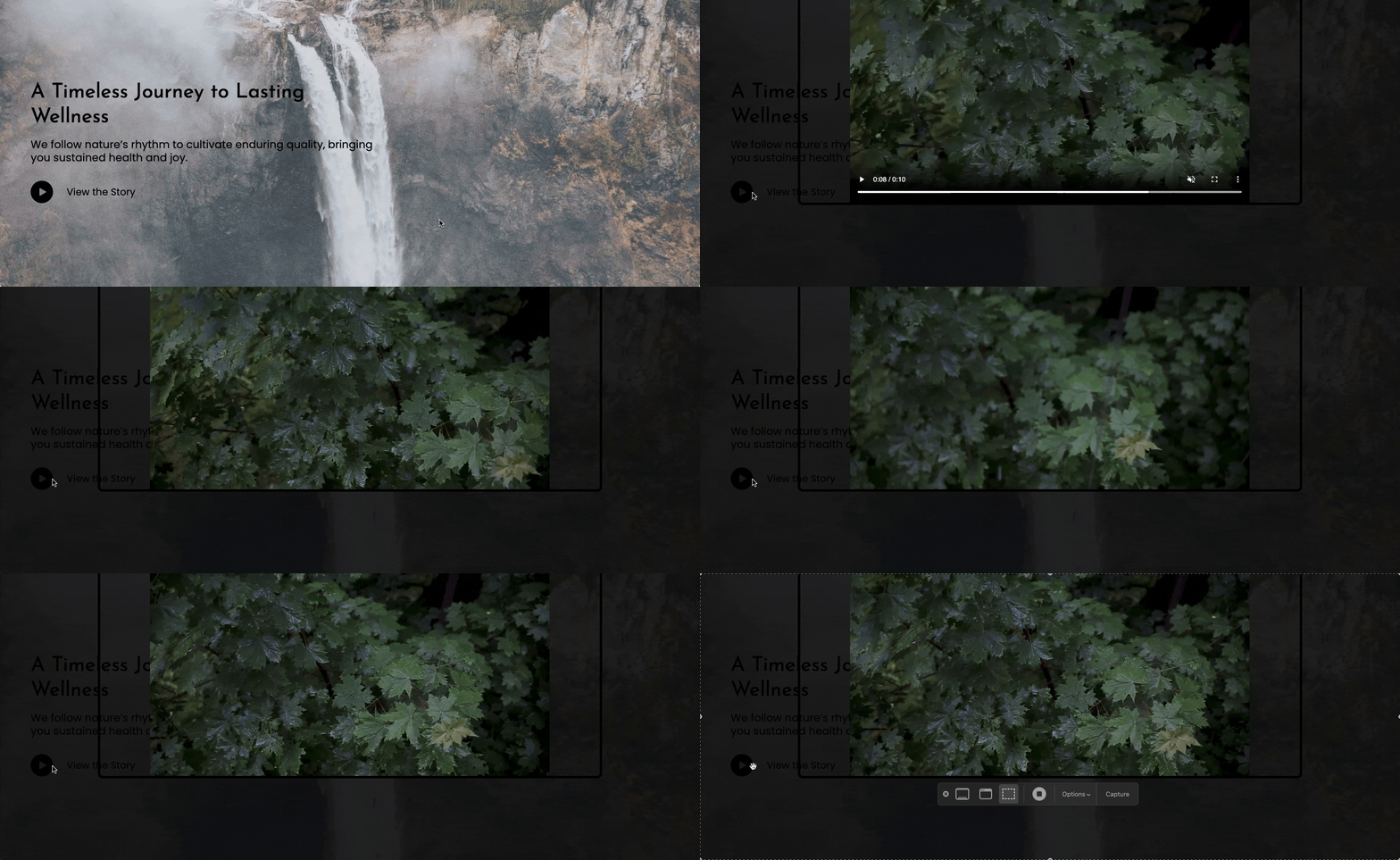
Let’s understand the app config.
Step 1: Find and Add the Section
Firstly, install the MIT Sections Pro from the Shopify App Store, then from the dashboard, click Browse sections, and search for the video with text.
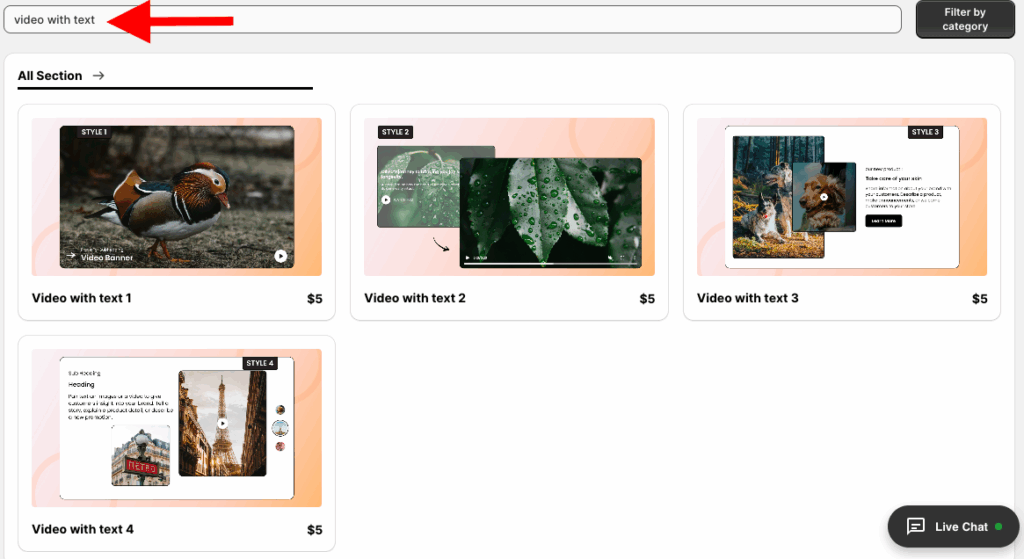
Here we will move forward with the video with text 2; you can select whichever suits your brand.
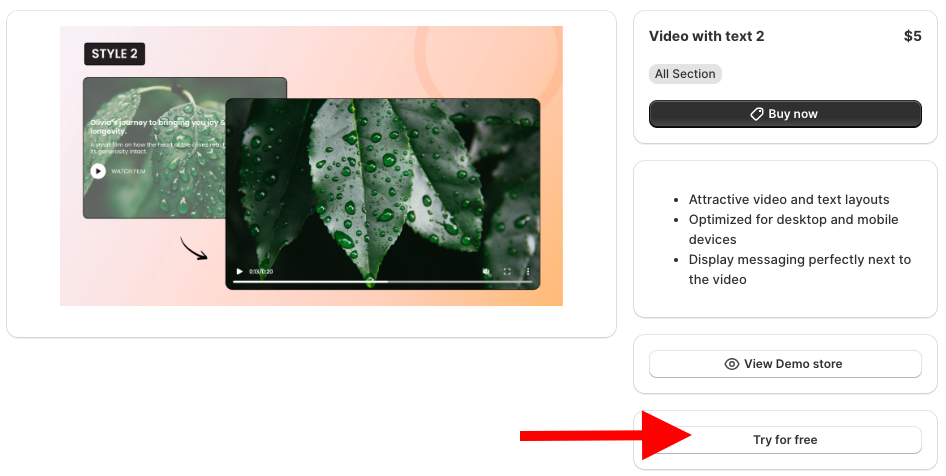
While on the free trial, you’ll be redirected to the MIT demo store. After purchasing the section, you can add the selected section to your store’s theme.
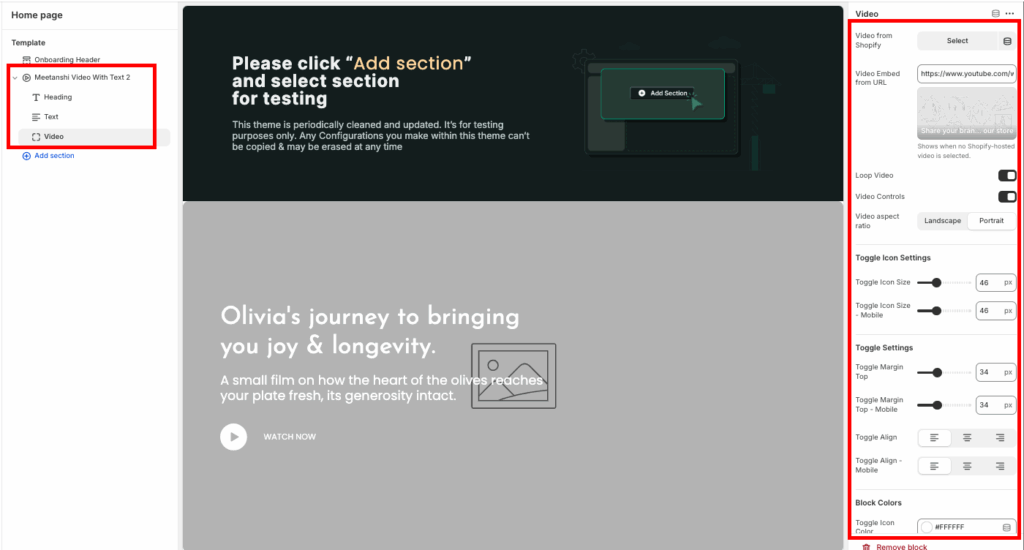
Then click the Add section and select Meetanshi video with text 2.
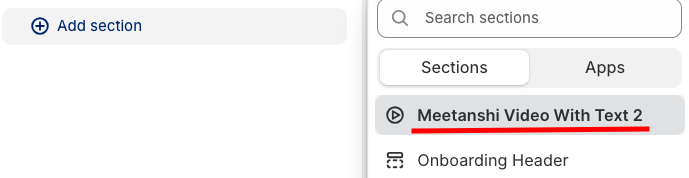
Step 2: Customize the Video with Text Section
Click Meetanshi video with text 2 to expand the customization settings. Here, you get 60+ options to craft this in a way that matches your brand.
Step 3: Showcase the Video on Related Pages
Once done making the changes, save them.
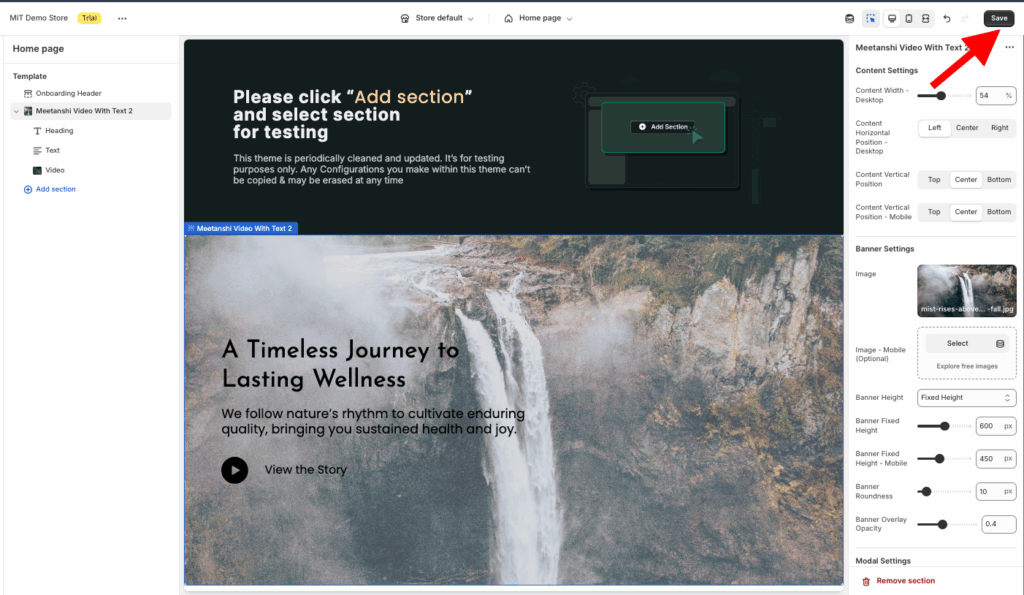
The video is not limited to just the homepage. You can add it on product pages, landing pages, or even your about us page to make your content more engaging wherever it matters most.
For instance, if you’re running campaigns or want to display multiple product stories, a Shopify video slider could be the perfect alternative.
How to Add a Video with Text Section in Shopify Using Code?
The following is the process to add this section using custom code.
Step 1: Create a New Section File
From your Shopify admin panel, head to Online store > Themes > …(Three dots) > Edit code. From the Sections folder, add a new section and save it as video-with-text.liquid.

Step 2: Add the Code to the File
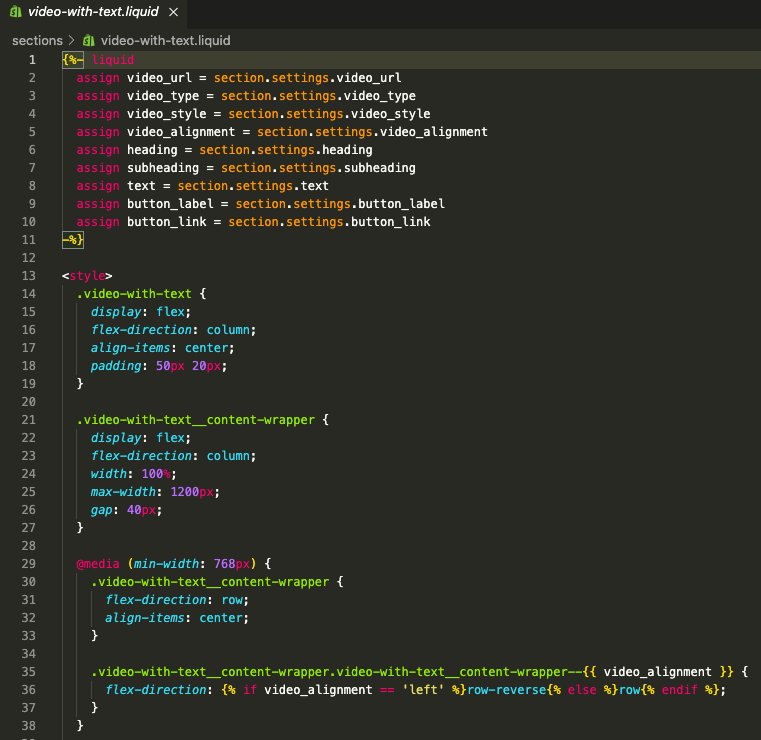
Copy and paste the following code into the video-with-text.liquid file. Save the file.
{%- liquid
  assign video_url = section.settings.video_url
  assign video_type = section.settings.video_type
  assign video_style = section.settings.video_style
  assign video_alignment = section.settings.video_alignment
  assign heading = section.settings.heading
  assign subheading = section.settings.subheading
  assign text = section.settings.text
  assign button_label = section.settings.button_label
  assign button_link = section.settings.button_link
-%}

<style>
  .video-with-text {
    display: flex;
    flex-direction: column;
    align-items: center;
    padding: 50px 20px;
  }

  .video-with-text__content-wrapper {
    display: flex;
    flex-direction: column;
    width: 100%;
    max-width: 1200px;
    gap: 40px;
  }

  @media (min-width: 768px) {
    .video-with-text__content-wrapper {
      flex-direction: row;
      align-items: center;
    }

    .video-with-text__content-wrapper.video-with-text__content-wrapper--{{ video_alignment }} {
      flex-direction: {% if video_alignment == 'left' %}row-reverse{% else %}row{% endif %};
    }
  }

  .video-with-text__video {
    position: relative;
    width: 100%;
    padding-bottom: 56.25%; /* 16:9 Aspect Ratio */
    overflow: hidden;
  }

  .video-with-text__video iframe,
  .video-with-text__video video {
    position: absolute;
    top: 0;
    left: 0;
    width: 100%;
    height: 100%;
  }

  .video-with-text__video.video-with-text__video--{{ video_style }} {
    /* Styles for different video shapes, e.g., rounded corners */
    {% if video_style == 'rounded' %}
      border-radius: 15px;
      overflow: hidden;
    {% endif %}
  }

  .video-with-text__text {
    width: 100%;
    text-align: center;
  }

  @media (min-width: 768px) {
    .video-with-text__text {
      text-align: left;
    }
  }

  .video-with-text__heading {
    font-size: 2em;
    margin-bottom: 0.5em;
  }

  .video-with-text__subheading {
    font-size: 1.2em;
    color: #555;
    margin-bottom: 1em;
  }

  .video-with-text__body {
    line-height: 1.6;
    margin-bottom: 1.5em;
  }

  .video-with-text__button {
    display: inline-block;
    padding: 12px 24px;
    background-color: #000;
    color: #fff;
    text-decoration: none;
    border-radius: 5px;
  }
</style>

<div class="video-with-text">
  <div class="video-with-text__content-wrapper video-with-text__content-wrapper--{{ video_alignment }}">
    <div class="video-with-text__video video-with-text__video--{{ video_style }}">
      {% if video_type == 'youtube' %}
        <iframe
          src="{{ video_url | split: 'v=' | last | prepend: 'https://www.youtube.com/embed/' }}?autoplay=1&mute=1&loop=1&playlist={{ video_url | split: 'v=' | last }}"
          frameborder="0"
          allow="accelerometer; autoplay; clipboard-write; encrypted-media; gyroscope; picture-in-picture"
          allowfullscreen>
        </iframe>
      {% elsif video_type == 'vimeo' %}
        <iframe
          src="{{ video_url | split: 'vimeo.com/' | last | prepend: 'https://player.vimeo.com/video/' }}?autoplay=1&loop=1&background=1"
          frameborder="0"
          allow="autoplay; fullscreen; picture-in-picture"
          allowfullscreen>
        </iframe>
      {% else %}
        <p>Please add a valid YouTube or Vimeo URL in the section settings.</p>
      {% endif %}
    </div>

    <div class="video-with-text__text">
      {% if heading != blank %}
        <h2 class="video-with-text__heading">{{ heading | escape }}</h2>
      {% endif %}
      {% if subheading != blank %}
        <p class="video-with-text__subheading">{{ subheading | escape }}</p>
      {% endif %}
      {% if text != blank %}
        <div class="video-with-text__body">{{ text }}</div>
      {% endif %}
      {% if button_label != blank and button_link != blank %}
        <a href="{{ button_link }}" class="video-with-text__button">{{ button_label | escape }}</a>
      {% endif %}
    </div>
  </div>
</div>

{% schema %}
{
  "name": "Video with text",
  "settings": [
    {
      "type": "header",
      "content": "Video Settings"
    },
    {
      "type": "select",
      "id": "video_type",
      "label": "Video Source",
      "options": [
        { "value": "youtube", "label": "YouTube" },
        { "value": "vimeo", "label": "Vimeo" }
      ],
      "default": "youtube"
    },
    {
      "type": "text",
      "id": "video_url",
      "label": "Video URL",
      "info": "Paste the full URL for your YouTube or Vimeo video."
    },
    {
      "type": "select",
      "id": "video_style",
      "label": "Video Style",
      "options": [
        { "value": "default", "label": "Default" },
        { "value": "rounded", "label": "Rounded Corners" }
      ],
      "default": "default"
    },
    {
      "type": "select",
      "id": "video_alignment",
      "label": "Video and Text Alignment",
      "options": [
        { "value": "left", "label": "Video on Left" },
        { "value": "right", "label": "Video on Right" }
      ],
      "default": "right"
    },
    {
      "type": "header",
      "content": "Text Content"
    },
    {
      "type": "text",
      "id": "heading",
      "label": "Heading",
      "default": "Your Heading Here"
    },
    {
      "type": "text",
      "id": "subheading",
      "label": "Subheading",
      "default": "A short, catchy subheading."
    },
    {
      "type": "richtext",
      "id": "text",
      "label": "Text",
      "default": "<p>This is the main body of text. You can use this space to describe the video's content, your brand's mission, or any other important information you want to convey.</p>"
    },
    {
      "type": "text",
      "id": "button_label",
      "label": "Button Label",
      "default": "Learn More"
    },
    {
      "type": "url",
      "id": "button_link",
      "label": "Button Link"
    }
  ],
  "presets": [
    {
      "name": "Video with text",
      "category": "Media"
    }
  ]
}
{% endschema %}
Step 3: Add the Section to a Page
Now, head back to the Shopify admin panel, go to the Online stores > Themes > Customize. From the theme editor, click Add section and select Video with text.

Then click Video with text to expand the customization, make changes as needed, and save them.
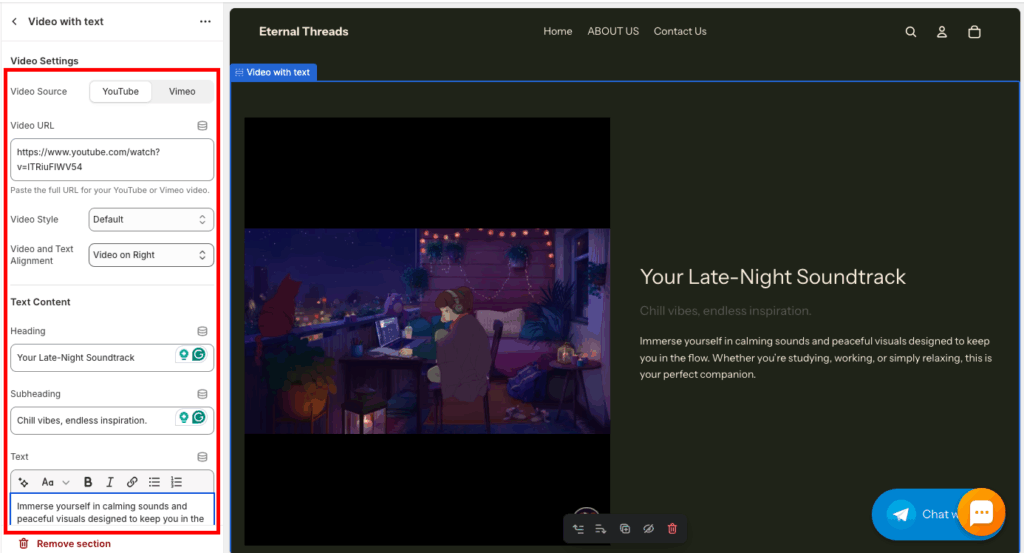
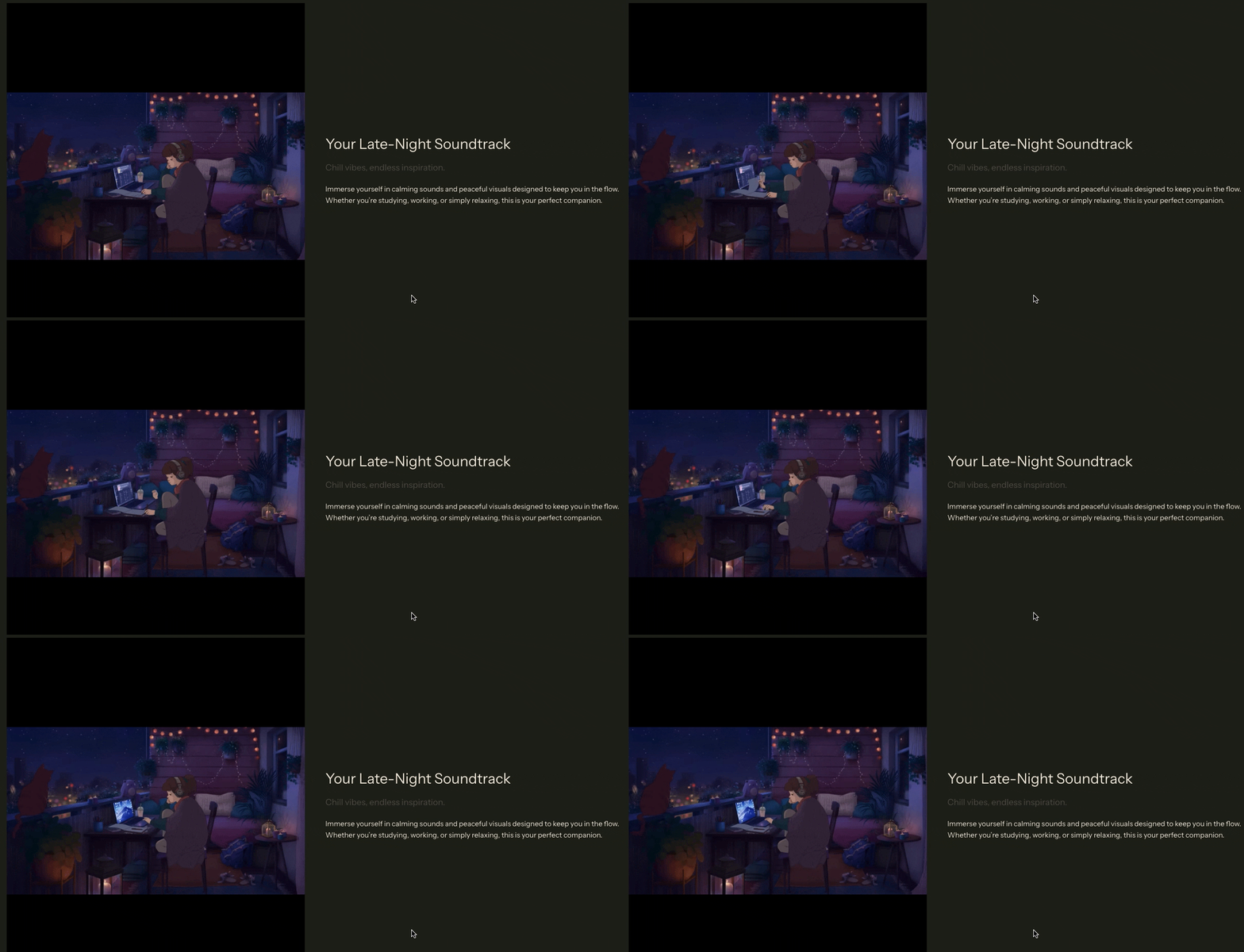
This is how it will look, simple and basic.
Why Use Our MIT Sections Pro?
Our app gives Shopify owners total control over their section styles, layouts, and designs. You get over 130+ ready-to-use sections, all compatible with Shopify themes, plus a free trial.
It’s a no-brainer for any store. The app is free to install, and lots of sections are free to use. No coding needed, just a few clicks to get your sections looking exactly how you want.
Your all-in-one solution to create a professional Shopify store
Install App Now
