

Many Shopify store owners wish updating their Shopify theme was as easy as updating the version of their mobile phone, just a simple button & the magic is done. Wuuhh 🪄
On the contrary, updating the Shopify store theme is much simpler than you think.
Here, I have mentioned the exact steps on how to update Shopify theme without losing customization.
Must-Know Before Updating Your Shopify Theme
Shopify theme update aligns your store to the latest enhancements.
These updates are available periodically if you have purchased them from the Shopify Theme Store; otherwise, these updates are not supported.
If you have purchased any third-party theme outside of the Shopify Theme Store, you need to download a new version from the theme’s developer.
Secondly, if you are using the Vintage Shopify theme, there will be no updates.
Since Shopify has sunsetted the theme, there are no updates for it. A good choice here would be to switch to a new Shopify theme for better features, functionality, and updates.
Lastly, some of your Shopify apps might not work with the updates, so do read the documentation to avoid mishaps.
How to Check the Current Version of Your Shopify Theme?
Whenever your Shopify theme needs an update, the notification is available for you to check.
Here is how you can check the current version of your store and if any new version is available for updating.
From your Shopify admin panel, head to Online Stores > Themes.
Then, head to your store theme name and click on the downward arrow next to the version name to get the complete details.
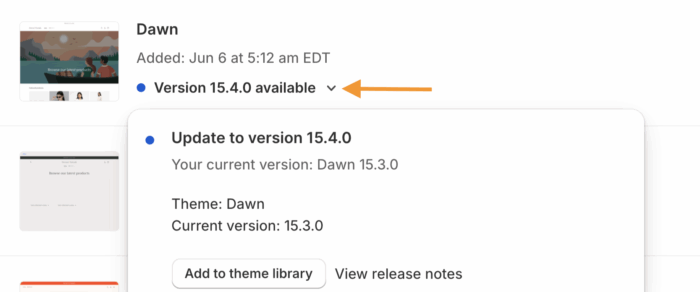
You can further click on View release notes to understand the updates and the features that come with the new version.
Options for Shopify Theme Update
You have two options to update the Shopify store theme securely:
- Via Shopify Admin
- Using a third-party app
Via Shopify Admin
This is one of the easiest methods for your Shopify theme upgrade.
For manual updates, you will have to take a backup first since the updating makes changes in your core theme file, which causes you to lose customization.
But, using the backup file, we will be able to add the Shopify store customization back to the new theme version without any complications.
The automatic updates are related to fixing bugs or any security issues. There are no core changes in your theme style, content, or settings.
Shopify takes care of these updates for you and automatically upgrades your theme. Your theme version name will be changed when the updates are applied, which will look something like this:
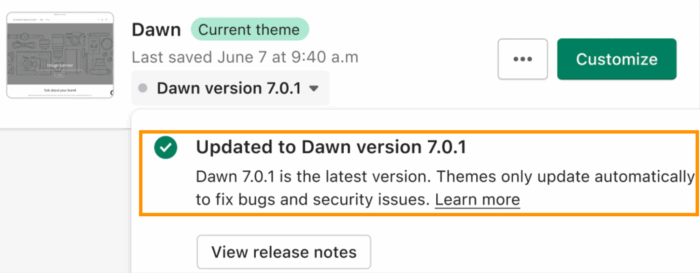
It is important to note that automated updates are only for the theme purchased from the Shopify Theme Store. Additionally, excluding the vintage Shopify theme.
Using a Third-party App
There are a few Shopify theme updating apps available in the Shopify app store.
The need to invest in an app for such a simple function can become unnecessary. It also comes with the risk of breaking the store layout, unexpected design changes, or adding extra scripts that might impact your store’s performance.
The Shopify admin method is easier and gets the work done without adding extra scripts or additional costs.
How to Update Theme in Shopify Without Losing Customization: Steps
Follow these simple steps to update a theme in Shopify from the admin panel.
- Step 1: Add the New Version via Shopify Admin
- Step 2: Copy Your Current Theme Settings
- Step 3: Preview & Hit Publish
Step 1: Take a Backup of Your Theme
Head to Online Store > Themes > Action button. Then, click on Duplicate. Shopify will copy and create a duplicate of your current Shopify theme before updating it.
Step 2: Add the New Version via Shopify Admin
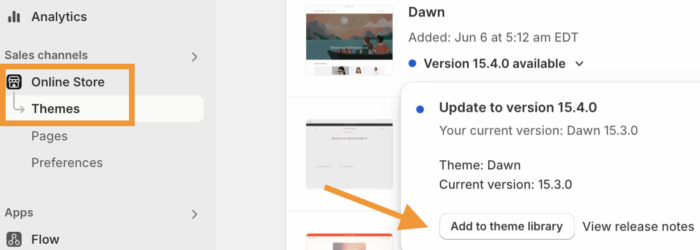
Head to Online Store> Themes. Click on the dropdown next to the version name. Then, click on Add to theme library.
Step 3: Copy Your Current Theme Settings
After clicking on the Add to theme library, a duplicate unpublished version of the theme will be available for you.

If you have made any customization in the theme using the theme editor, all the customization and modifications are applied to the update theme.
You can see the success message screenshot above: Your customizations were copied successfully.
The modifications that are included here are:
- Any theme settings changes
- Adding, reordering, removing, or hiding sections or blocks
- Any changes in the section or block settings, like adding images, videos, text, and data sources
- Adding or creating new templates
- & more
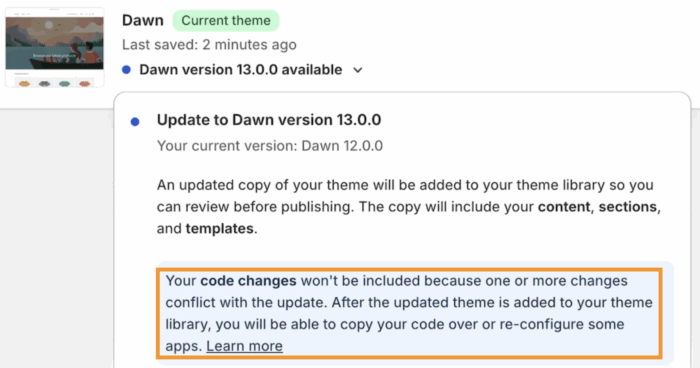
If you have made any code changes in your theme files, like HTML, CSS, JSON, and JavaScript, they won’t be included in the updated version. You will need to copy the code and update it to the new version of the theme.
Shopify will inform you regarding code changes like this.
Step 4: Transfer Customization from Old Theme
Head to Online Store > Themes> Actions> Edit code of your duplicate theme (Step 1)
Open a separate browser tab, find the new, unpublished theme, and click Actions > Edit code
Go through the old theme files and copy the specific custom code. Then, paste the code into your new theme file without overwriting or deleting any new code that might be added.
Step 5: Preview & Hit Publish
Since there are no code changes needed for our Dawn theme, we will move ahead to Publish.
First, click on Preview to get a quick look at the version functionalities. And if everything looks alright, click Publish.

This is how to update a theme in Shopify without any coding or complex steps.
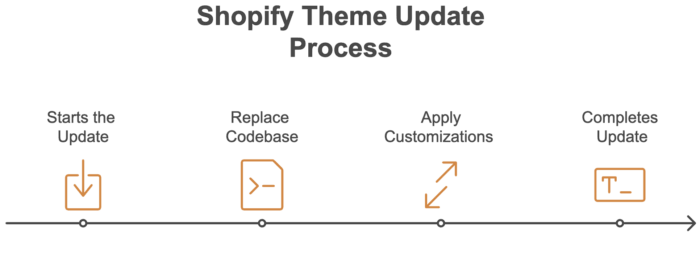
How Does a Shopify Theme Update Work? (Technical Process)
Shopify follows a two-part operation designed to refresh the theme’s core codebase while preserving your customizations.
The Codebase is Replaced: When the theme is updated, it fundamentally replaces your existing theme files, like Liquid, CSS, and JavaScript files. Any manual code edits that are part of your codebase are replaced in this process.
Configuration Data is Migrated: All of the theme changes made through the theme editor are stored in a separate file: settings_data.json. During the update, Shopify smartly migrates this settings_data.json file to your new theme without any manual update from your end.
The only element not automatically transferred is the custom code, which is part of the replaced codebase and therefore requires a manual copy to the new version.
Frequently Asked Questions
Does updating the Shopify theme affect SEO?
Updating your Shopify store might not affect your SEO as much, but during this process, if you change your Shopify theme, there might be some positive and negative changes based on your implementation steps.
Should you update your Shopify theme?
It is a good practice to stay up to date with the latest version of your Shopify store.
Is it okay to change the Shopify theme later?
Yes, you can change your Shopify theme later if you are facing any issues with your current theme.
Get Help from Shopify Experts
Updating the Shopify theme without losing customization is a fear locked in many store owners. If you feel the same way, don’t worry, our Shopify developer can help you with this task.
Our developer can help you upgrade your current version of your store or help you switch to a completely new Shopify theme with ease.
