Your Shopify theme shapes how customers see and interact with your store. With Shopify, you are not stuck with a one-size-fits-all theme. Instead, you can customize it however you want to match your brand aesthetics.
This blog is a complete Shopify theme customization guide, and by the end, you will know the process to edit the theme in various ways.
Can You Customize Shopify Themes?
Yes, you can customize Shopify themes extensively by utilizing its built-in theme editor to customize their content, appearance, and layout without any coding required.
To make custom and advanced changes, you can edit the theme code using HTML, CSS, and Liquid. Shopify is loaded with high-converting themes, which you can directly use and customize to match your branding.
Ways to Customize a Shopify Theme
There are three easy ways to customize your Shopify theme to tailor your store design.
Using the Theme Editor
The Shopify theme editor allows you to customize the theme without any coding skills required. Access the theme editor in the Shopify admin > Online Store > Themes and click Customize.
Navigate the left side bars to adjust layouts, colors, fonts, and images for sections, like the header, footer, home page, and product page.
Use a drag-and-drop interface to rearrange blocks or add pre-built sections. It works best for quick design updates and layout adjustments.
Using the Code Editor
The code editor gives you full access to your theme’s backend, really helpful for custom Shopify theme development.
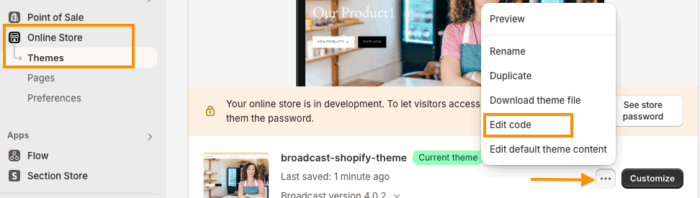
In the Shopify admin panel, head to Online Store > Themes, then find the theme you want to edit and click Actions > Edit Code.
Access the different files, such as
- .liquid files for layouts and templates
- .css files for styling
- .js for scripts and dynamic features
You can create new sections in the section folder with schema settings to make them customizable in the theme editor.
Using Shopify Apps
Shopify apps for theme customization expand the functionality without much coding. It is perfect for designing beyond what your basic theme follows.
You can easily install the app or hire a Shopify app development company. Using a direct app, you can install from the Shopify App Store and follow the setup steps to start customizing advanced features like pop-ups, product filters, etc.
Elements to Customize in the Shopify Theme
Shopify offers a wide range of options for custom theme development, including layout, typography, buttons, and more. These elements can be adjusted by the theme editor or the code editor.
Align your Header and Footer
To add a header and footer, you typically need to make changes in the theme editor (Online Store > Themes > Customize)
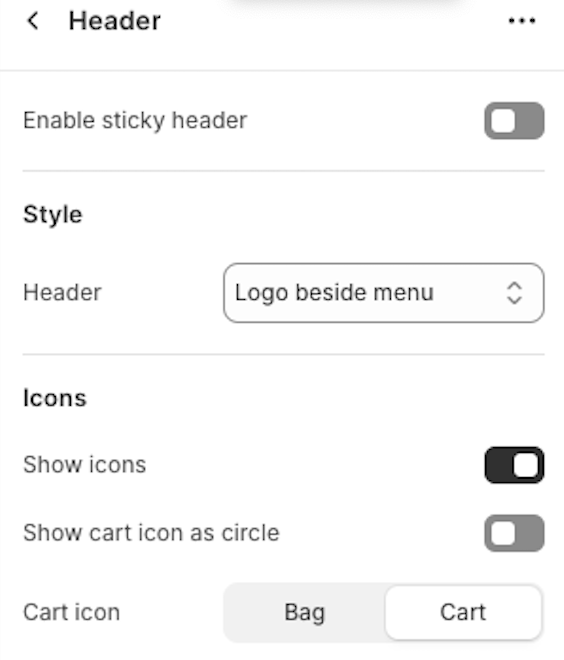
Navigate to the Header section to edit logo alignment, menu layout, search icons, cart buttons, etc.
Then, move to the Footer section, you can add quick links, contact info, newsletters, and social media icons. For more advanced and precise alignment, use CSS in the theme code editor.
Refine Specific Shopify Sections
Modify the built-in sections, like the home page, product page, and collection page. Adjust settings like text, images, layouts, CTAs, and more directly in the editor.
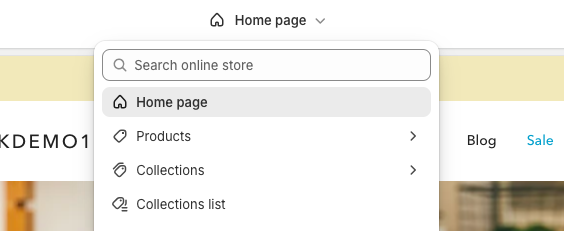
You can use the visibility toggle to show or hide sections on different pages, and also change the order of sections.
To make complex changes, edit section-specific liquid files, go to …(three dots) > Edit Code, then scroll down to sections > {section name}.liquid to modify HTML structure or add custom functionality.
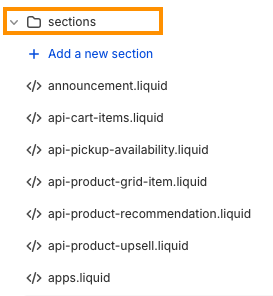
Create New Shopify Sections
Add a new Shopify section to showcase unique content, such as testimonials, brand story, specific offers, etc., to give your store a personalized and engaging touch.
Navigate to Online store > Themes > …(three dots) > Edit code
Scroll down to the section folder and click Add a new section, then name the file and save it.
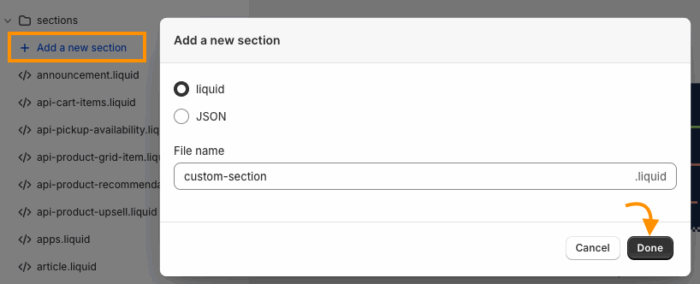
Make Changes in the Shopify Settings
Make changes to more than the layout by adjusting colors, fonts, and global styles in your theme.
For doing so, head to Theme editor > Theme settings and explore the multiple options such as colors, buttons, typography, and so much more.
Want to know what theme your competitors are using? Try the Shopify Theme Detector to uncover the exact theme and identify the theme behind any Shopify store.
Shopify Theme Customization Service
Customizing the Shopify theme is the key to creating a unique, high-performing theme that enhances your brand and customer experience.
Having a professional theme customization service can save you tons of time, avoid errors, and deliver polished results.
Let our Shopify experts create a custom theme to boost and elevate your customer experience.
Learn More