

The Shopify alternate page with proper canonical tag is not exactly an issue that should concern you.
But it is always a good idea to learn about it and take any action if needed.
In this blog post, I will explain why the Shopify alternate page with a proper canonical tag appears in the simplest way possible.
But, before we understand why alternate pages with canonical tags appear in Shopify, it is important to discuss canonical tags.
What Are Canonical Tags in Shopify?
A canonical tag in Shopify is an HTML element placed in the <head> section of the webpage. This tag communicates to the search engine which is the original page among the other URLs with similar content.
Here is the structure and the breakdown of the canonical tag:
<link rel=”canonical” href=”https://example.com/original-url/” />
- rel=”canonical”– tell the search engine that this is the preferred link among the other options
- https://example.com/original-url – URL of the preferred link page
Adding the canonical tag in Shopify helps to avoid duplicate content issues, since Shopify creates multiple duplicate pages based on different product collections, internal tracking, showing product variants, and more.
Luckily, Shopify adds these tags for you, but in case you want to edit them, you will need to access the theme editor and make edits. After which, there is a chance of the “alternate pages with canonical tags” appearing in your Google Search Console report.
You will see this under the Indexing> Pages> Why pages aren’t indexed section in GSC.
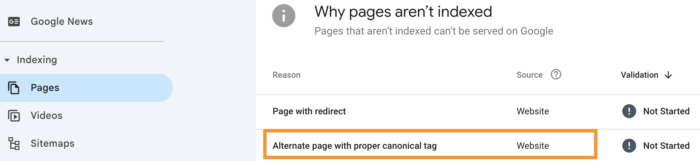
Let’s see what it means.
Alternate Pages with Canonical Tags in Shopify
When you see this “Alternate page with proper canonical tag,” on your Google Search Console reports, it means:
- Google has found an “alternate” URL
- The alternate page correctly points to a “canonical” URL
- The canonical page is indexed
Basically, Google is saying, “Hey, we found the canonical URL that you said was the real version.” — so there is no need to worry here.
You can further investigate the URL to make sure everything is working properly.
Use the “Inspect URL” tool in your Google Search Console and check if the “User-declared canonical” and “Google-selected canonical” are pointing to the same version of your content.
If they both point to the same URL, then no need to take any action. However, if they show two different URLs, then it might indicate duplicate content, which you need to address.
If there is duplicate content, then you will have to visit both URLs and make changes in the content. Common places to check first are the page title, meta description, product description, and even product title. If needed you can even merge the pages into one page.
Final Say
Wrapping this up, an alternative page with a proper canonical tag in Shopify is a positive sign that you have taken the needed action to communicate with the search engine to index the correct version of the page among the multiple URLs.
Such an SEO issue is harmless, but make sure to inspect the URL to save yourself from duplicate content troubles.
Here is a list of common Shopify SEO issues that you must focus on to maintain your store’s visibility:
- Auto-generated page tags
- Poor URL structure
- Multiple H1 structure
- Myshopify.com Web Pages
- Duplicate product page URLs
- & more
Understand them closely and take action before it starts affecting your store ranking and ultimately your store traffic. Shopify SEO is not very complex for beginners; using its built-in features, you can make things work in your favour, or always opt for an expert if unsure.
