Shopify’s default settings don’t allow you to change the names of payment gateways once they are live.
With the MIT Payment Hider app, you can easily bypass this limitation to rename any payment label for better branding and customer clarity.
Steps to Rename Payment Method Labels in Shopify
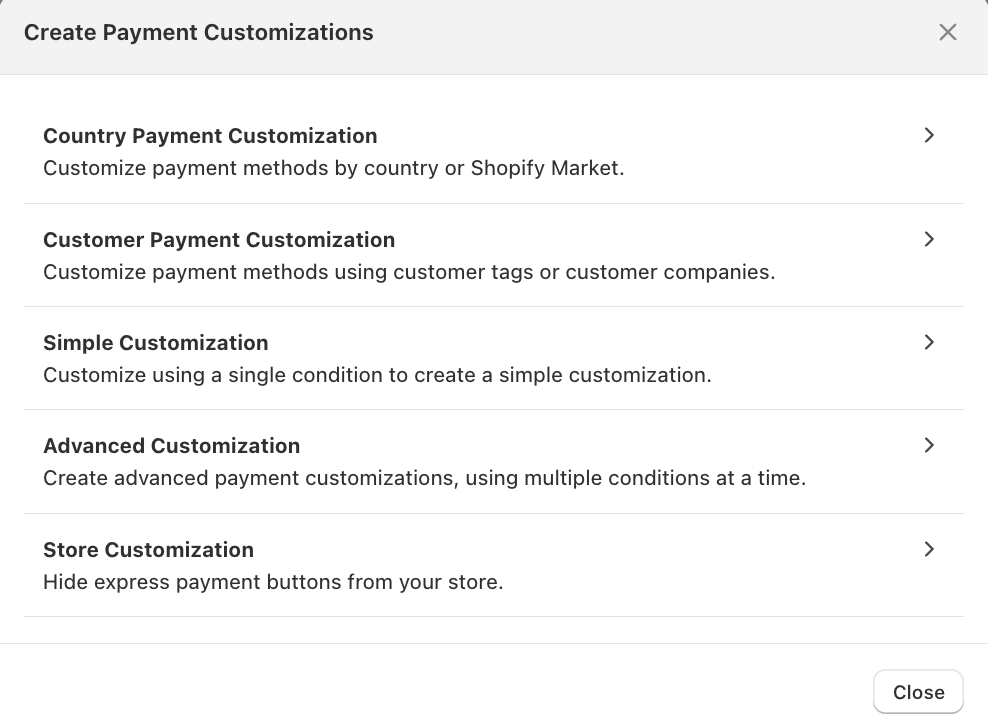
Step 1: Create Payment Customization
Navigate to MIT Payment Hider > click on the Create Customization button.mSelect a category (e.g., Country-based, Customer-based, or Simple Conditions).
Add the needed conditions to run the customization specific to cart, customers, products, and more.
Step 2: Edit the Payment Label
Locate the payment method you wish to change from the list.
Click the Pen/Rename icon next to the method name. Enter your new label (e.g., change “Cash on Delivery” to “Pay on Delivery”) and click save.
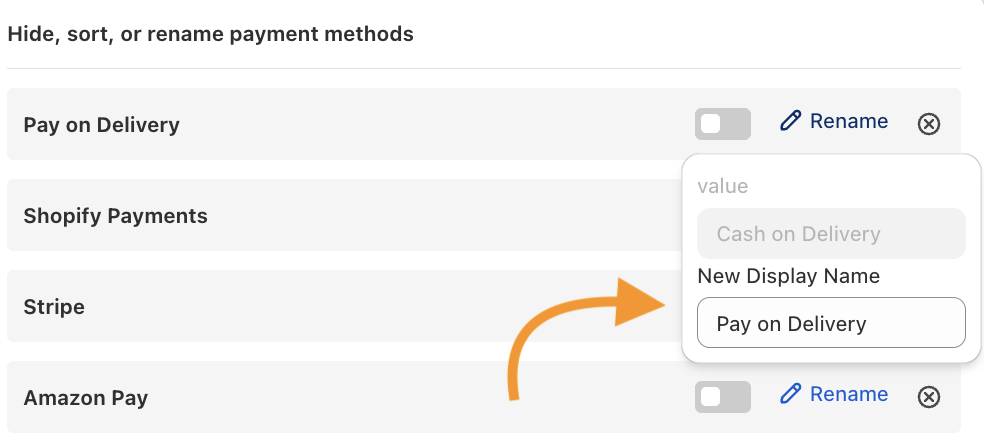
If the desired payment label is not there, click the Add Missing Method button and enter the exact name as it appears in Shopify.
Step 3: Payment Changes at Checkout
Take a store preview and add the product to the checkout page based on the condition you added. You will see the updated payment label.
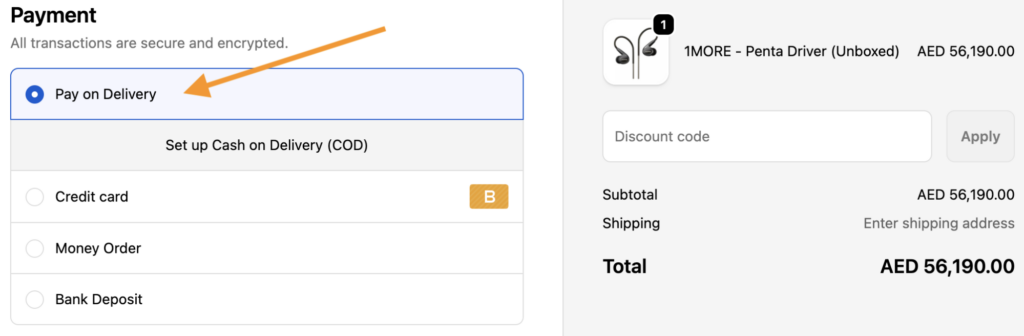
Customizing payment labels helps align your checkout with your brand or provide clearer instructions to customers. With MIT Payment Hider, you can rename any gateway based on specific conditions.
Hide, sort, and rename payment options in your Shopify store without editing the theme file.
Edit Now