

Microsoft Clarity is a free behavioral analytics tool that provides visual insights like heatmaps and session recordings, giving you a closer look at how interested shoppers are interacting with your store.
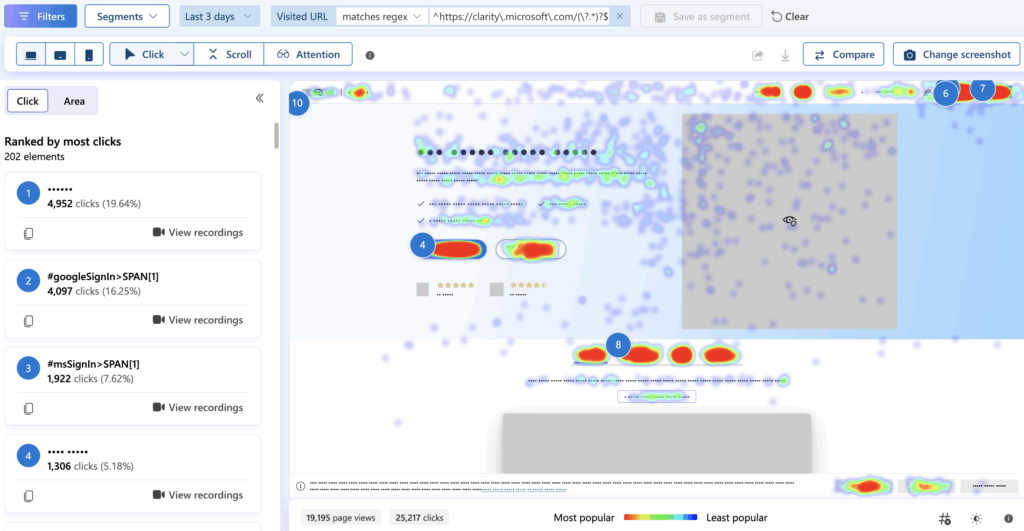
The above image is an example of a heatmap feature that gives you insights on which section of your site shoppers interact with and spend most of their time on.
Here, I will show you how to add Microsoft Clarity to Shopify, whether you are new to this platform or already a user.
How to Set up Microsoft Clarity on Shopify?
For New User
Step 1: Install the Microsoft Clarity Shopify App
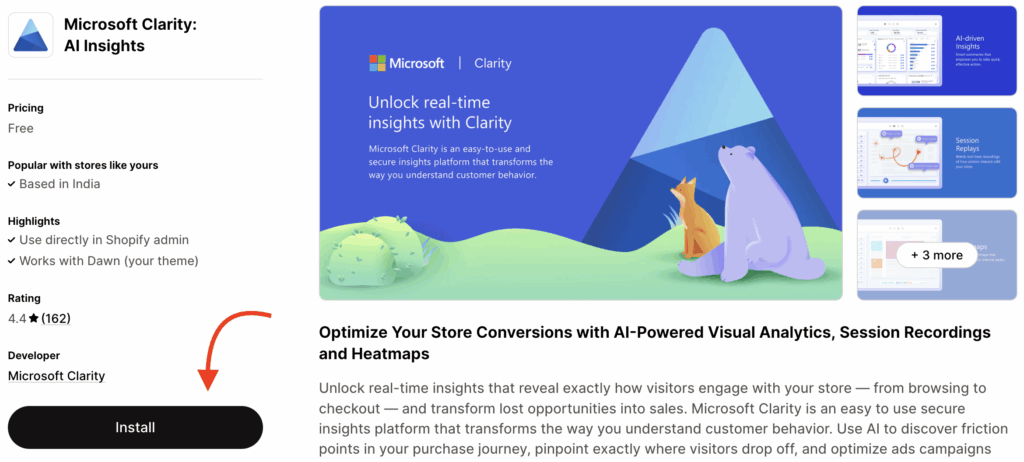
Go to the Shopify App Store and install Microsoft Clarity: AI Insights. Give the app the needed data permissions and click “Install” in the Shopify admin.
Step 2: On the Clarity JS Toggle
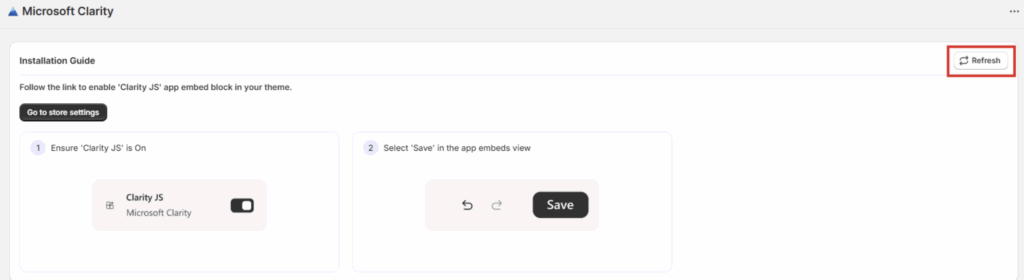
Now go to app settings and make sure the Clarity JS is toggled on. Then, go ahead and save this setting.

Step 3: Get Store Data
As soon as you do the last step, the dashboard will refresh automatically. In case it doesn’t, select the Refresh button from the right-hand side panel.
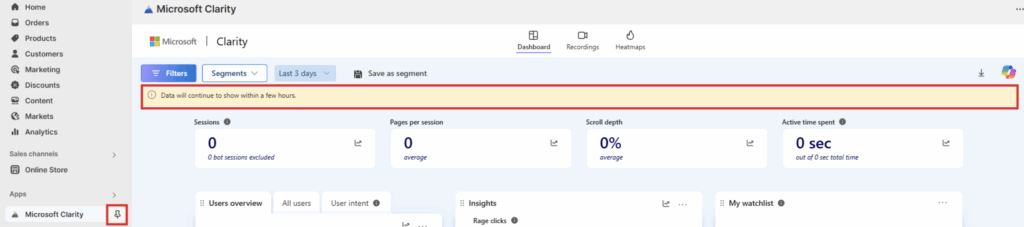
Now, wait for a few hours for the data to populate and then using the app dashboard you can view all the data.
For Existing Users
For the existing Microsoft Clarity users, with the app installed in your Shopify admin panel, the steps change a bit here.
Step 1: Connect Your Project
Click on Send configuration email to connect your project and get the admin approval.
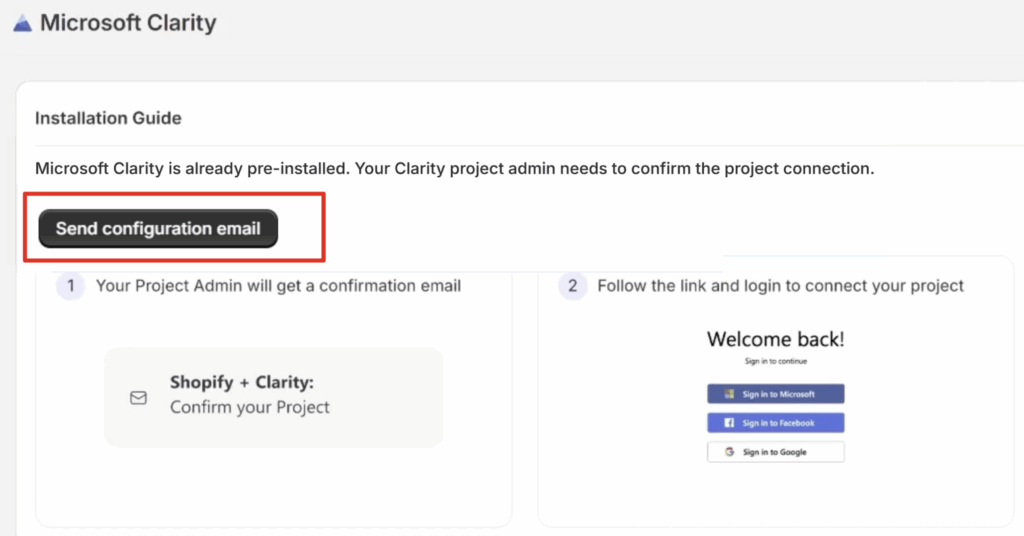
Step 2: Get the Admin Approval
The admin needs to approve the project for it to start showing data on the Shopify dashboard.
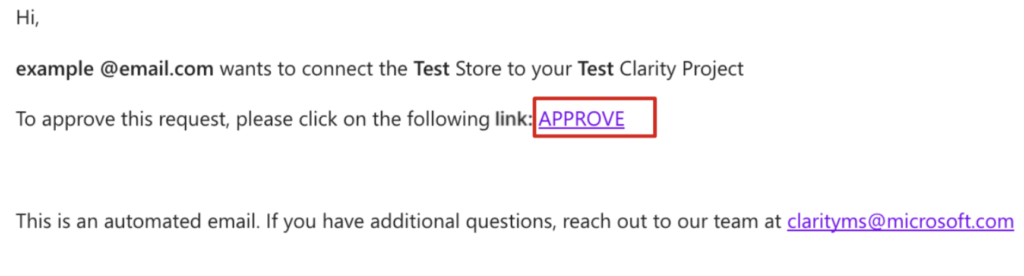
Step 3: Start Seeing Store Data
Go back to your Microsoft Clarity app dashboard in your Shopify store. The dashboard should be refreshed automatically. If not, use the Refresh button on the right.
Within a few hours, you will see the data populated.
Benefits of Installing MS Clarity on Shopify
Installing Microsoft Clarity provides powerful insights about your shopper’s activity for free.
- Here are some other benefits you enjoy using through this integration.
- Understand where the users drop off in the final stages of the purchase flow.
- Know the areas that frustrate the users and kill your conversion rate.
- See how far a user scrolls in a page.
While a heatmap is one of the features of Microsoft Clarity, you also get recording sessions to understand the entire user journey.
Such important tools make a difference in how you can analyze your store’s performance and implement changes that shoppers love and keep them coming back to your store.
Other important tools to setup for free in Shopify:
How to Add Google Search Console to Shopify?
How to Set Up GA4 in Shopify [3 Easy Steps]
