At Meetanshi, we have worked on hundreds of Shopify store migration, development, and customization projects. We often need to migrate products between Shopify stores, such as moving from dev to production or working on old stores developed by clients.
Therefore, in this post, we share the optimal process for migrating products between Shopify stores.
Let’s get started.
Why Migrate Products Between Shopify Stores?
There are several situations where merchants need to migrate products from one Shopify store to another, like:
- Launching a New Shopify Store – Businesses often create a new Shopify store to rebrand, redesign, or expand into a new market.
- Managing Multiple Stores – Many merchants operate separate Shopify stores for different countries, currencies, or customer segments.
- International Expansion – As businesses expand globally, they often create dedicated stores for different regions with the same products.
- Creating Wholesale or B2B Stores – Merchants frequently maintain separate B2C and B2B Shopify stores for the same catalog.
- Testing Before Going Live – Developers often create staging stores to test themes, apps, and customizations.
- Store Backup – Migrating products to another Shopify store also serves as an additional backup strategy before making major changes to the store.
Regardless of your use case, using the right migration method helps maintain product accuracy while reducing manual effort.
Options to Transfer Products Between Shopify Stores
If you’re looking to duplicate Shopify products between stores, there are two ways:
- Using an app – The MPC: Meetanshi Products Copier app helps you easily migrate products between stores. You just need to install the app in both stores, connect them, and then you can easily import the required products in a few clicks. This method eliminates manual handling errors by providing direct mapping rules for inventory details, variants, tags, and customizable prices.
- Migrate manually – You can use the default products CSV export/import feature in Shopify to do this. This method is a cost-free solution for basic, one-time historical transfers that can rely on the native Shopify spreadsheet pipeline. However, it poses a risk of manual errors and data entry issues.
While highly functional, it requires rigorous formatting diligence to avoid line-item drops or missing asset loops.
1. How to Use the Products Copier App in Shopify?
The Meetanshi Products Copier app lets you transfer products between Shopify stores without exporting CSV files or manually recreating products. Everything is managed directly from your Shopify admin, making the migration process quick and hassle-free.
Connect Stores
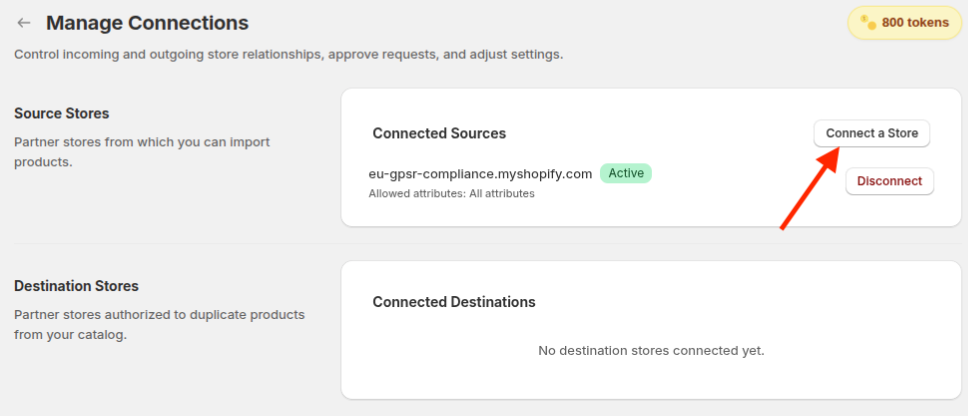
The first step is to connect your Shopify stores.
- Open the Products Copier app from your Shopify admin.
- Go to Connected Stores.
- Click Connect a Store.
- Enter the required store details and send the connection request.
- Once the destination store approves the request, the stores will be connected and ready for product migration.
Regardless of your use case, using the right migration method helps maintain product accuracy while reducing manual effort.
Choose Product & Attributes
After selecting the source store, you’ll see its product catalog inside the app.
Now you can choose exactly what you want to copy.
- Search for products using the search bar.
- Filter products by vendor or sync status.
- Select individual products or multiple products at once.
- Choose which product information you want to transfer.
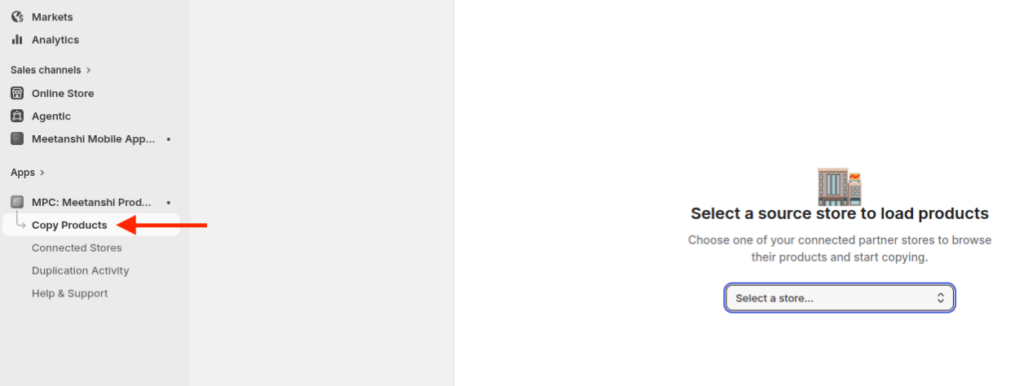
You can copy various product attributes, including product title, description, vendor, product type, etc.
This gives you complete control over what gets migrated to the destination store.
Migrate Products
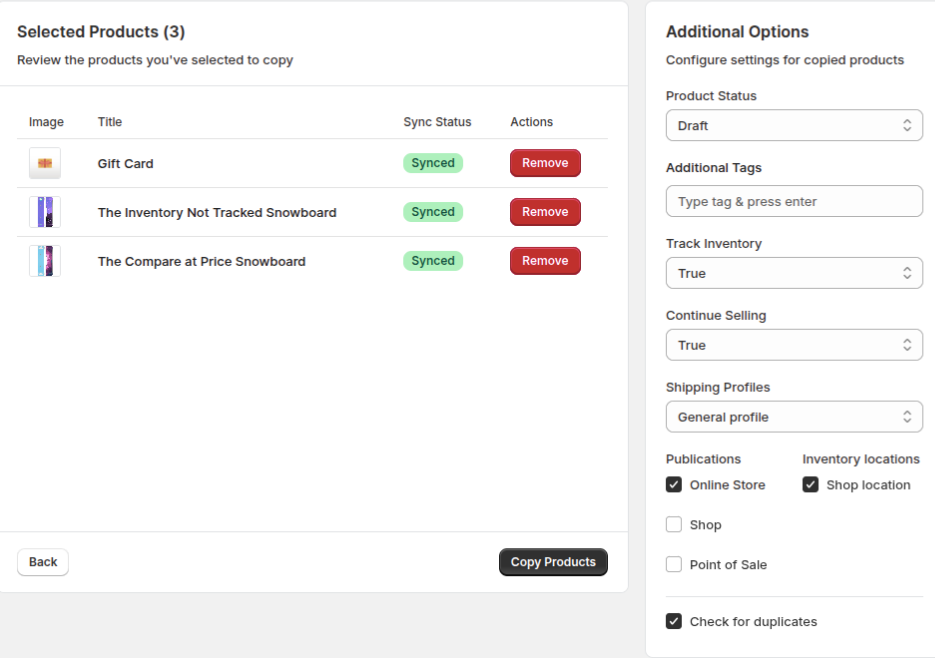
Once you’ve selected the products and attributes, click Continue to Settings.
Here, you can configure how the products should be created in the destination store.
Available options include:
- Set the product status as Active or Draft
- Add additional product tags
- Configure inventory tracking
- Select the shipping profile
- Choose inventory locations
- Publish products to selected sales channels
For a safer migration, keep the Check for Duplicates option enabled. This helps prevent the app from creating duplicate products if they already exist in the destination store.
Finally, click Copy Products to begin the migration.
The app will process the selected products and display the progress in the Duplication Activity section, where you can monitor successful and failed migrations in real time.
2. Manual Method to Migrate Products Between Shopify Stores
If you prefer to carry out a manual Shopify product migration without installing an external app, then you can leverage native spreadsheet procedures.
Export CSV
- Open your source Shopify Admin dashboard and click into the Products section.
- Select all items, or use filters to isolate a specific subset of products for transfer.
- Click the Export button located at the top of the product screen.
- Select your target scope (Current Page, All Products, or Selected Products) and choose the CSV for Excel, Numbers, or other spreadsheet programs format.
- Click Export Products to download the text sheet locally or receive it via your registered admin email link.
Import CSV
- Log into your target destination Shopify Admin interface and open the Products screen.
- Click the Import action button at the top of the interface page.
- Click Add File and select the product CSV file you downloaded from your source store.
- If you are updating existing items that share identical handles, check the option box labeled “Overwrite any current products that have the same handle.”
- Click Upload and Preview to check a sample row format layout.
- Verify the field mappings look correct, then hit Import Products to execute the catalog import.
Important Note on Images: When manually executing an export-import Shopify products process, product image URLs point directly back to the source storefront’s media servers. Do not close down or delete products from the source store until the destination store has finished downloading and caching the files onto its own servers.
Which Method is Best?
The best method depends on how often you need to transfer products and the size of your Shopify store.
If you only need to migrate products once and have a relatively small product catalog, the manual CSV export and import method can be a good choice. Since it uses Shopify’s built-in features, there’s no additional cost. However, it requires more manual effort and can become time-consuming, especially when dealing with large catalogs or making repeated updates.
On the other hand, if you manage multiple Shopify stores, frequently copy products, or have a large product catalog, using the Meetanshi Products Copier App is the more efficient solution.
It eliminates the need to export and import CSV files, reduces the chances of errors, and allows you to copy products along with the product data you choose in just a few clicks.
You can refer to a quick comparison below:
| Feature | Manual CSV Method | Meetanshi Products Copier |
| Easy to Use | Moderate | Very Easy |
| No CSV Handling | ❌ | ✅ |
| Bulk Product Migration | ✅ | ✅ |
| Select Specific Product Attributes | Limited | ✅ |
| Faster Migration | ❌ | ✅ |
| Suitable for Multiple Stores | Limited | ✅ |
| Ideal for Frequent Product Transfers | ❌ | ✅ |
For occasional migrations, the manual method works well.
But if you’re looking for a faster, more reliable, and scalable way to transfer products between Shopify stores, the Meetanshi Products Copier App is the better choice. It saves time, minimizes manual work, and helps keep your product catalogs consistent across all your Shopify stores.