Snapchat Pixel helps you to track your ad campaigns better and gives you deeper user insights. In this blog post, I will show you 3 simple steps on how to set up Snapchat pixel tracking via GTM.
Prerequisites for Snapchat Pixel Tracking Set up via GTM
To add a Snapchat tracking pixel, you need:
- A Snapchat business account
- Snapchat pixel ID
- Google Tag Manager account with GTM containers
How to Set up Snapchat pixel tracking via GTM?
Step 1: Copy Your Snapchat Pixel ID
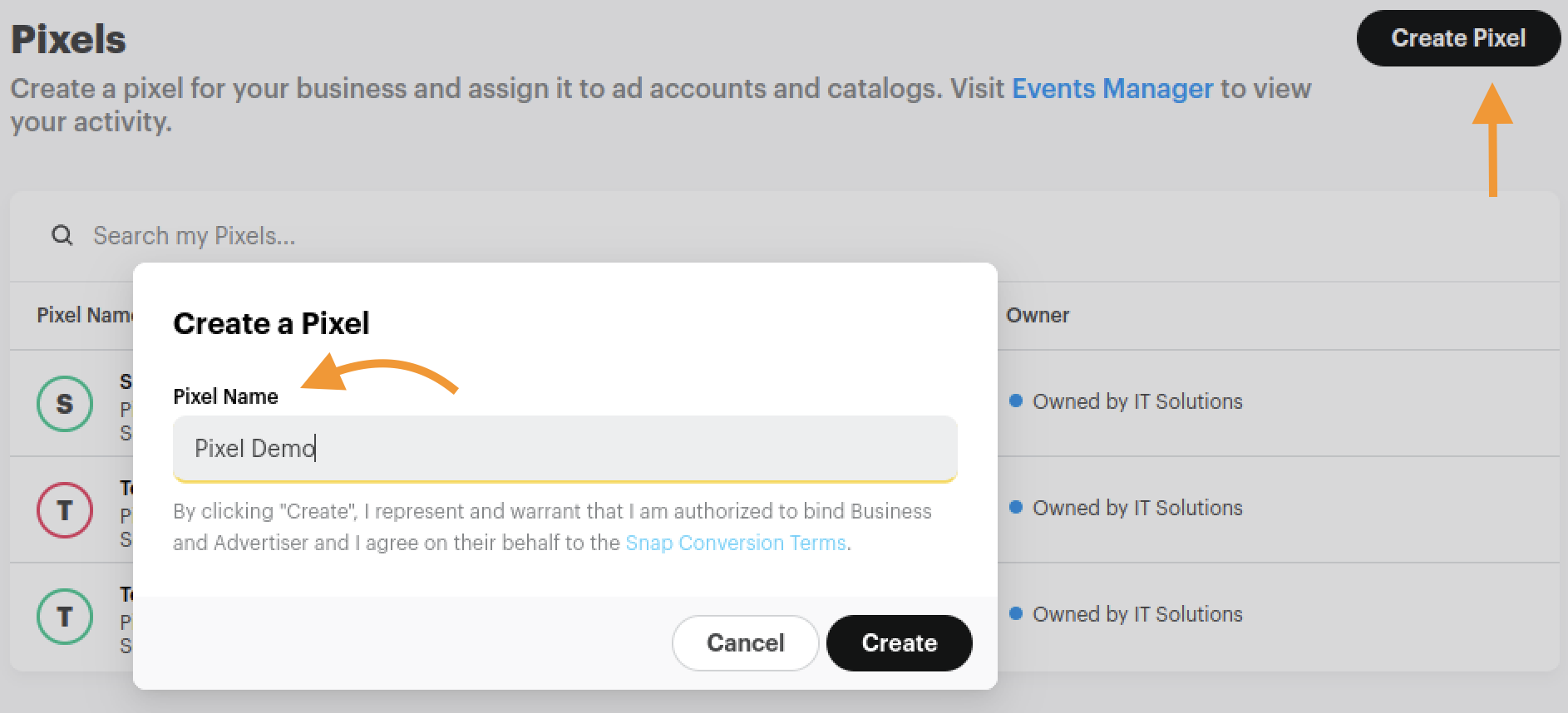
Log into the Snapchat Business Manager account and head to Pixels. Click Create Pixel and give it a name.
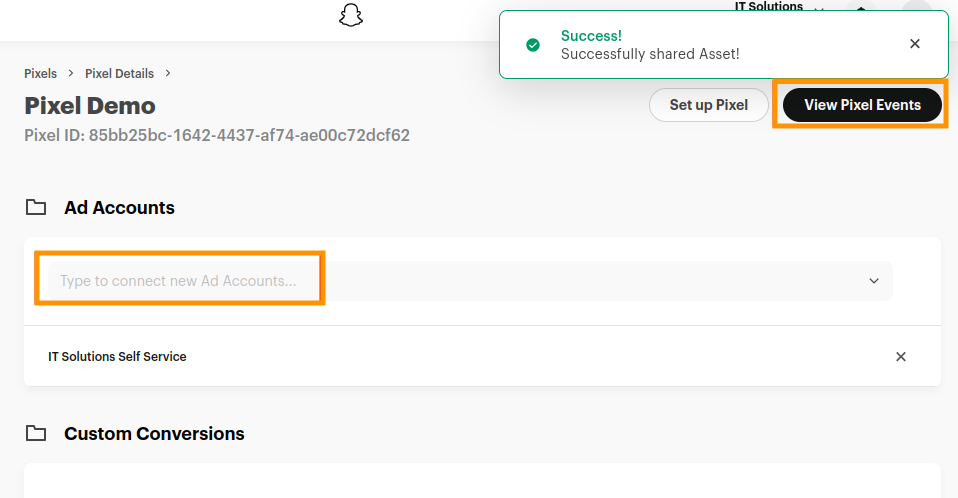
Then, move ahead to select the ad account to be associated with, and click View Pixel Events.
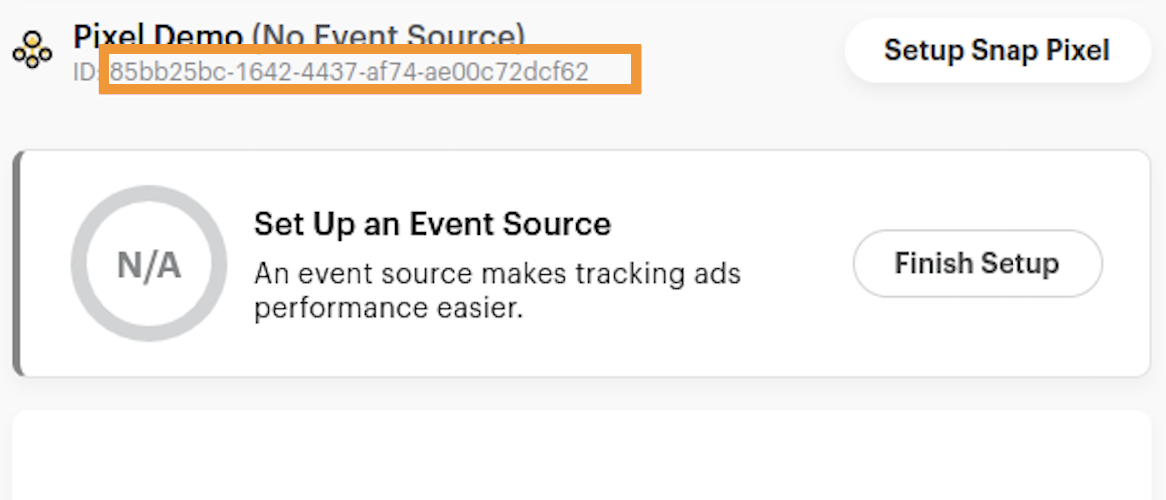
From here, copy the Pixel ID.
Step 2: Add Tag Configuration
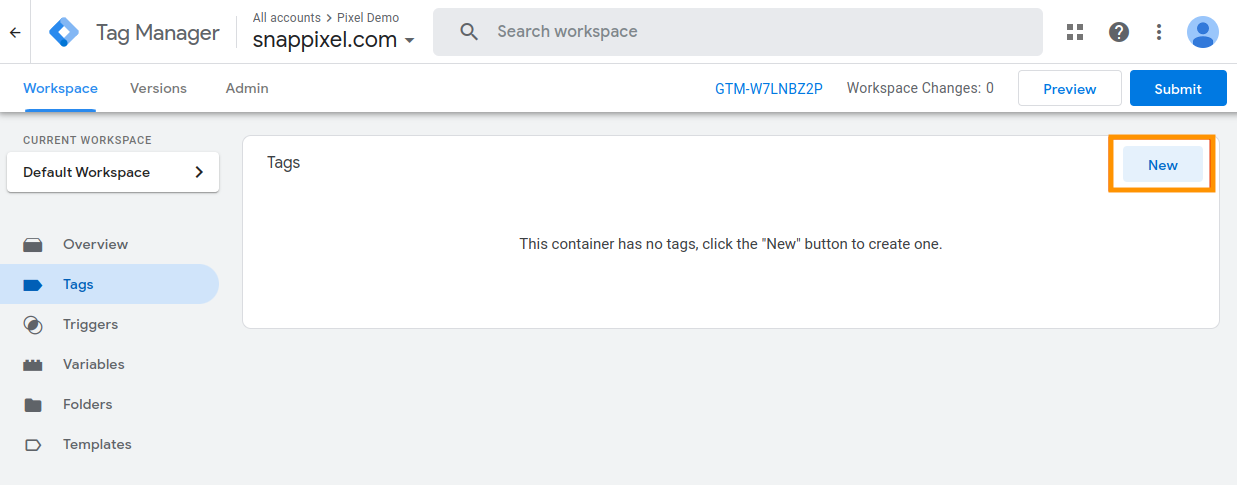
Now, head to Google Tag Manager to implement the Pixel code. In the web container, go to Tags and click New.
Give the Tag a name and click Tag Configuration. Here, you will see the following setting, so carefully fill in the details here:
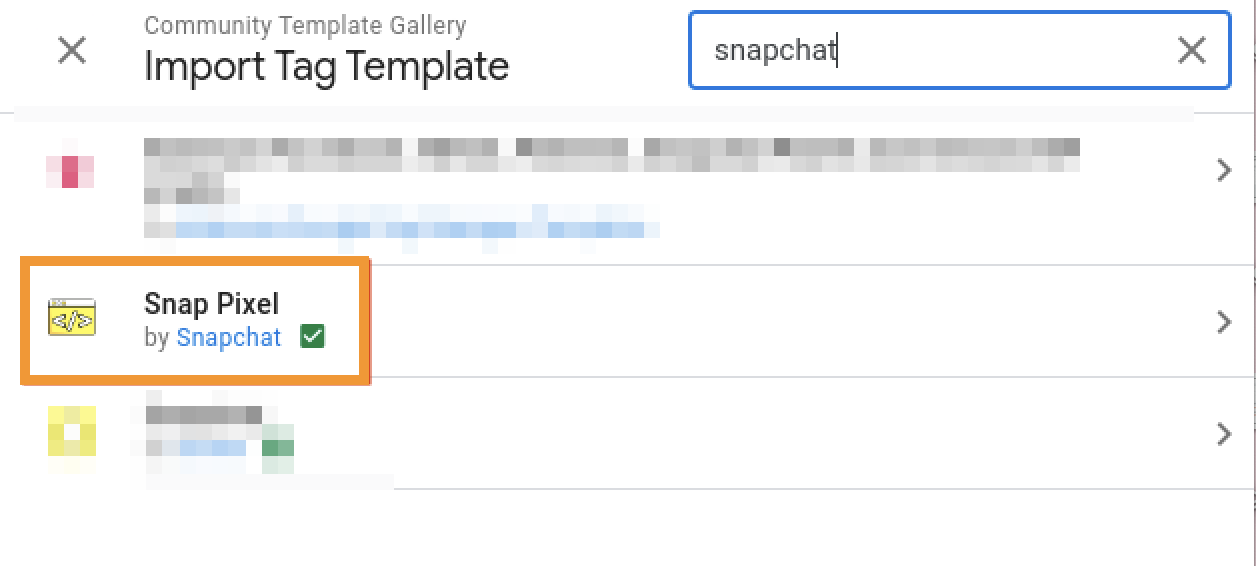
- Tag Type: Snap Pixel (Click on Discover more tag types and search for Snapchat, you can find a “Snap Pixel’ tag template by Snapchat)
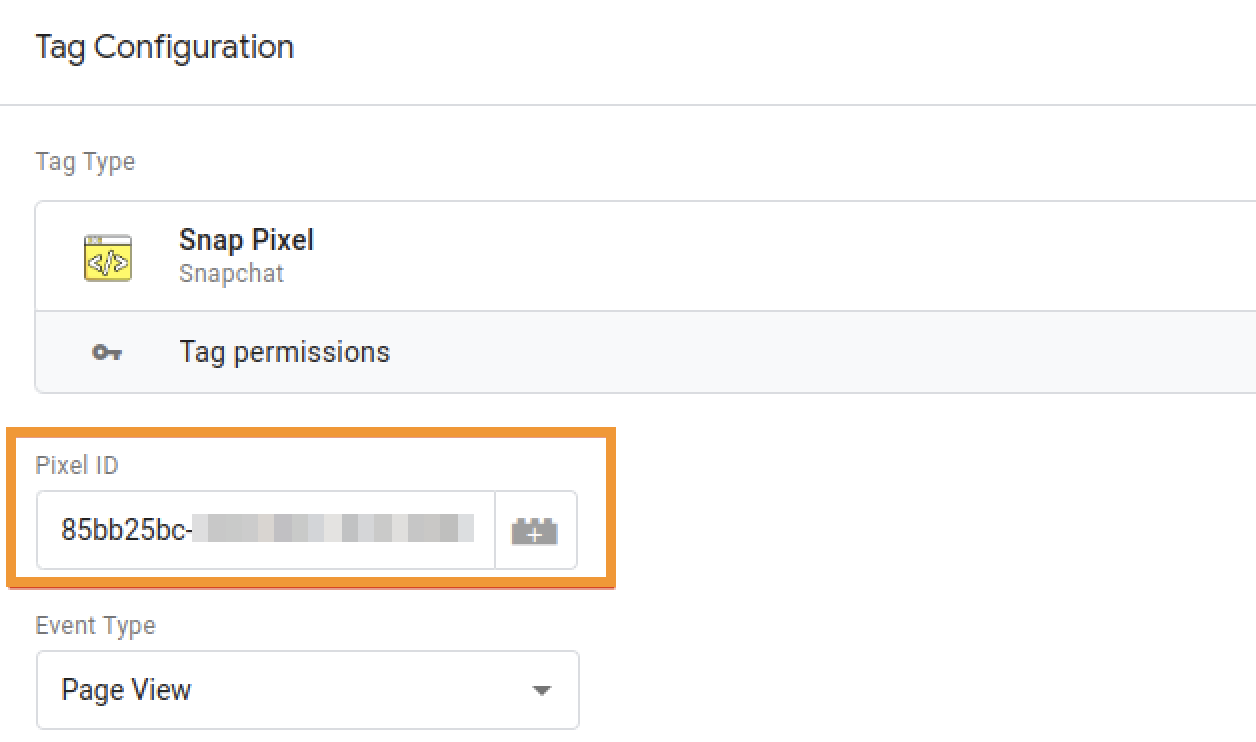
- Pixel ID: Paste the Pixel ID here
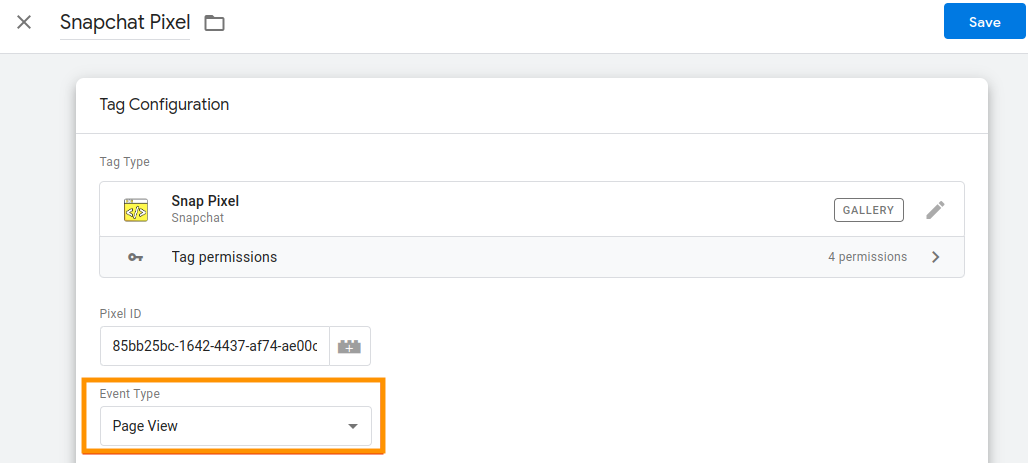
- Event Type: Page View (Here you get multiple event type option, but here we select Page View for now & scroll down to set trigger)
- Trigger: All Pages

Step 3: Save the Settings
After adding these settings, click Save and make the container live. With these three steps, you can set up Snapchat pixel tracking via GTM.
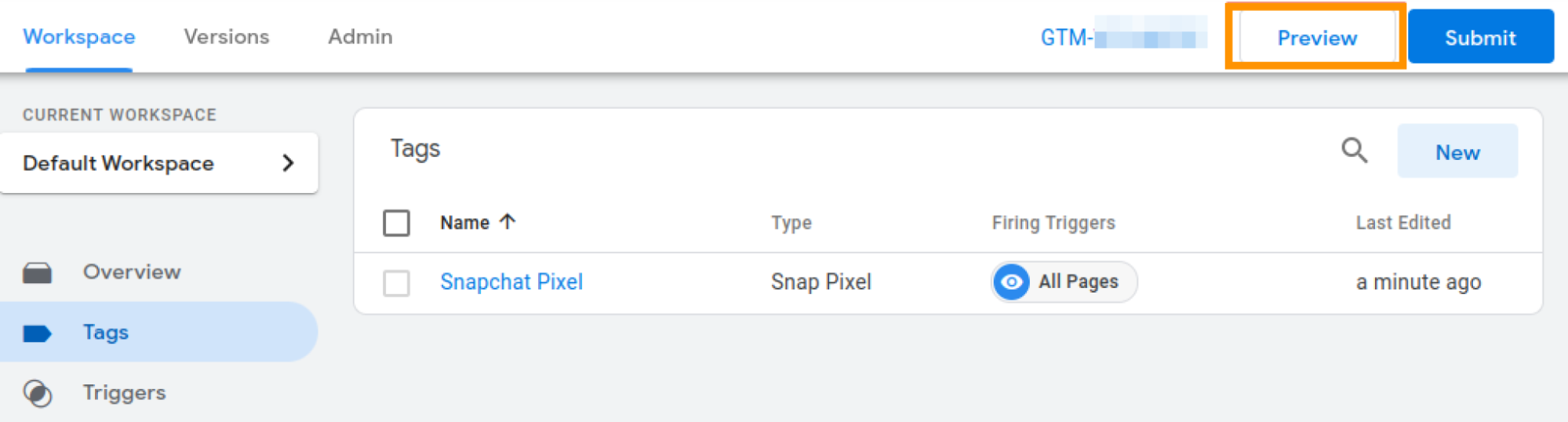
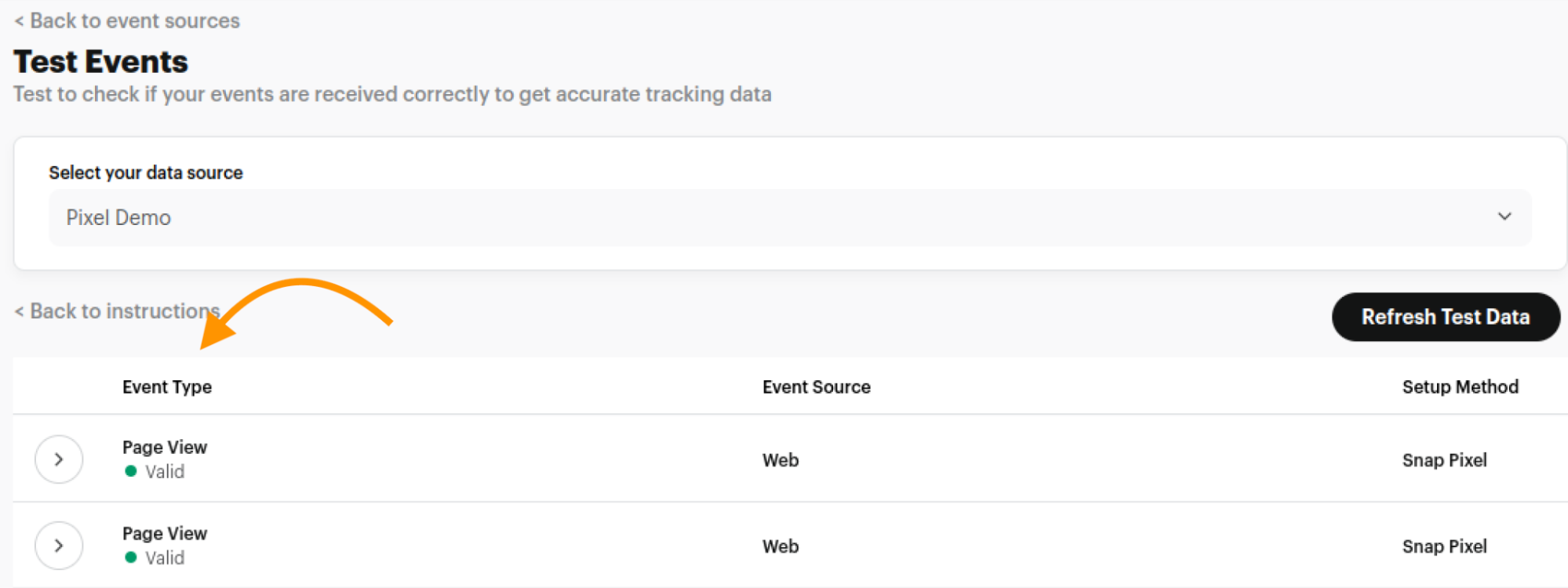
After the set-up, make sure you test and preview the Google Tag Manager container for accurate tracking. You will find the page view event as we are getting here.
If you are a Magento 2 store owner, it is much easier to add Snapchat Pixel to Magento 2, as the manual process for the Snapchat pixel setup might require some coding, but you can eliminate it using an extension.
Type of Events You Can Track Using Snapchat Tracking Pixel
In the above step, we used Pageview as an Event Type. Here are some more options that you have:
| Event | Useful for |
| Page Visits | Understand which page had the most visits and how long the visitor stayed |
| View Content | Know when a user views your product or catalog page |
| Add to Cart | Help you track when a user adds a product to cart |
| Start Checkout | Know when a user adds the product to the cart but doesn’t place the order |
| Add Billing | Know when the user selects a payment method in checkout |
| Purchase | Know when a user completes a purchase |
| Search | Know when a user searches for a product/anything else in your store |
Frequently Asked Questions
Which events does Snapchat pixel track?
Snapchat pixel tracks events like page views, purchases, sign-ups, add-to-cart, and leads.
How to verify if the Snapchat Pixel is working correctly?
You can use the Snapchat Pixel Helper Chrome extension to know if the pixel is working perfectly.
What to do if the Snapchat Pixel is not firing?
Check if the GTM containers are proper and are published correctly. Here, you can use the Snapchat Pixel Helper to troubleshoot potential issues.
Create Data-Drive Snapchat ad Campaigns
You can use this data from Snapchat Pixel to create ad campaigns that lead to better conversions.
Besides a boost in conversion rate, here are other benefits of using Snapchat Pixel:
- Optimize your audience based on their previous interaction with your website.
- Similarly, create a lookalike audience to spark interest in your ecommerce store.
- Track which ad converts for a purchase or a signups, and create the new set of ads accordingly.
Now that you know how to set up Snapchat pixel tracking via GTM, implement these steps and create actionable Snapchat ad campaigns.
Analyze Snapchat campaign performance and make the needed changes to get more leads.
Analyze Now