

Not only users but also Google loves privacy.
Google has now made cookie consent mandatory for websites to collect users’ data from the EEA region. Therefore, if you’re selling to or have traffic from this region, you may need to implement it on your Magento 2 store.
In this article, we cover how to set up Google Consent Mode v2 in Magento 2 and comply with Google’s guidelines.
What is Google Cookie Consent Mode?
Google Cookie Consent Mode is a framework that allows you to collect user’s permission to store cookies for advertising and marketing.
To comply with the user’s data privacy laws, Google has made Consent Mode v2 mandatory to offer a more transparent online experience.
As a marketer, your main benefit is that your Google tags and scripts start to operate in the privacy realms and your store complies with the privacy laws in regions like Europe and the UK.
Google also plans to expand on it as much as possible in more countries and regions.
How Does Consent Mode Work via Google Tags?
Google Consent Mode V2 sends users’ cookie preferences via Google Tags. This includes obtaining consent from users to use their data with services like Google ads.
Here are some common consent types:
- ad_storage – Enables storage (such as cookies) related to advertising
- ad_user_data – Sets consent for sending user data related to advertising to Google
- ad_personalization – Sets consent for personalized advertising
- analytics_storage – Enables storage (such as cookies) related to analytics e.g. visit duration
Initially, the default state of cookie preferences is sent to Google via tags on page load. This state is updated when the users set or change the cookie preferences.
It can be implemented in two ways:
- Basic – Tags are not loaded until users set their preferences. No data is sent to Google unless the user accepts the cookie consent.
- Advanced – Tags are loaded on page load and cookieless pings are sent to Google unless the user accepts the cookie consent.
In a nutshell, Google cookie consent mode v2 is helpful to take permission from users to use their data for advertising and marketing purposes.
How to Implement Google Consent Mode v2 in Magento 2?
To install Google Consent Mode v2 or to add cookie banner to Magento 2, you can add a custom script that stores user preferences and interacts with Google tags. This requires you to hire a professional developer to implement the logic and cookie consent.
One easier option is to use a ready-made Google Consent Mode v2 module for Magento 2. It helps you comply with the privacy laws and streamline your data collection in your existing analytics (via GTM or gtag.js) setup.
Let’s go through each step in detail.
Step 1: Install Magento 2 Consent Mode v2
Firstly, download the extension zip file and extract it to your Magento root directory. Log into your SSH and run these commands step by step:
php bin/magento setup:upgradephp bin/magento setup:static-content:deploy –fphp bin/magento cache:flush
Once done, the Google Consent Mode extension for Magento 2 will be successfully installed.
Step 2: Customize Cookie Banner
Go to the Magento admin panel and head to Stores > Configuration > Meetanshi > Cookie Consent v2 to enable the extension.
Then, you can start customizing the cookie banner as per your preferences.
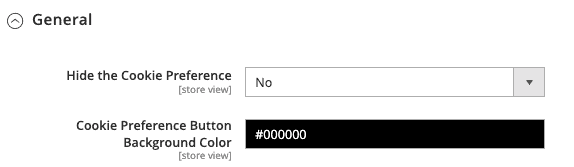
General Cookie Setting
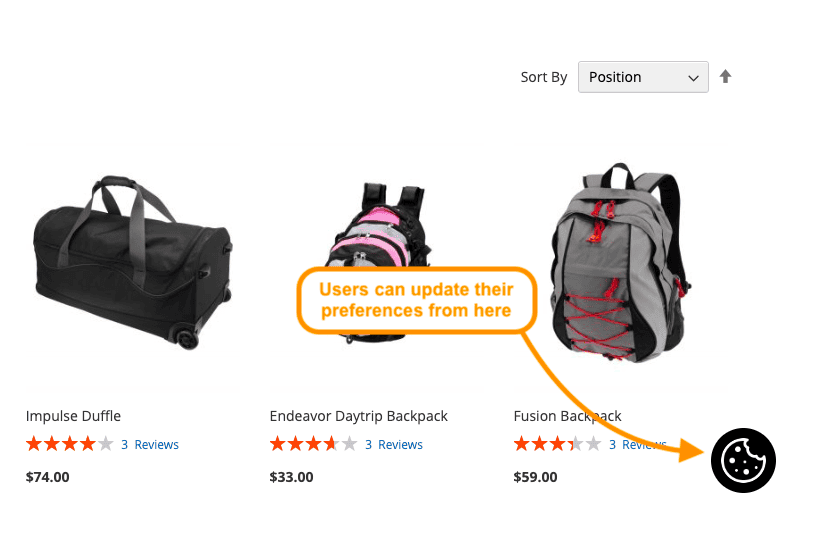
The cookie preferences button helps users to update their preferences any time after setting them. You can choose to show or hide this button and change its background color.
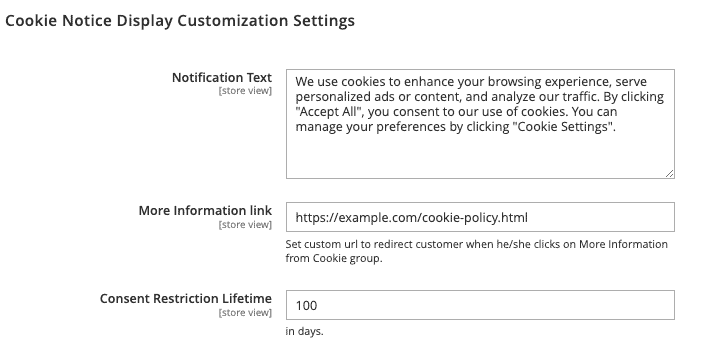
Cookie Notice Display Customization Settings
On the first site visit, the cookie notice is displayed to the users. You can customize this notice text, link, and set the expiration date for the preferences data.
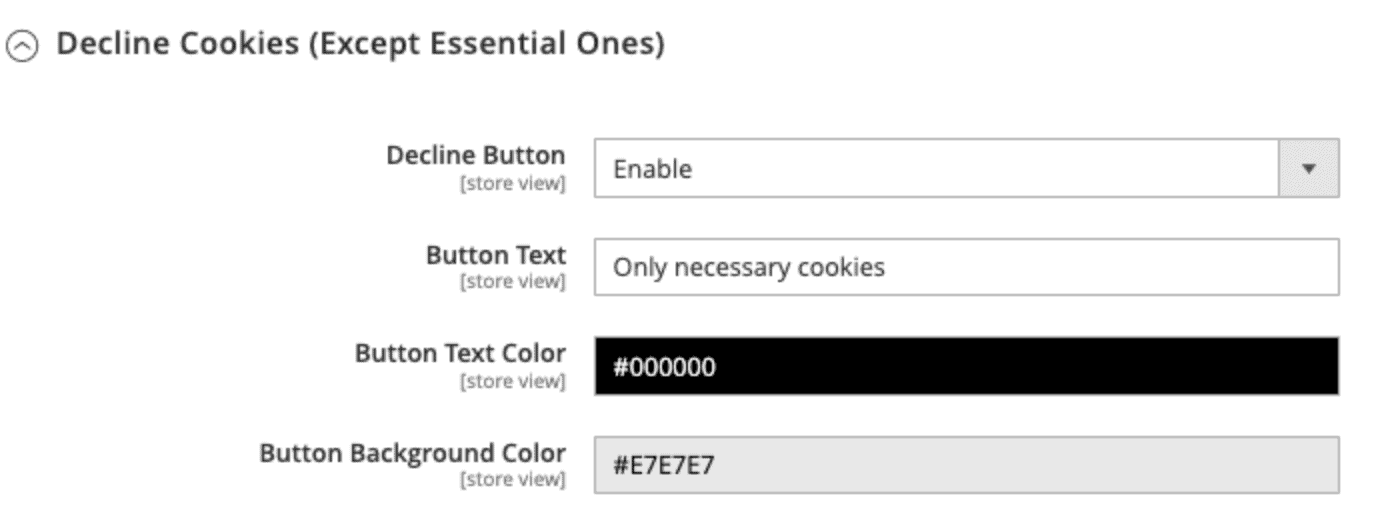
You can also customize the labels and colors for the following buttons:
- Accept – Sets all consent states to ‘granted’
- Decline – Sets all consent states to ‘declined’ except the essential ones
- Set Custom Preferences – Opens a cookie preference pop-up, allowing users to select their preferences
For example, here’s what the consent banner looks like with these settings:

Step 3: Edit Cookie Groups & Consent Banner
By default, the extension comes with all the consent types required to collect data for Google’s services like ads and analytics. These consent types are added to cookie groups, which customers can accept or deny.
You can edit these consent types and cookie groups or create new ones.
Go to Cookie Consent v2 > Manage Cookie Groups to create or edit a cookie group. You can set the cookie group status (only enabled cookie groups are displayed on the front end.)
- Set as Essential – Enable this to make it compulsory (users can not deny)
- Cookie Group Code – Enter a code that is used as a reference (generally group name in small case)
- Cookie Group Name – Enter the name to be displayed on the cookie preferences pop-up
- Description – Enter a description for the cookie group
You can also control the position of the cookie group in the preferences pop-up through sort order.
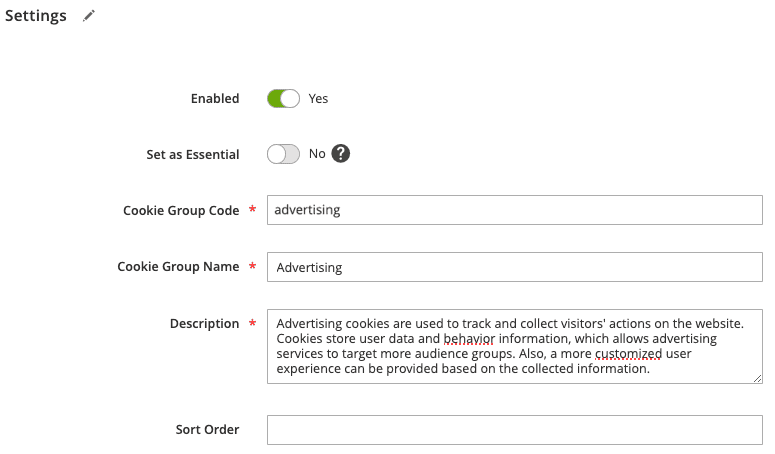
Click Save.
Similarly, you can edit or create new consent types and add to cookie groups.
Go to Cookie Consent v2 > Manage Consent Parameters. Here, you can edit any existing one or create a new one.
Click the Add a New Consent Parameter button
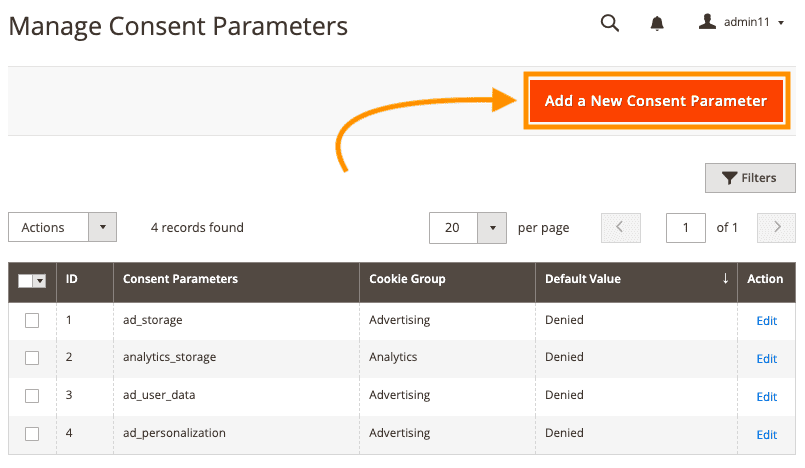
You can configure the following settings:
- Parameter Code: Enter the consent code to send to Google tag
- Default Status: Set the default status for the consent type
- Cookie Group: Assign the consent to a particular cookie group
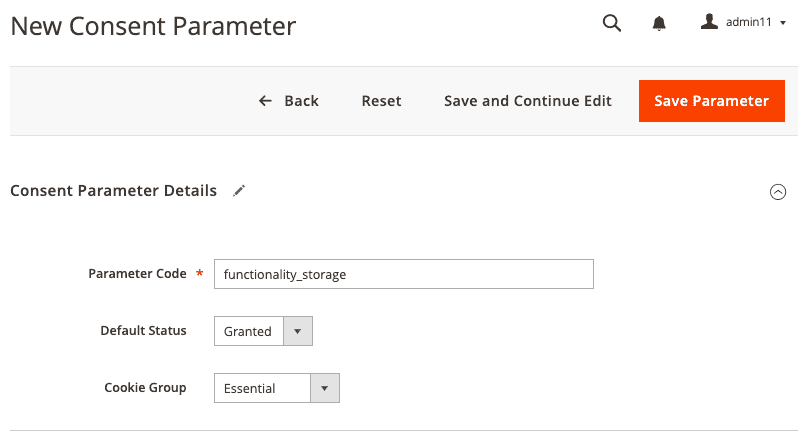
After you are done, click on the Save Parameter button.
Magento 2 Consent Mode v2 in Action
Once the extension is configured, your Magento 2 store is ready and equipped with a fully working cookie consent mode v2.
The cookie consent notification banner is displayed when the users visit the site for the first time.
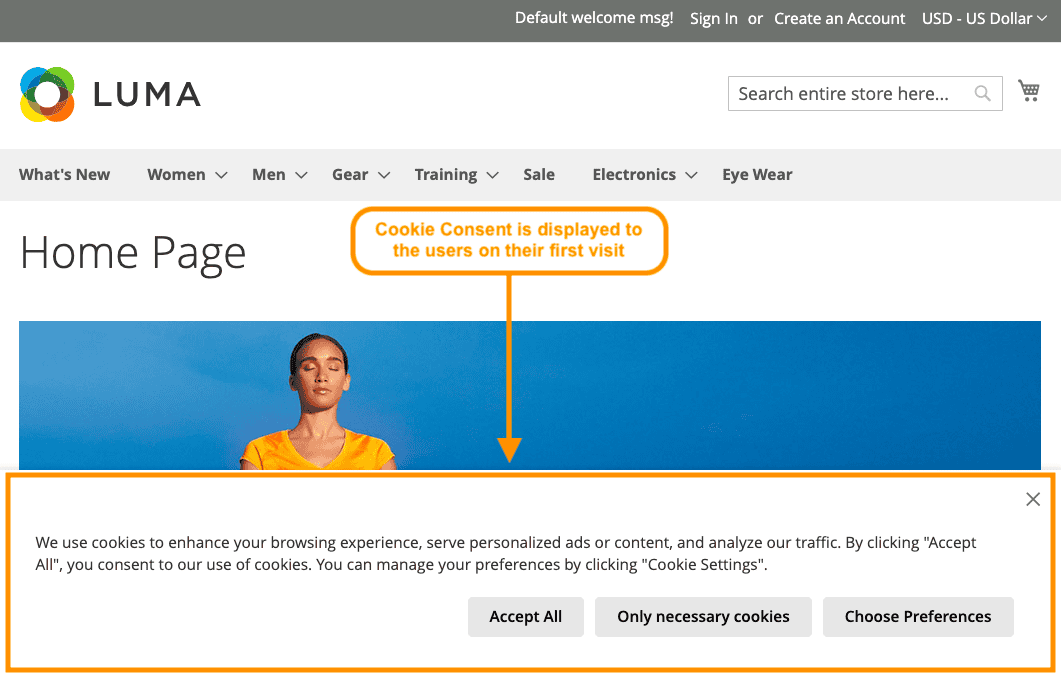
Based on the user preference, the cookie status will be updated.
If they opt to choose a custom preference, they can select specific cookie groups from the available options. (These are the active cookie groups that are configured in the backend.)

After the users have selected their preference, the cookie consent will not appear till it has expired (the number of days you added in Step 1).
And, if configured, the cookie preferences button appears through which the users can modify their preferences.
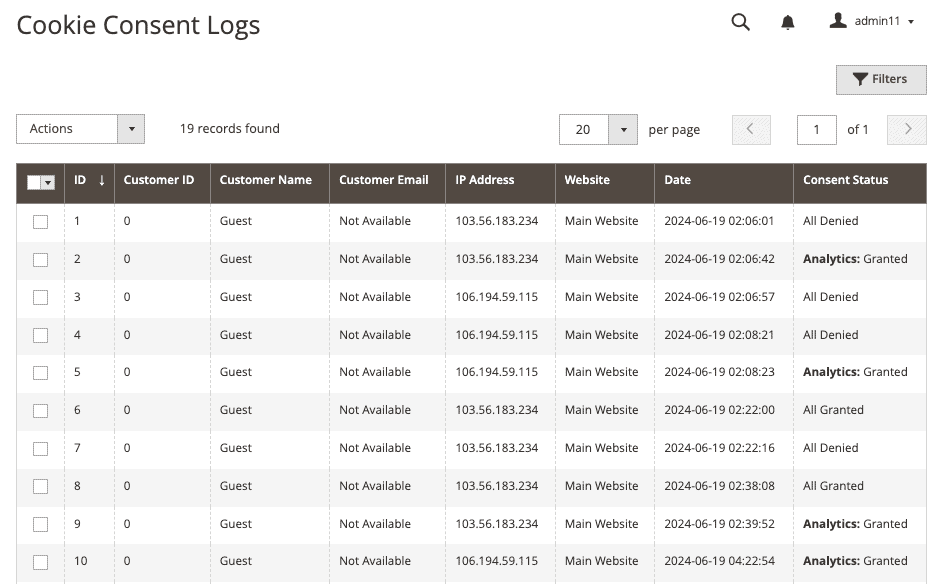
You can track logs of the consent preferences set by customers in the Cookie Consent v2 > Cookie Consent Logs grid.
Get customer insights while staying within the privacy boundaries.
Get Now
How to Check if Google Cookie Consent Mode is Working?
To check if the cookie consent in Magento 2 is working properly via GTM, follow these steps::
- Go to Open Tag Assistant and enter your website URL.
- Test your banner and accept all cookies.
- Verify if the page sets the default consent correctly, and it updates the consent based on your interaction.
- If there are more tags on your website, check if they are working well as per the consent status.
Frequently Asked Questions
What Happens if I Don’t Implement Consent Mode v2?
Failing to implement Consent Mode v2 will make a difference in the data you receive. No data will be captured and won’t be personalized, leading to running generic ads that might not get you quality clicks.
Can I Run Google Ads Without Consent Mode in v2?
In the EU and the UK, you must get cookie consent to use users’ data in Google Ads and any other Google products. Google has made it mandatory since March 2024. However, you don’t need it if your users are from other regions.
What’s Next?
Now that Google has made Cookie Consent compulsory for the EU and the United Kingdom, it plans to make things mandatory for other countries like Singapore, Switzerland, and more.
As said before, Cookie consent doesn’t look like a temporary fix for Google; they are leveraging it, and as a store owner, you must not miss out on doing so as you will miss out on your valuable user insights, which is a risk no one wants to take.
