You can hide prices on the Shopify collection page in two ways:
- Editing your Shopify Liquid file
- Use a Shopify app to hide the price
This guide covers both methods so you can pick the right one for your setup.
Method 1: Hide Prices on Shopify Collection Page Using Code
You can remove price from collection on Shopify by editing your product card Liquid file and adding a template condition that removes the price block only when the collection template loads.
If you’re not comfortable using Shopify Liquid, one misplaced tag can break the entire product card. So, take the help of a developer or use Method 2.
Here are the steps to edit the Liquid file.
Step 1 – Locate the Product Card File
Login to your Shopify admin panel, and head to Online Store > Themes > Edit Code. For most modern themes (Dawn, Refresh, Sense):
Open Snippets > Find card-product.liquid
For older themes look for product-card.liquid or collection-product.liquid
Step 2 – Hide Price Only on Collection Page
Find the price block that usually looks like: {{ product.price | money }}
Then, add the below condition:
{% unless template.name == 'collection' %}
  {% render 'price', product: card_product, price_class: '', show_compare_at_price: true %}
{% endunless %}
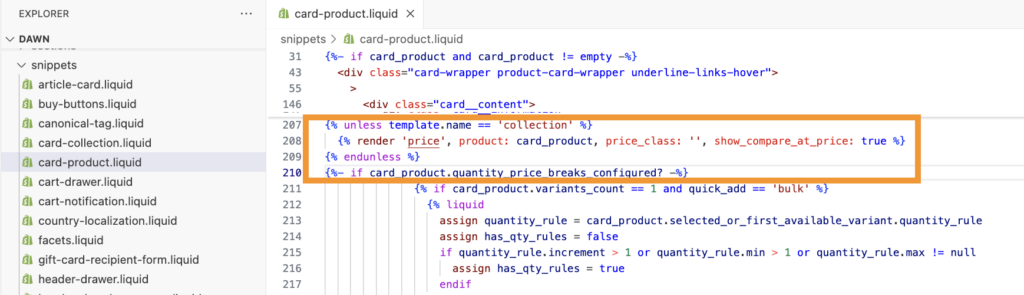
What this condition does:
- Removes price only on collection pages
- Keeps price visible on product pages
- Removes price server-side (not just visually)
Step 3: Save and Preview
Now, save the file and take a preview of your store to see how the output appears on your collection page.
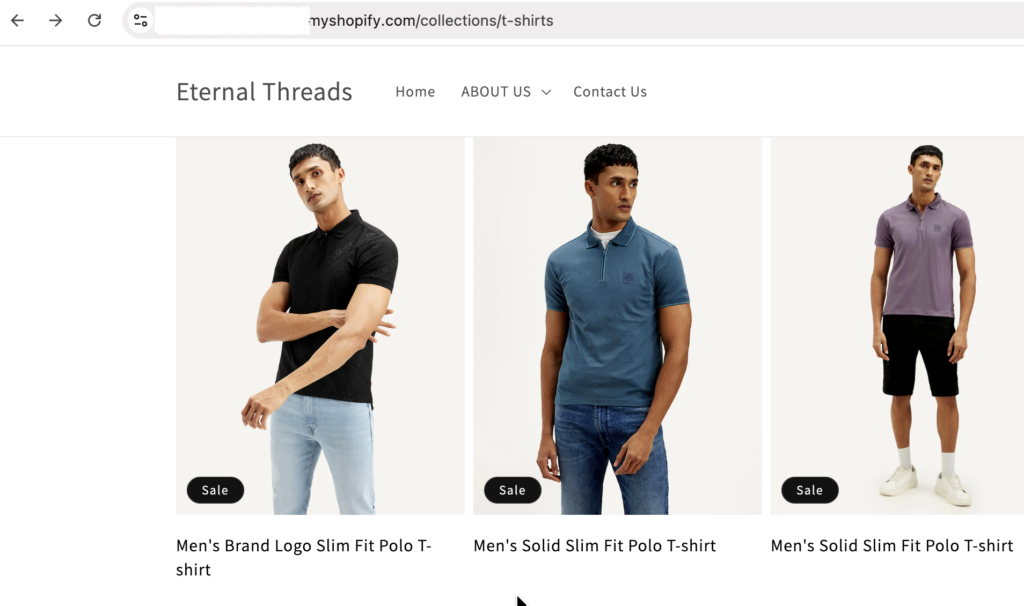
The code approach is cost free method but the drawbacks worth knowing before you commit to it:
- Any time you update Dawn or your current theme, the card-product.liquid file may be reset, wiping your customizations.
- If your theme has a Quick View feature, it may bypass your condition and show the price anyway.
- Some themes render product cards in more than one file.
Method 2: Hide Specific Collection Prices Using an App (Recommended Method)
If you don’t want to modify Liquid files or risk breaking your theme, using a purpose-built Shopify app is the safer route.
Use MIT Hide Price & Request a Quote App by Meetanshi
The app gives you control price visibility of specific collections without touching a single line of theme code. Additionally, instead of leaving a blank space where the price was, you can replace it with a Request a Quote button, like this:
Here are the steps to achieve this.
Step 1: Create a Hide Price Rule
Install the app from the Shopify App Store. Open the app dashboard and click on Configure Rules.
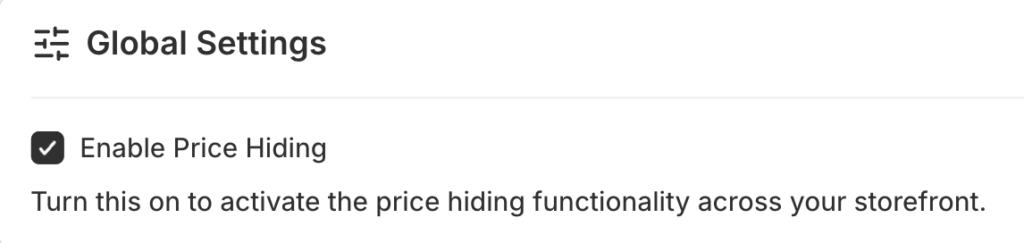
Then, check the Enable Price Hiding to active the function.
Step 2: Select Collection & Set Customization
Now, under Page Selection, pick All Pages. And select All Applicable Products/Collections or Selected Collections Only if you want to target a particular collection.
Here, let’s go for Selected Collections Only.
Click on “Select Collections,” then pick an option from the list, and finally click on “Add.”
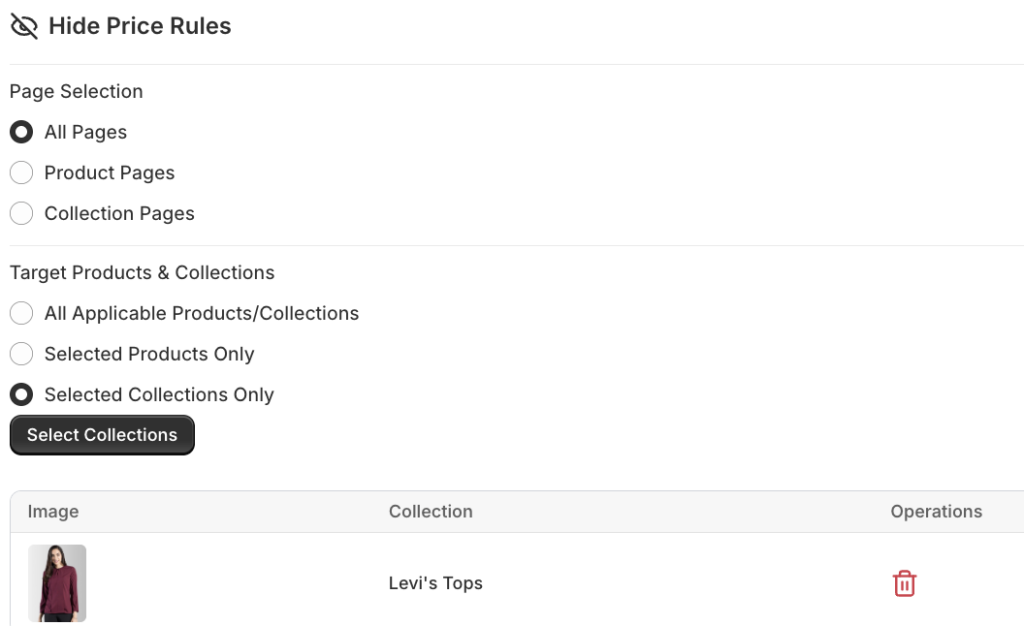
Then, select the customer visibility and hide the add to cart/buy now button from the front end.
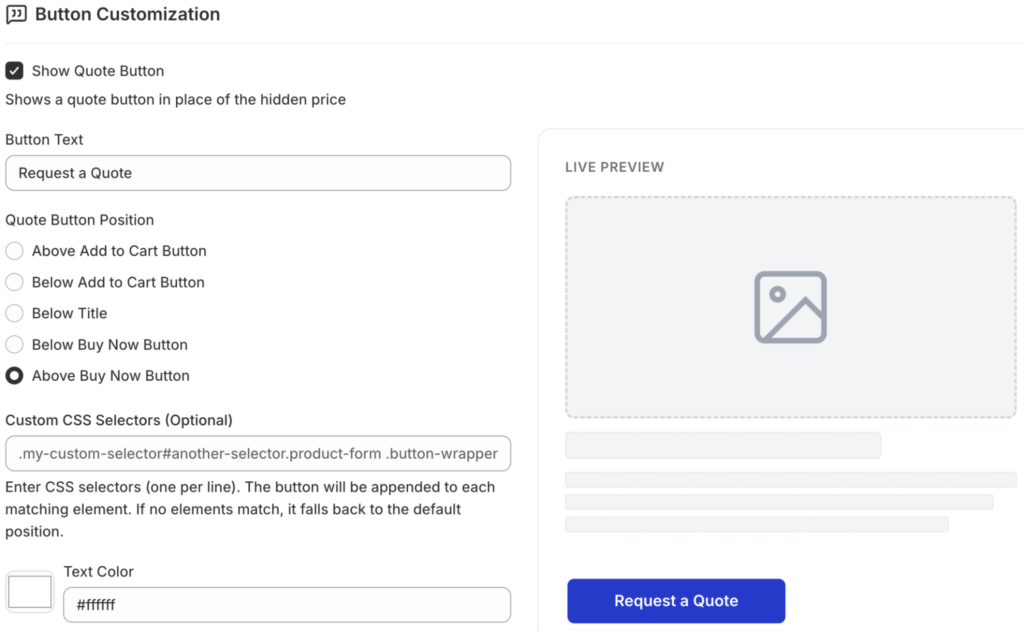
Step 3: Add a Request a Quote Button
Click on the Show Quote Button to make the button visible on the selected collections. Then, start customizing the button text, color, and position.
Step 4: Save and Test
Save the complete customization and view the changes in the frontend.
This removes the price from the collections page.
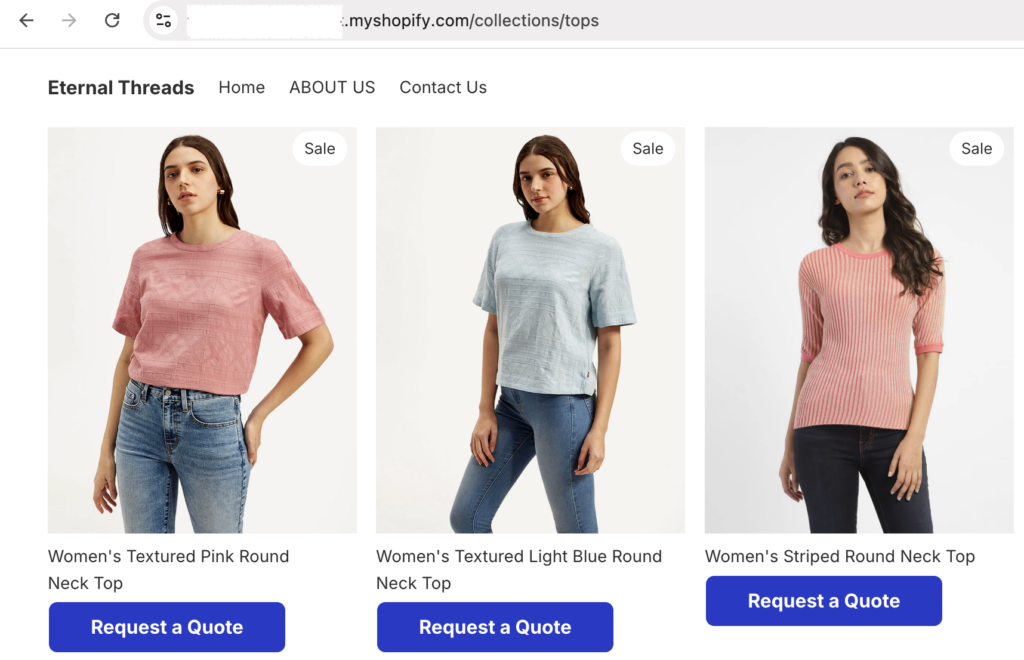
It all hides the product price of the particular collection.
Which Method to Choose?
If you need simple collection-only hiding and you’re comfortable editing Liquid. Use the code method. It’s free and effective for a single straightforward condition.
If you need scalable price control, multiple visibility rules, or a quote button to replace the price use the Hide Price & Request a Quote app.
It’s more maintainable and won’t break when you update your theme. Here is the detailed breakdown of each..
| Factor | Code Method | App Method |
| Cost | Free | Paid (7 days-free trial) |
| Risk | Medium | Low |
| Theme Safe | No | Yes ✅ |
| Easy to Manage | No | Yes ✅ |
| Multiple Conditions | Limited | Advanced ✅ |
In conclusion, using an app like MIT Request Quote & Hide Price is the recommended method because it provides a level of coverage that basic manual coding often misses.
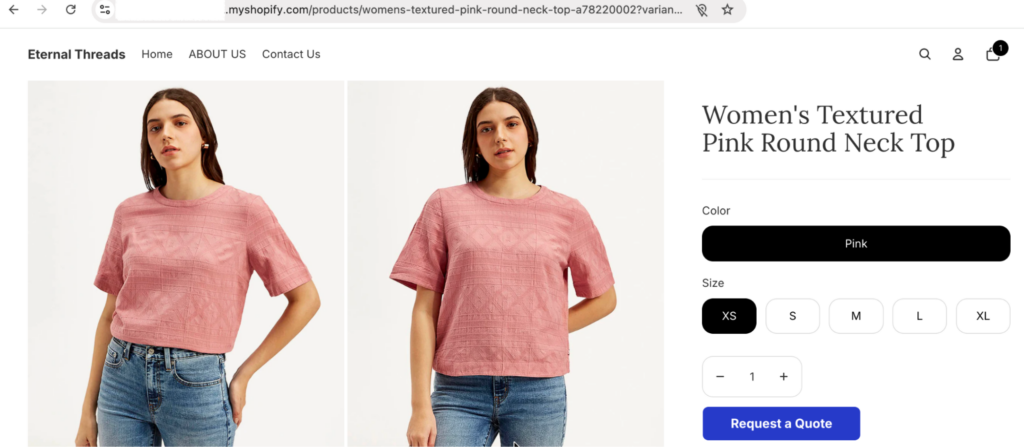
While manual scripts might only hide prices on the collection grid, the app allows you to select “All Pages” to ensure prices remain hidden on individual product pages, search results, and recommendations.
Start optimizing your page now without worrying about the theme damage.
Hide the price within a few configurations—zero coding Shopify app.
Install Now