

Designed your dream site in Figma, but don’t know how to bring it to life on Shopify?
Converting your Figma design to a Shopify store is not so easy. But don’t worry; In this blog, I’ll explain how to convert Figma design to Shopify using two most popular ways.
So, let’s dive in.
Why Convert Figma Design to Shopify?
Designing in Figma is a first step in creating your digital store. It helps you to visualise how your store will look. Your design in Figma is not functional, it is just a mockup. Customers can’t access it.
To turn your design into an actual store, you have to convert Figma to Shopify.
Here are few of reasons to on why you should do so:
- Using ready-to-use Shopify themes is easy but it doesn’t match your expectations as it has some limitations
- Figma design to Shopify conversion gives you full control over layout, content, responsiveness, etc
- Transforming Figma designs into shopify stores provides more smooth user experience and it looks more professional
- In the long term, it saves your time by avoiding repeated design adjustments
These points show why it’s important to turn your Figma design into a Shopify website.
Ways to Convert Figma Design to a Shopify Website
There are 2 ways to convert your Figma design to a Shopify store:
- Using Shopify Liquid Code
- Using Figma Plugin
Both of these methods have their own flexibility and control. Let’s have a quick overview of both options.
Using Shopify Liquid Code
This method involves manually coding your Figma design using Shopify templating language – Liquid, along with HTML and CSS.
- This method is best for those who are comfortable with coding and have technical knowledge
- It allows you to build a custom Shopify theme based on your design
- This method is time consuming and requires a developer (if you don’t know coding)
Using Figma Plugin
This method uses export plugins inside Figma to convert your designs into code, which can be added to Shopify.
- It’s good for those who don’t have coding skills and who want a quick setup
- Plugins like Figma to shopify with instant can help you to export your designs
- This method offers limited flexibility compared to manual coding
Both of these methods have their own pros and cons. Choosing the one depends on you and your requirements.
If you want full control and want a unique design of your store, then using Liquide code is a better option but only if you have a developer or you have knowledge of coding. On the other hand, if you need something quick & simple and you don’t have technical skills, then going with plugins is the best option for you.
So, choose the one that best fits your requirements.
How to Convert the Figma Design to Shopify?
As we explore above, if you don’t know coding, then using a plugin is one of the easiest ways to convert your Figma design to a Shopify store.
Here we will learn how to convert Figma design to shopify page using plugins.
Step 1: Install the Figma Shopify plugin
Go to Figma to Shopify with Instant plugin page and click on “Get the Free Plugin.”
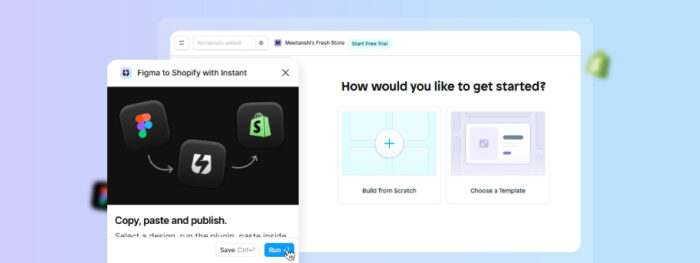
Step 2: Activate the Figma to Shopify Plugin
Open your Figma file and name all layers properly. Mark the items that will link to Shopify products or collection
Then, in your Figma file, go to the Resources > Plugins and search the “Figma to Shopify with Instant” plugin.
Now, activate the plugin.

Step 3: Copy and Paste the Design into Instant Plugin
Select the design that you want to export and click Copy Design. Now, open the Instant’s editor and right click > Paste.
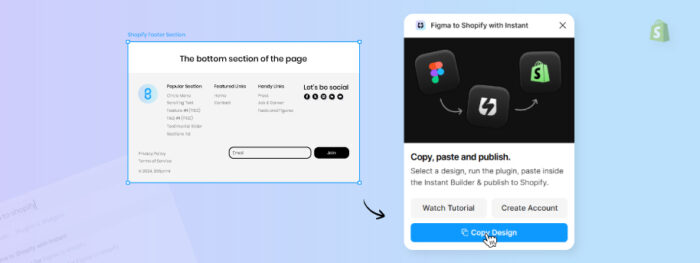
Your Figma design will be imported in the plugin. Verify if everything is proper and make adjustments if needed.
Step 4: Publish to Shopify
Now, for every dynamic content, go to the Shopify Content Panel in Instant, link images/text to live Shopify product data or collection.
Switch from static to dynamic content so updates sync automatically.
Then, name the section in section settings. Click on “Publish” to sync the design to your Shopify theme.
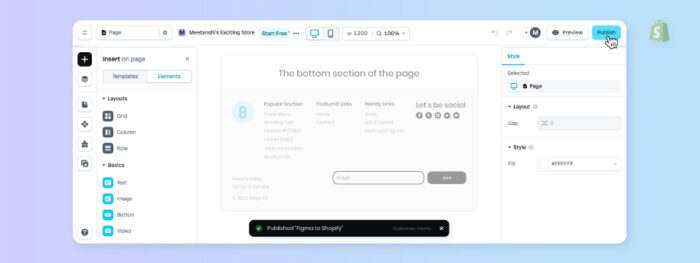
Go to Shopify’s theme editor, find the Add Section and select your newly published section to add it to any page.
So, by following the above given steps, you can easily export your design to Shopify. This method is quick and helpful for simple layouts.
If your design is complex, you may have to make some manual adjustments.
Let Our Shopify Expert Handle This
Converting a Figma design to Shopify can be time consuming.
So, if you don’t have time to deal with all the factors, plugins, etc.; then taking help of a Shopify expert is necessary and it will be helpful to you.
But where to find the one reliable and skilled? Don’t worry, our Shopify experts are here to help you. Our dedicated Shopify developer team will convert your Figma designs into a fully functional and custom Shopify store as per your needs.
