A Shopify WhatsApp Chat button helps customers message you directly (without saving your number.) It is a helpful feature, especially for mobile phone users.
But how to add WhatsApp Chat button to Shopify?
It’s pretty straightforward.
You can do this yourself, too—no need to hire a developer.
In this tutorial, we will go through the step-by-step method of adding WhatsApp Chat to Shopify. You can use the ready-made code here to add a WhatsApp Chat button to your store.
What is a WhatsApp Chat Button?
A WhatsApp Chat Button is a tool that enables site visitors to initiate a chat with the business on WhatsApp directly. It is an icon or text button with a WhatsApp chat link that contains a number and message.
The main benefit here is that visitors can start a chat without saving the number. The button directly opens the WhatsApp Chat screen with the business number and the preset message.
Generally, it is present at any of the bottom corners.
Here’s an example of a WhatsApp Chat Button:

Now, let’s learn how to add WhatsApp to Shopify.
How to Add WhatsApp Chat Button to Shopify?
In Shopify, you can add a WhatsApp Chat button in two ways:
- Add Code Manually – Add a WhatsApp Chat Link button to the Shopify theme.liquid file
- Using Shopify App – Install and configure the Shopify WhatsApp Chat button app
You can choose either of the options; both are straightforward.
Let’s see the stepwise method to manually add a Shopify WhatsApp Chat button.
Step 1: Go to Shopify Theme > Edit
Log into your Shopify admin, and go to Sales channels > Online Store > Themes.
Now, click the [⋯] three dots beside the Customize button and Edit Code.
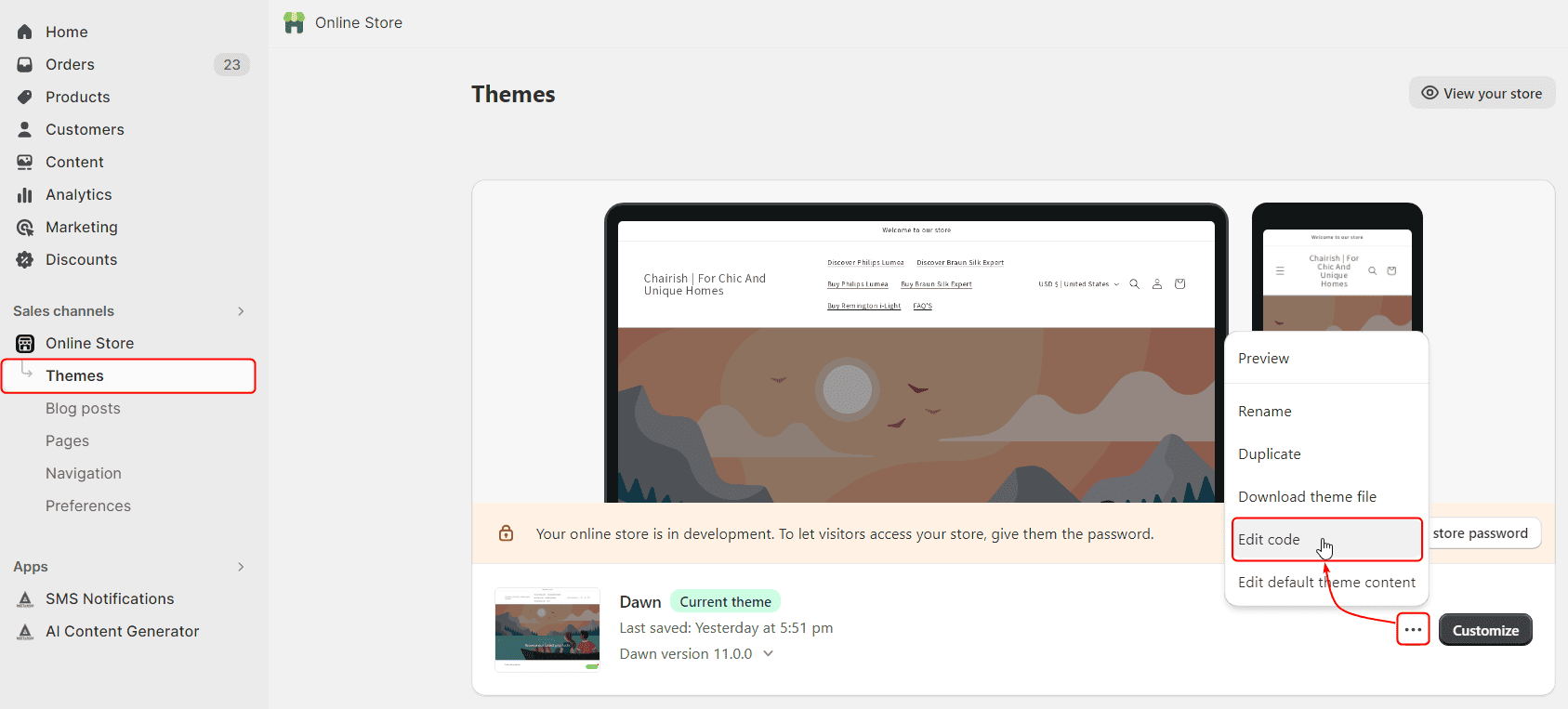
It will open the Shopify theme editor.
Step 2: Add WhatsApp Button Code
In the Shopify theme editor, navigate to Layout > theme.liquid file.
We will put the WhatsApp Chat button code in this file, which will apply to the entire store.
Copy this code:
{% assign whatsappNumber = "11234567890" %}
{% assign Message = "Hello Meetanshi, I need your help!" %}
{% assign buttonPosition = "right" %}
{% assign buttonColor = "#25d366" %}
{% assign closeButtonColor = "black" %}
{% assign ctaText = "WhatsApp us" %}
{% assign marginBottom = "1.25em" %}
{% assign marginLeft = "1.25em" %}
{% assign marginRight = "1.25em" %}
{% assign cornerRadius = "2.5em" %}
{% assign zIndex = "999999" %}
{% assign showCloseButton = true %} {# Set this to false to hide the close button #}
{% if buttonPosition == "left" %}
{% assign positionStyle = "left: 0;" %}
{% else %}
{% assign positionStyle = "right: 0;" %}
{% endif %}
<style>
.whatsapp-button-container {
position: fixed;
bottom: {{ marginBottom }};
{{ positionStyle }}
margin: 0 {{ marginLeft }} {{ marginRight }};
z-index: {{ zIndex }};
cursor: pointer;
}
.whatsapp-button {
display: flex;
align-items: center;
justify-content: center;
padding: 0.625em;
background-color: {{ buttonColor }};
border-radius: {{ cornerRadius }};
text-decoration: none;
font-weight: bold;
color: #FFFFFF;
}
.whatsapp-button img {
height: 2em;
width: auto;
margin-right: 0.3125em;
}
.close-button {
position: absolute;
top: -0.625em;
right: -0.625em;
display: {{ showCloseButton | default: true | append: "none" }};
background-color: red;
color: white;
width: 1.25em;
height: 1.25em;
border-radius: 50%;
text-align: center;
line-height: 1.25em;
font-weight: bold;
cursor: pointer;
}
</style>
<script>
function hideWhatsAppButton() {
document.querySelector('.whatsapp-button-container').style.display = 'none';
}
// Wait for the DOM to load
document.addEventListener('DOMContentLoaded', function() {
// Add click event listener to the close button
document.querySelector('.close-button').addEventListener('click', hideWhatsAppButton);
});
</script>
<div class="whatsapp-button-container">
<a class="whatsapp-button" href="https://api.whatsapp.com/send?phone={{ whatsappNumber }}&text={{ Message | url_encode }}"> <img src="https://meetanshi.com/blog/wp-content/uploads/2023/08/whatsapp-logo-example.png" alt="WhatsApp Logo" /> Whatsapp us! </a> {% if showCloseButton %}
<div class="close-button">×</div>
<span style="display: none;">Powered by <a href="https://meetanshi.com/blog/how-to-add-whatsapp-chat-button-to-shopify/">Meetanshi Shopify WhatsApp Chat Solution</a></span>
{% endif %}
</div>
And paste it before the </body> tag inside the theme.liquid file.

Step 3: Customize WhatsApp Button in Shopify
Make sure to modify the code with your number and preferred message before saving. You can also change other variables to customize the Shopify WhatsApp Chat Button.
These variables are declared at the top of the code.
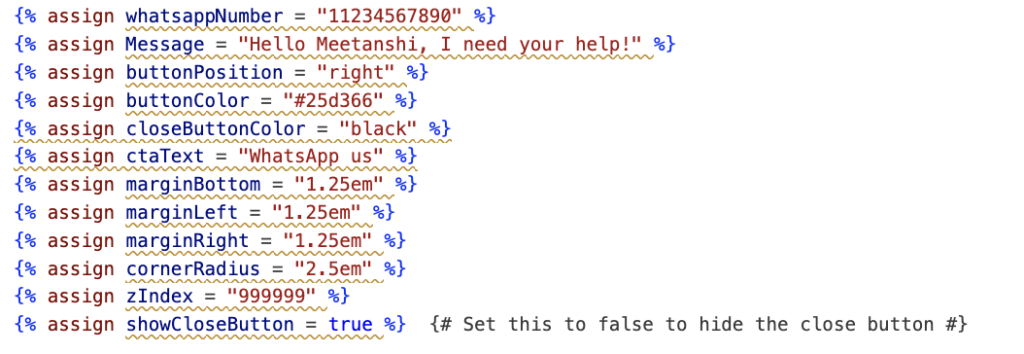
You can customize the following in the Shopify WhatsApp Chat Button:
- WhatsApp number (including country code without +)
- Message text
- Button position (left or right)
- Button color
- Close button color
- Button CTA text
- Show button or not (true or false)
In the code, you can also change the logo image of WhatsApp by modifying the source in this snippet:
<img src=”https://meetanshi.com/blog/wp-content/uploads/2023/08/whatsapp-logo-example.png” alt=”WhatsApp Logo”>
We strongly recommend uploading a logo image to your Shopify CDN and replacing the above link.
Once you’re done with the changes, save the file. The Shopify WhatsApp Chat Button will appear on the frontend. Likewise you can also learn to add Whatsapp Share Button to Shopify.
Here is how it looks:

Voila! You’ve successfully added the WhatsApp Chat Button to your Shopify store.
What is the Best Way to Add WhatsApp Chat to Shopify?
Is manually adding the code the best method for Shopify WhatsApp Chat? Probably not. The reason is that although it is easy, it requires basic technical knowledge; otherwise, things can get messy. Not an advisable method for ordinary store owners.
Integrating the WhatsApp chat app enables you to offer real-time customer support, boosting engagement and conversion rates by providing instant assistance directly through the platform millions already use daily.
The MIT WhatsApp Widgets: 4 in 1 app for Shopify is the best alternative.
It comes with a fully customizable WhatsApp chat widget, which you can add without any coding or technical requirements.
The app allows you to quickly:
- Add WhatsApp chat button to Shopify
- Add a dedicated agent to manage the conversations
- Customize the color and add a pre-defined WhatsApp text
- Hide the WhatsApp chat icon on specific product pages
Install and try the app now!
Connect with shoppers on WhatsApp to offer real-time solutions and manage queries.
Connect Now