

If you want a clearer checkout or prefer highlighting other payment options, you can hide the PayPal button on Shopify.
This will reduce customer distraction and create a more seamless shopping experience. In this blog, I will show you how to hide the PayPal button in the Shopify checkout from the admin panel.
Locating the PayPal Button on Shopify
The PayPal button may appear in different locations depending on your theme and checkout setup.
By default, if you have set up PayPal as a payment provider, Shopify automatically shows the PayPal button to eligible customers.
You can find it at:
- On the cart page and product page, if the dynamic checkout button is enabled, the PayPal button appears directly below the “Add to cart” or “Buy it now” button
- On the checkout page, during checkout, customers see PayPal as a payment option (only accessible on Shopify Plus)
Ways to Hide PayPal Button on Shopify
There are two ways to hide the PayPal button on Shopify: Manually via Shopify admin or Shopify app.
From the Shopify admin, you will have to find and deactivate the payment option. You need to follow this process each time you want to hide a payment solution.
The second option is to use the MIT Payment Hider.
Using the app, you can hide, edit, or rename any payment in your store and add country-wise or customer-wise customization to show the payment option only to your desired shoppers.
Here, I will show you both methods.
How to Hide the PayPal Button on Shopify? (Via Shopify Admin)
Here is the simple process of Shopify to hide the PayPal button entirely from your Shopify store.
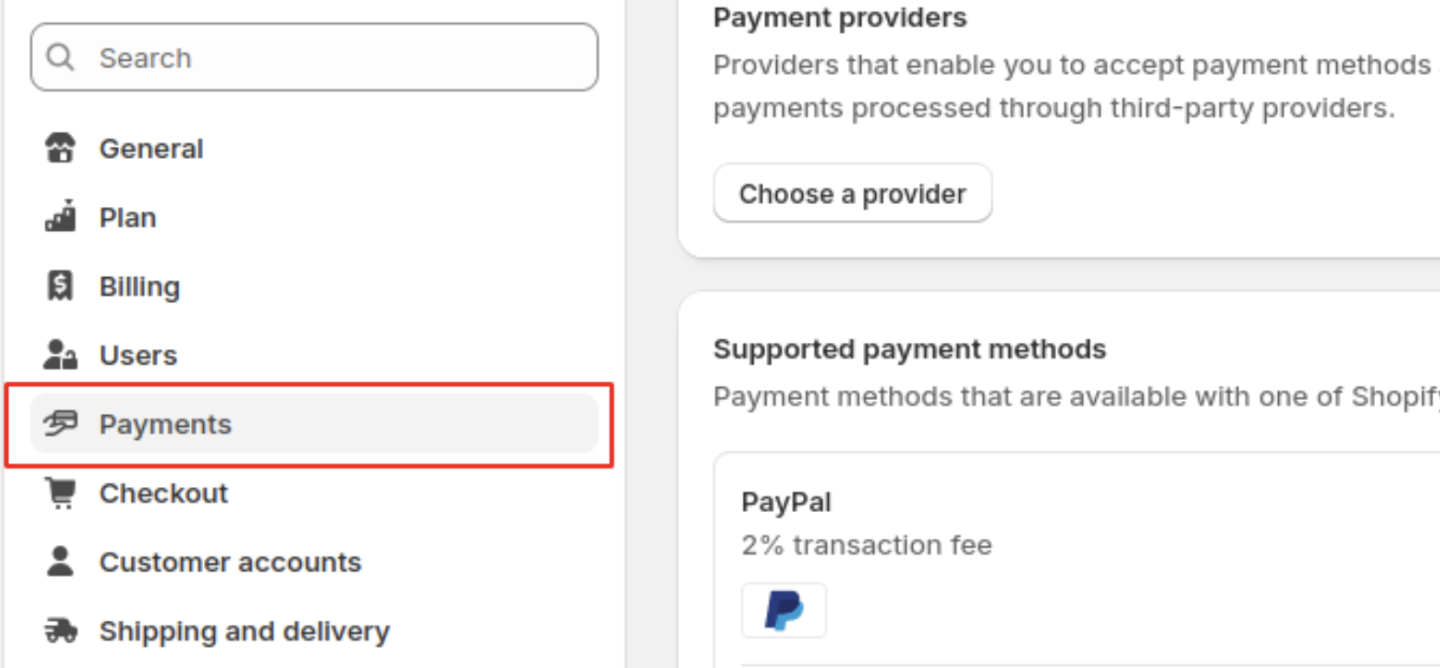
Step 1: Navigate to Payment Settings
Log in to your Shopify admin panel > Settings. Look for the Payments option and open it.
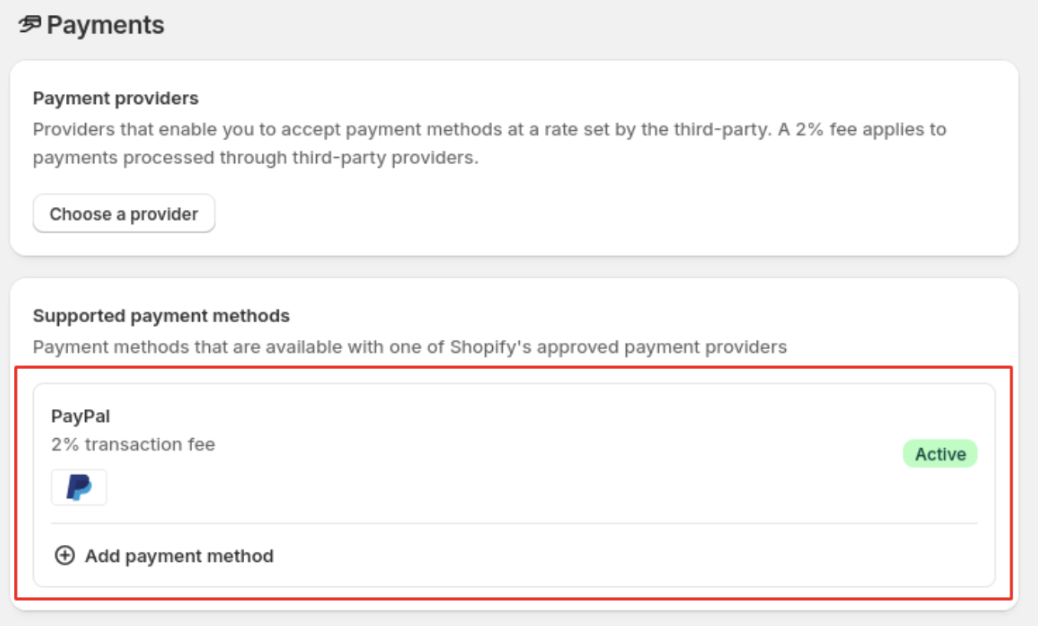
Step 2: Find the PayPal Account
In the supported payment methods or PayPal section, find your PayPal account.
Step 3: Deactivate PayPal
Click Manage or the PayPal option and then click Deactivate.
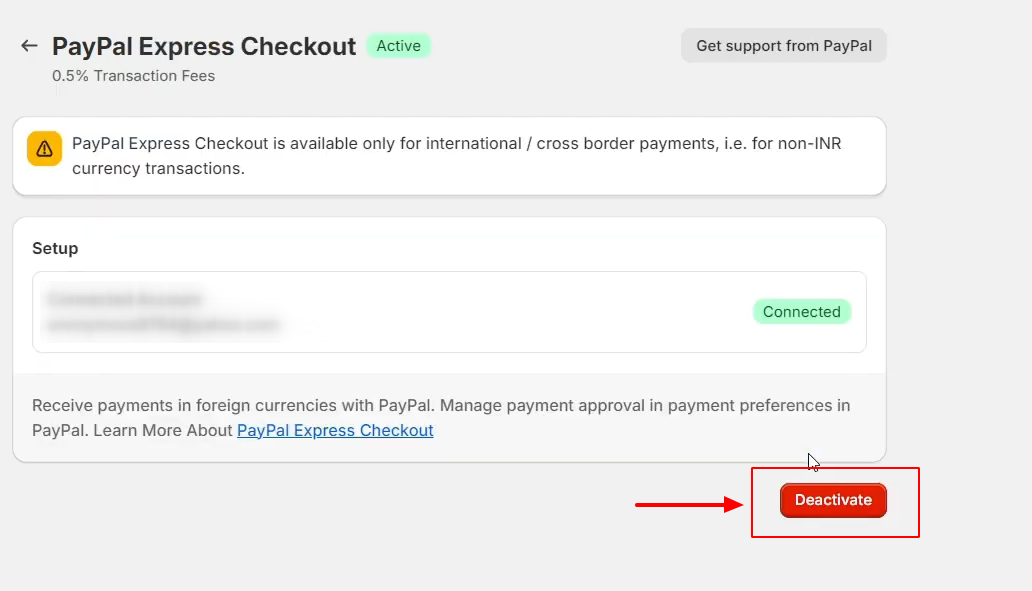
Save the changes. Using this process, you will be able to hide the PayPal button from the cart page, product page, and checkout.
Hide PayPal Button in Shopify (Using an App)
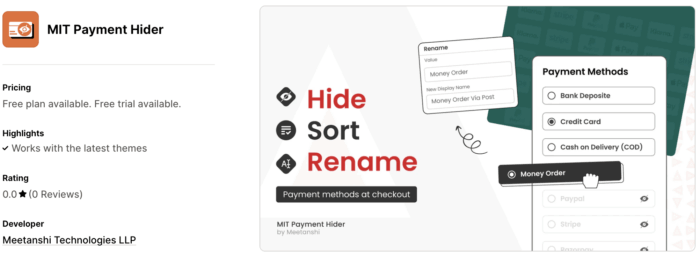
Here we are using the MIT Payment Hider that allows you to hide, sort, and edit payment options at the checkout page.
Let’s see the steps to hide PayPal in your Shopify store.
Step 1: Install the Shopify App
Install the MIT Payment Hider Shopify app from the Shopify app store and enable it.
Step 2: Create a New Customization
Click on Create Customization from the app dashboard and out of the customization list select Simple Customization.
Then, first, set a condition. You can select from the list for the different options you have here.
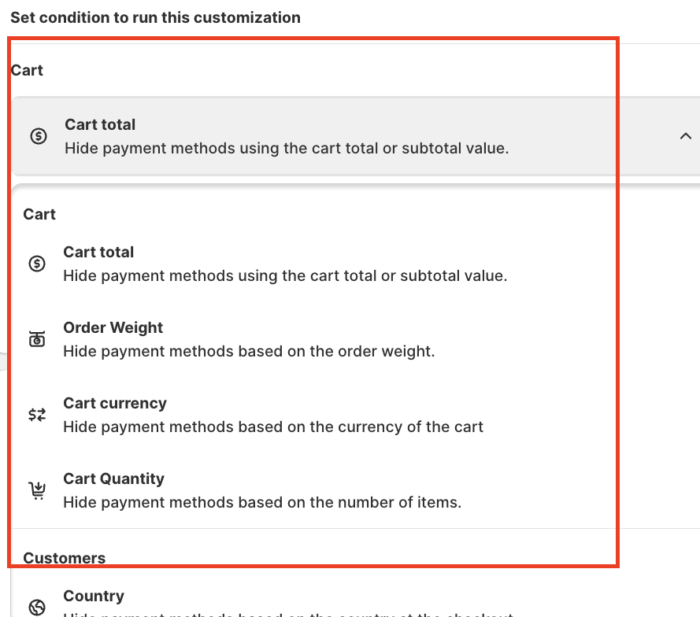
You can hide the PayPal button on the different cart functionalities, based on your customer, shipping methods, product tags, discounts, and more.
Step 3: Hide PayPal Payment Method
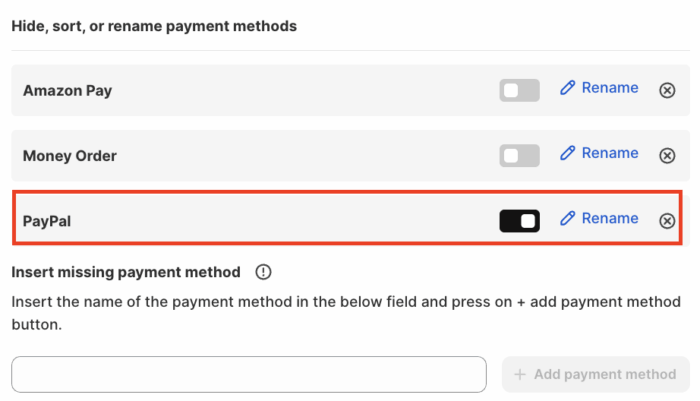
Now, scroll down and find PayPal from the Hide, sort, or rename payment methods section.
On the toggle to hide the payment method. If you are not able to find PayPal, you can use the +Add payment method to find and hide it.
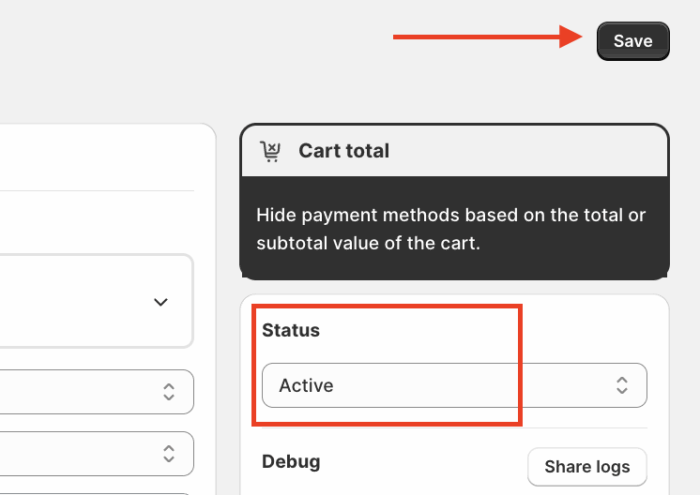
Now, from the right-hand set the status to Active and click on Save.
The PayPal payment option will be hidden at the checkout page, as shown here.
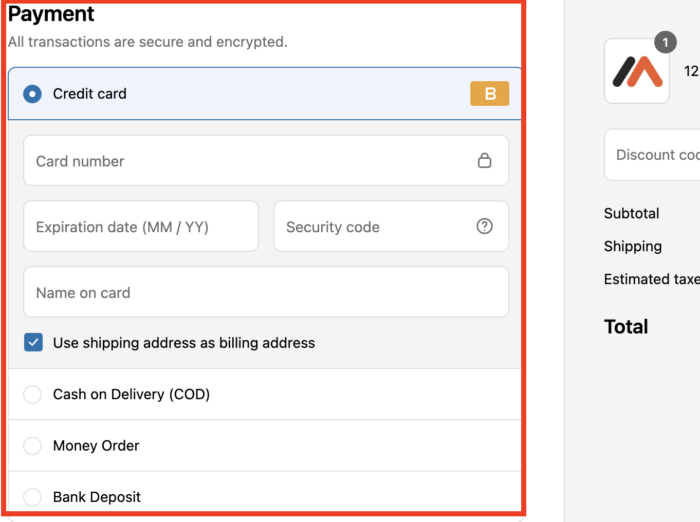
Like PayPal, you can hide other payment options easily, and whenever you wish to show them again, just turn the toggle — simple and easy.
Unlike the default method, you will need to activate it from scratch. The MIT Payment Hider app comes with an additional customization option to make your payment solution only visible to the right people, product pages, and countries.
Conclusion
Here, I explained the simple process to hide the PayPal button on Shopify.
Doing so can reduce customer confusion, prevent risky orders, boost conversion rates, and create a more seamless, user-friendly shopping experience.
