

If you’re having a Magento 2 demo store, you may want to display a notice like – “This is a demo store. No orders will be fulfilled.”
You can enable or disable the demo store notice in Magento 2 as per your requirements.
Follow the stepwise method as shown below to set demo store notice in Magento 2:
Steps to Enable/Disable Demo Store Notice in Magento 2
1. Log in to Magento 2 admin panel.
2. Navigate to Content > Design > Configuration.
3. In the grid, find the store view that you want to configure and click Edit in the Action column.
4. Expand the HTML Head section under Other Settings.
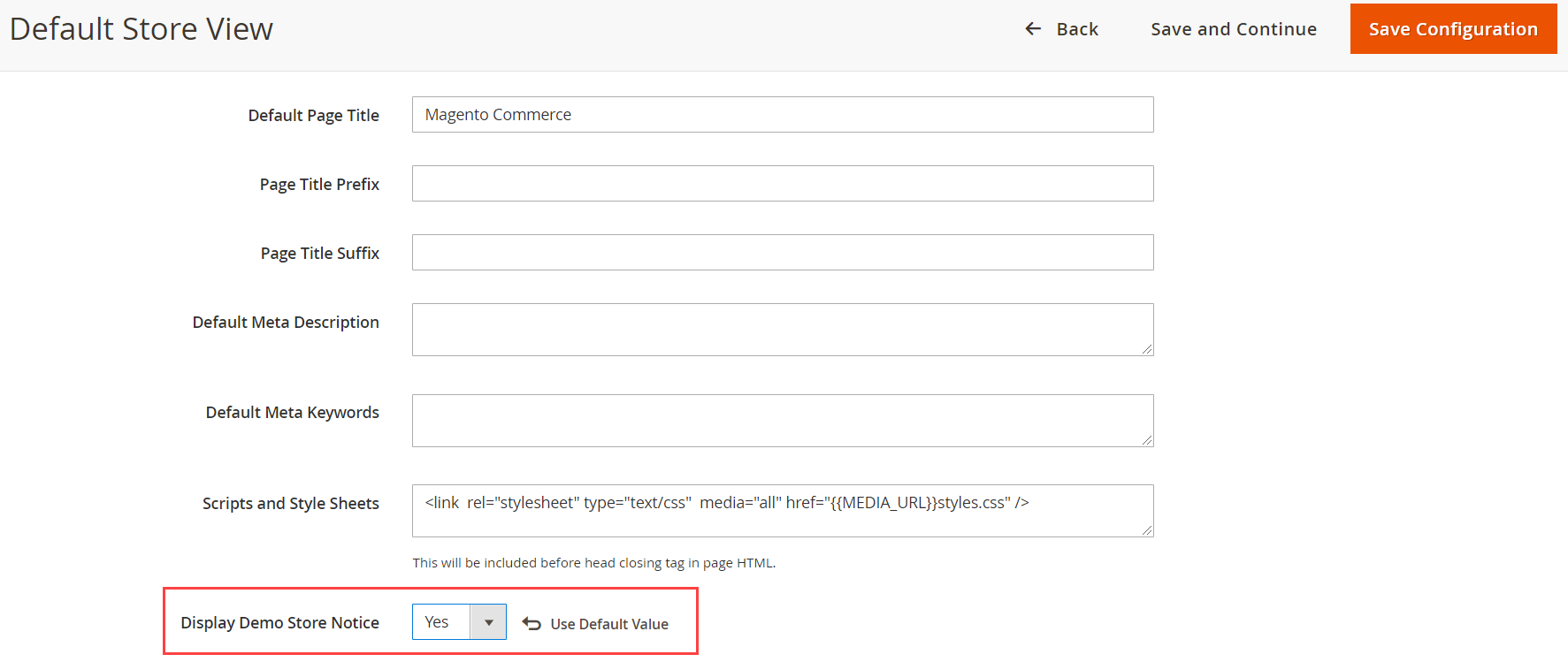
5. Set the “Display Demo Store Notice” to your preference.
6. Save the Configuration.
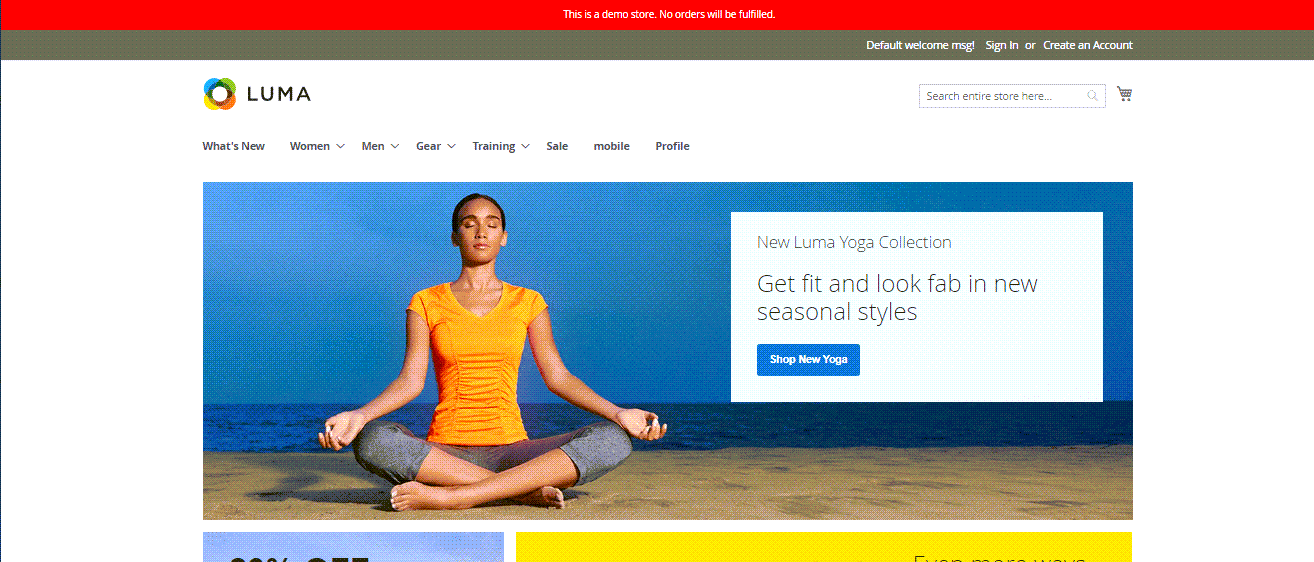
Once, you set the “Display Demo Store Notice” option to “Yes”, it displays demo store notice as shown below:
If your store is under maintenance, it’s also recommened to turn on maintenance mode in Magento 2. It’s helpful when you’re pushing major updates to the site like installing a new theme, and upgrading version. You can go a step further and display images/videos, email subscription, and coming soon timer on the maintenance page by using Magento 2 Maintenance Mode extension.
Do consider sharing this post with Magento Community via social media.
