Creating a cart subtotal-based conditional payment rule in Shopify allows you to remain profitable by preventing losses on small orders with high transaction fees and encouraging customers to increase their order value to unlock premium payment methods.
In this blog, learn how to add a cart subtotal-based payment rule in Shopify.
Can You Create Cart Conditions in Shopify Natively?
No, Shopify does not offer built-in subtotal-based restrictions.
You can use Shopify Functions, which requires writing and deploying custom code. It can get too technical if you are not very comfortable with code, so you might have to hire a Shopify developer.
Alternately, the easiest and most flexible solution is to use a dedicated Shopify app designed to manage cart and order rules. It lets you create subtotal-based conditions without coding and manage everything from a user-friendly interface.
Create Cart Subtotal-Based Conditional Payments Rule Using Shopify App
Use the MIT Cart & Order Limits app to set conditions like: Quantity, Subtotal, Weight, Total items in cart, and more. Here is how you can create a cart subtotal-based conditional payment rule using the app.
Step 1: Navigate to Subtotal Rules
Install and open the MIT Cart & Order Limits app from your Shopify admin. From the app dashboard, go to the Subtotal Rules > Create a new rule.
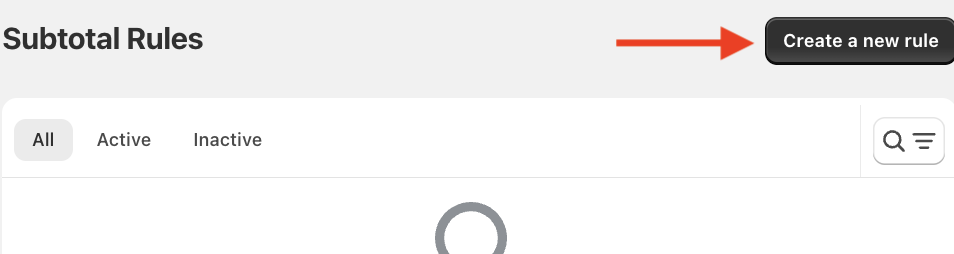
Step 2: Set Cart Subtotal Limit & Condition
Here, set the cart limit and condition using simple fields.
Set Cart Subtotal Limit
Give your rule an appropriate title and define the cart limit using:
- Minimum Subtotal – Set the minimum subtotal for the cart
- Maximum Subtotal – Set the maximum subtotal for the cart
- Multiple Subtotal – The total should be the multiplier of the number you add here
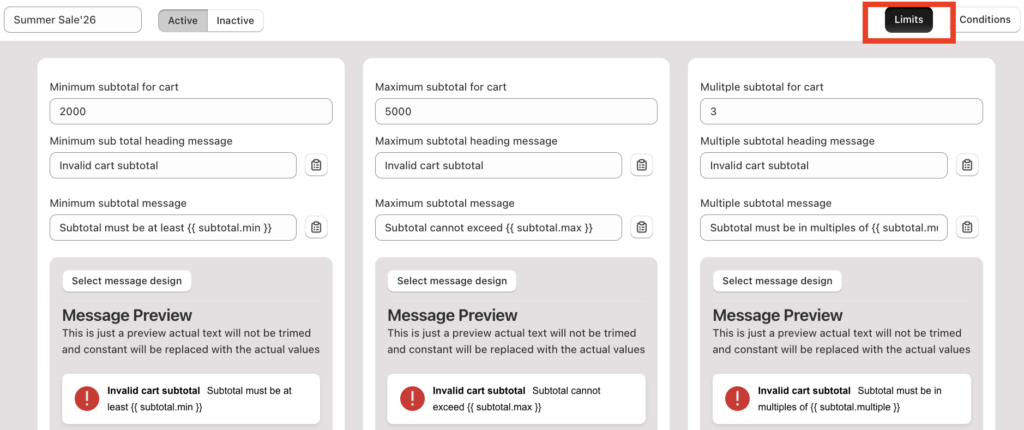
Then, select a message design template to show the warning message if the criteria are not met.
Set Cart Subtotal Conditions
Navigate to the Conditions tab from the top bar.
Here you can apply the cart subtotal rule by setting flexible logic to specific product tags, SKUs, vendors, and more. You can set multiple conditions and sub-conditions with AND/OR logic.

Step 3: Save and Test the Rule
Once you have defined your limits and conditions, click the Save button in the top right corner. Take a preview and check the entire process yourself to see if the method is working properly.
Here’s how it appears:
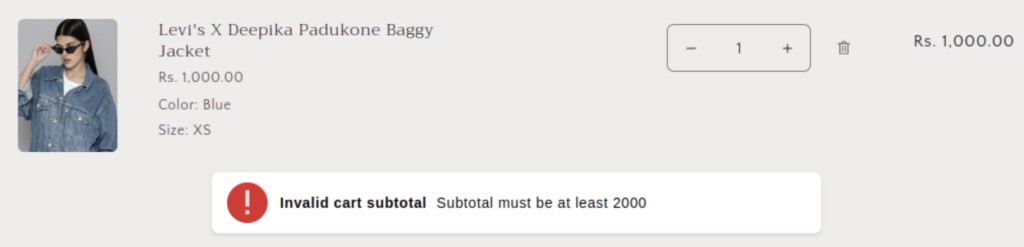
And that’s it, this is how easily you can create a cart-subtotal conditional payment rule.
Benefits of Using an App Instead of Custom Code
Custom code can easily cause bugs that block customers from completing checkout.
MIT Cart and Order Limits Shopify app is built to stay stable and support safe Shopify checkout page customization without hurting your store’s conversion rate. They also give you a powerful, easy-to-manage toolkit that goes far beyond basic if/then logic.
The primary advantage is the ability to create advanced, multi-layered conditions without ever touching a line of code.
You can restrict or allow cart and order levels based on:
- Cart subtotal – Set minimum or maximum price thresholds
- Cart quantity – Limit methods based on the total number of items or specific item counts.
- Customer tags – Offer exclusive payment options (like “Net 30” or “Bank Transfer”) only to wholesale or VIP customers
- Product type & collection – Disable certain payment methods for fragile items, high-ticket electronics, or specific categories
- Country & shipping method – Hide risky options like COD for international orders or specific carrier choices
Additionally, you don’t need to hire a Shopify expert every time you want to change a rule. Most apps offer a user-friendly interface that lets you toggle rules on or off or update price thresholds in seconds.
Custom code can introduce bugs that disrupt checkout and may break when Shopify updates its platform. Apps are regularly maintained by developers, ensuring your rules keep working smoothly and can often be set up in just a few minutes.
Frequently Asked Questions
Can I restrict payment methods based on cart subtotal in Shopify?
Yes, but not natively, Shopify requires Functions or an app to set subtotal-based payment rules.
Can I hide Cash on Delivery for small orders?
Yes, you can hide COD for low-value carts using a conditional payment rules app.
Will this affect checkout performance?
No, properly built payment-condition apps run on Shopify Functions and do not slow down checkout.
Wrap Up
If you want to create a cart subtotal-based conditional payment rule without touching code, using an app is the most dependable option.
Subtotal-based payment rules help you control risky payment methods, reduce COD losses, and encourage higher-value orders, while keeping checkout running smoothly.
Custom limits for every cart. Configure your rules in seconds to protect your margin.
Configure Now