

An announcement bar is an easy yet effective way to highlight new offers or announcements to grab your customer’s attention the moment they land on your website.
Here, learn how to add an announcement bar on Shopify using two different methods.
Methods to Add a Shopify Announcement Bar
There are mainly two ways to add an announcement bar in Shopify:
- Using a Third-party Shopify App – This method is highly recommended if you want to add attractive banners without the stress of coding.
- Built-in Theme Editor – The default Shopify theme offers the built-in announcement bar section with limited functionality. If you want to add a simple bar, this is an ideal approach.
Here, we will show you both the methods so you can pick the one that best works for you.
Add a Readymade Announcement Bar (Via Shopify App)
We will use the MIT Sections Pro Shopify app to add a modern announcement bar. It offers multiple styles and allows you to add a logo (unlike the built-in theme editor), with a free trial available.
Let’s see the app working.
Step 1: Find your Desired Style Announcement Bar
Install the MIT Sections Pro from the Shopify App Store. Then, from the app dashboard, click the Browse section and search for the Announcement bar.
There are three styles available to pick the one you like. We will go for Announcement bar 1. Click on it to open and click Try for free to see a preview of the section before making any final commitment.
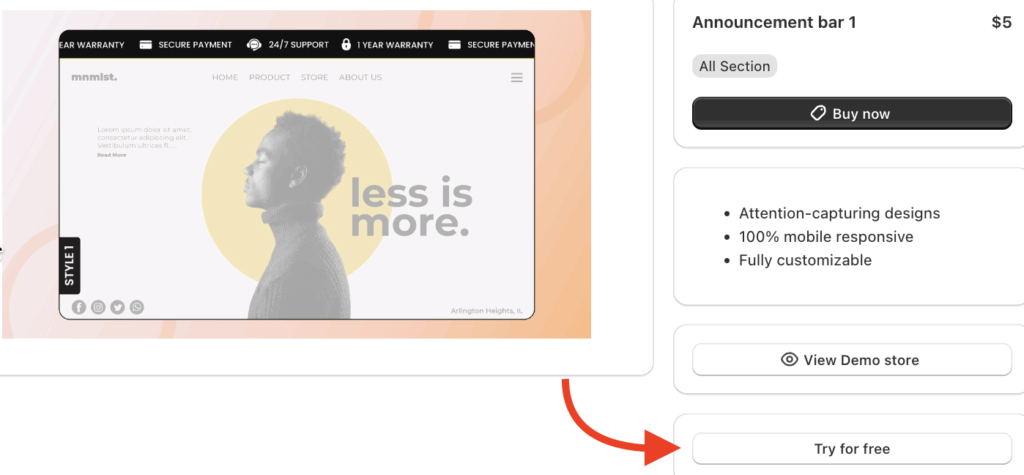
This free option will redirect you to the MIT demo store, and after you purchase the section, you can have it in your store.
Step 2: Edit the Section
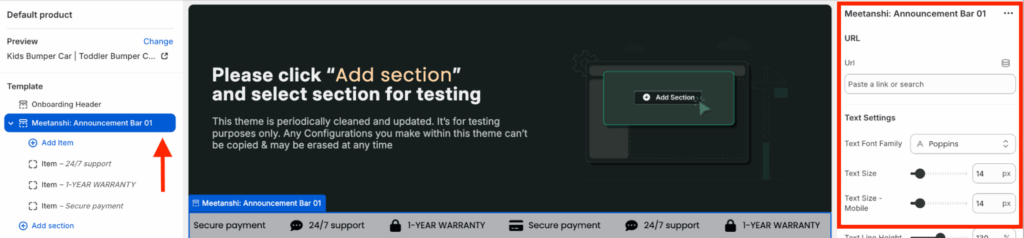
Head to Online store > Themes > Edit Theme, then from the left side bar, click Add section > Meetanshi: Announcement bar 01.
Now, you can start customizing the section using the 25+ customizable options available for you.
Step 3: Save & Preview in the Frontend
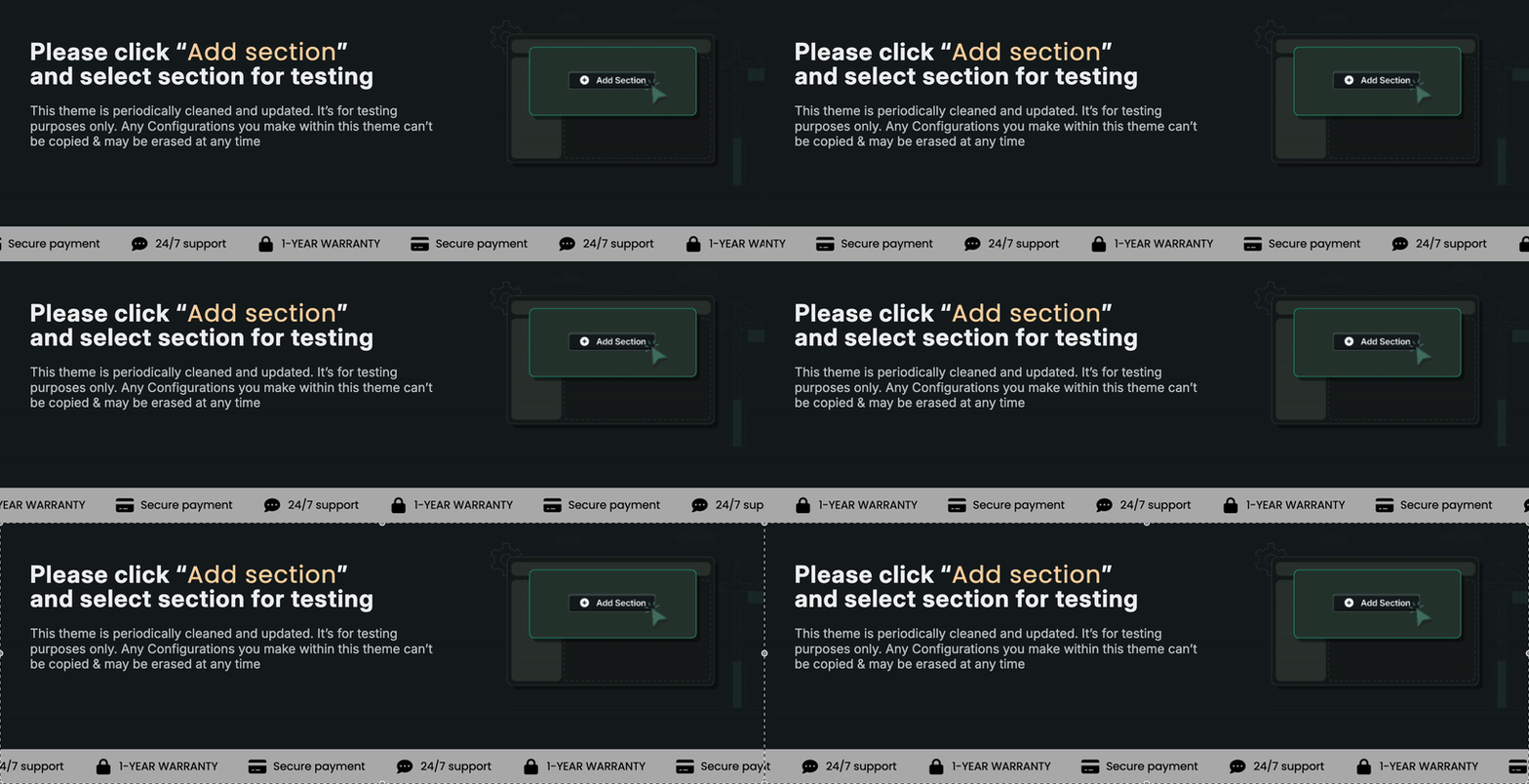
Once you’re done with the customization, save it and see how stunning it will look.
Here, we have created a simple moving announcement bar without any coding efforts, unlike the built-in method, where you would have to edit the theme code file.
How to Add an Announcement Bar in Shopify? (Via Theme Editor)
Here are the concise steps to add an announcement bar using the built-in Shopify Theme Editor.
Step 1: Access the Theme Editor
From your Shopify admin panel, go to Online Store > Themes > Edit Theme.
Step 2: Add & Edit the Announcement Bar
Next, within the theme editor’s left sidebar, locate the Header section and select Announcement bar to add it. You can edit the message and other minor elements of the announcement bar from the options available in the sidebar.

Step 3: Show it in the Frontend
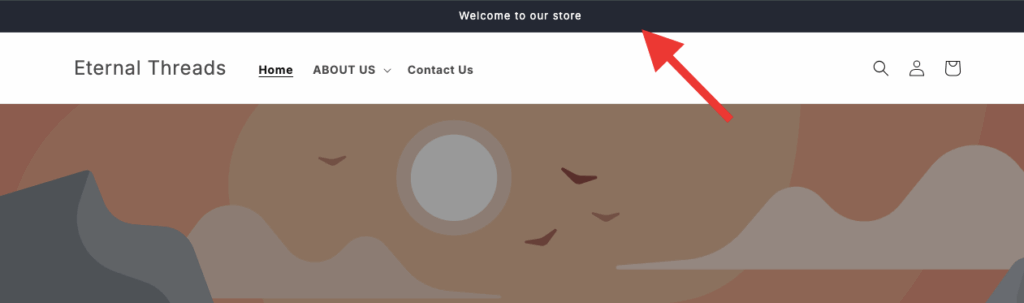
Once you’re done making the changes, save them. Preview it in your frontend, and this is how it will look, simple and basic.
Following any of the one steps from both methods, you can successfully add an announcement bar to Shopify.
Types of Announcement Bar
Shopify announcement bars come in various forms, each type can be customized. Here are a few examples of it.
Promotional Announcement Bar
A promotional bar is a top-bar message on your Shopify store, used to highlight special deals, limited offers, or seasonal sales, all aimed at boosting conversion.
For example: Get 20% Off Sitewide! Use Code: SAVE20. Ends Tonight!
Informational Announcement Bar
The informational announcement bar in Shopify is a subtle yet effective way to keep your customers informed without disrupting their shopping experience.
For example: Holiday Shipping: Order by Dec 15 for Christmas Delivery!
Moving Announcement Bar
A moving announcement bar, also known as a scrolling ticker or marquee bar, is a dynamic way to display messages. It is eye-catching, ideal for short updates or promos without taking up much space.
For example, you want to display these three messages
- Sign Up for 10% Off Your First Order!
- New Arrivals Now In Stock
- Free Shipping on Orders Over $50
You will have to create three different announcement bars for this dynamic bar.
Benefits of an Announcement Bar
An announcement bar is mostly added in the header of the website for customers to know any new happenings in your store.
Using the announcement bar in your Shopify store comes with a bunch of benefits, like:
- Highlight discounts, free shipping, or limited-time deals
- Increase visibility for targeted products or collections to attract more visitors and enhance the likelihood of converting them into customers
- Enhance bond with customers by localizing the message and tailoring content for different regions or holidays
- Directs visitors to new arrivals, bestsellers, or important policy pages with a clickable call-to-action
Smartest Way to Add an Announcement Bar
While the built-in theme editor offers a basic solution, the smartest and most effective way to add an Announcement Bar to Shopify is undoubtedly via a dedicated app.
The MIT Section Pro app provides ultimate customization options, allowing you to perfectly match your brand’s look without requiring any coding hassle. It includes access to over 130 pre-built sections (both free and paid). The app is fully optimized for speed and guaranteed to work seamlessly with all Shopify themes.
Your all-in-one solution to create a professional Shopify store
Install App Now
