

If you want to enhance your Add to Cart button without using an app, I have a simple solution for you — the Shopify add to cart liquid code.
In this post, I will share various code snippets for the add to cart button, which you may easily follow and use in your store.
Remember to modify them as per your theme/store to function smoothly.
How Shopify Add to Cart Process Works?
The “Add to Cart” process in Shopify involves sending submitting a standard form or using an AJAX request to the {store-address}/cart/add endpoint with these details:
- ID: The unique ID of the product variant
- Quantity (optional) – defaults to 1, if not present
- Properties – (optional) Custom properties like engraving or personalization details
Shopify also supports adding products to cart via AJAX via the /cart/add.js endpoint. You can use this method to add products to cart without refreshing the page.
Basic HTML Button to Add Product to Cart
Use the below code to display a button that adds the product with the specified ID. You can use this button to add a specific product to cart on any page in the Shopify store.
No matter where you place the code it will always add the same product to cart.
<form method="post" action="/cart/add">
  <input type="hidden" name="id" value="51091875922238" />
  <button class="button" type="submit">Add to Cart</button>
</form>
The result:

Shopify Add to Cart Liquid Code (Dynamically)
Now to make the button dynamic (add current product to cart), we need to pass the product ID dynamically.
For this, you can use the following Liquid syntax:
{{ product.variants.first.id }}
It will return the ID of the first product variant of the current page. This is helpful when you want to display a dynamic add to cart button on product pages.
Here’s the code:
<form method="post" action="/cart/add">
          <input type="hidden" name="id" value="{{ product.variants.first.id }}" />
         <input type="number" id="quantity-{{ product.id }}" name="quantity" value="1" min="1" />
          <button class=”button” type="submit">Add to Cart</button>
</form>
This code will display a button that adds 1 quantity of product to add from the current page. For e.g., if the user is on the XYZ product page, this button will add 1 quantity of XYZ product to cart.
Shopify Add to Cart Button with Quantity & Variants
If you want to add quantity and variants, you use this Liquid code to provide a variant dropdown for the user to select product variants, along with an input field for quantity.
Here’s an example code:
<form method="post" action="/cart/add" style="text-align: center;">
  <label for="variant-{{ product.id }}">Choose an option:</label>
  <select name="id" id="variant-{{ product.id }}" required>
    {% for variant in product.variants %}
      <option value="{{ variant.id }}">{{ variant.title }}</option>
    {% endfor %}
  </select>

  <label for="quantity-{{ product.id }}">Quantity:</label>
  <input type="number" id="quantity-{{ product.id }}" name="quantity" value="1" min="1" required />

  <button class="button" type="submit">Add to Cart</button>
</form>
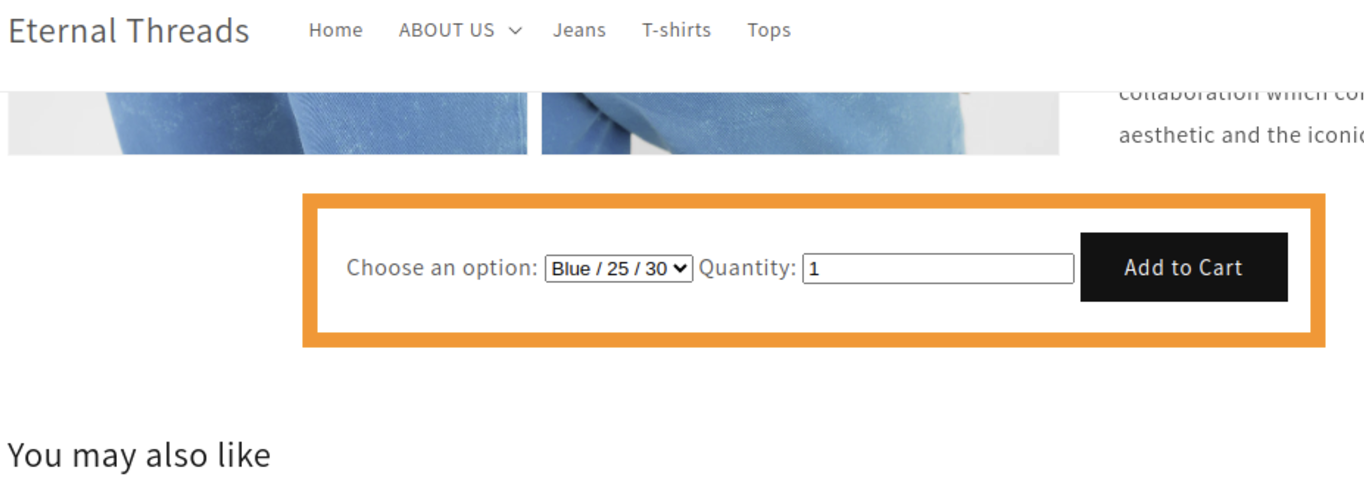
It will display a variant dropdown and quantity input for the users as shown below.
How to Add Products to Cart without Reloading Page in Shopify? [Using AJAX]
You can use the /cart/add.js endpoint in Shopify to add products to cart without refreshing the page.
Here’s an example Liquid code for the Shopify AJAX add to cart functionality.
Depending on your needs, you can either add this to a specific page or all product pages from theme settings:
<form id="add-to-cart-form">
  <label for="variant-{{ product.id }}">Choose an option:</label>
  <select name="id" id="variant-{{ product.id }}">
    {% for variant in product.variants %}
      <option value="{{ variant.id }}">{{ variant.title }}</option>
    {% endfor %}
  </select>

  <label for="quantity-{{ product.id }}">Quantity:</label>
  <input type="number" name="quantity" id="quantity-{{ product.id }}" value="1" min="1" />

  <button type="button" id="add-to-cart-button" class="button">Add to Cart</button>
</form>

<div id="cart-feedback" style="display: none;">Product added to cart!</div>
<script>
document.getElementById('add-to-cart-button').addEventListener('click', function () {
  const form = document.getElementById('add-to-cart-form');
  const variantId = form.querySelector('select[name="id"]').value;
  const quantity = form.querySelector('input[name="quantity"]').value;

  const formData = {
    id: variantId,
    quantity: quantity
  };

  fetch('/cart/add.js', {
    method: 'POST',
    headers: {
      'Content-Type': 'application/json',
      'X-Requested-With': 'XMLHttpRequest'
    },
    body: JSON.stringify(formData)
  })
    .then(response => {
      if (!response.ok) {
        throw new Error('Failed to add to cart');
      }
      return response.json();
    })
    .then(data => {
      console.log('Product added to cart:', data);
      document.getElementById('cart-feedback').style.display = 'block';
      setTimeout(() => {
        document.getElementById('cart-feedback').style.display = 'none';
      }, 3000);
    })
    .catch(error => {
      console.error('Error adding product to cart:', error);
    });
});
</script>
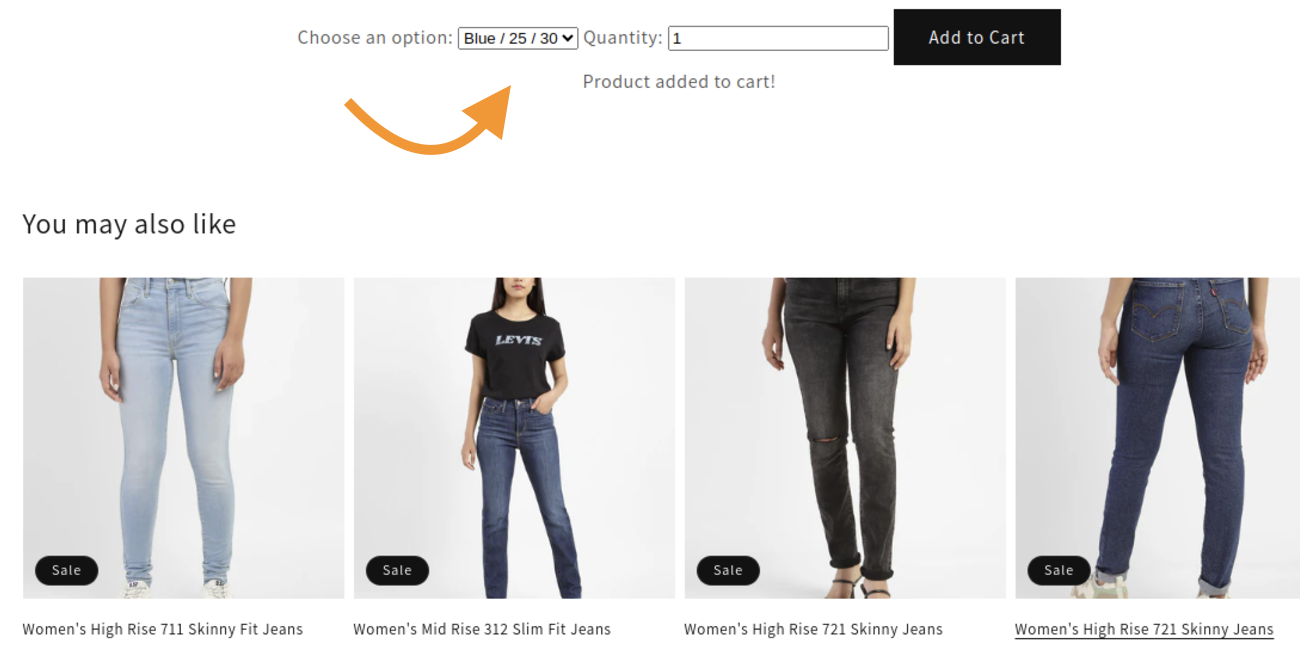
It will display a success message on add to cart without reloading the page.
Add to Cart Liquid Code Shopify
You don’t need any external apps to add an “add to cart” button in Shopify. Use our simple add to cart button liquid solution and allow customers to shop for their favourite products.
