

Taking a timely Magento 2 backup is your best defense against unwanted accidents that happen anytime while running an online store.
This blog teaches you the exact method to backup Magento 2 stores easily and safely.
Types of Magento 2 Backup
Magento 2 offers three specific native backup:
- System Backup
- Database and Media Backup
- Database Backup
System Backup
This backup type creates a complete snapshot of your entire store. Here is what this backup includes and excludes:
✅ Includes: The entire File System (source code, extensions, themes), the Database, and (optionally) the Media files.3
❌ Excludes: Temporary directories like var/cache, var/log, and pub/static (generated assets) are excluded to save space.
Database and Media Backup
This backup secures your dynamic data—the content that changes daily. It skips the core code files.
✅ Includes: The SQL Database dump and the pub/media folder (product images, WYSIWYG uploads).
❌ Excludes: The core Magento application code (app, vendor, lib).
Database Backup
This is the “lightweight” option. It is fast and requires very little storage space.
✅ Includes: Only the SQL dump of your database tables (customers, orders, configurations, catalog data).
❌ Excludes: All files, images, and code.
How to Backup a Magento 2 store? (Three Methods)
Here are the three methods, you can take your store backup. You can opt for any of the method based on your technical knowledge.
Method 1: Backup Magento 2 via Command Line
Switch to the Magento file system owner and use the backup command.
This command performs the following sequence: enables maintenance mode, backs up the selected files (database, media, system), and finally disables maintenance mode.
magento setup:backup [--code] [--media] [--db]
Here is what the command means:
| Command Options | Meaning |
| –code | Backing up whole Magento system excluding var and pub/static folders |
| –media | Backing up pub/media folder |
| –db | Backing up Magento 2 database |
Method 2: Backup Magento 2 via Admin Panel
Log in to your Magento 2 admin panel and navigate to System > Tools > Backups. Then, follow the below steps:
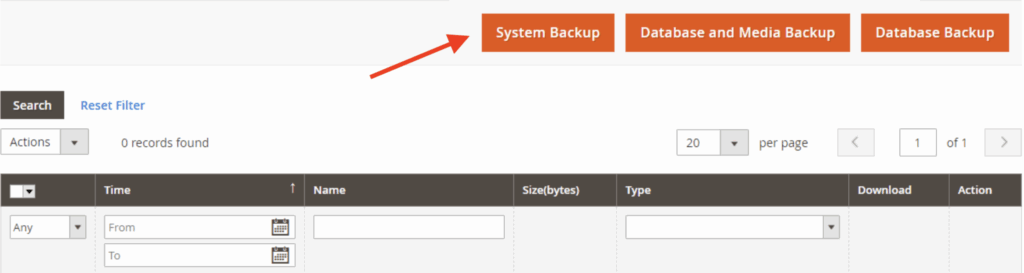
Step 1: Select the Backup Type
You get three options to select the backup you want: System Backup, Database and Media Backup, and Database Backup.
Step 2: Add Backup Details
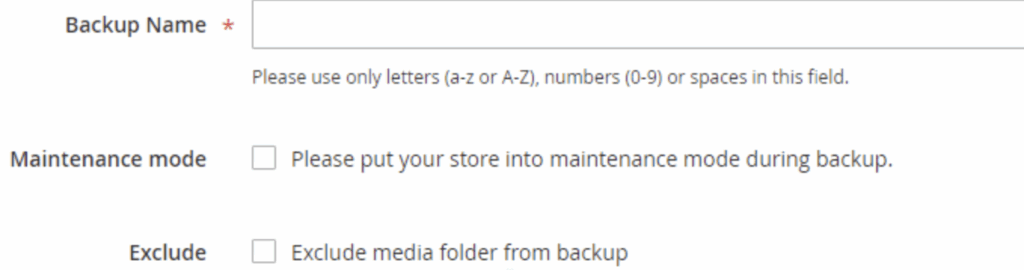
Now, add the needed backup details.
- Backup Name: Add a name using only a-z/A-Z letters, 0-9 numbers, and spaces.
- Maintenance Mode:Option to enable the maintenance mode during the backup. Important to note, your store will remain inaccessible until the maintenance mode is turned off. .
- Exclude: Check the box to exclude the media folder while taking backup.
Step 3: Complete Your Backup
Click on OK to start your backup. After a few minutes, when the backup is complete, you will see a message, “The backup is complete.”
Method 3: Magento 2 Manual Backup
Here is the process broken down into three clear, actionable steps.
Step 1: Backup the File System
- Access your hosting account (via FTP or cPanel File Manager).
- Navigate to the public_html directory. (If your site is in a subfolder, find that specific folder instead).
Download the entire folder to your local computer OR copy and paste it into a separate backup folder on the server for safekeeping.
Step 2: Access the Database Tool
- Log in to your cPanel.
- Click on phpMyAdmin under the database section.
On the left-hand sidebar, click on the specific database name that your Magento 2 store is using to open it.
Step 3: Export and Save the Database
- Click the Export tab at the top of the screen.
- Choose the “Quick” export method and ensure the format is set to SQL.
Click Go. This will download a .sql file to your computer, which contains all your products, orders, and customers.
Magento 2 Backup Issues & Fixes
You might face a few challenges while taking your backups. Here are the common issues and fixes listed by Adobe Commerce.
Issue 1: Backup Disabled
If your backup functionality doesn’t display, you might see this error message in your store.

Solution: Enable the feature using the Command Line Interface (CLI) command:
bin/magento config:set system/backup/functionality_enabled 1
Issue 2: Insufficient Disk Space
This issue is directly related to your storage and space. If your space is full, your backup will not be completed.
Solution: Move files to another storage device or drive to free up the disk space.
Issue 3: Permission Access
This is a common issue; you might only have read-only access to the system files.
Solution: Make sure you have all the right access to carry out your backups.
How to Roll Back to a Magento 2 Backup (Using the Command Line)
Follow the below steps:
1. Switch to the Magento file system owner.
2. Enter magento info:backups:list into the command line to know the name of the latest backup you require.
3. Roll back to a previous backup with this command:
magento setup:rollback [-c|--code-file=""] [-m|--media-file=""] [-d|--db-file=""] Frequently Asked Questions
How often should you take a Magento 2 store backup?
Daily backups are recommended for stores that update regularly and weekly/monthly for stores that need fewer updates. It is recommended to schedule automatic backup in Magento 2.
Where should you store Magento 2 backups?
You can store your backups in local servers or use third-party cloud services like Google Cloud Storage or Azure.

You have gone through all the methods, so you may start back up now! Every Magento store owner must have a system to back up the database regularly to avoid exploits, bugs, hacks, crashes, and any such data loss mistakes.
