

In-store pickup facility is an absolute customer-oriented solution.
It allows customers to enjoy online ordering and pick up their purchase on their own schedule from your physical store.
This way, you are building a cost-effective way for local customers to engage with your brand.
In this post, you will learn how to add store pickup on Shopify to streamline this order process.
Requirements for Adding Store Pickup on Shopify
Here are the essentials for Shopify’s in-store pickup only functionality. Make sure to match all the following requirements.
Active Physical Location
Must have at least one physical store listed in your Shopify settings. This location is where your customers will come to collect their orders. Give an accurate address to the customer and ensure this location is set to “Fulfill online orders from this location” in your settings.
Latest Version of Checkout
For store pickup to function correctly, your store must be using the latest version of the Shopify checkout. If your store is on the Shopify Plus plan, then you need to migrate to Shopify Extensions.
And if your store isn’t on the Shopify Plus plan, then you need to have the latest version of checkout in your store.
Up-to-Date Inventory Management
For the store pickup option to be visible and functional, the products in a customer’s cart must be in stock at the designated pickup location. Maintaining accurate, real-time inventory for each of your locations is necessary to prevent overselling and customer frustration.
Other Essential Considerations
A customer can’t mix shipping and pickup items in a single order; they will need to place two separate orders. Also, while some themes show pickup availability on product pages, this feature doesn’t work for products in transit via store transfers. Plus, store pickup is not supported for B2B checkout.
How to Add Store Pickup on Shopify?
You can set up store pickup directly through your Shopify admin. Manage this fulfillment option by following these three easy steps:
- Step 1: Head to the Pickup in-store Section
- Step 2: Set Pickup Service for Entire Store
- Step 3: Exclude Specific Collection for In-store
Step 1: Head to the Pickup In-store Section
In your Shopify admin panel, navigate to Settings > Shipping and Delivery. Then scroll down to the Pickup in store section and click Set up or the › icon.

Step 2: Set Pickup Service for Entire Store
First, you need to set a location for in-store pickup,
- If you have a single location, then click a location where you want to set up pickup in-store
- If you have multiple locations, then click Add location, and then click a location where you want to set up pickup in store
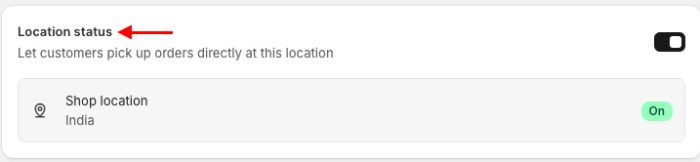
Moving forward, in the Expected pickup date section, select a processing time for in-store pickup from the drop-down menu. This information is displayed to your customers.

In the Ready for pickup notification section, enter pickup instructions for your customers.
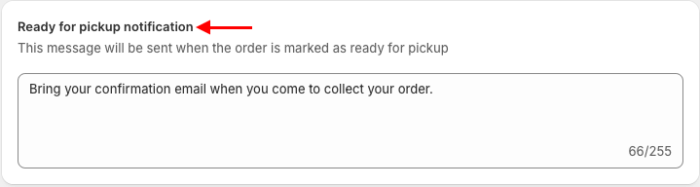
And Save the changes.
Step 3: Exclude Specific Collection for In-store
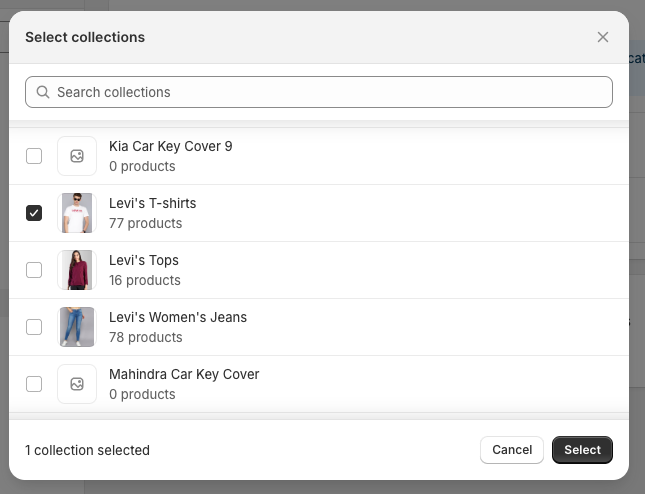
To perform this step, it is required to have more than one active location for the in-store pickup. In the Transfer exclusions section, click Add collections.

Then select the collection you want to exclude from store transfers (for example, collections with products too large to transfer) and click Select.
Save the changes.
Now, take a preview of your Shopify store and see the pickup option under the delivery section at the checkout page.
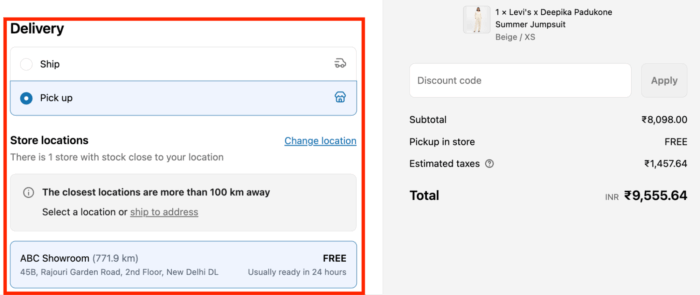
You have successfully learned to set up Shopify in-store pickup.
Manage Local Pickup in Shopify Effectively
Managing local pickup is also necessary for a smooth customer experience.
Here’s how you can handle common tasks, from transferring stock to fulfilling orders, directly within your Shopify admin.
Transfer In-Stock Pickup Manually
If an in-store pickup order can’t be fulfilled from the assigned location, you can manually transfer items from another inventory location.
- From your Shopify admin > Orders
- Click the in-store pickup order you need to fulfill
- In the Unfulfilled section, click the … button
- Click Change fulfillment location
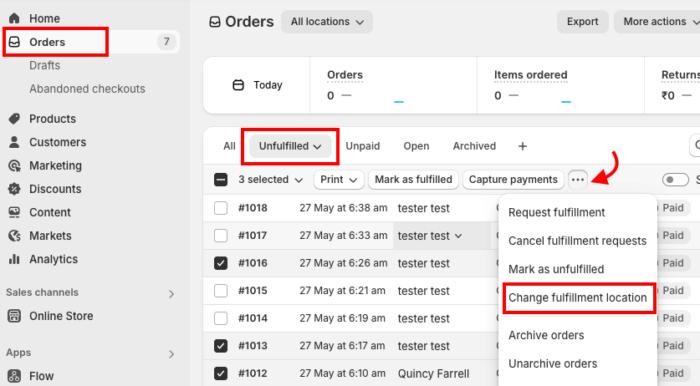
- Select the items you want to move to a new location
- In the Change location section, select the new location from the dropdown menu
- Click Change location to confirm the transfer
Fulfill In-store Pickup Order
You can manage the fulfillment of an in-store pickup order directly from your Shopify admin.
If a product transfer is needed for the order, a “Transfer required” badge will be displayed next to the pickup location.
- From your Shopify admin > Orders
- Click the in-store pickup order you want to fulfill
- Once the order is ready for the customer, click Ready for pickup
- Click Mark as ready for pickup. This sends a notification to the customer
After the customer picks up their order, click Mark as picked up to finalize the fulfillment and update your inventory.
Turn off Store Pickup
If you need to stop offering in-store pickup at one of your locations, you can easily disable the option from your Shopify admin.
- From your Shopify admin > Settings > Shipping and delivery
- In the Local pickup section, click the Manage button next to the location you want to change
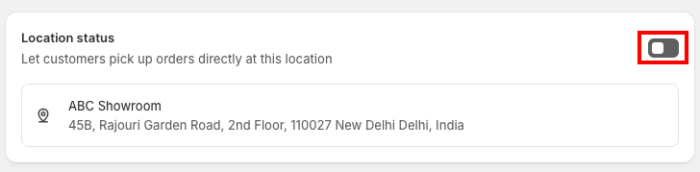
- Disable the button to turn off the location for in-store pickup
- Click Save to confirm your changes
In-store Pickup Availability not Available? Get Help
Is the in-store pickup option not appearing or working correctly? This can be a sign of a major technical issue with your theme or store settings.
Hire our team of skilled Shopify developers who specialize in fixing these problems, helping you implement and optimize the in-store pickup functionality for a perfect customer experience.
