

Struggling to communicate product value with plain text or images alone?
Shopify’s Media with Text section solves that by combining both elements, giving you the perfect tool to grab attention and educate your shoppers.
This blog explains two different ways to add Shopify media with text section. Let’s see how.
Ways to Add an Image with Text in Shopify
You can add an image with text in Shopify using two main methods.
- Using in-built theme settings – Most Shopify themes come with a basic Image with Text section that you can quickly add from the theme editor. It’s simple and beginner-friendly, but the customization options are limited to standard layouts and styling.
- Using a Shopify app – If you want more design freedom, advanced customization, and unique layouts, using a Shopify app is the smarter choice. Apps let you go beyond the default theme limitations, giving you full flexibility that perfectly fits your store’s branding.
How to Add Shopify Media with a Text Section? (Default Method)
This is the default method to add this media text section in the Dawn theme.
Let’s see the steps for it.
Step 1: Find the Image with Text Section
Navigate to Shopify admin > Online stores > Themes > Customize.
Then, from the theme editor, click Add section and search for the Image with text section, select it to add.

Step 3: Customize the Section as You Like
Add the image from here, and also the section offers basic features to edit, and you craft it as you wish.
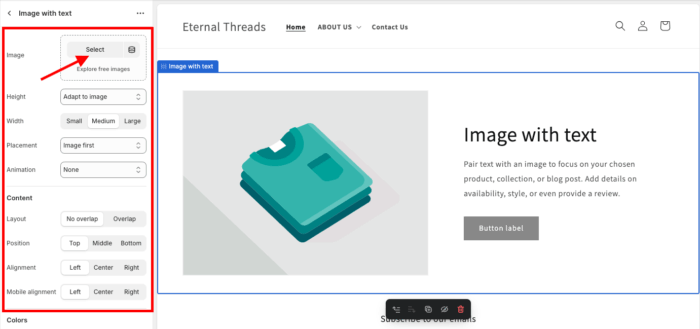
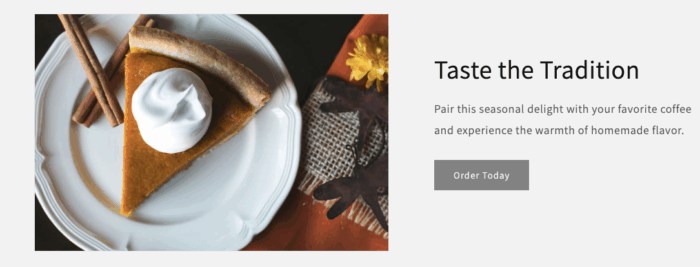
Save the changes, and it will showcase like this, minimal and simple.
Ready-to-Use Shopify Media with Text Section (App Method)
A Shopify Image with Text section should have a clean layout with a high-quality image on one side and engaging text on the other, balanced to grab attention without clutter.
Something like this.

Using our MIT Section Pro app, you can have a beautiful section like the one above. It gives you higher flexibility to design the section and works seamlessly with your Shopify theme.
Step 1: Install and Get the Section
Install the MIT Sections Pro app from the Shopify App Store. From the app dashboard, click the Browse section and search for the Media with text section.
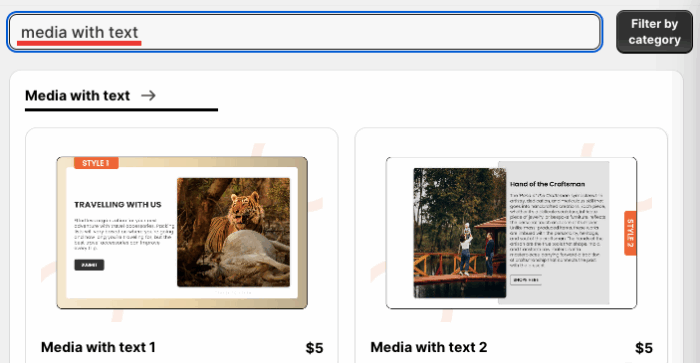
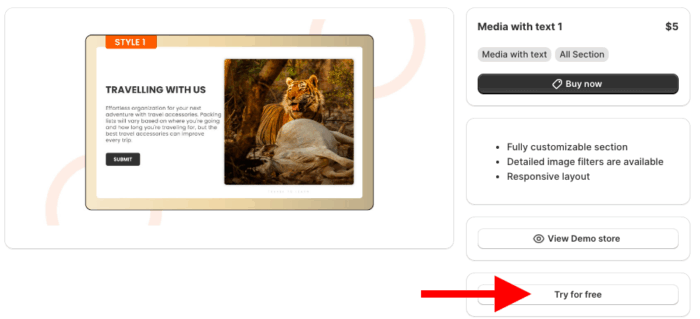
Step 2: Click the “Try for Free” Button
Then click the Try for Free button. Here we will move forward with the Media with text 1 section. You can choose whichever goes with your brand.
During your free trial, you will be directed to the MIT demo store. Once purchased, the section can be integrated into your store’s theme.
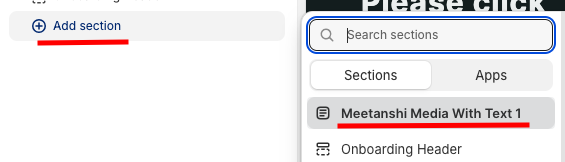
From there, click Add sections and search for the Meetanshi Media With Text 1.
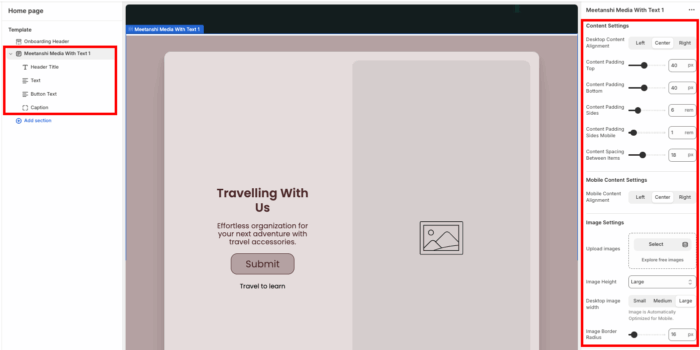
Step 3: Modify Media with Text Section
This section offers over 30 customization options, allowing you to edit it to your exact preferences.
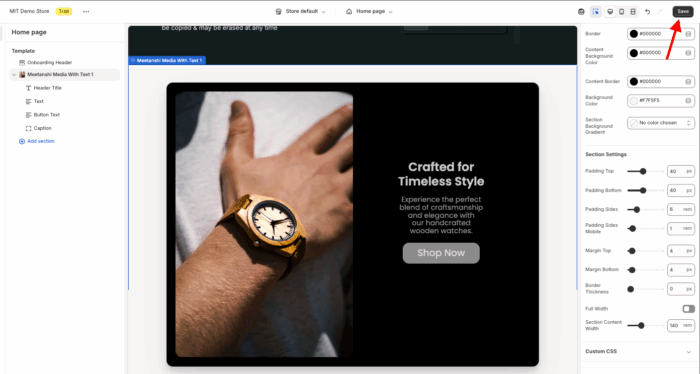
Once you are done making changes, click Save.
MIT Sections Pro: Designed to Do More
MIT Pro Sections Shopify App makes upgrading your store’s design simple and flexible.
- Completely free to install, with access to 130+ professionally crafted sections, from image galleries to sliders, even on the free plan
- Add any section to any page at any moment, making it easy to keep your store fresh as your business grows, no coding required
- Every section is fully customizable, so you can align it perfectly with your brand identity and update it anytime
- Built to work smoothly across all Shopify themes while ensuring fast page speed and seamless user experiences
- Offers both free and premium sections, with a free trial on paid features, making it a cost-friendly choice for businesses of any size
- Quick to set up and edit, helping you save time and cut down on developer expenses
Unlike other solutions, MIT Pro Sections delivers hundreds of expertly coded, affordable sections that balance simplicity with professional design. You only pay for what you need, while enjoying the no-code experience.
In short, MIT Pro Sections is the smart, scalable solution for Shopify store owners who want to stand out in the marketplace.
Your all-in-one solution to create a professional Shopify store
Install App Now
