

Showcasing real digits fosters customer trust. A number counter section is a simple yet smart way to grab attention and build trust.
In this blog post, learn how to add a number counter section in Shopify using various ways to highlight sales, achievements, or other success numbers.
Ways to Add an Animated Shopify Number Counter
Shopify doesn’t offer a built-in number counter feature, giving you two direct options: Using the Shopify app or creating a custom code.
The quickest and easiest method is to use a dedicated Shopify app, which can give you ease of use and quicker, better results. It lets you add beautiful, customizable counters to any page without writing a single line of code.
Alternatively, you can create a custom number counter section using Shopify’s Liquid templating along with CSS animations. The only trouble here is to create a code that brings your vision perfectly into your Shopify theme editors. There are high chances of back and forth with a steep learning curve.
Further, we’ll see the steps for both of them.
Add a Number Counter Section in Shopify (Custom Code)
Here are the detailed steps to create a number counter section through code.
Step 1: Create a New Section
In your Shopify admin, go to Online Store > Themes > …(three dots) > Edit code. In the left-hand sidebar, click the Sections to add a new section.
Save it as animated-number-counter.liquid.
Step 2: Add the Liquid Code
Paste the following code in the newly created animated-number-counter.liquid section.
{{ 'animated-number-counter.css' | asset_url | stylesheet_tag }}
{{ 'animated-number-counter.js' | asset_url | script_tag }}

<div class="animated-counter-section">
  <div class="page-width">
    {%- for block in section.blocks -%}
      <div class="counter-block">
        <div class="number-counter" data-target="{{ block.settings.target_number }}">
          0
        </div>
        <p class="counter-label">{{ block.settings.label }}</p>
      </div>
    {%- endfor -%}
  </div>
</div>

{% schema %}
{
  "name": "Animated Number Counter",
  "settings": [],
  "blocks": [
    {
      "type": "number",
      "name": "Number Item",
      "settings": [
        {
          "type": "text",
          "id": "label",
          "label": "Label",
          "default": "Happy Customers"
        },
        {
          "type": "number",
          "id": "target_number",
          "label": "Target Number",
          "default": 100
        }
      ]
    }
  ],
  "presets": [
    {
      "name": "Animated Number Counter",
      "category": "Text",
      "blocks": [
        {
          "type": "number"
        },
        {
          "type": "number"
        },
        {
          "type": "number"
        }
      ]
    }
  ]
}
{% endschema %}
Step 3: Create a CSS file & JavaScript File
Still in the left-hand sidebar, click the Assets and create a new one with the file name animated-number-counter.css.
Then paste the following code into the CSS file we created.
.animated-counter-section {
  display: flex;
  justify-content: center;
  align-items: center;
  padding: 50px 0;
  text-align: center;
}

.counter-block {
  flex: 1;
  padding: 20px;
}

.number-counter {
  font-size: 4rem;
  font-weight: bold;
  color: #333;
  margin-bottom: 10px;
}

.counter-label {
  font-size: 1.25rem;
  color: #666;
}
Add one more file and save it as animated-number-counter.js from the Assets section.
Paste the following JavaScript code into the file.
document.addEventListener('DOMContentLoaded', () => {
  const counters = document.querySelectorAll('.number-counter');
  const speed = 200; // The higher the number, the slower the speed

  counters.forEach(counter => {
    const updateCount = () => {
      const target = +counter.getAttribute('data-target');
      const count = +counter.innerText;
      const increment = target / speed;

      if (count < target) {
        counter.innerText = Math.ceil(count + increment);
        setTimeout(updateCount, 1);
      } else {
        counter.innerText = target;
      }
    };

    updateCount();
  });
});
Step 4: Add a Section From the Theme Editor
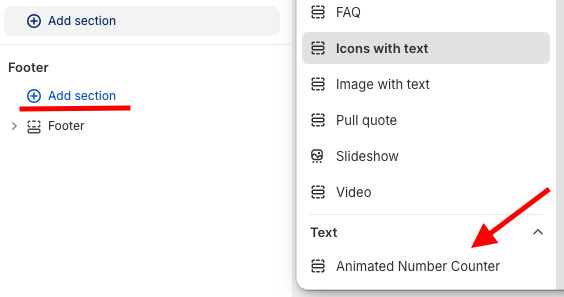
Go back to Online Store > Themes > Customize. Click on the Add section, and you will see your new section, Animated Number Counter. Select it to add.
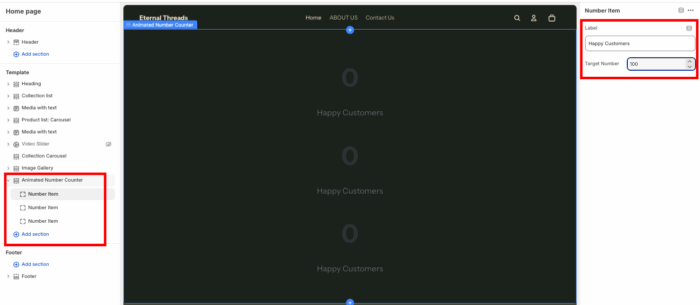
Then use the sidebar to set number blocks, labels, and targets for the section.
Step 5: Save & Preview
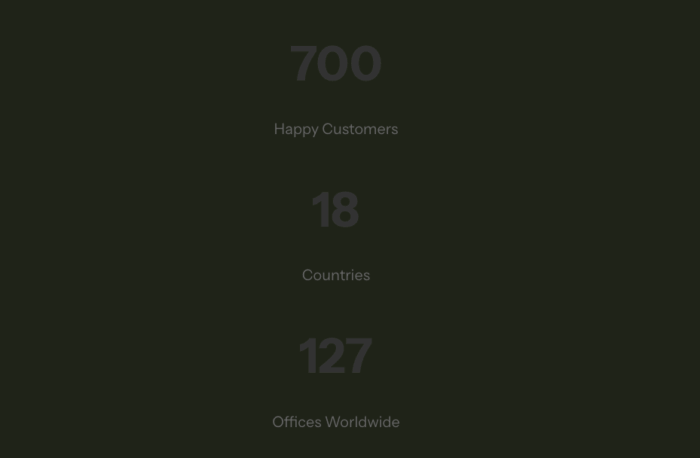
Once you add the changes, save them and preview the section in your storefront. This is how it will showcase the number counter with basic details.
Directly Add Shopify Number Counter Section
Using the app method, you will be able to create an advanced-level number counter section with extra details and higher customization.
Similar to this one.

To get a section exactly like this, opt for the MIT Sections Pro app, which gives a vast area of customization and beautiful in-built features, and the plus point is that no coding is needed.
Let’s see the steps to use the app to add a number counter section.
Step 1: Install and Find the Section
Install the MIT Sections Pro app from the Shopify App Store. Then, from the app dashboard, click Browse sections and search for the Number counter section.
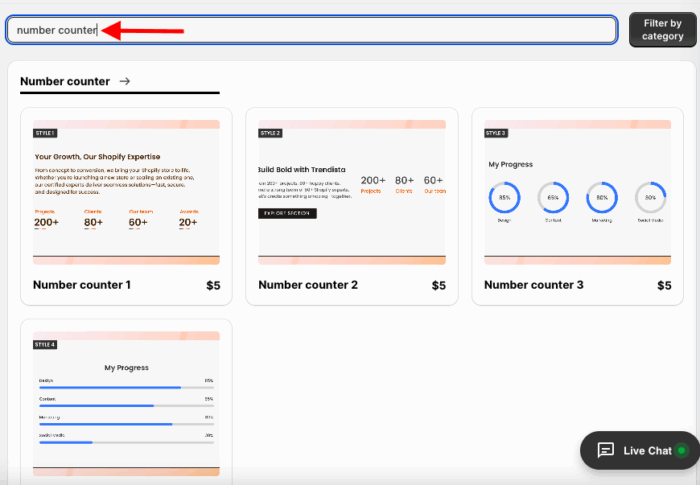
Here, you get multiple options to choose from, and we will go ahead with the Number counter 1.
Step 2: Click on the “Try for Free” Button
Click on the Try for Free button to view this section and see how it will look before buying it.
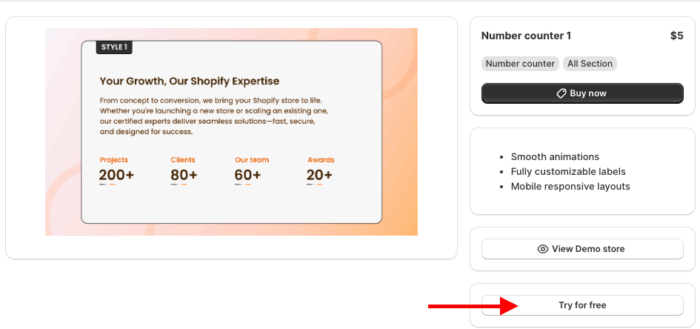
During your free trial, you’ll be directed to the MIT demo store. Once you’ve purchased the section, you can add it to your store’s theme.
To do this, go to My section and click the Apply to theme button on the purchased section. Then, click Customize theme and select your store theme.
This will take you to the theme editor, where the remaining steps are the same as described below.
Step 3: Add Section & Save
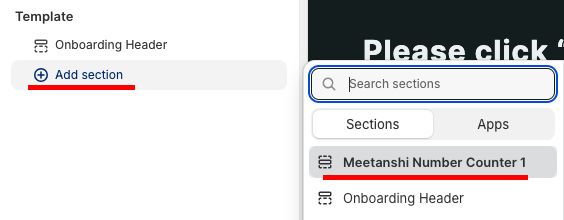
From here, click the Add section and select Meetanshi Number Counter 1.
Then, from here, you get 20+ modification options to make changes as you want.
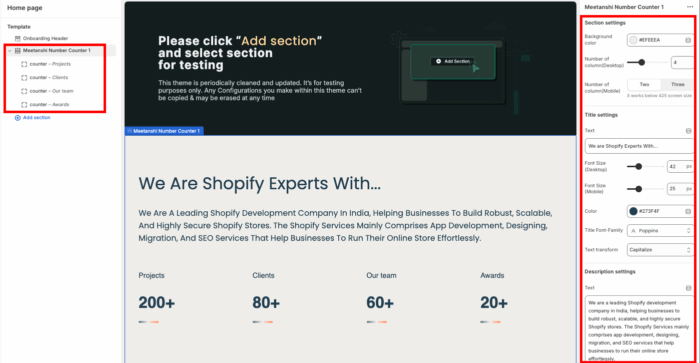
Save the changes and showcase your success numbers in a much attractive manner.
Shopify Sections App vs. Custom Code: What’s Right for You?
The major difference between using a Shopify Sections App and custom coding is ease of use.
While custom code gives you complete flexibility, it requires strong technical skills or developer assistance, and of course, it’s time-consuming.
On the other hand, a Shopify Sections App like MIT Sections Pro makes advanced customization accessible to everyone, such as sections that can be edited within a few clicks, high compatibility, a variety of sections, no coding required, and more.
Here’s why our app is the smarter choice:
- Start customizing your store right away without any upfront cost
- Choose from a wide variety of product comparison tables, banners, testimonials, FAQs, and more to cover all major storefront needs
- Add or swap sections on any page instantly, without hiring developers
- Works smoothly with all Shopify themes and keeps your store’s speed optimized for the best customer experience
- Update your store’s design as your business grows, ensuring the UI evolves with your brand
- Explore the demo to see how the app fits your store’s personality before making any commitments
Your all-in-one solution to create a professional Shopify store
Install App Now
