

Imagine walking into a store where you can’t pick up a product or look at its details closely.
Frustrating, right? Online shoppers feel the same way when they can’t zoom in on product images.
Adding an image zoom effect in Shopify gives them the same experience as holding the product in their hands, building trust, and increasing conversions.
In this blog, we learn how to add an image zoom effect in Shopify.
Ways to Add Product Image Zoom
There are mainly three ways to add product image zoom:
- Built-in theme feature
- Add custom code
- Use Shopify apps
Many Shopify themes offer built-in image zoom features like Dawn, Refresh, Crave, Sense, and Studio. Simply using the customize feature, you can add a zoom icon to specific products. This is a quick, code-free solution for a smooth shopping experience.
There might be very few themes that do not have the zoom settings, leaving you with the option to use a code or a third-party app.
You can add a custom code and apply rules to scale up product images on your theme, but the process can be complex if you are not well-versed in development.
Some of our app recommendations for you are:
- Cool full page zoom
- Magic zoom plus
- VSlide: variant images gallery
In-built Method to Add Shopify Image Zoom (Dawn Theme)
Shopify’s free Dawn theme offers a built-in image zoom for the product. Make sure to update to the latest version for image zoom and focal point settings.
Follow these steps to add product image zoom.
Step 1: Head to Product Information
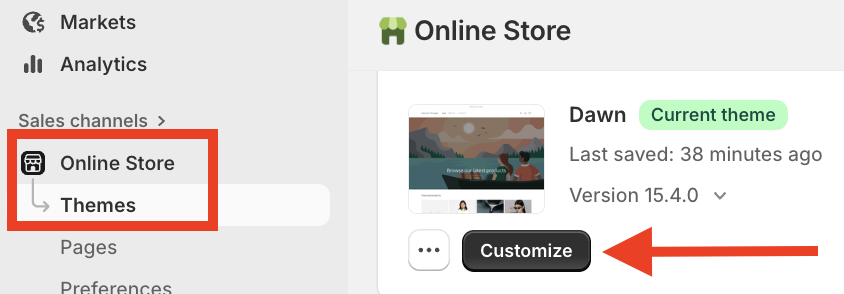
From your Shopify admin > Online Store > Themes > Customize. This will open your store’s theme editor.
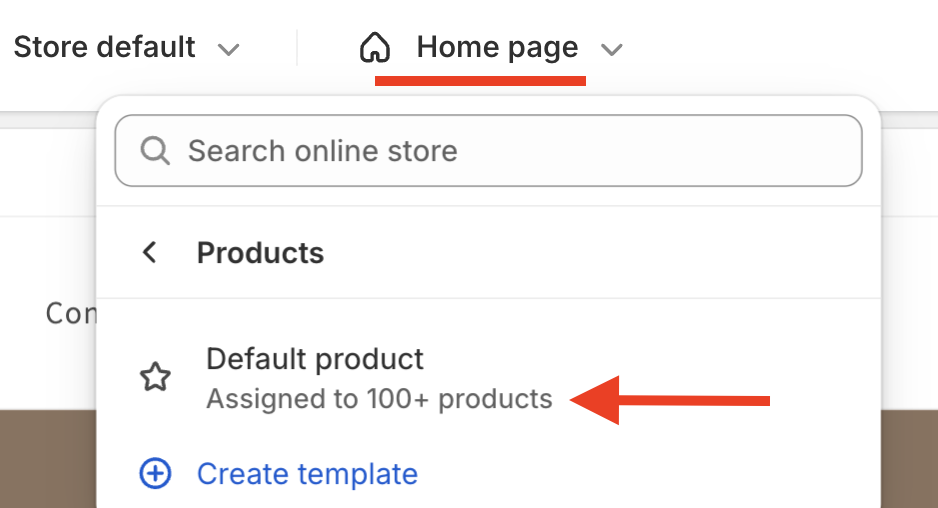
Then, from the top dropdown, click on the Home page, select Products, and then click on Default products.
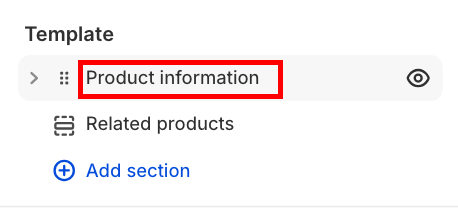
Within a few seconds, your product page will load. Then, in the templates section, click Product information.
Step 2: Add Product Zoom Setting
Under the Media section, look for settings related to image zoom or media display options and enable or adjust them.
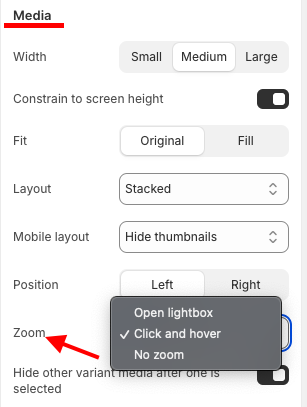
Here, you get two options to apply the zoom effect; choose the one that aligns with your store. Save the changes.
Step 3: View the Zoom Effect
Preview your Shopify store, and it will look like this.

Each theme might have a different setting for adding the zoom effect, but mostly, you can add it using the Customize (navigation mentioned in step 1) button.
Wrap up
That’s it for how to add an image zoom effect in Shopify.
Ultimately, it is a must-have for a modern Shopify store; it makes online products more tangible and compelling. It’s really a small detail with a massive impact on your bottom line.
