

The Shopify Buy Button lets you sell products beyond your store by embedding them on blogs, landing pages, or other websites, allowing customers to purchase without leaving the page.
Unlike the Buy Now button, which only streamlines checkout within your Shopify store, the Buy Button acts as a portable sales tool you can place anywhere online.
Here are the exact steps to add a Buy Button in Shopify and start selling everywhere.
How Does a Buy Button on Shopify Work?
The buy button on Shopify isn’t limited to traditional websites.
When you create the Shopify buy button, it generates a code that you need to embed on other websites and pages.
When shoppers visit that specific page and click on the buy button, they are either redirected to your Shopify checkout page, shown the product details, or add the product to the cart.
You have the control to set this action from the Shopify backend.
For example, as shown in the screenshot below, by clicking the Air Jordan 1 Mule buy button, the customer will be redirected to the checkout page to complete their purchase.
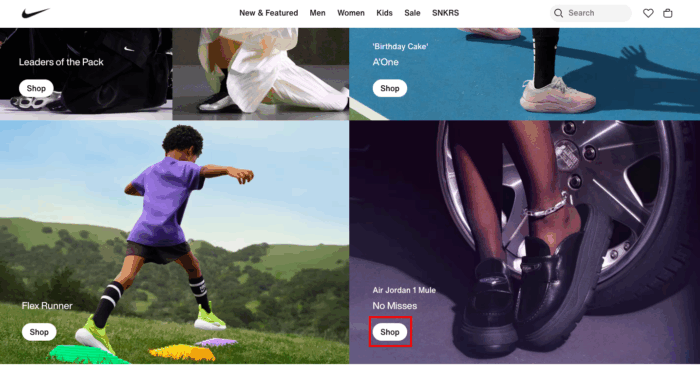
The Shopify Buy Button turns any website or blog into a sales channel, with all orders syncing seamlessly to your Shopify admin.
It creates a direct path from browsing to purchase and is perfect for promoting single products, featured collections, or items highlighted in blog posts and landing pages.
But every merit comes with its demerits; the Buy Button doesn’t replace a full online store. Hence, not suitable for stores with large inventories where customers expect a rich shopping experience.
How to Create a Shopify Buy Button?
Adding a buy button to Shopify is a straightforward process; You will have to install the Buy button channel app (free) from the Shopify App Store.
This app lets you generate the necessary embed code to sell products or entire collections on other platforms like Wix, WordPress, and Squarespace.
Let’s see how to add this to a specific product and collection.
Create a Buy Button for Product and Collection
Follow the following steps to add a buy button for any product or collection.
Go to the Shopify admin > Settings > Apps and sales channels > Shopify App Store
Search for the app Buy Button channels and install it.
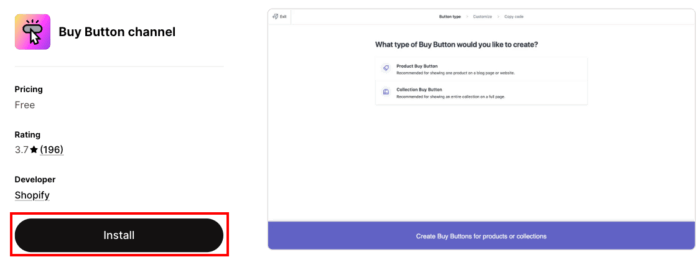
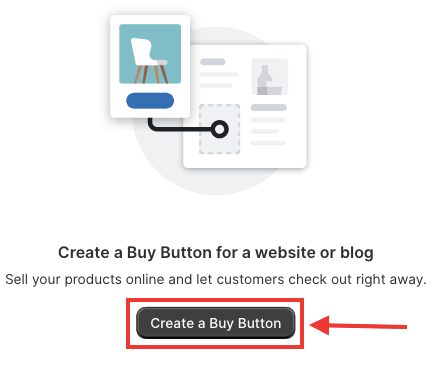
Click Create a Buy Button.
Select the options you want to create a buy button for.

Choose the product/collection from your catalog, or use the search to find. You can only select one product or one collection.
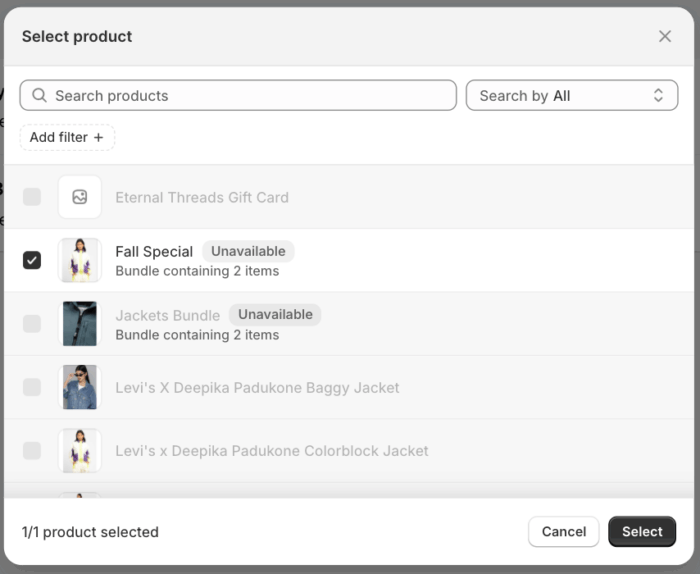
[Choose a product]
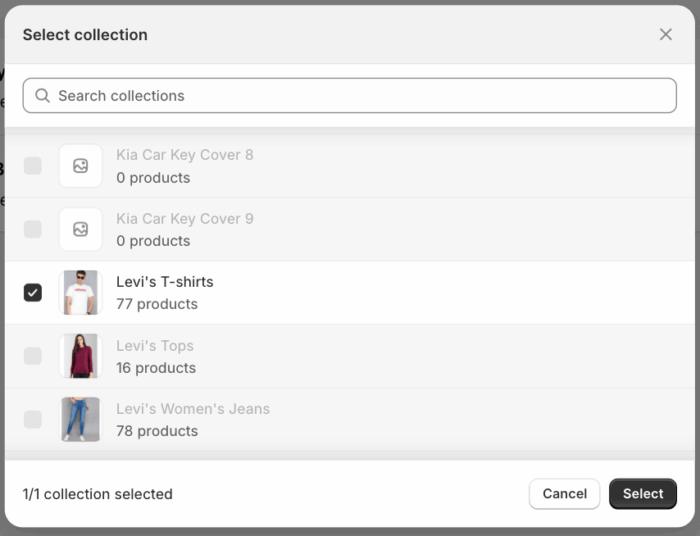
[Choose a collection]
Click Select.
From here, you can customize the button style, layout, and more.
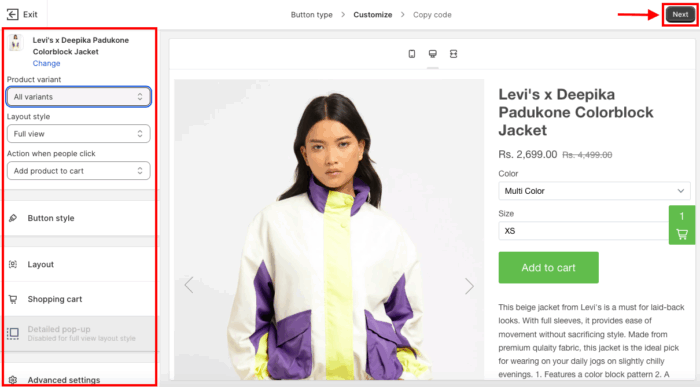
[Customize the product buy button]
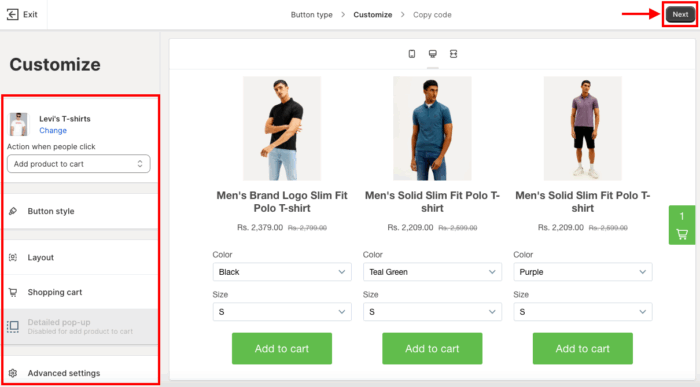
[Customize the collection buy button]
Once you finish customizing the button, click Next to copy the code for it.
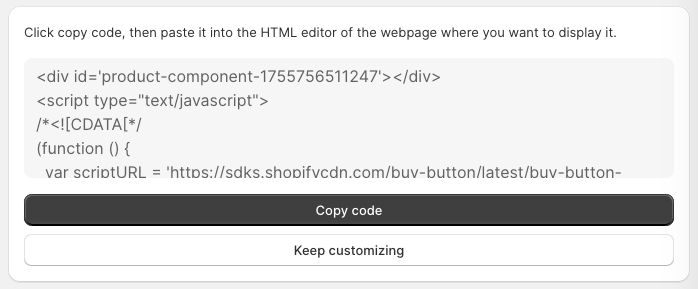
You can keep customizing the code if you want, or click copy code to paste it into the HTML editor of any webpage you desire.
How to Add Shopify Buy Buttons on Sales Channels
Here we will see the process to add buttons to various sales channels, which are supported by the Buy Button Shopify app: WordPress, Squarespace, and Wix
Add Shopify Buy Button to WordPress
- From your WordPress dashboard > posts or pages
- Inside the block editor, click the + button > Custom HTML > Custom HTML block
- Paste the embed code
- Click Preview on the block toolbar for the preview of the buy button
- Click the Save Draft, Preview, or Publish button for your post/page
Add Shopify Buy Button to Squarespace
- From your Squarespace dashboard, open the webpage where you want to add the embed code
- Find the element on the page where you want the Buy Button, move your cursor over there, and then click Edit
- Click the insert point and then, in the More section of the Content Blocks dialog, click Code
- From your Shopify admin, copy the embed code and paste it into the Squarespace dashboard
- Click Apply and click Save
Add Shopify Buy Button to Wix
- From your Wix account, find the site you want to edit in the My Sites section, and then click Edit Site
- In the Wix Website Editor > Plus sign (+) > More
- Click HTML Code to add the code, click Enter Code
- Then paste the embed code in the Add your code here field and then click Update
- Resize the HTML code and click Save
Frequently Asked Questions
1. Is the Shopify Buy Button Free?
Yes, the official Shopify Buy Button channel is completely free and is included with all Shopify subscription plans.
2. How to Add the Buy Now Button on a Shopify Product Page?
- Open your Shopify admin > Online Store > Themes
- Find the theme you want to edit and click Customize
- In the theme editor, select Products > Product information > Buy buttons
- Check the box for Show accelerated checkout buttons to enable the Buy Now button.
- Click Save
3. What are some examples of the Shopify Buy Button?
Buy Button in email campaigns or social media, embedded cart, buy button with full product details, product image, and price.
Generate More Sales from Different Websites
So that was it for how to add a Buy Button in Shopify.
Managing all these sales centrally through your Shopify admin makes it a simple and efficient strategy for growing your business beyond your main storefront. Additionally,
you can also pre-order on Shopify to build curiosity among the shoppers.
