

As a Shopify store owner, you can improve your product pages using an accordion. Here, we will learn to add an accordion to the Shopify product page using two different methods.
First, let’s clear the basics.
What is a Shopify Accordion?
A Shopify accordion is a collapsible content element that lets you show or hide information in a clean, compact way. You can click on a title to expand the content, and it helps keep your page organized and easy to navigate for customers.
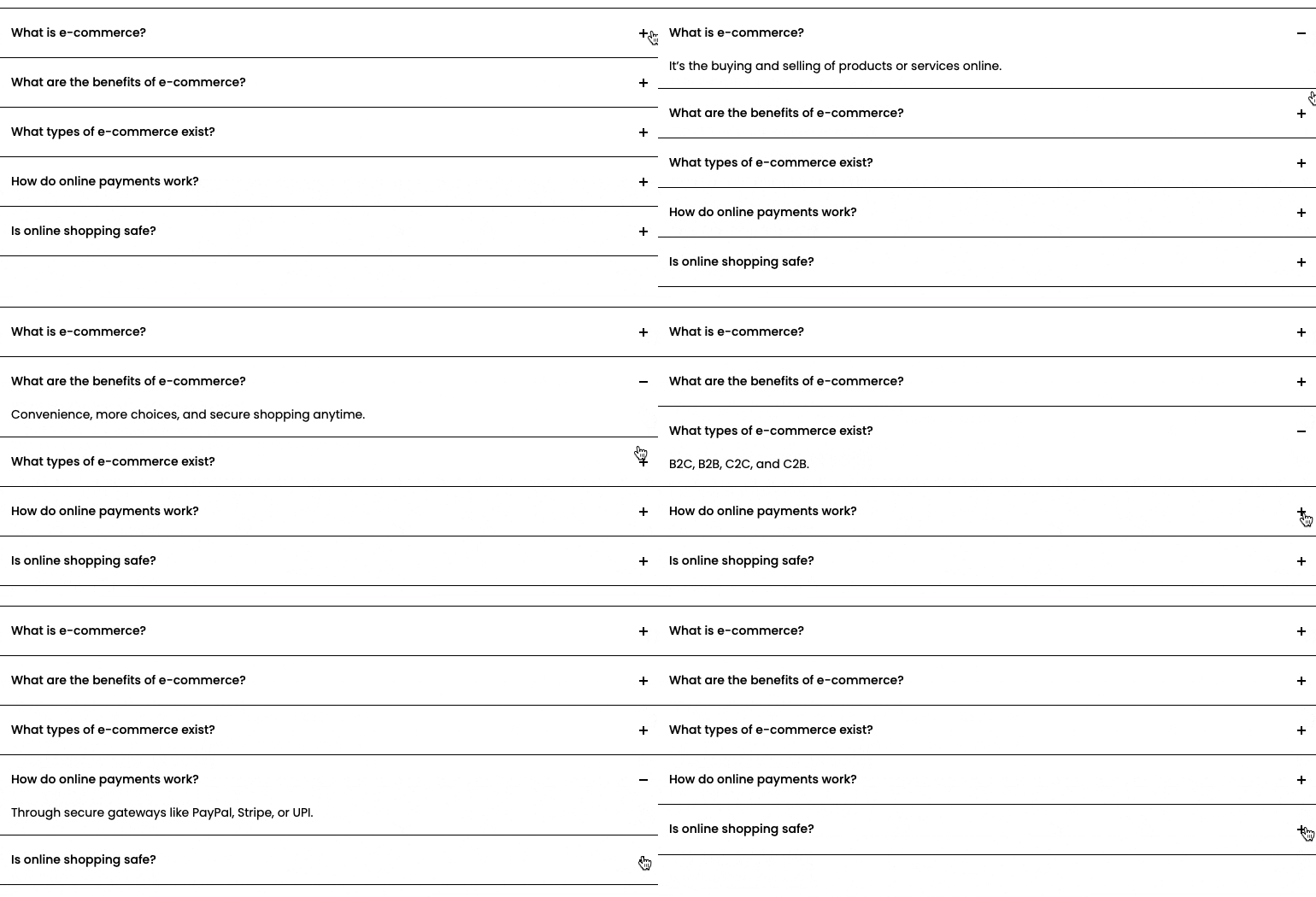
It is mostly used for FAQs, product details, and organizing long content. Along with that, you can also add elements like Shopify trust badges to reassure your customers.
Ways to an Accordion on Shopify
There are mainly two ways to add this feature to your Shopify store, which are as follows
- Using custom code – You can create with Shopify Liquid, HTML, CSS, and JavaScript. This method gives you full control over the design and functionality, but it requires technical skills and more time to set up.
- Through the Shopify app – The app makes it easy to add accordions without coding. They offer ready-made templates, customization options, and user-friendly settings so you can quickly organize product details.
Add FAQ Accordion to Shopify Product Page (Using an App)
Using MIT Sections Pro is a quick way to add an accordion section. It offers flexibility, ease of use, such as adding as much content as you want, changes in color, font size, and so on, all within a few clicks.
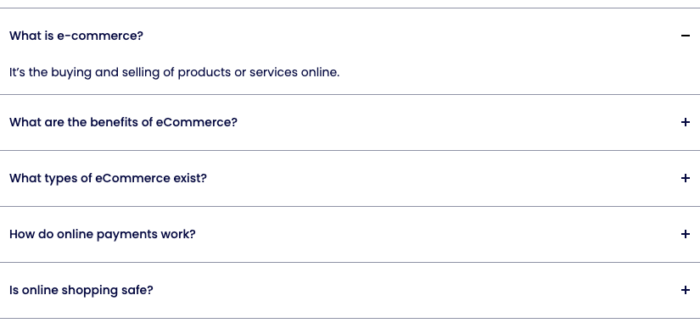
This is how it looks on your website, highly premium compared to the section made using code.
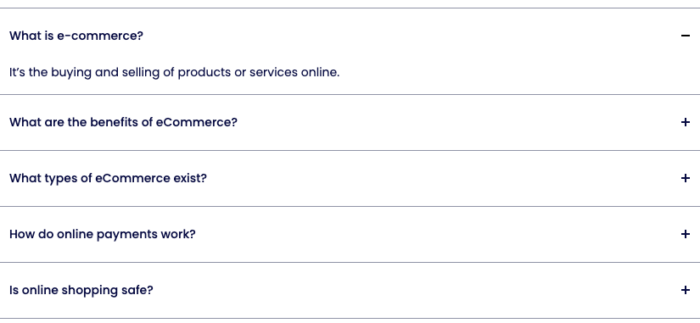
Step 1: Find & Add Section
First, you need to install the MIT Sections Pro from the Shopify App Store, then from the app dashboard, click Browse sections and search for the Accordion section.
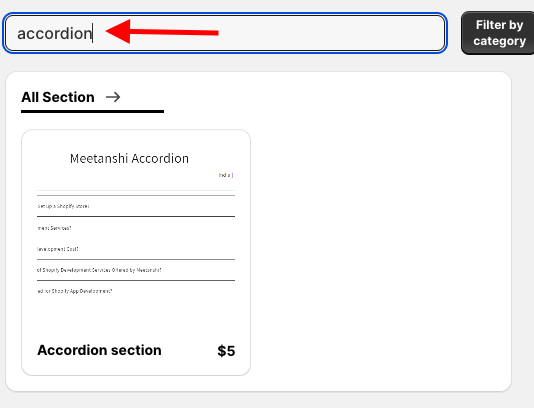
Select and click on the Try for Free to take a preview of the section before buying it.
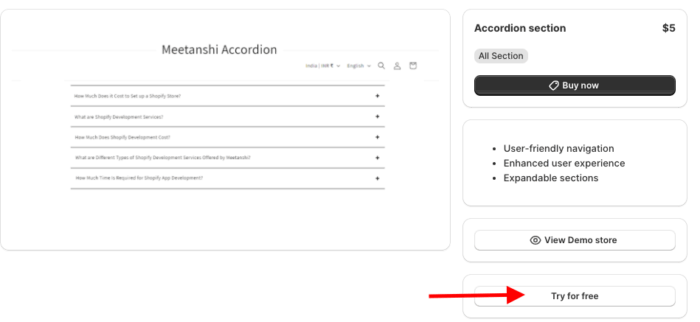
While on the free trial, you will be redirected to the MIT demo store. After you purchase the section, you can add it to your store’s theme.
Here, click Add section and select Meetanshi-Accordion
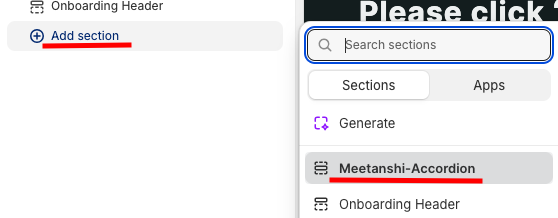
Step 2: Customize the Section
After adding the section, you can customize it however you want from the editing options you are offered.
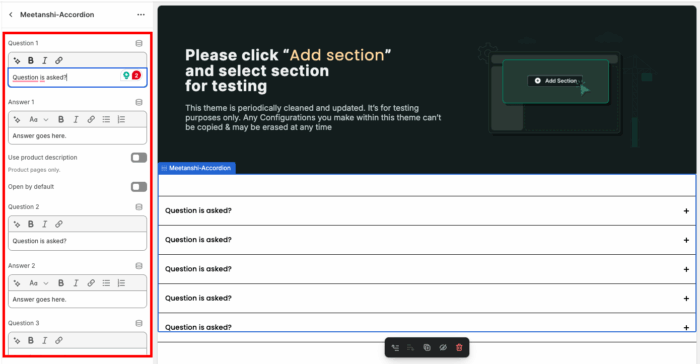
Step 3: Show it on Your Product Page
Once done making changes, save them all. And this is the preview of the stunning Accordion section.
How to Add a Shopify FAQ Accordion? (Custom Code)
Below are the steps and code to create an FAQ accordion section.
Step 1: Head to Theme Editor
From your Shopify admin panel, go to Online stores > Themes > …(three dots) > Edit code.
Step 2: Create Section & Add Code
Now, from the theme editor, in the Sections folder, add a new section and save it as product-accordian.liquid.
Then paste the following code in the newly created section and save it.
{%- style -%}
  .product-accordion {
    padding: 40px 20px;
    font-family: -apple-system, BlinkMacSystemFont, 'Segoe UI', Roboto, Helvetica, Arial, sans-serif, 'Apple Color Emoji', 'Segoe UI Emoji', 'Segoe UI Symbol';
  }
  .product-accordion .accordion-item {
    border-bottom: 1px solid #ddd;
  }
  .product-accordion .accordion-title {
    cursor: pointer;
    font-weight: bold;
    padding: 15px;
    background-color: #f7f7f7;
    color: #000;
  }
  .product-accordion .accordion-content {
    padding: 0 15px 15px;
    display: none;
    color: #f7f7f7;
  }
  .product-accordion .accordion-item.active .accordion-content {
    display: block;
  }
  .product-accordion .accordion-content p {
    margin: 0;
  }
{%- endstyle -%}

<div class="product-accordion">
  {%- for block in section.blocks -%}
    <div class="accordion-item" data-accordion>
      <div class="accordion-title">
        {{ block.settings.title }}
      </div>
      <div class="accordion-content">
        {{ block.settings.content }}
      </div>
    </div>
  {%- endfor -%}
</div>

{% schema %}
{
  "name": "Product Accordion",
  "tag": "section",
  "class": "product-accordion",
  "settings": [],
  "blocks": [
    {
      "type": "accordion_item",
      "name": "Accordion Item",
      "settings": [
        {
          "type": "text",
          "id": "title",
          "label": "Accordion Title",
          "default": "Accordion Title"
        },
        {
          "type": "richtext",
          "id": "content",
          "label": "Accordion Content",
          "default": "<p>This is the accordion content.</p>"
        }
      ]
    }
  ],
  "presets": [
    {
      "name": "Product Accordion",
      "category": "Product",
      "blocks": [
        {
          "type": "accordion_item"
        },
        {
          "type": "accordion_item"
        }
      ]
    }
  ]
}
{% endschema %}

<script>
  document.addEventListener('DOMContentLoaded', function () {
    document.querySelectorAll('[data-accordion] .accordion-title').forEach(function (title) {
      title.addEventListener('click', function () {
        const item = this.parentElement;
        item.classList.toggle('active');
      });
    });
  });
</script>
Step 3: Edit & Preview the Section
To showcase this section in the frontend, head to Online store > Themes > Customize.
From the top drop-down, select Product > Default products.
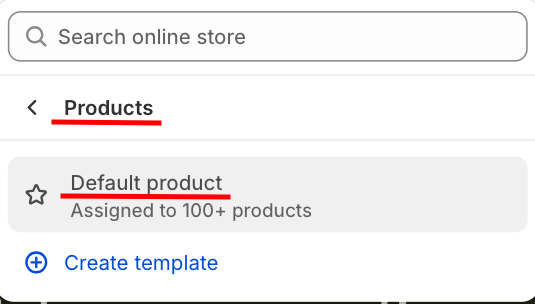
Then click Add section and select Product accordion.

From here, edit the section and save the changes.
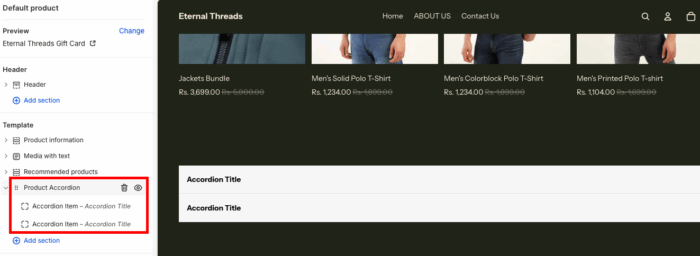
This is how it will be previewed. Simple and very basic.

Best Way to Add an Accordion to Shopify
The best way is to grab a dedicated Shopify app like MIT Sections Pro. It’s super customizable, won’t cost much, and comes packed with tons of ready-to-use sections that look great and are easy for everyone to use.
Other ways can be a real time-sink and might not even give you what you’re looking for.
With MIT Sections Pro, you get full access to all sections, plus a free trial so you can try them out before you buy. Choosing our app will totally upgrade your store, which is a win-win for your business.
Your all-in-one solution to create a professional Shopify store
Install App Now
